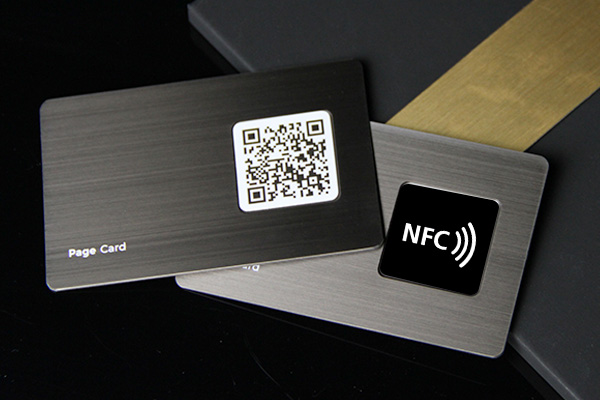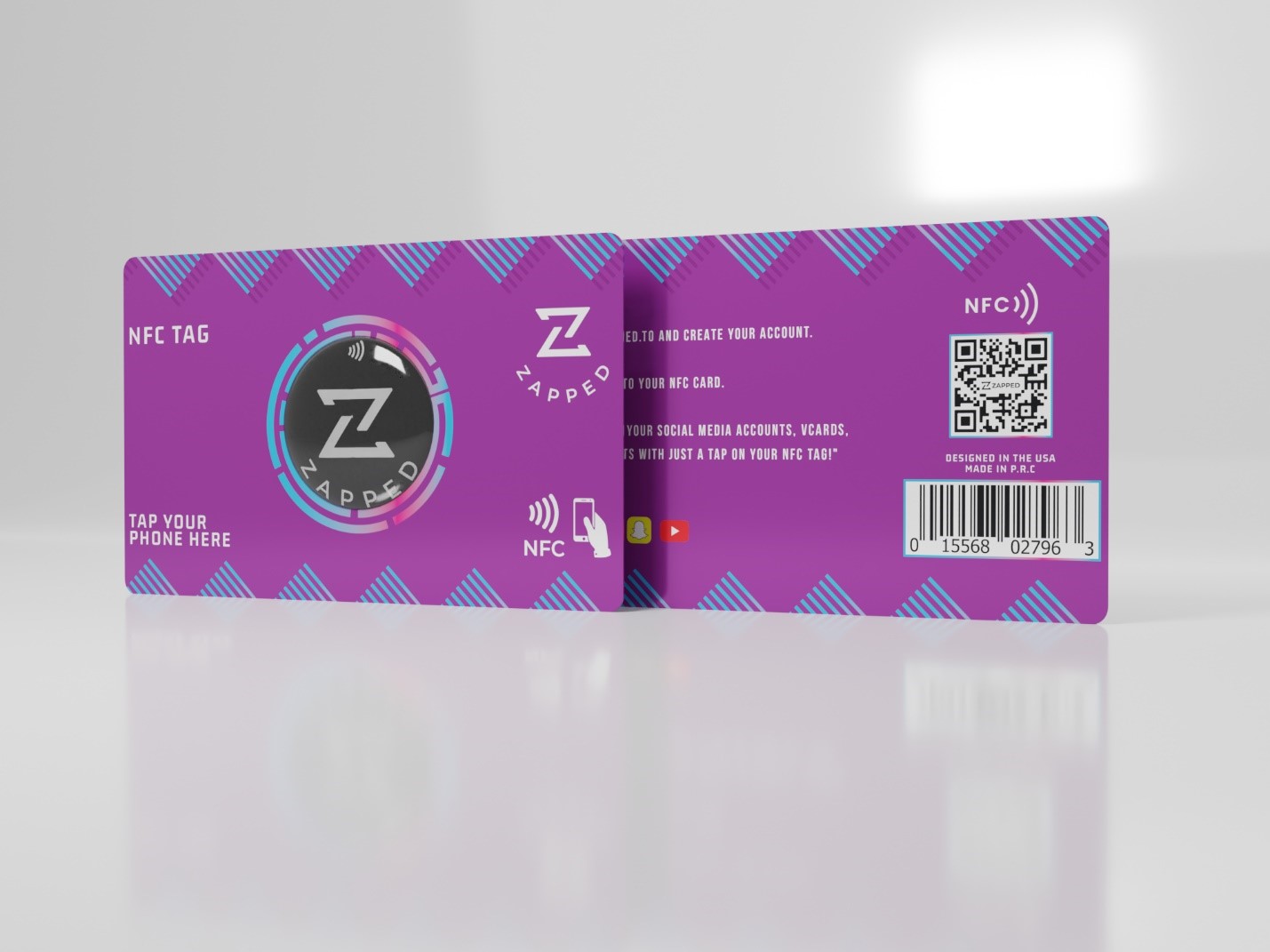
You can program many NFC tags with an iPhone by using an NFC writing app and a compatible blank tag. For business cards, the most reliable thing to write is a URL that opens your digital card, rather than storing every contact detail directly on the chip.
Quick answer
To program an NFC tag with iPhone, install an NFC writing app, choose a URL record, enter your digital business card link, tap write, and hold the top of the iPhone near the blank NFC tag until the write completes. Test the tag with both iPhone and Android before using it at an event.
Key takeaways
- Modern iPhones can read many NFC tags, and NFC writing is available through compatible apps.
- The easiest business-card payload is a URL to an editable profile.
- URL records are easier to update and more reliable across phones than large contact records.
- For business-card tags, clear step-by-step testing matters more than storing every detail on the chip.
- If you do not want to write tags manually, use a preconfigured NFC card workflow.
What can iPhone write to an NFC tag?
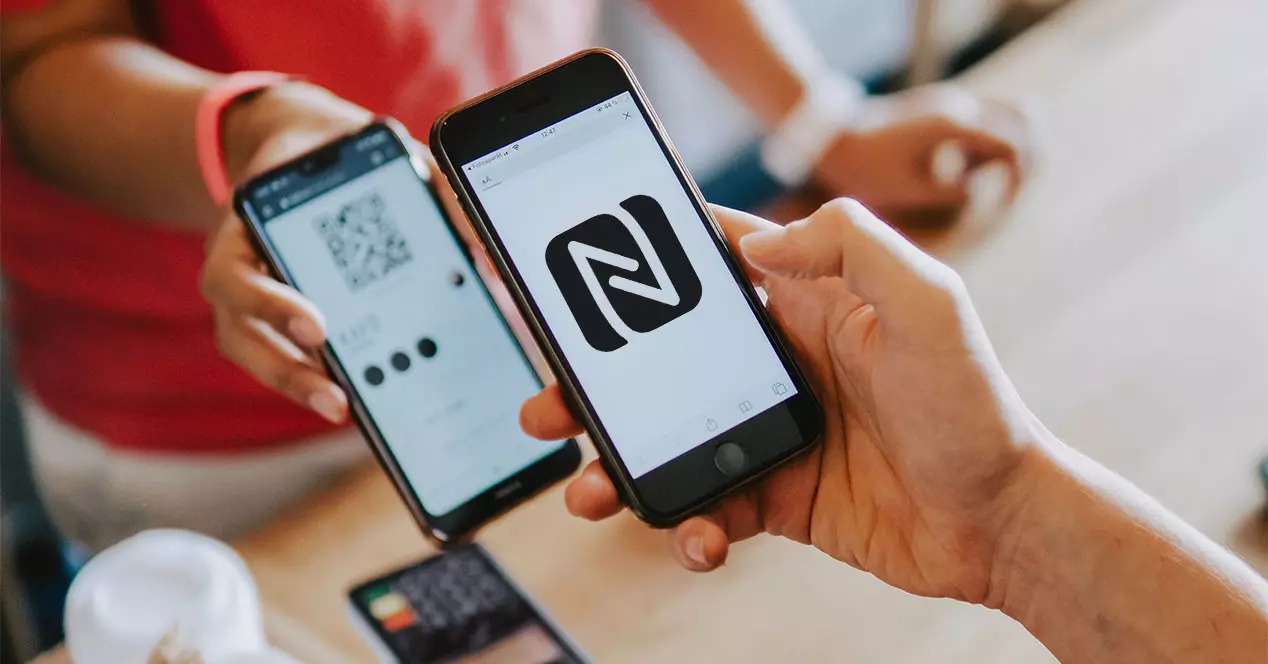
An iPhone can work with supported NFC tag data through apps that use Apple's Core NFC framework. In practical terms, most users write simple NDEF records such as URLs, text, app links, or contact related links.
For a business card, write a web URL. A URL is smaller, easier to update, and more reliable across phones than trying to store every contact detail directly on the tag.
What you need
Before writing a tag, gather:
- An iPhone with NFC support.
- A blank writable NFC tag or NFC card.
- An NFC writing app, such as NFC Tools on the App Store or another trusted app.
- A destination URL, ideally an editable Zapped digital card profile.
- A second phone for testing if possible.
Which NFC tag should you use?
For a business-card URL, choose a writable NFC tag that supports standard NDEF records. Most people do not need a large memory tag if they are only writing a short web link.
| Tag choice | Best for | Notes |
|---|---|---|
| NTAG213-style tag | Short URLs and simple business-card links | Usually enough for a profile URL |
| Larger memory tag | Longer records or extra data | Useful only when the payload needs more space |
| Preprinted NFC card | Professional handoff | Test before ordering in volume |
| NFC sticker | Laptop, packaging, signs, or displays | Good for flexible placements |
| Locked or read only tag | Final permanent use | Lock only after testing |
If you use Zapped, write the profile URL rather than trying to store every contact field directly on the tag. The URL keeps the tag small and lets the profile change later.
How to program an NFC tag with iPhone
Follow these steps for a simple business-card URL.
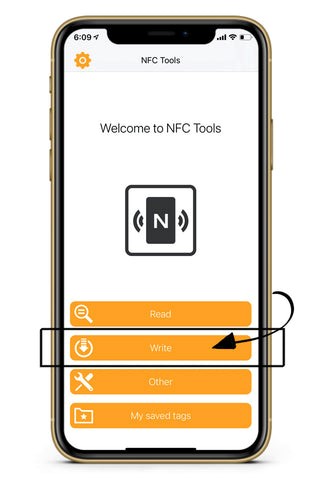
- Open your NFC writing app.
- Choose the write option.
- Add a new record.
- Select
URLorCustom URL. - Paste your digital business card URL.
- Tap the app's write button.
- Hold the top area of your iPhone near the NFC tag.
- Wait for the app to confirm the tag was written.
- Scan the tag with another phone and confirm it opens the right profile.
Start by adding a new record in the writing app. This is the point where you choose what the NFC tag will store.
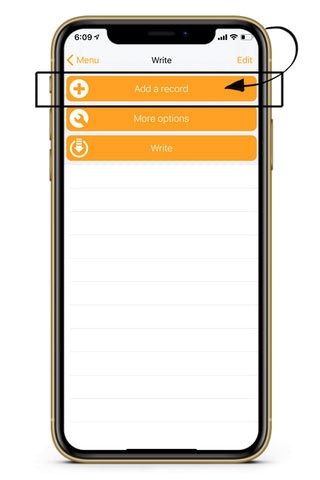
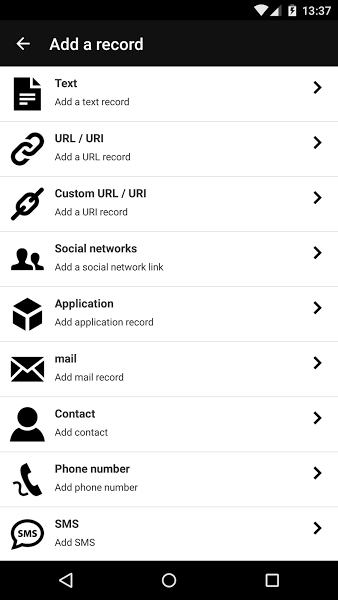
Choose a URL record for an NFC business card. That keeps the tag simple and sends people to the editable profile instead of storing static contact fields.
This is the same idea in a current NFC Tools walkthrough: choose URL or URI, paste the web address, then confirm before writing to the tag.
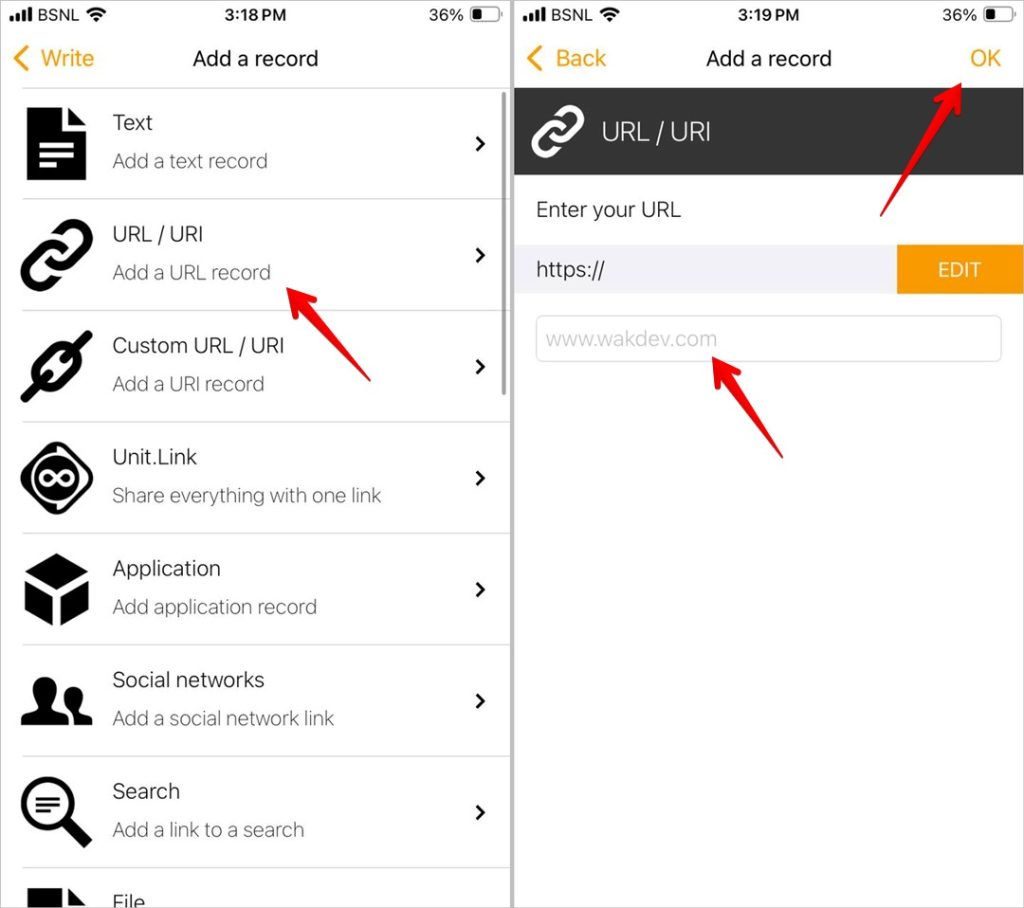 Visual reference: NFC Tools URL record screenshot from TechWiser's NFC tag programming walkthrough.
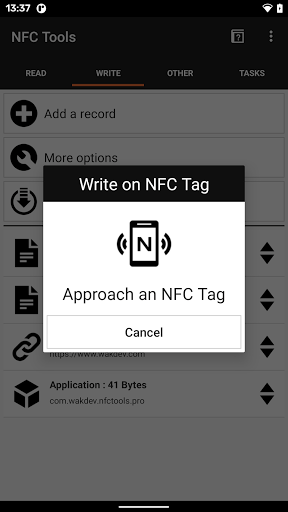
After the URL is saved in the app, hold the iPhone near the tag until the app confirms that the record was written.
How to test the NFC tag
Testing is where most NFC setup mistakes show up. If a tag reads on one phone but not another, our guide to scanning an NFC business card on iPhone walks through the reader side, including the documented background and reader-mode paths.
- Scan the tag with the same iPhone used to write it.
- Scan it with a different iPhone if possible.
- Scan it with an Android phone.
- Try the tag with the phone case on and off.
- Confirm the browser opens the correct profile.
- Confirm the profile's save contact or booking action works.
- If you plan to print the card, test the final printed card before ordering more.
If your iPhone has trouble detecting the tag, move the top edge of the phone slowly over the tag instead of tapping once and giving up. Cases, wallets, metal card stock, and tag placement can all change the sweet spot.
For an NFC business card, the pass/fail test is simple: can a real person tap it and reach the right profile without extra instructions?
Best NFC tag payload for business cards
For business cards, write a dynamic profile URL. That gives you one stable NFC tap while letting you update your contact details online.
If you are wondering whether the iPhone itself can replace the physical tag, see can you use an iPhone as an NFC business card before choosing a setup.
| Payload | Good for | Limitation |
|---|---|---|
| Zapped profile URL | Business cards, teams, events, lead capture | Requires the profile to stay active |
| Website URL | Simple company pages | Less personal unless the page is built for contact saving |
| vCard file URL | Save contact workflows | Can become stale if the file is not updated |
| Plain text | Labels or simple notes | Not useful for networking |
| App action | App specific automations | Less universal across devices |
iPhone NFC mistakes to avoid
Test the tag before locking it. Some tags can be made read only, and that can be difficult or impossible to undo.
Check that the tag is writable before troubleshooting the app. Some cards are locked, password protected, incompatible, or too small for the data you want to store.
If your goal is business-card sharing, stay focused on writable tags you control. Access cards and payment cards use different systems than simple URL tags.
Why your iPhone may not write the tag
If writing fails, the issue is usually the tag, phone position, payload size, or app state.
| Problem | What to try |
|---|---|
| App does not detect the tag | Move the top of the iPhone slowly over the tag |
| Write fails near the end | Try a shorter URL or a different tag |
| Tag opens the wrong page | Erase and rewrite the tag if it is not locked |
| Tag works on iPhone but not Android | Confirm the record is a normal URL record |
| Tag worked before but no longer writes | It may have been locked or write protected |
Use a known writable blank tag when troubleshooting. That lets you separate an app or phone issue from a bad card.
Program the tag to a Zapped profile
For a business card, the safest useful NFC payload is usually a profile URL you control. Zapped gives that URL a live destination with contact details, links, booking, social profiles, and saved contact actions.
That means you can program the NFC tag once and keep improving the profile later. If the phone number, offer, booking link, or team member details change, the tag can keep pointing to the current Zapped profile.
FAQs
Can iPhone write NFC tags?
Yes, supported iPhones can write compatible NFC tags through NFC writing apps. The exact experience depends on the iPhone model, iOS version, tag type, and app.
Where is the NFC reader on iPhone?
For most recent iPhones, the NFC reading area is near the top of the phone. Move the top edge of the iPhone slowly over the tag if the app does not detect it right away.
Why will my iPhone not write the NFC tag?
The tag may be locked, incompatible, too far from the phone, already write protected, or too small for the payload. Remove thick cases and test with a known writable tag.
Should I write contact details or a URL to an NFC business card?
Use a URL for most business cards. A URL lets you update the destination profile later, while direct contact details can become stale.
Can I rewrite an NFC tag with iPhone?
Yes, if the tag is compatible, writable, and not locked. Once a tag is made read only, you usually need a new tag if the destination should change.
Does the recipient need an NFC app?
Usually no. If the tag stores a standard URL record, modern phones can open it without a special app. The writing app is needed by the person programming the tag, not by every recipient.
Sources
This guide uses current Apple NFC documentation and general NFC standards context.
- Apple Core NFC: Used for iPhone NFC tag reading and tag data context.
- Apple Human Interface Guidelines, NFC: Used for NFC experience and background reading context.
- Apple Developer, adding support for background tag reading: Used for background NFC behavior on supported iPhones.
- NFC Tools on the App Store: Used as an example iPhone NFC writing app for the walkthrough.
- TechWiser, how to program NFC tags on iPhone and Android: Used for the current NFC Tools URL-record screenshot reference.
- NFC Forum, NFC technology: Used for NFC Forum tag and NDEF context.