You can use an iPhone to read and write supported NFC tags, but that does not make the phone itself a passive NFC business card that another phone can tap. For phone to phone contact sharing, use NameDrop or a digital card link. For tap to profile sharing, use the iPhone to write a public URL to a physical NFC card or tag.
Quick answer
| Job | Best route | What carries the information |
|---|---|---|
| Nearby contact exchange | NameDrop | The two devices exchange details |
| Tap based card | Write a URL to an NFC card | The physical tag stores it |
| iPhone NFC tool | Compatible NFC feature | The phone reads or writes a tag |
| Any phone or screen | QR code or link | The camera or browser opens it |
What an iPhone can do with NFC
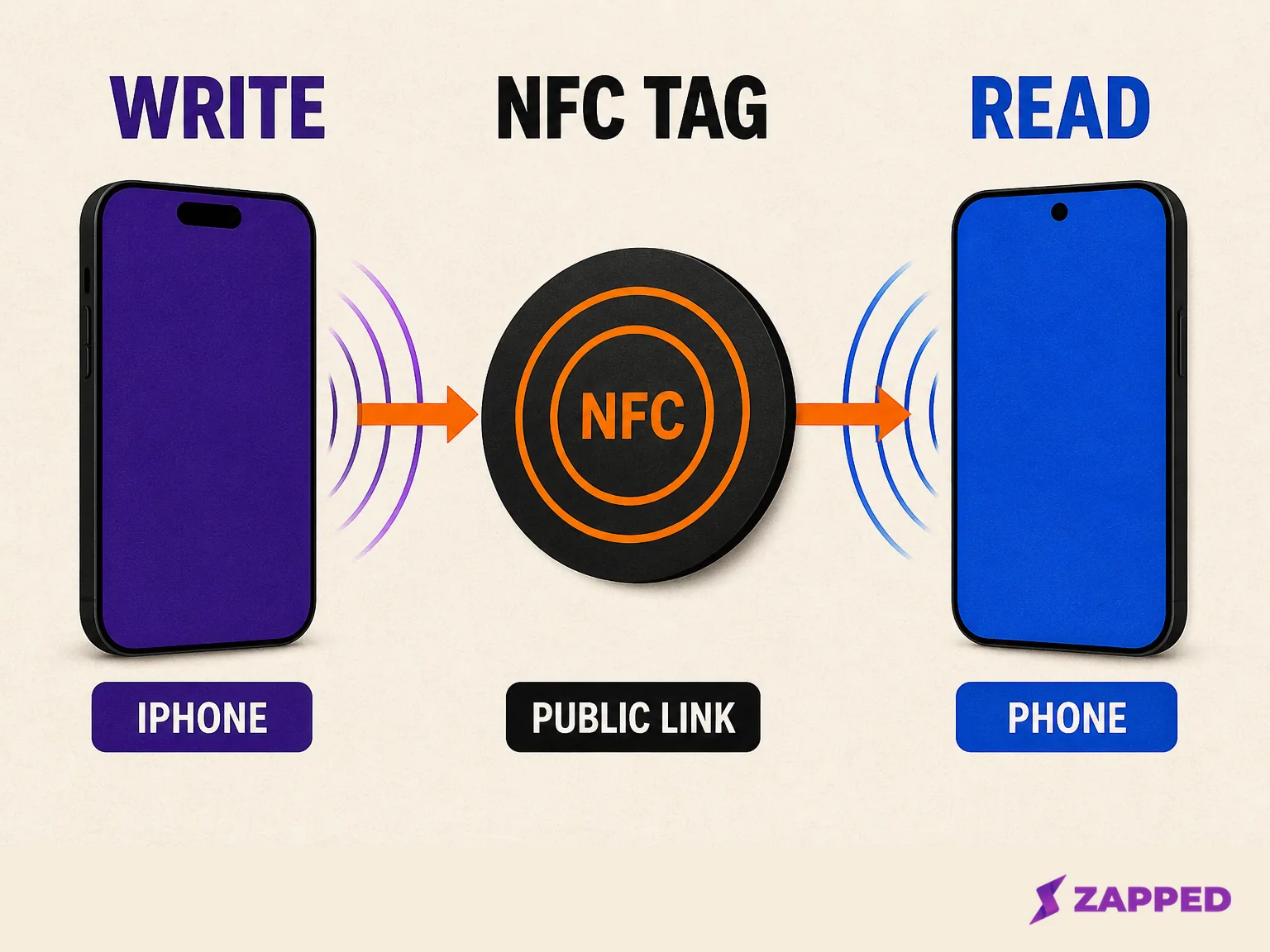
Apple's Core NFC documentation says an app can read NFC tags that contain NDEF data and write data to writable tags. It also says the device must support NFC, so the capability is conditional rather than a promise that every iPhone behaves the same way.
That makes the iPhone a useful reader and writer. It can inspect a physical tag, write a URL to one, or run an app that handles the tag's data. It does not change the basic architecture of NFC. The tag is still the carrier, and the receiving phone is still the reader.
The NFC Forum describes its tags as contactless memory cards that store a formatted NDEF payload. That payload can be an internet link, contact data, a phone number, or another supported action. NFC Forum's technology overview is a better mental model than treating NFC as a magic wireless business card signal.
Why Shortcuts does not turn your phone into a business card tag
Apple's Shortcuts app can trigger an automation when you scan an NFC tag. The catch is important: Apple says the trigger uses the tag's unique identifier and ignores the tag contents.
That is useful for your own routines, such as scanning a label to start an automation. It is not a way to publish your contact card from the phone's back. The other phone would need a carrier that it can read. A Shortcut is an action on the reader, not a passive tag embedded in your iPhone.
Choose the route that matches the job
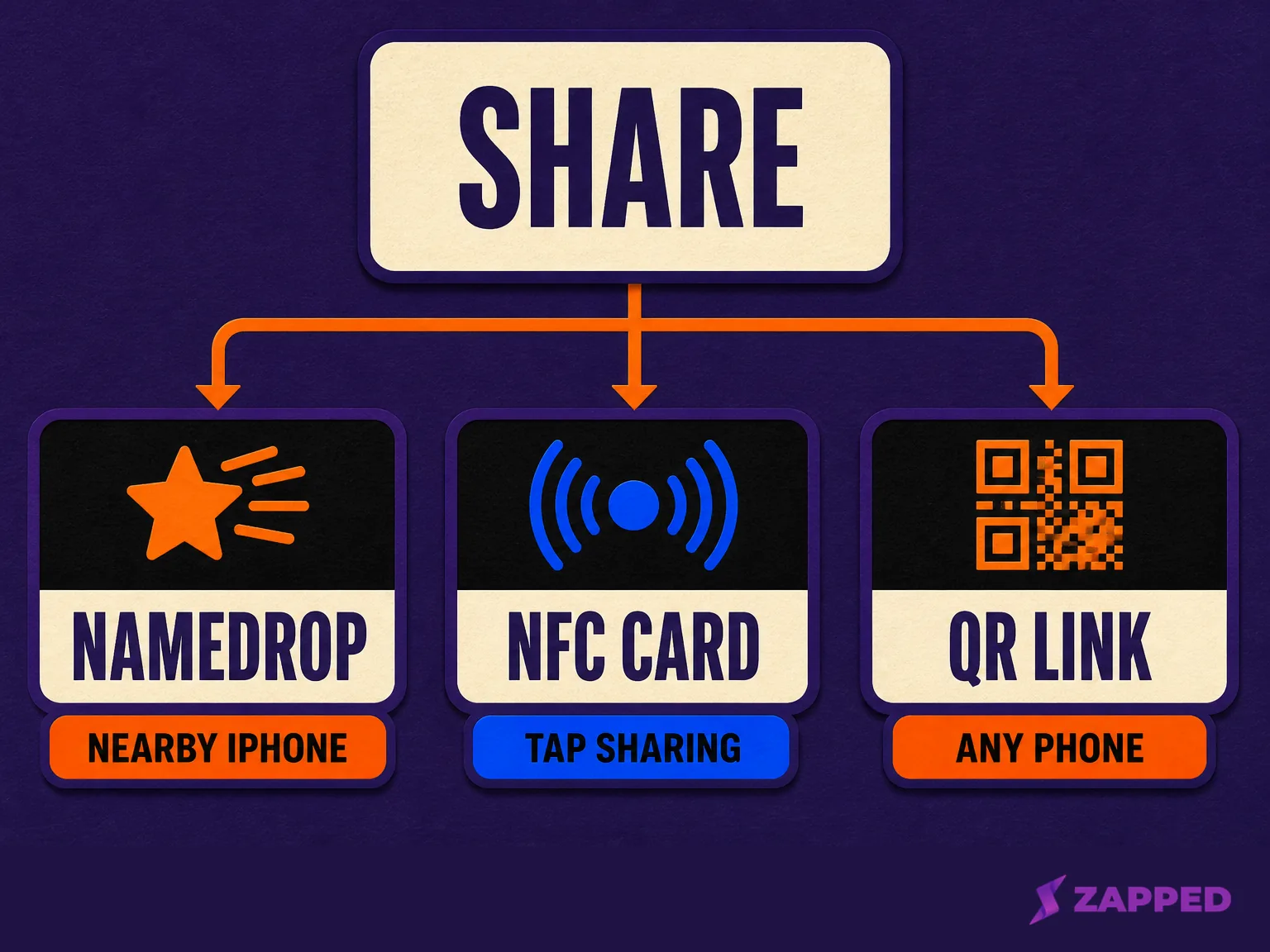
Use NameDrop when both people have a nearby iPhone or supported Apple Watch and the goal is a new contact exchange. Apple's NameDrop guide says you hold the devices close, choose whether to share or receive, select fields, and save. NameDrop is designed for device to device contact sharing, not for writing a URL to a physical tag.
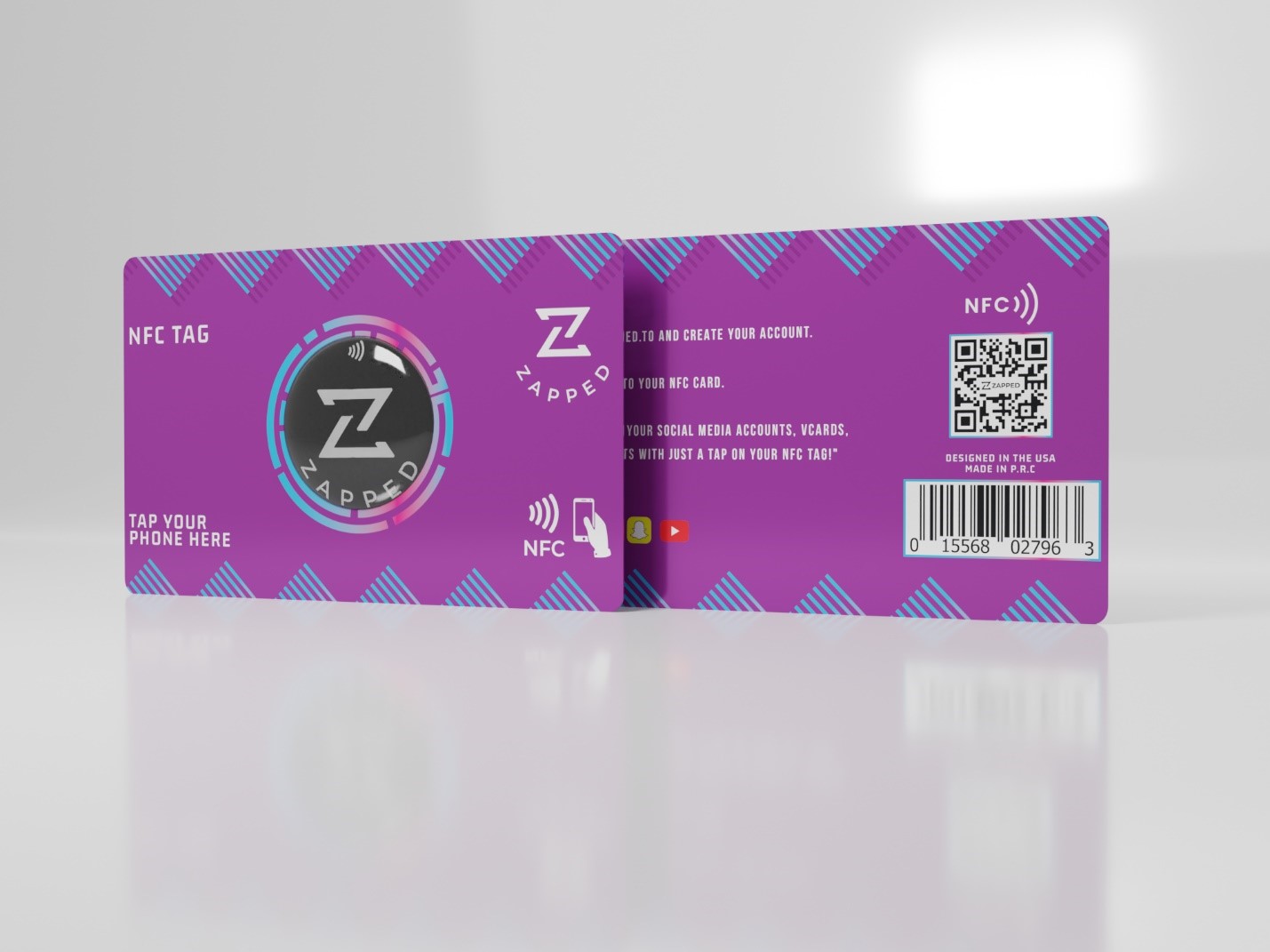
Use a physical NFC card when you want the recipient to tap an object. A tag stores the NDEF instruction, commonly a URL, and the recipient's phone reads it. You can use your iPhone as the writer, but the card remains the carrier.
Use a QR code or direct link when the other person's phone state is unknown, the handoff happens from a screen or printed material, or you want a clear fallback. The wider NFC versus QR comparison explains why a hybrid route is often more practical than forcing one carrier to do every job.
Use an iPhone to program a physical NFC business card
The clean workflow is short:
- Create and test the public profile link.
- Open an NFC writing app that can write a web link.
- Paste the public profile URL into the write action.
- Hold the physical card near the iPhone until the app confirms the write.
- Test the card with another compatible phone.
Our Zapped NFC programming guide follows this same boundary. Write the public card URL, not an editor or dashboard address, and we recommend a QR fallback for phones that do not read NFC reliably.
The public URL is the useful part of the setup. If it points to a live profile, you can update the page later without rewriting the tag, provided the public destination stays the same. If you write the wrong URL, the tag will faithfully send people to the wrong place.
Where Zapped fits
Zapped is useful when you want one public profile behind more than one carrier. Its card can open from a link, QR code, or NFC tap in a normal browser, so the recipient does not need a provider app just to see the page. Create a Zapped card, copy its public URL, and put that URL on the physical tag.
This setup keeps the roles clear: the iPhone writes, the NFC card carries, and the Zapped page stays editable. It also leaves you a QR code and link when a tap is not the right handoff.
Common mistakes
Treating the iPhone as the carrier
The phone can write a tag, but another phone cannot generally read a personal business card payload from the iPhone simply because the two backs touch. Use NameDrop for nearby Apple contact sharing or use a real tag for a tap based card.
Writing an editor URL
Write the public profile URL. An editor or dashboard address may require your account and is the wrong destination for a stranger.
Skipping the second phone test
The writer app confirming a successful write proves only that the tag accepted data. Test the recipient experience with another phone and keep a QR fallback where the handoff matters.
Frequently asked questions
Can someone tap my iPhone to receive my digital business card?
Not as a general passive NFC card. Use NameDrop for a nearby Apple device exchange, or show a QR code or link. Use a physical NFC tag when the experience must start with a tap.
Can an iPhone add an NFC business card?
Yes, if you mean writing a public URL to a compatible physical tag with a suitable app. The iPhone is the writer; the tag remains the carrier.
Can an iPhone read an NFC business card?
Supported iPhones and apps can read compatible tags. The exact behavior depends on device capability, tag format, phone state, and the destination. The iPhone scanning guide covers the receiving side.