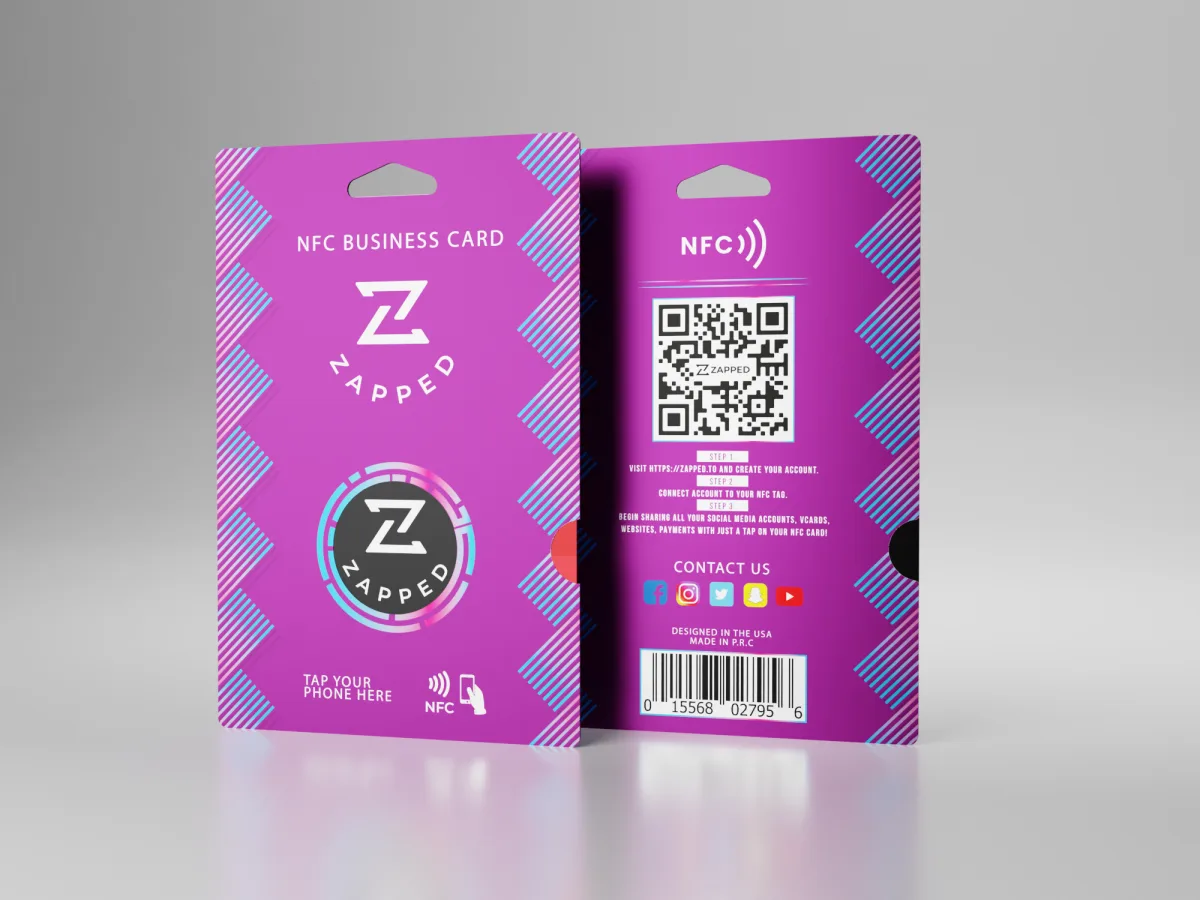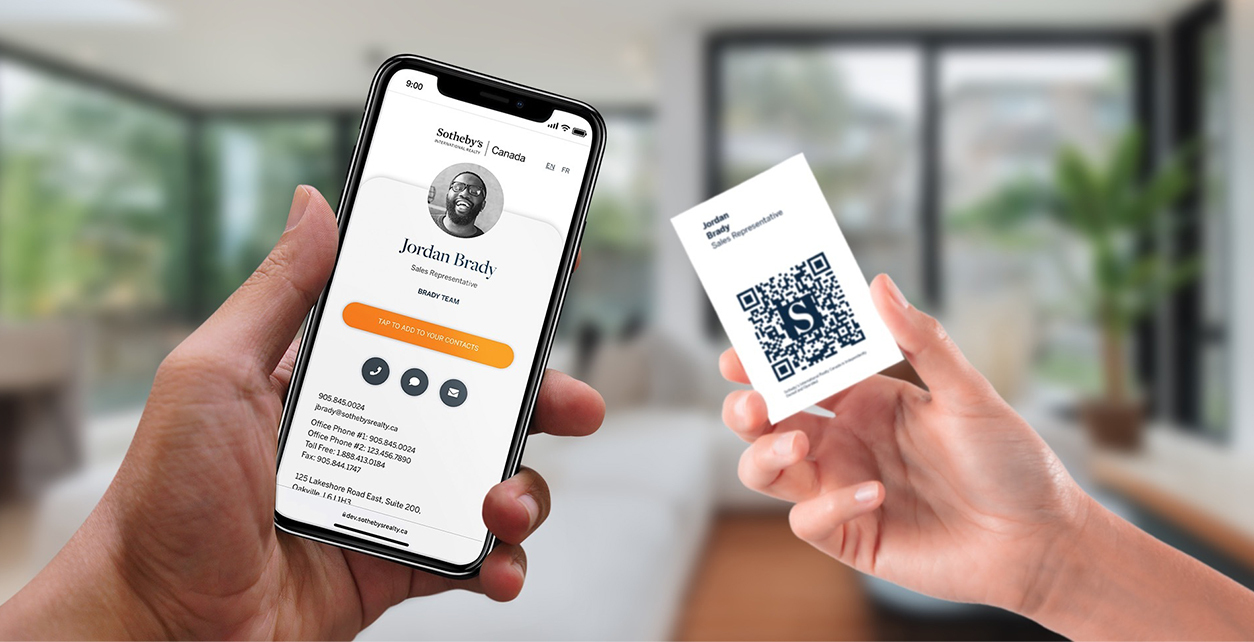
A tap business card is more than the physical card. The card starts a handoff, but the digital destination and the steps your recipient takes next determine whether that handoff is useful. Here, “tap business card” means the general category, not a review of a company or app named Tap.
Quick answer
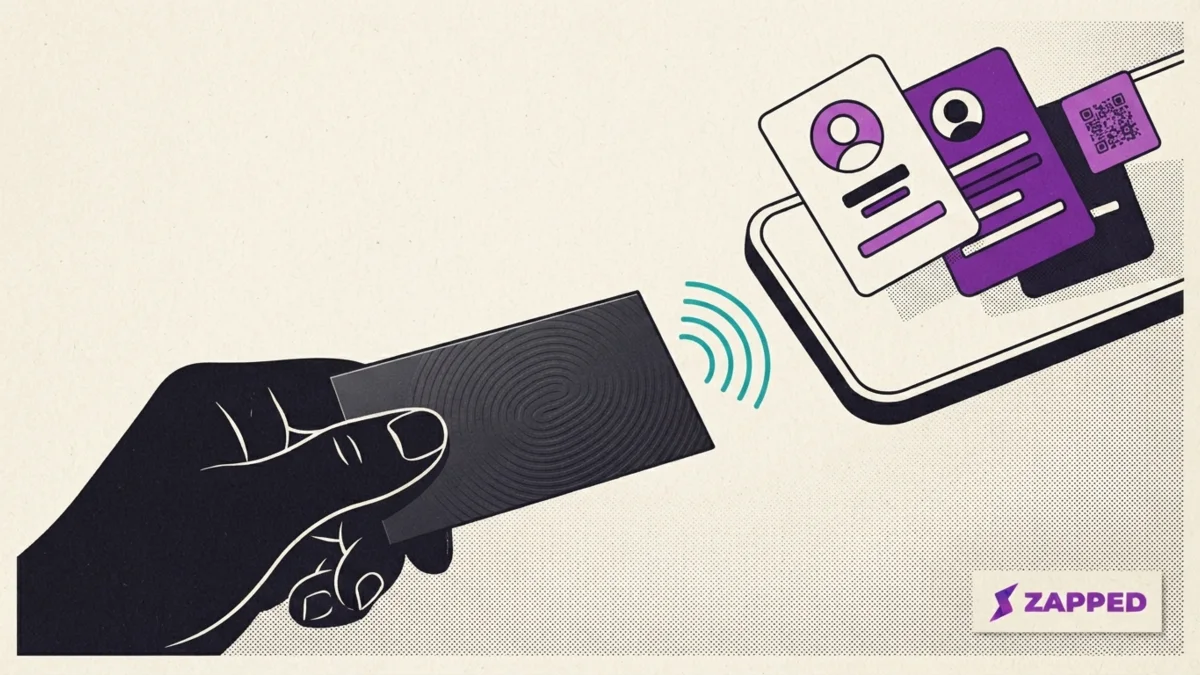
A tap business card usually contains a passive NFC tag that gives a compatible phone a stored instruction, commonly a link to a digital profile. The phone typically presents a prompt or notification. The recipient then chooses whether to open the destination, review the details, and save the contact. The tap begins the exchange, but it does not automatically complete it.
Key takeaways
- Judge the destination and recipient experience, not just the card's material or novelty.
- Look for an editable profile that can use the same intended destination across NFC, QR, and direct link sharing.
- Before buying, verify app requirements, contact saving steps, QR fallback, ongoing fees, destination control, and behavior on more than one phone.
What is a tap business card?
A tap business card is a physical card with an NFC tag. NFC is a very short range contactless radio technology. The NFC Forum describes a typical range of up to 2 cm and explains that NFC supports operation without a battery on one side of the connection. That is why a typical card can wait to be read without charging. The NFC Forum explains the technology and tag behavior.
The word “tap” describes bringing the card close to a phone's NFC reader. It does not require striking the phone, and it should not be treated as a promise that every phone will react in exactly the same way. For the hardware explanation, see whether NFC business cards need batteries.
If you want the broader explanation of digital profiles and NFC sharing, read what an NFC digital business card is.
A quick terminology check
These phrases overlap, but they describe different parts of the handoff:
| Term | What it means here |
|---|---|
| Tap business card | A reader-friendly name for a physical card used in a close NFC handoff |
| NFC business card | The physical card and passive NFC tag that make the handoff possible |
| Digital profile | The online page a URL-based card can open after the tap |
| NameDrop | Apple's nearby-device feature for sharing new contact information with another iPhone or supported Apple Watch, not a phone reading a physical card's stored instruction |
NameDrop and a tap business card can both happen near a phone, but the job is different. NameDrop is a device-to-device contact-sharing feature. A tap card commonly gives the phone a stored instruction that leads to a destination. Apple's NameDrop guide describes its nearby-device contact-sharing flow.
What actually happens when someone taps it?
The clearest way to understand a tap business card is to separate what lives in each part of the system.
| Layer | What lives there | What it does |
|---|---|---|
| Physical card | A passive NFC tag | Gives a nearby compatible phone access to the stored instruction |
| Stored instruction | An NDEF record, commonly containing a profile URL | Tells the phone what destination or action to offer |
| Online destination | A digital profile or other web page | Shows the current information and available actions |
| Recipient's phone | A prompt, browser page, and optional save flow | Lets the recipient decide whether to open, save, or take another action |
NFC Forum tags use a formatted payload called NDEF. One possible payload is an internet link, which can lead the receiving phone to show a website. Android also documents URI data as a supported type in an NDEF record. See Android's NDEF record reference.
This separation matters when you want editable details. In a common setup, the card stores a stable URL while the live name, role, phone number, links, or profile content lives online. Updating the destination may therefore avoid changing the instruction on the card. That capability depends on the provider and setup, so confirm it before buying.
The final action remains separate. Common phone implementations show a prompt that asks the recipient to visit the URL. Opening the profile does not prove the person saved your contact or completed any next step.
Does the recipient need an app?
Not necessarily. With a URL-based handoff, the practical question is whether a phone can show its normal link prompt and open the destination without the recipient installing the card provider's app. NFC Forum tag guidance and the Android NDEF record format both support URL-based handoffs, but a tag can contain another kind of instruction and phone behavior can vary. The NFC Forum describes an Internet Link tag action as showing the linked website.
Treat this as a buyer test, not a category promise. Ask the provider to demonstrate the exact card on a phone without its app installed, then confirm that the recipient can open the destination and complete the next action you care about.
Will a tap business card work on iPhone and Android?
Both platforms support relevant NFC and NDEF workflows, but “works with phones” is too broad to use as a buying guarantee. Supported iPhones can read compatible NDEF tags with URL records in the background, subject to platform conditions. Android's NFC APIs recognize NDEF records that contain a URI. Apple's Core NFC overview describes background URL tag reading, while Android documents URI bearing NDEF records.
Actual behavior can vary with the phone, its current state and settings, reader position, record type, and the destination itself. Because this article is not based on a physical device test, use this as a cautious handoff routine:
- Wake the phone's screen.
- Hold the card close to the phone's NFC reader area.
- Pause long enough for a prompt or notification to appear.
- Ask the recipient to open the destination.
- If no prompt appears, offer a tested QR code that points to the intended destination.
A QR code is a useful fallback, but it is not guaranteed to be included with every product. Tapt, for example, documents QR as a fallback on its own cards. That is a vendor specific example, not a category wide promise. Learn how to create and use a digital business card QR code, then test the printed code on the phones your audience is likely to use.
What should you check before buying a tap business card?
Start with what happens after the tap. A polished material or unusual shape cannot compensate for a destination that is difficult to open, edit, save, or move.
| Check | Why it matters | Evidence to request or test |
|---|---|---|
| Exact tap destination | Determines what the recipient sees | Open a live demonstration URL |
| Profile editability | May let your details change without replacing the card | Change a profile field and confirm the card still reaches it |
| Destination control | Affects your options if the provider changes | Ask about redirect, export, rewrite, and cancellation policies |
| Recipient app requirement | An extra installation can add friction | Try the handoff on a phone without the vendor's app |
| Contact saving path | A tap is not the same as a saved contact | Count the choices required on supported iPhone and Android devices |
| QR fallback | Gives the recipient another route when a tap fails or feels unfamiliar | Scan the printed code on both platforms |
| Fees and cancellation | The physical card and online destination can have different costs | Check current plan terms and what remains available after cancellation |
| Multiple phone test | Broad compatibility language may hide important conditions | Record results across the devices that matter to you |
For provider selection and physical card options, use a dedicated NFC business card comparison. If ongoing fees and portability are your main concern, go deeper with the guide to NFC business cards without a subscription.
How to set up and use a tap business card well
The following checklist focuses on a reliable handoff. It is editorial guidance, not a claim that a specific card or phone was tested for this article.
- Choose an editable destination. Make sure the profile is readable on a phone and contains only the information and actions you want to share.
- Use the intended profile URL. Provision the card with an appropriate HTTPS link and confirm where it resolves.
- Add a QR fallback. Point it to the same intended destination unless you have a clear reason to use a different one.
- Test the complete journey. Check the NFC prompt, QR scan, page load, and contact saving flow on more than one phone.
- Make the tap area clear. Give the recipient an obvious cue for where to present the card.
- Stay for the handoff. Wait until the recipient sees the destination and understands the next action.
- Retest after changes. Recheck the NFC and QR routes after changing profile or provider settings.
If you are programming a card or tag yourself, follow the separate guide to programming an NFC tag.
Use Zapped as the editable destination
Zapped can provide the digital profile behind the handoff. One profile can be shared through an NFC card, QR code, direct link, email signature, social bio, or event material. Zapped lists these sharing routes on its homepage.
In this arrangement, the physical NFC card is one way to reach the profile. Zapped does not need to manufacture the card for its profile URL to serve as the destination. This keeps the buying decision focused: choose a physical format that suits you, then make sure the digital page it opens is useful and editable.
For a team, the destination also needs to fit how profiles are managed across people and roles. The guide to digital business cards for teams covers that broader rollout decision.
Common tap business card mistakes
- Buying based on material or novelty before opening the actual destination.
- Assuming one tap automatically saves a contact.
- Accepting “works on every phone” without a device test.
- Including a QR code but never scanning the printed version.
- Storing fixed contact details when the intended workflow needs editable online content.
- Ignoring ongoing fees, cancellation behavior, and destination portability.
- Ending the interaction before the recipient sees what to do next.
FAQs
Does tapping automatically save the contact?
No. A typical tap presents a prompt or destination, and the recipient still chooses whether to open it and save the details. Treat a successful tap, an opened profile, and a saved contact as three separate outcomes.
Does a tap business card need internet?
The passive NFC tag can be read without having its own battery. A connected web profile still needs network access to load. Other NFC record types can request different actions, so do not turn this distinction into a universal offline claim.
Can I change the details after the card is printed?
You may be able to if the card stores a stable URL and the provider lets you edit the online profile behind it. This is a common design, not a promise for every card. Ask for a live edit demonstration and clarify whether any plan or cancellation terms affect access.
Is a QR code still worth adding?
Yes. A tested QR code gives the recipient another way to reach the intended destination if the tap does not work or they prefer scanning. Confirm that the code on the final printed card resolves correctly.
Is a tap business card secure?
The tag can present the destination encoded on it. Recipients should check the URL before opening it, just as they would with another link. Do not assume a networking tag has the same security model as contactless payment, and review a provider's current privacy and account controls before committing.
Sources
- NFC Forum: NFC Technology for NFC range, operation without a tag battery, NDEF tags, URL actions, and common recipient prompts.
- Android Developers: NdefRecord for URI records in Android's NFC APIs.
- Apple Developer: What's New in Core NFC for supported background reading of compatible NDEF URL records.
- Zapped for the current profile sharing routes described in the Zapped section.
- Tapt Help Center: How Tapt Digital Business Cards Work as a vendor specific example of a QR fallback and recipient flow.