To scan an NFC business card on an iPhone, you hold the phone near the card and open the notification that appears. The exact path depends on your iPhone model. This is NFC reading, not photographing a printed business card with a camera.
Quick answer
Wake your iPhone, hold it near the NFC business card, and tap the notification when it appears. Apple documents background tag reading on iPhone XS and later. On iPhone 7, 8, 8 Plus, or X, start the scan in a compatible NFC reader app first. If the card does not respond, use the checks below.
Confirm that the card is meant to be read as NFC
An iPhone can only follow this workflow when the card is an NFC tag with a supported payload. A contactless card, badge, or payment card is not automatically the same thing. If the card owner cannot confirm that it is NFC, start with how to tell an RFID card from an NFC card before changing phone settings or declaring the card defective.
Key takeaways
- iPhone XS and later support passive background tag reading without starting a scan in an app.
- iPhone 7, 8, 8 Plus, and X have reader mode, but use an app based scan path.
- A restart, Wallet, Camera, Airplane Mode, or another active NFC reader session can block background reading.
- An HTTPS link is the most directly documented payload for opening a business card profile in the background flow.
- Scanning opens the supported destination. It does not guarantee that contact details are saved automatically.
First, identify how your iPhone reads the card
Apple documents two relevant scan paths. iPhone XS and later can read supported NFC tags in the background, while iPhone 7, 8, 8 Plus, and X use reader mode through a compatible app.
| iPhone group | Documented NFC mode | What to do |
|---|---|---|
| iPhone XS and later | Background tag reading | Wake and use the phone, hold it near the card, then tap the notification |
| iPhone 7, 7 Plus, 8, 8 Plus, and X | NFC with reader mode | Open a compatible NFC reader app, start its scan, then hold the phone near the card |
| iPhone 6s and first generation iPhone SE | Apple specifications list NFC but not reader mode | Do not assume these models support the general tag reading workflow in this guide |
Apple states the background reading boundary in its Core NFC documentation. Its specifications separately list NFC with reader mode for iPhone 7, iPhone 8, iPhone 8 Plus, and iPhone X.
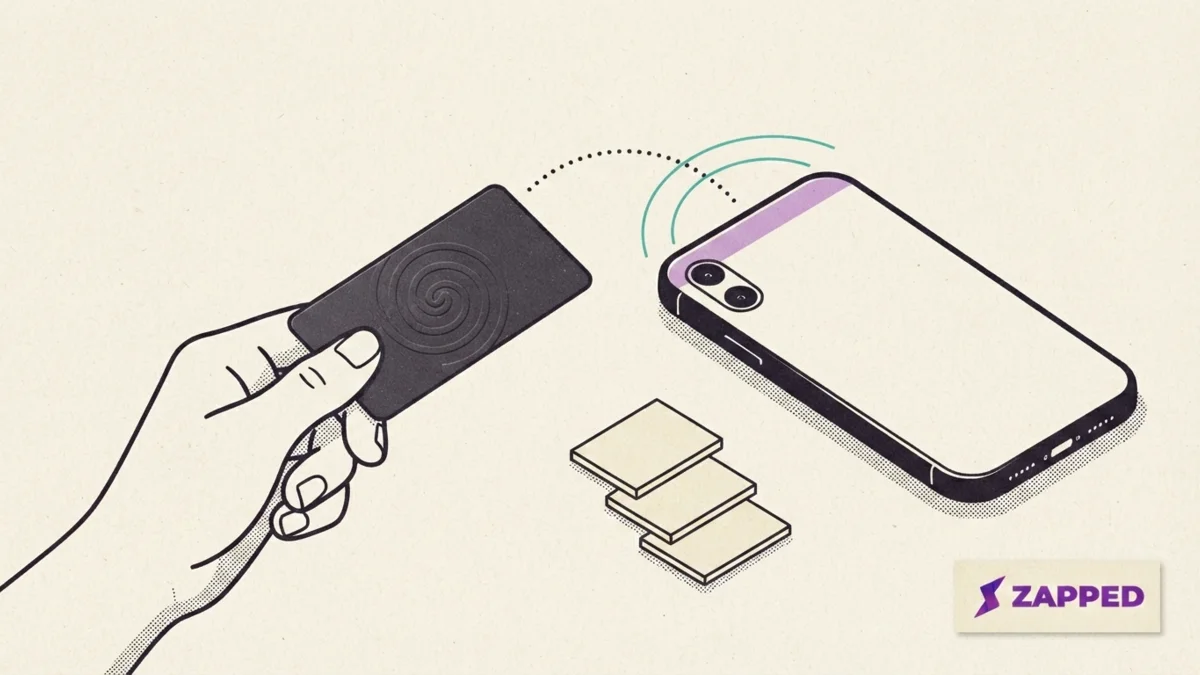
How to scan an NFC business card on iPhone XS or later
For iPhone XS and later, use the documented background reading path. You do not need to begin a scan in an app when the card contains a supported tag payload.
- Wake the iPhone and make sure it has been unlocked at least once since its last restart.
- Close Camera or Wallet if either is active, and make sure Airplane Mode is off.
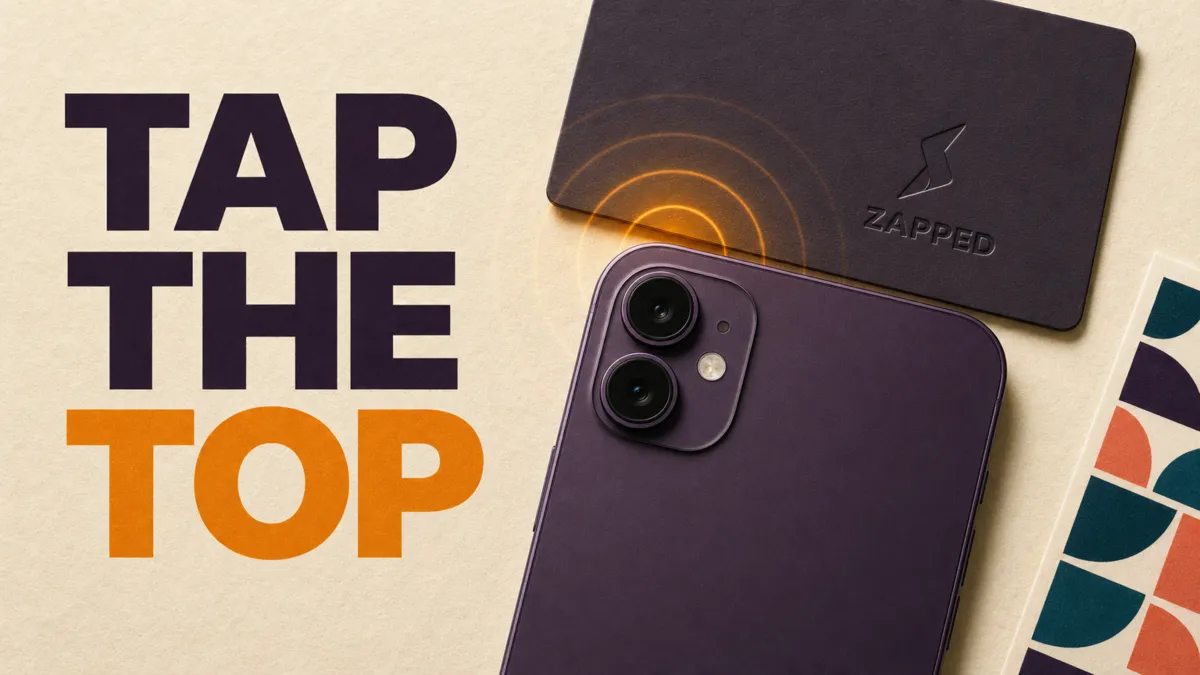
- Start with the top of the iPhone near the NFC business card. Apple gives that top-edge starting instruction for reading an AirTag by NFC, while its general iPhone User Guide simply says to hold the phone near a tag. Treat the top as a first position, not a precise coordinate for every model.
- If nothing appears, pause and adjust the phone's alignment near the card.
- When a notification appears, tap it. Unlock the iPhone if prompted.
- Check the destination before choosing whether to continue or save any information.
Do not worry if the card does not react from your first position. The useful action is to adjust alignment rather than rely on one placement rule for every iPhone.
How to scan with iPhone 7, 7 Plus, 8, 8 Plus, or X
These models need a different workflow. Apple lists them as having NFC with reader mode, but reserves passive background tag reading for iPhone XS and later.
Open a compatible NFC reader app, start a reading session inside the app, and then hold the iPhone near the card. Follow that app's prompt to open the detected result. The button names and screens vary by app, and no specific reader app was tested for this guide.
If nothing happens, check these in order
Start with the iPhone model and phone state before deciding that the NFC card has failed. This sequence combines Apple's documented background reading conditions with clearly labeled diagnostic suggestions.
- Confirm the model and mode. Use background reading on iPhone XS or later. On iPhone 7, 7 Plus, 8, 8 Plus, or X, start an explicit scan in a compatible reader app.
- Unlock once after a restart. Apple says background tag reading is unavailable before the device has been unlocked once after startup.
- Close competing activity. Close Wallet and Camera. End any other active NFC reader session before trying again.
- Turn off Airplane Mode. Apple lists Airplane Mode among the states that stop background reading.
- Adjust alignment. Move the phone slightly while keeping it near the card. If you use a thick or metal case, removing it for one retry can help isolate the setup, but this suggestion was not tested for this guide.
- Cross check without jumping to a diagnosis. If available, try another known working NFC tag with the same phone, or try the card with a second reader capable phone. One failed attempt alone does not prove that the phone or card is damaged.
- Ask how the card was programmed. If no supported destination appears, the card owner may need to confirm that the tag contains a current URI that the iPhone can open.
Apple's background tag reading guide documents the first unlock, reader session, Wallet, Camera, and Airplane Mode conditions.
If you have ruled out the causes specific to iPhone, or you are troubleshooting on Android, see how to scan an NFC business card on Android or the full guide to NFC business card troubleshooting.
Use a QR code only when the card provides one
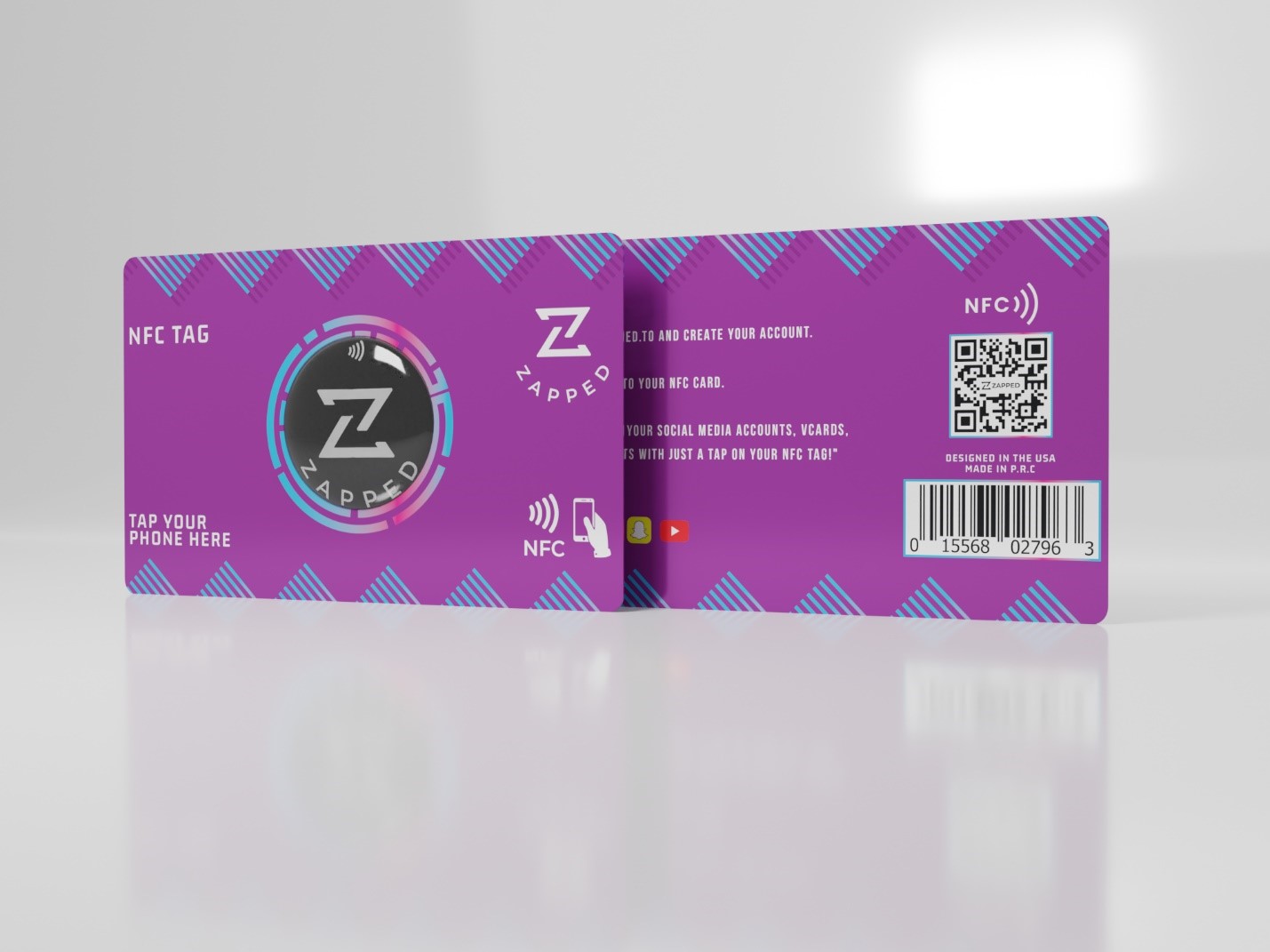
Some NFC business cards include a printed QR code as a separate fallback. If this card has one, open Camera or Code Scanner, frame the QR code, then tap the link that appears. Apple documents that path for QR codes that lead to websites and apps. A QR code is not guaranteed to be on every NFC card, and it does not prove whether the NFC tag itself is working. It simply gives you another way to reach the destination when the card owner included it.
See Apple's QR-code scanning instructions for the camera and Code Scanner steps.
If a notification appears but the card does not open correctly
A notification means the iPhone detected something, but the tag's stored destination still has to be usable. In background mode, Apple says the system looks for a URI record in the tag's NDEF message. If the message contains several URI records, the system uses the first one.
HTTP and HTTPS website addresses are supported. If no installed app handles a universal link, Apple says the iPhone opens it in Safari. Custom URL schemes are not supported in this background flow.
That gives you a simple way to locate the problem:
| What you see | What to check next |
|---|---|
| No notification or reader result | Model, scan mode, phone state, and alignment |
| A notification appears, but nothing useful opens | The first URI record and whether it uses a supported destination |
| A page opens, but it is wrong or unavailable | The URL encoded on the tag or the page behind that URL |
Not every NFC business card must contain a website link. For cards intended to work through Apple's background flow, however, an HTTPS profile URL is the most directly documented option.
Reading a card is different from programming it
Reading opens data already stored on the NFC tag. Programming writes or changes that data. If you own the card and need to add or replace its destination, follow the separate guide to program an NFC tag with an iPhone instead of mixing writing steps into the recipient's scan workflow.
For more background on the card itself, see how NFC business cards work.
If it is your card, check the destination before rewriting it
When recipients see a notification but the wrong page, a stale page, or no useful result opens, first check the destination rather than assuming the chip failed. Confirm that the first URI on the tag points to a current HTTPS profile URL, then test that destination on a second reader-capable phone if one is available. If the profile is correct but the encoded URL is not, update the tag through the iPhone NFC-tag programming guide. That separates a destination problem from a failure to detect the card.
Where Zapped fits
An NFC business card can point to an HTTPS digital profile. With a stable profile link, the card owner can update the information on the profile without changing the URL already stored on the tag.
At Zapped, a customer-owned NFC card can use a Zapped digital profile as the destination behind an NFC scan, a QR code, or a direct link. If you are setting up a card, create the profile first, then encode its HTTPS link on a compatible tag. The guide to making a digital business card covers the profile side of that workflow.
A Zapped profile does not change how an iPhone reads NFC, guarantee that every tap succeeds, or automatically save a contact. It simply gives the card a web destination that can stay consistent while its profile content changes.
FAQs
Do I need to turn on NFC on an iPhone?
Apple's documentation for this workflow does not direct you to a general NFC setting. On iPhone XS and later, use the documented background workflow and clear any phone state blockers. On iPhone 7, 8, 8 Plus, or X, begin the scan in a compatible NFC reader app.
Which iPhones scan NFC business cards without an app?
Apple documents background tag reading on iPhone XS and later. The phone must be in use, the tag must have a supported payload, and none of the documented blocking conditions can be active.
Why does an NFC business card open a website?
Apple's background reading path recognizes URI records and supports HTTP and HTTPS destinations. A card can therefore open a web profile where its owner presents contact details and other actions.
Does scanning an NFC business card save the contact automatically?
Not by default. Apple's documented background flow opens the supported destination. Saving a contact requires a separate action offered by the website or app that opens.
What if I meant a printed paper business card?
That is an optical scanning task, not NFC. You would photograph the printed card and use text recognition or a business card scanner rather than hold the phone near an NFC tag.
Sources
- Apple Developer, Adding Support for Background Tag Reading, for supported models, notifications, phone state blockers, URI behavior, and URL schemes.
- Apple Developer, Core NFC, for NFC tag reading and writing context.
- Apple iPhone User Guide, Use App Clips, for Apple's instruction to hold an iPhone near an NFC tag.
- Apple Personal Safety User Guide, Detect unwanted trackers, for Apple's AirTag NFC instruction to begin with the top of the iPhone near the item.
- Apple technical specifications for iPhone 7, iPhone 8, iPhone 8 Plus, and iPhone X, for reader mode support.