To bulk program NFC business cards, prepare an ordered list of destinations, then choose NXP TagWriter's mobile CSV workflow or NFC Tools for PC/Mac with a compatible reader and write one card at a time. After every write, read the card back against its source row, quarantine any failed, skipped, or uncertain card, and release only rows that pass the final mapping and destination checks.
The useful unit is one source row moving through writing, reading, recording, and release, not a stack of cards waiting for a single command. Start with one representative card on the card type and hardware you intend to use, then make that card complete the loop before the queue grows.
Start with a pilot, then run one row through to release
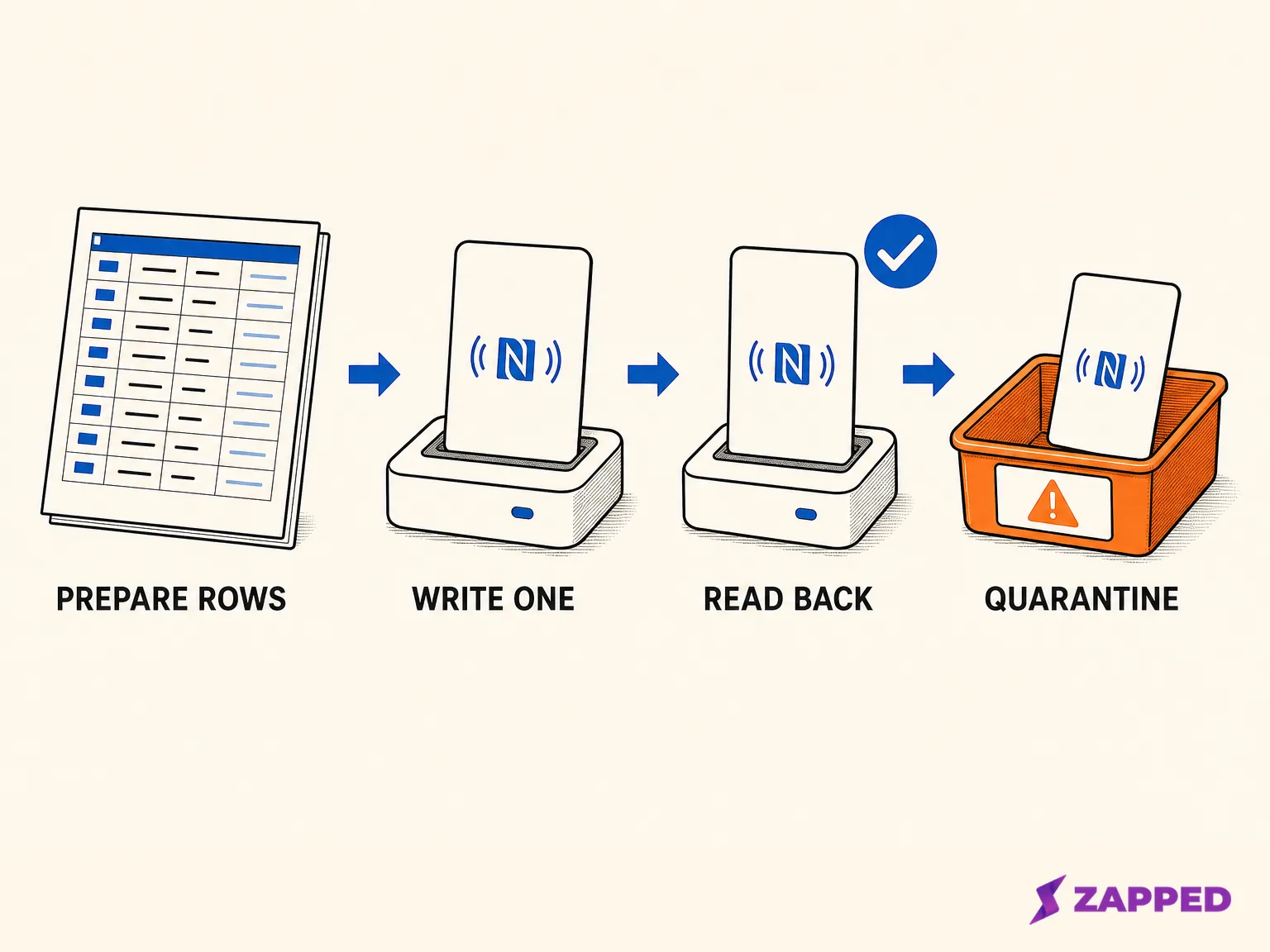
Run the pilot as a complete loop:
-
Select the first intended source row.
-
Write that row to one card.
-
Read the card back and compare its stored destination with the row.
-
Open the public destination when the writing route allows it.
-
Record the result and move the card to pass or quarantine before taking the next row.
Prepare and freeze the source rows
Decide what the rows mean before opening the writing tool. If every card should lead to one public destination, make that destination explicit in each row anyway. If each person or card has a distinct destination, keep the destination beside the stable row ID that owns it. Don't rely on the order of names in a spreadsheet after you have started writing.
Clean the source file, remove accidental blank rows, freeze the order, and label the physical cards or tray positions in the same order. Record the source row, intended payload, observed UID or stable card identifier when available, and disposition, following Mobilo's batch mapping guidance. This is a control record for your station, not a claim that NFC Tools for PC/Mac creates the log for you.
For the payload format, Android's NFC documentation describes NDEF as the main format used for reading and writing NFC tags and recommends using it when broad support matters. That's an Android documentation recommendation, not a universal compatibility promise for every card, reader, or phone.
Your first row should be the pilot record, with fields for the source row ID, intended destination, card position, observed identifier if available, read back result, and pass or quarantine status. Keep the row and the physical card together until the record is complete.
Choose the writing path before you start
Choose the route you can actually control, then keep its limits visible.
TagWriter on the mobile route
The NXP TagWriter User Manual documents a multiple dataset workflow: select datasets, choose the multiple write option, and tap the cards in the listed order.
The same manual says its CSV route uses the supplied template, lets you open the file and review the first entry, and can apply genuinely common settings to all entries before you begin tapping. The manual says the datasets are written in order as listed, so your file order and physical card order must agree.
Use the first entry to check the destination and any shared settings. Don't apply a setting to every row merely because it's available; common settings are useful only when they really are common.
The manual also documents a way to skip an individual item and a final report that separates datasets written successfully, skipped, and failed. Treat those statuses as queue records, not as permission to put every remaining card in the completed tray.
NFC Tools for PC/Mac at a desktop station
The NFC Tools for PC/Mac product page describes the desktop route and lists a compatible NFC reader, associated drivers, and a PC/SC library as prerequisites. It also lists reading and writing support for compatible chips.
The desktop app's published documentation doesn't describe a CSV batch queue, automated exception report, or UID export, so keep the row ledger beside the reader rather than assuming those controls exist.
A narrow Apple note
If you're considering an iPhone route, the Apple Core NFC sample is a narrow reference: it writes one tag only and asks the user to remove tags when more than one tag is detected. That describes Apple's sample, not every third party iPhone app, so it doesn't replace a pilot on your intended hardware.
Write the ordered rows one card at a time
The general single card writing sequence is simple. The control around it's what keeps the rows attached to the right cards.
-
Load the prepared rows in the mobile CSV workflow, or select the next row from your desktop ledger.
-
Review the destination for that row before placing a card on the reader.
-
Apply only the settings that are common to the selected rows.
-
Place one card on the phone or compatible reader and write the selected row.
-
Mark the physical card, tray position, or observed identifier against the source row immediately.
-
Read the card back before advancing the queue.
For the underlying single card NFC writing context, use the NFC business card programming guide as the handoff. The row control and release loop here covers the case where the same station handles many cards.
On the desktop route, don't turn a manually maintained row ledger into a claim that NFC Tools for PC/Mac provides TagWriter style CSV controls. The ledger is your control surface: it tells you which row was selected, which card was placed, and what the read back showed.
Read back before advancing the queue
Reading back is the gate between one row and the next. A successful write indication is not enough if the card, row, and destination have drifted apart.
On Android, use the Ndef API's read operation to read the current NDEF message and compare it with the intended row before you advance. The API documents failures for malformed data, tag loss, and I/O problems.
This gate before advancing is a bounded procedure for the Android route; the source doesn't establish that every writer app exposes an identical control.
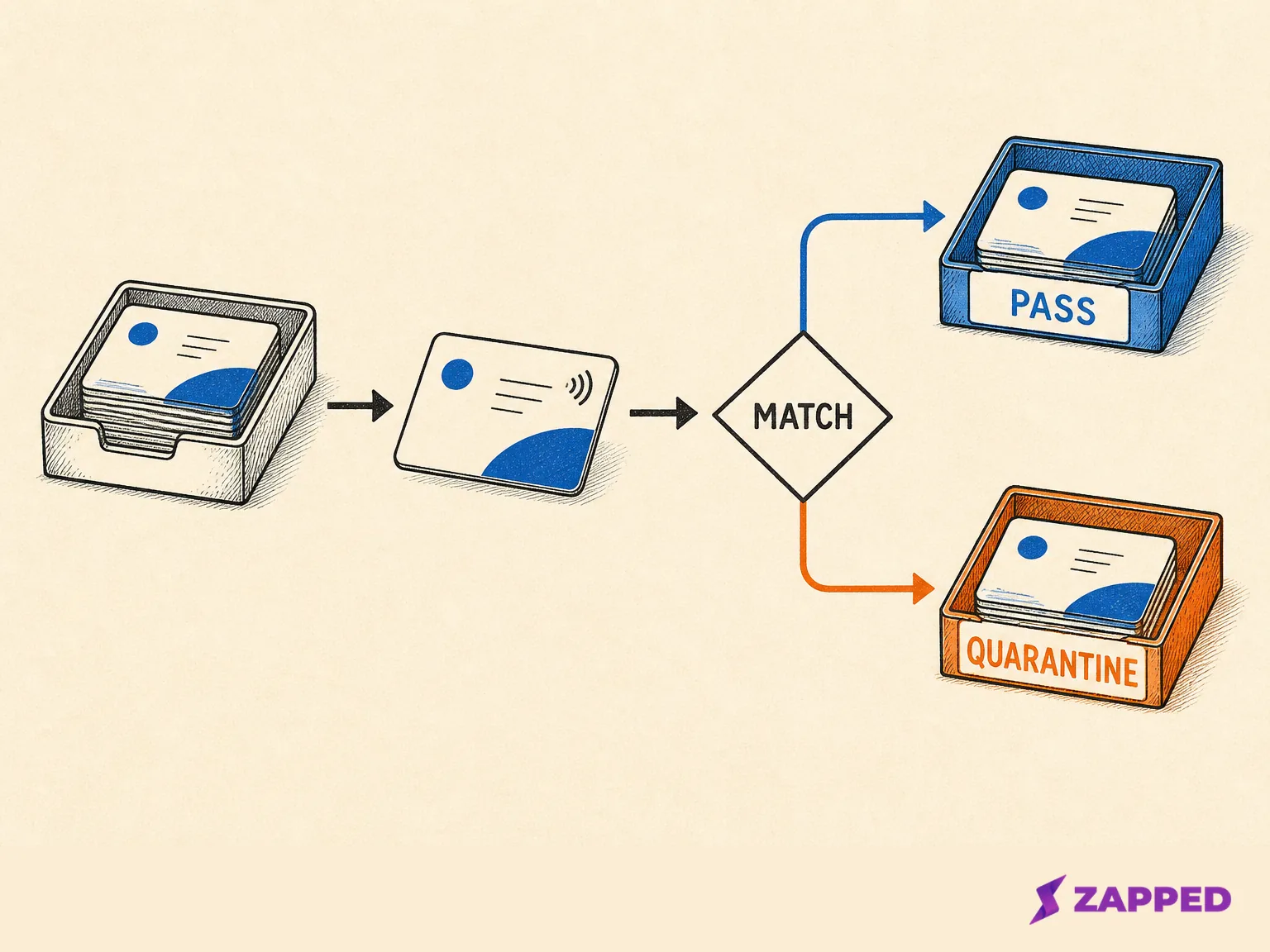
Check the returned destination against the exact source row, then open the public URL when that route permits it. Record pass only when the row, card, and destination agree. If the result is missing, malformed, unexpected, or simply uncertain, keep the card out of the completed tray and preserve the row record.
Recover failed, skipped, or uncertain rows
Keep the exception queue outside the release set, as Mobilo's guidance describes sequencing and CSV mapping errors as risks that deserve an immediate mismatch flag. NXP's documented report distinguishes successful, skipped, and failed datasets.
For an exception, stop and check the selected row, the destination, and the reader alignment before retrying.
According to the Ndef API documentation, an Android write can encounter an I/O error or TagLostException when the tag leaves the field, and malformed NDEF data can produce a FormatException. Those are documented failure boundaries, not a diagnosis of an unspecified card.
Retry only after you can explain what changed. Then read the card back again and update the same ledger row. If the card, row data, and read back result still don't agree, leave the failed, skipped, or uncertain row outside the release set. Don't silently reuse its row number for a different physical card.
Finish the ledger, fallback, lock, and release check
Before anything leaves the station, finish the control record. A practical final release check, bounded by Mobilo's predeployment guidance, confirms the intended payload, row to card mapping, public destination, read back result, any planned lock decision, and pass or quarantine status.
Use the ledger to confirm:
- The intended payload is the one assigned to the source row.
- The physical card or observed UID is mapped to that row when available.
- The read back destination matches the intended public destination.
- Any failed, skipped, or uncertain row remains quarantined.
- A later lock decision is still deliberate and recorded.
- A QR fallback is available when a recipient may not be able to tap.
Mobilo's guidance recommends a secondary QR fallback that resolves to the same public destination for devices with NFC disabled. That supports keeping a fallback available; it doesn't establish a universal QR design or a Zapped specific encoding feature.
Don't make a tag read only as part of the initial write by default. Android documents the makeReadOnly operation as a one way operation that can't be reverted, so treat locking as a later release decision after the destination and mapping checks. Lock semantics can vary with the tag, so verify the relevant tag documentation before committing to it.
The RFID Journal account describes an Auto-ID Lab Japan method that checks each tag's unique ID and group ID against an expected list to find missing or extra items. That's a useful row to card reconciliation analogy for this station, not proof of NFC chip, app, or reader behavior. Keep the equivalent control in your own ledger.
If the cards point to Zapped, Zapped lets you share a digital card by QR code, link, or NFC tap, and it opens in a normal browser without an app. That makes the destination check concrete: test the public page your recipient will actually open. Keep the Zapped NFC programming guide nearby for the single card product steps.
Roster and permission work belongs to the separate team administration job, not to this encoding queue.
For the single card version of the task, return to the NFC business card programming guide. For a bulk run, release only the rows that have passed the full loop.
A batch is ready only when the row, card, destination, and release record agree.
Sources
Sources checked on 2026-08-12.
- Android Developers, NFC basics, NDEF format guidance for Android NFC work.
- NXP, TagWriter User Manual, ordered multiple writes, CSV import, skip handling, and result reporting.
- Android Developers, Ndef API, read back behavior and documented write, read, and lock failure boundaries.
- Apple's NFC Tag Reader sample, the sample's one tag writing and multiple tag boundary.
- Wakdev, NFC Tools for PC/Mac, desktop reader, driver, PC/SC, read, and write prerequisites.
- Mobilo, making NFC business cards, qualified mapping, exception, fallback, and release guidance.
- Mobilo, how NFC cards work, qualified QR fallback guidance for recipients whose devices can't use NFC.
- RFID Journal, group checking, the qualified row to identifier reconciliation analogy.
- Zapped, QR, link, NFC, and browser access for a public digital card.