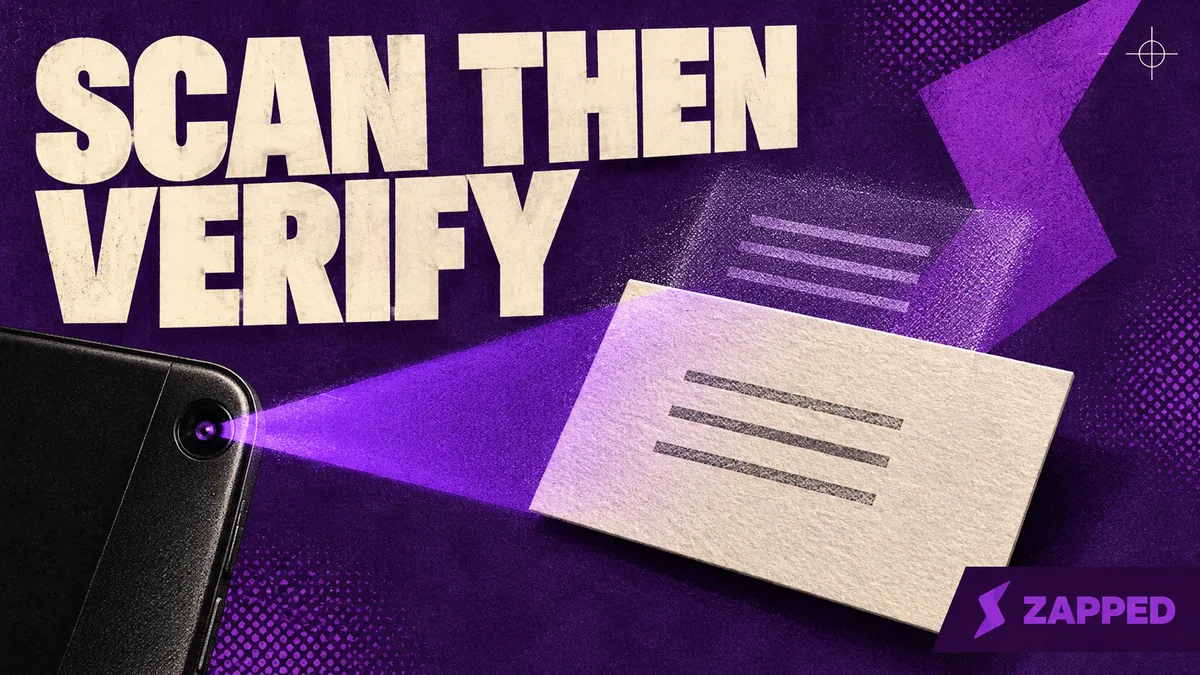
Someone just pressed a card into your hand, and you'd rather not thumb every line into a new contact. Google Lens can help. Google documents using it on a business card photo to copy text and, from Google Photos, to save a phone number or address to a contact. That's the honest ceiling: Google names those two outcomes, not a fully populated contact card on every phone.
So treat Lens as text capture, then check what it caught before you call the contact done.
Find the Lens entry point your phone actually has
On Android, for a live scan, look in the Camera app first. Google says Lens is built into Camera on some Android phones, which means yours may not have it. If you can't find a Lens icon or mode, open the Google app or Chrome, then tap Lens in the search bar to point the camera at the card.
For a photo you already took, choose it from the Screenshots area in that same screen. Or open the photo in Google Photos, tap More, then Google Lens.
On iPhone or iPad, open the Google app and tap Lens in the search bar. Take a photo of the card, or tap Photo picker and select one you already have. If the picker comes up empty, the app may be blocked from your photos. Go to Settings, then Apps, then Google, then Photos, and choose Limited access or Full access instead of None.
Google also notes that some Lens features vary by language or region, and some need an internet connection. If a route is missing, try the next one rather than assuming Lens can't read cards.
Desktop can search the card image, but Google doesn't document contact saving
If the card photo is sitting on your laptop, you can still run it through Lens. For a file, go to google.com, choose Search by image, then Upload a file, select the photo and click Open. For a card image on a webpage, right-click it in Chrome and use Lens from the menu. Results open in a side panel. That webpage route needs Google as your default search engine; the requirement is for Chrome's webpage route.
Google's desktop steps return image search results. They don't document a way to save a phone contact from that screen. So on a computer, use Lens to read the text, then copy what you need into your contacts by hand, or send the photo to your phone and use a phone route.
Frame the card so Lens reads the right lines
Lens works better on a clear, well-lit image, and Google suggests exactly that when results look inaccurate. Lay the card flat, kill the glare, and fill the frame.
If Lens grabs the logo or a pattern instead of the text you want, drag the corners of the selection box around the part of the card that matters. Google says a smaller selected area gives more specific results. Want the phone number only? Box the phone number.
Check every field against the paper before you save
Words appearing on screen isn't the same as a finished contact. Google's help doesn't promise a complete field list, and it publishes no accuracy rate for business cards. Google doesn't promise the name, title, email and address will all come through intact, so confirm them yourself.
- Read the name aloud against the card.
- Match the company and job title line by line.
- Compare each digit of the phone number, and each character of the email, with the print.
- Check the address last, since it's the longest and easiest to clip.
Then save. If Lens offered a phone number or address action in Google Photos, use it, and fix anything wrong in the contact afterward. If you want the full steps for getting the details into Google Contacts, we cover that separately.
When Lens shows no Add contact option
A Pixel community thread from September 2024 has mixed reports: some people see Add contact, some don't, and some say selecting a phone number or email moves only that single field. Treat that as an example of variation, not a rule. Google doesn't explain why the action is missing or offer a standard fix.
The fallback is dull and reliable. Select the text Lens found, copy it, open a new contact, and paste each piece where it belongs. Google documents copying selected words, so that part is safe to count on.
What Google sees when you scan
Which route you pick changes what gets sent. In desktop Chrome, Google says Lens sends a screenshot and page data to Google for temporary processing, and that a selected region goes to Google Search. In Google Photos, Google documents Lens activity controls for reviewing or deleting it, and says Include Visual Search History is off by default.
Google's own pages don't give the same detail for the mobile camera routes, so don't assume one route behaves like another. If a card belongs to a client whose details you're not supposed to upload, or your workplace has rules about it, skip Lens and type the contact in by hand.
When one card turns into a stack
Once you're holding a conference's worth of cards, or you need exports, CRM routing or a shared team inbox, you've outgrown a one-card procedure. Compare current scanner apps on batch capture, where they export, and how a team shares the results. Wave Connect's founder, writing in a competitor roundup, calls Lens best for the occasional one-off scan, and that's a vendor's opinion, not a neutral test. If your real problem is the pile after the scan, organizing business cards digitally is the bigger question.
If the other person has a digital card
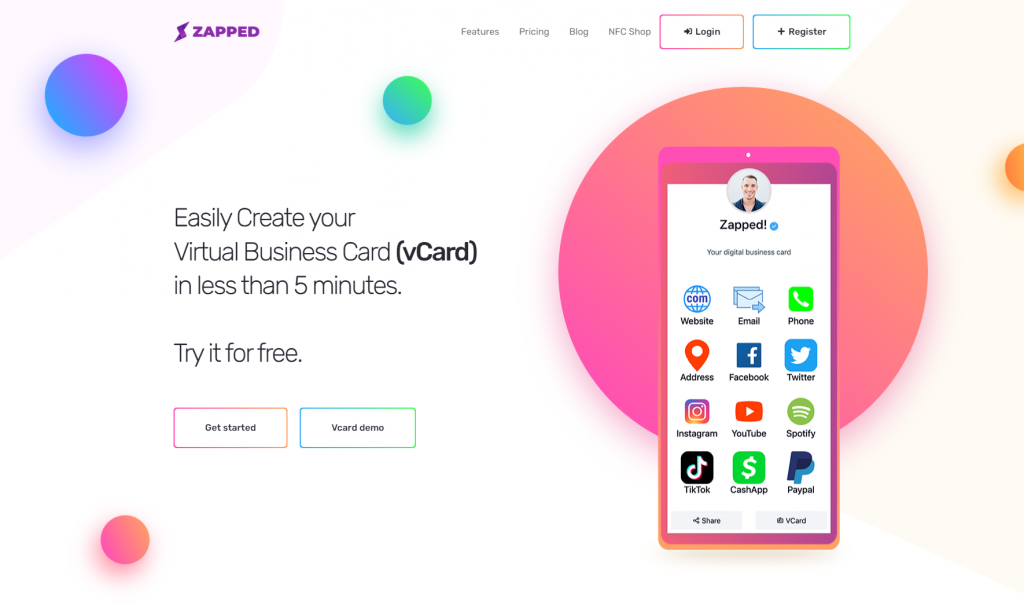
This is a different case, and it works only for a Zapped card being shared with you. If they use a Zapped NFC card or Flexible QR code set to open a card with Save contact enabled and no password, its owner can send their vCard straight to your phone, without paper or OCR. For that setup, the vCard goes to the recipient: iPhone Safari shows the contact card to add, while Android downloads the file and you open it from the notification. It's not a scanner for the paper card you're holding right now.