The card is printed, the stand is on your desk, and it looks done. It isn't, because nothing on it proves it opens your business and not a stranger's listing. Here's the short version: write Google's own review link to the tag, test it on an iPhone and an Android phone, print a QR code to the same address, and ask every customer the same plain way, with nothing offered in return.
Copy the link from Business Profile, not from a search result
Open your Business Profile on a computer, choose Read Reviews, then Get more reviews, then Copy. That's Google's own route to the review link, and it's the address that belongs on the tag. A general listing URL or a seller's redirect can land on the right business page without ever opening the review form.
The QR code comes from the same screen. Google says review QR codes can currently be generated only in a computer browser, so right-click the code there and choose Save image as. Our walkthrough on getting the review link or QR code covers that screen in more detail. What matters here is that the tag and the QR code point at one destination, so you only ever have one address to fix.
Write the link as the first record, and leave the tag unlocked
A phone that's trying to open a web page looks at the first record on the tag. The NFC Forum's cross-platform tag guidance recommends an HTTP or HTTPS URI as that first record for exactly this job, so make your Google link the only thing on it. If you've never written a tag, our general tag programming guide has the longer version. The steps below are enough for this one.
- Open NFC Tools on the phone you'll write with and choose Write.
- Choose Add a recording, then URL / URI.
- Paste the link you copied and choose Validate.
- Choose Write / X Bytes, then hold the phone against the tag until the app confirms the write.
That sequence follows Wakdev's NFC Tools instructions. The Read tab is useful afterward, and for any tag that arrives pre-programmed, because it shows the stored NDEF data and whether the tag can be written or locked.
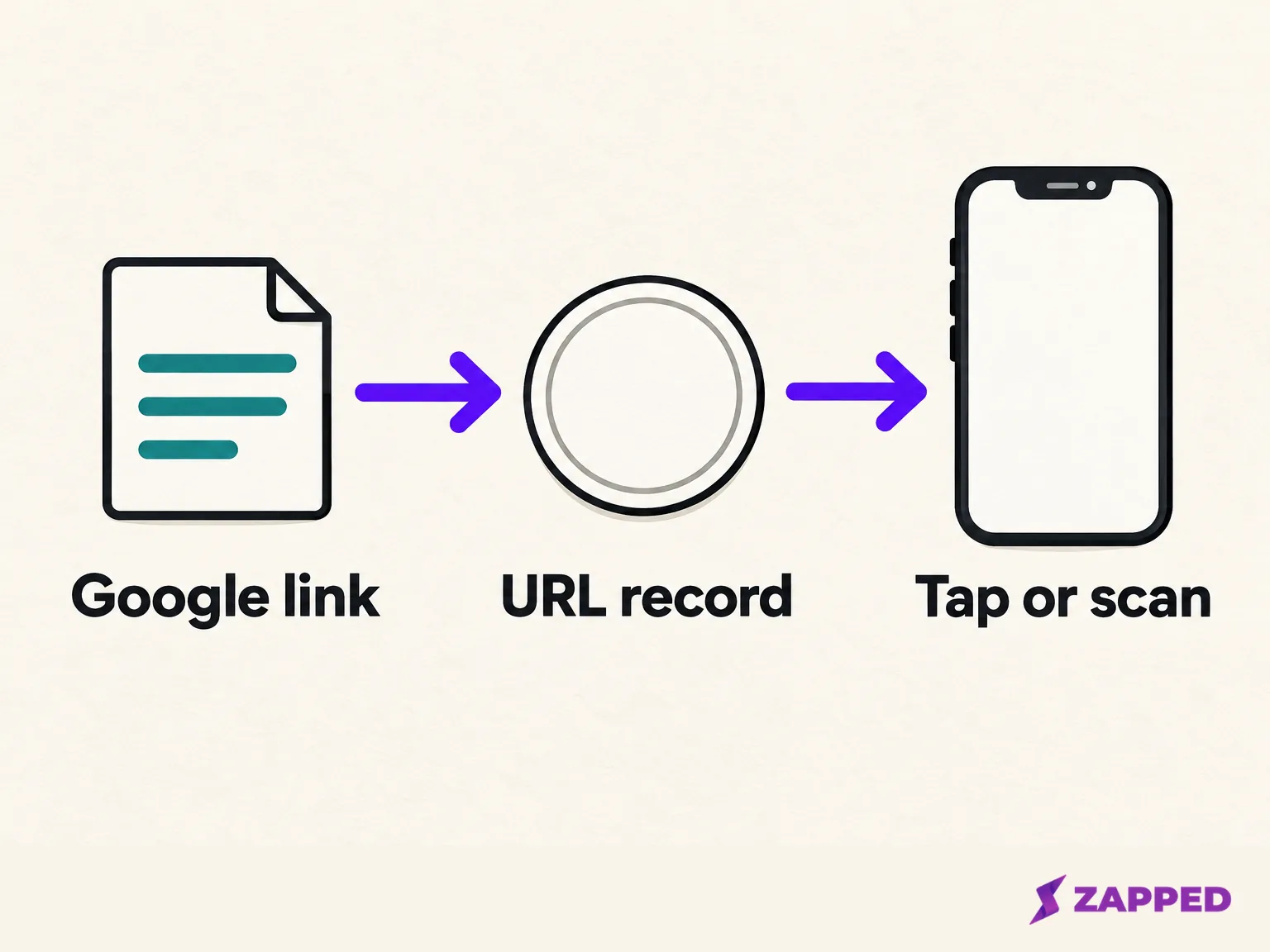
Resist the urge to lock it. Read-only protection on NTAG213, NTAG215 and NTAG216 chips is irreversible, according to NXP, and a locked tag with a typo is a dead card. Leave it writable until both phones pass the tests below, and check your tag maker's documentation before locking anything. Since a direct Google link could someday need updating, you may decide never to lock it at all.
Test it three ways before it touches the counter
Start with the raw link. Paste it into a browser and confirm the page names your business, not a similar one down the street. Then tap the finished tag with an iPhone and with an Android phone, follow whatever each one prompts, and check that both reach your business's review-writing screen. Last, scan the printed QR code and confirm it lands on the same address. Don't submit a test review. If something needs correcting, fix it while the tag is still writable.
A prompt in the middle is normal, so don't treat it as a failure:
- iPhone. On supported iPhones (XS and later), the phone reads the tag in the background and shows a notification the customer taps. Apple says this only works while the iPhone is in use, and a locked phone asks to be unlocked first. If an iPhone doesn't read the tag at all, check that its screen is illuminated and that the camera or Wallet isn't active, Airplane Mode is off, no NFC scanning sheet is visible, and the phone has been unlocked since its last restart, per Apple's guidelines.
- Android. The phone usually reads tags while the screen is unlocked, unless NFC is switched off. On Android 17 and later, it shows an open-link notification that the customer has to interact with before the page opens.
If an Android phone ignores the tag completely, check that NFC is on. On a Pixel, that's Settings, Connected devices, Connection preferences, NFC, Use NFC, and Google notes that a phone with no NFC setting has no NFC. On a Galaxy it's Settings, Connections, NFC and contactless payments, though Samsung warns that menu names vary by model and software version. Holding the back of the phone near the tag for a few seconds helps too. For trouble beyond this one link, our guide to testing a card on several phones goes deeper.
Whatever the cause, a tag that opens the wrong page or can't be rewritten shouldn't go into customer use. Rewrite it if it's writable, or lean on the QR code until a replacement arrives.
Put it where it's easy to notice and easy to ignore
A salon desk, a café checkout, a reception counter. Somewhere a person's eyes land while they wait, close enough to tap and not so close that it feels like a checkpoint.
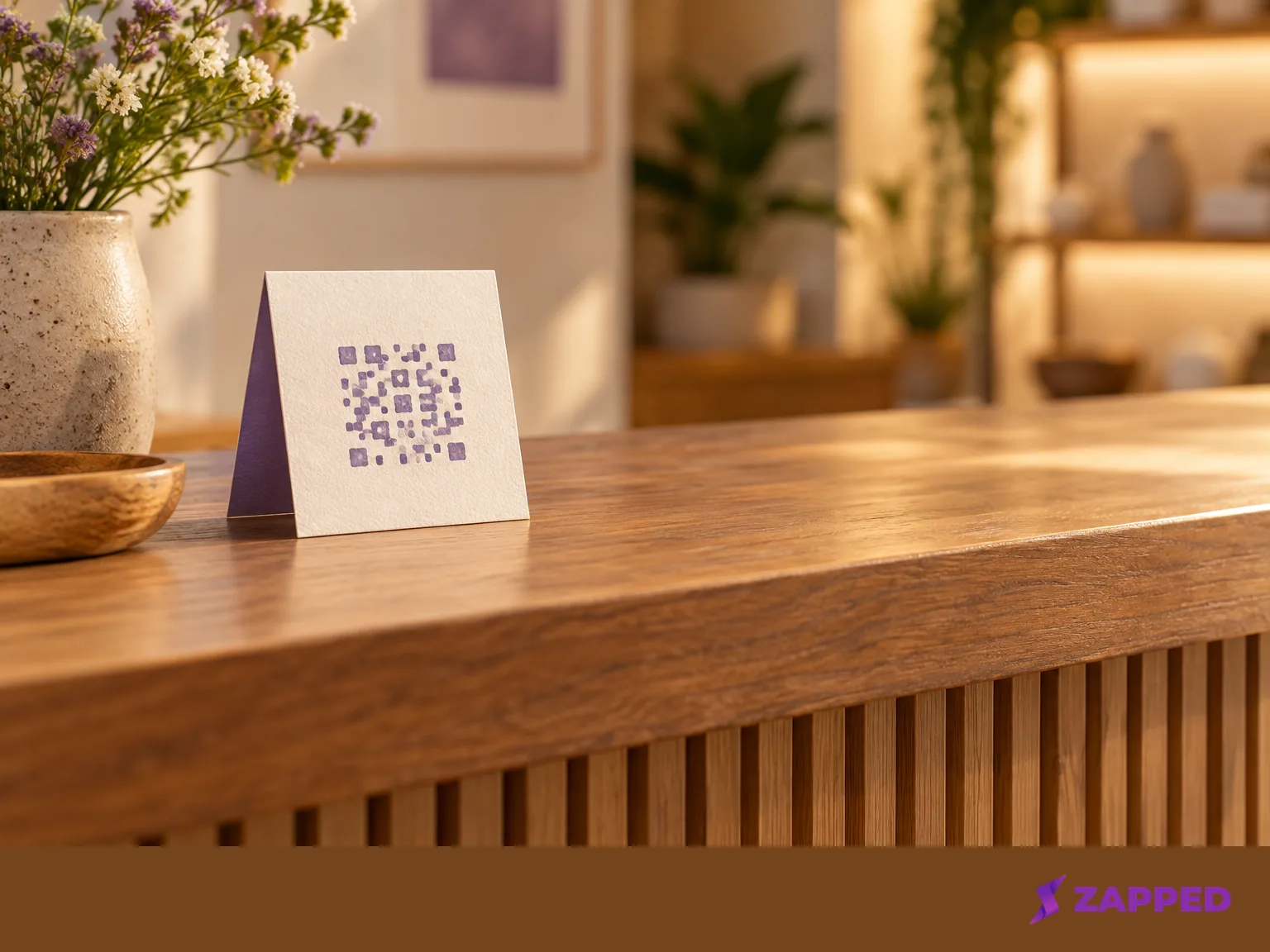
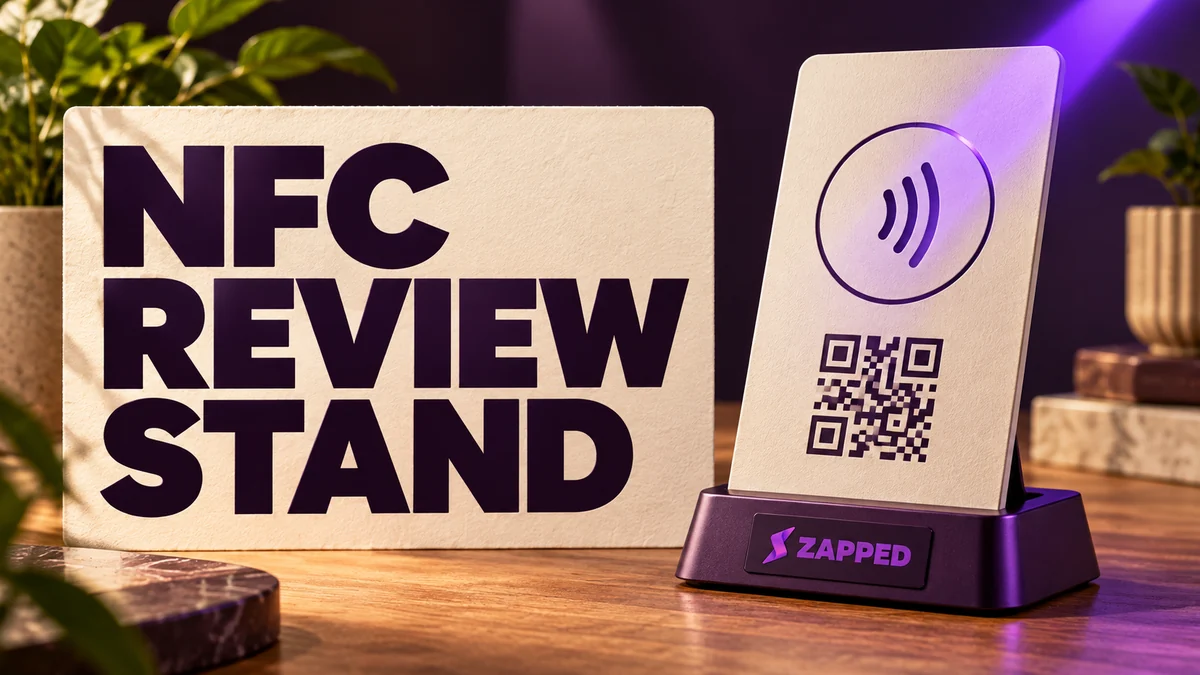
Give the card one clear line of text, something like "Tap or scan to leave a Google review," and print the QR code to the same link right beside it. Leave out star requests and suggested wording. In one Reddit thread, a commenter said a counter sign was obvious once staff explained it but that they might not have recognized its purpose otherwise. That's one anecdote, not proof of how well tapping works, but it's a fair reason to write the cue out.
What the customer meets next is ordinary Google. They have to be signed in to a Google Account, and Google says reviews are voluntary, public and can't be anonymous. A sign-in prompt is expected.
Ask everyone the same way, and offer nothing for it
Google lets you ask for genuine reviews, and it also spells out what you can't do. Its merchant policy rules out incentives, selectively asking people you expect to be happy, requesting specific review content, and pressuring anyone to write on the premises. The FTC separately bars incentives tied to a particular sentiment, but Google's rule is stricter, so skip rewards and discounts altogether.
One neutral line covers all of it: "If you'd like to share feedback about your visit, you can tap or scan here. Any honest feedback is welcome." Say it to every customer, or put it on the card and say nothing. Then don't hover while anyone signs in or decides: they can walk out with the card still on the counter.
When a profile page earns the extra step
A direct card does one thing, and that's usually the right call. If your tag also needs to carry opening hours, a booking button or your contact details, a profile page can hold the Google review link next to them.
Zapped can do this: our Link block can point to your Google review URL, and an NFC card opens your published profile. That adds a choice before Google, so it's neither a review request nor a way to filter who sees one. Zapped Solo is $19 a month, or $15 a month billed yearly, for one person with up to 3 live cards, and your Plan page shows how many NFC cards your plan includes. Don't turn on Zapped's "Save the contact right away" tap setting for this, since that skips the card page, links included.
If you're buying a card that's already programmed
Tap it with the Read tab open and look at what URL is actually stored. Then ask whether it's a direct Google link or a seller-managed redirect, who maintains that destination, and what happens if a paid URL service ends. One US stand listing, checked on 2026-10-16, runs from $29.99 to $69.99 and offers a $6-per-year add-on for an editable URL and analytics. It doesn't say what happens to that URL if the add-on lapses, so ask before you pay. Those are one seller's terms on one day, not what the market charges.