You have a stack of blank NFC cards, an event on Thursday, and a half-remembered LinkedIn address you pasted somewhere a year ago. Good news: an NFC tag can hold a LinkedIn link, and writing it is a single URL record. The catch is that the chip only stores the address. What the visitor actually sees after the tap depends on their phone and on your LinkedIn privacy settings, and a tag can't change either one.
So the job is a little bigger than "paste link, tap Write." Get the right address, find out what a stranger sees when they open it, decide whether LinkedIn alone is the right destination, write it, and then check the result on both an iPhone and an Android phone. If you're still getting your bearings on what these cards do, what NFC business cards are covers the basics.
Copy the address from LinkedIn, don't build it from your name
It's tempting to type linkedin.com/in/ and your name from memory. Don't. LinkedIn shows you the exact public address, and copying it is faster than debugging a typo on a card you've already handed to twenty people.
On a desktop browser, click the Me icon, choose View Profile, and look under Public profile & URL in the right pane. The address starts with www.linkedin.com/in. On the mobile app, tap your profile photo, tap it again to open your profile, tap the More icon beside Add section, then Contact info. Your public address sits under the Your Profile heading. Copy it from there on either device.
If your address still ends in a string of random digits, you may want to tidy it first. On desktop that's Me, View Profile, the Edit icon beside Public profile & URL, then the Edit icon next to your address, where you change the last part and save. LinkedIn caps these edits at five, and it keeps the previous URL associated with your profile for six months unless you unlink it. That's forgiving for old printed links, but it's a reason to settle on the new address before you write anything to a chip. After you save, copy the address again from the same screen so the tag gets the final version.
Open your own link signed out before you write anything
This is the step people skip, and it's the one that can explain an "it doesn't work" complaint. You're logged in to LinkedIn on your phone, so every time you test the link you see the full, friendly version of your profile. Your visitor isn't you.
LinkedIn lets you switch off public visibility. On mobile the path is your profile photo, Settings, Visibility, then Edit your public profile under Visibility of your profile & network. Toggle Your profile's public visibility on, and decide section by section what a stranger can see. Changes save automatically.
Then, and this matters, LinkedIn is upfront about the limit: even when your profile is public, people who aren't LinkedIn members may be prompted to sign up or sign in to see parts of it, and in some contexts LinkedIn shows a more limited preview than the fields you've allowed. So open your copied address in a private browser window, or on a phone that isn't signed in, and look at what appears. Whatever shows up is a fair guess at the first thing a new contact sees. If it's a sign-in wall that hides the one thing you wanted them to find, you've learned something valuable before the cards are printed, not after.
Direct link or contact page: decide who is tapping
Here's the real fork. You can write the LinkedIn URL straight to the tag, or you can point the tag at a public page of your own that includes your LinkedIn link along with other things a visitor might want to do.
The direct link is the right call when LinkedIn really is the whole point. You're a recruiter, a consultant whose clients live on LinkedIn, or you're simply collecting connections. One tap, one profile, nothing else to maintain. It needs nothing beyond a phone app.
The page route earns its place when the person tapping needs something LinkedIn can't promise. People on a forum thread about exactly this problem report it opening in a browser, that the phone decides how to handle the link rather than the card maker, and that a digital card page with LinkedIn plus other contact actions works as a fallback when a visitor's LinkedIn session isn't available. That's one participant's experience, not a rule, but it matches what the platform notes below say about how the handoff works. If a sign-in prompt would stop a prospect from saving your number or emailing you, a page with contact details and a LinkedIn button gets them further. It also answers the question of sharing more than LinkedIn: a card page can carry your email, phone number, website and other profiles on the same tap, which a bare LinkedIn URL never will.
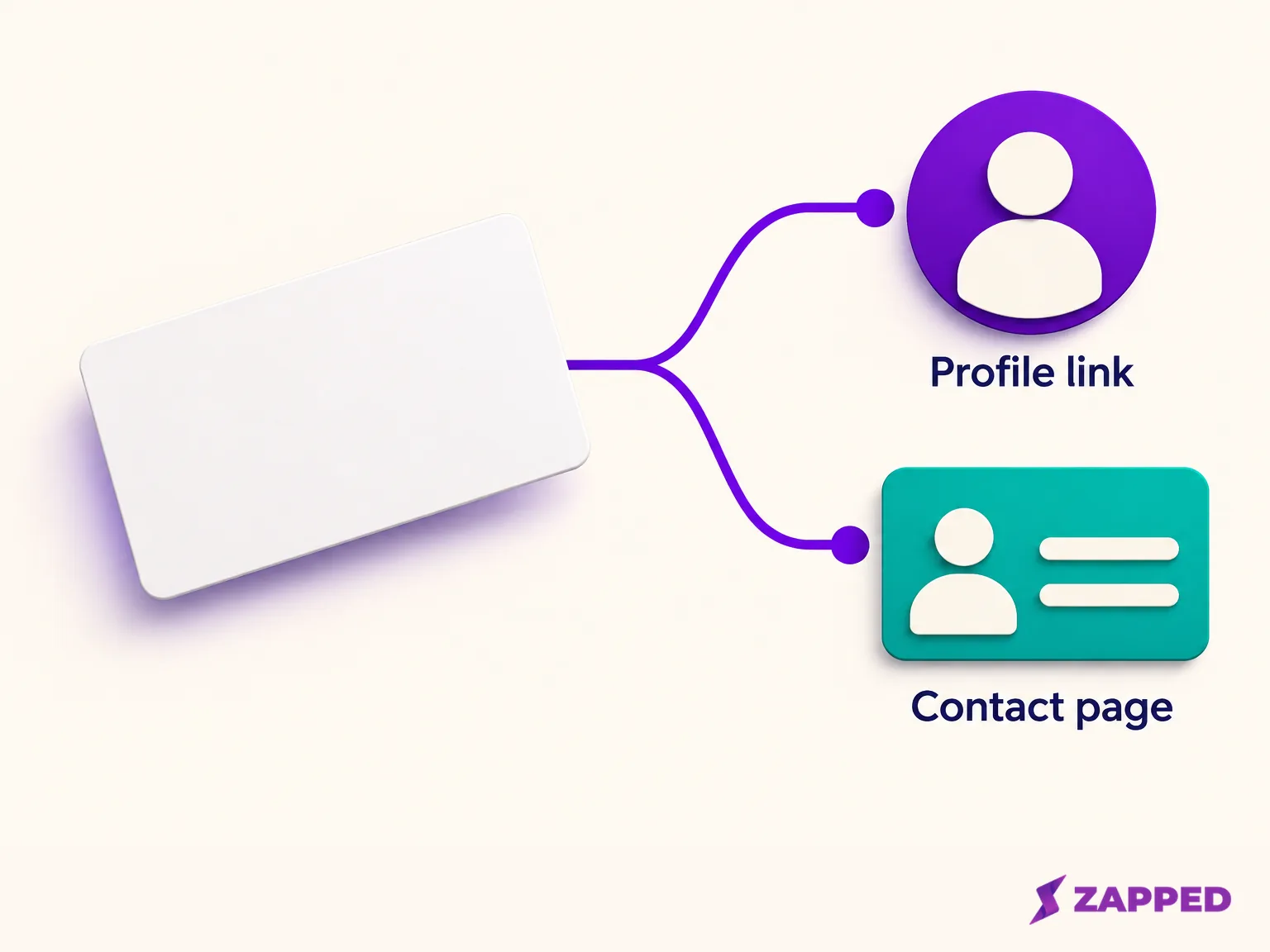
Zapped is one current example of the second route. Our public card page can hold contact details alongside profile links, shares by NFC or a direct link, and opens in a normal browser, so visitors don't install anything first. You'd add a LinkedIn block to the card, preview it, publish it, and then point your tag at that card.
Zapped's managed NFC cards also let you change the destination later. In Zapped you open NFC Cards, choose Add NFC card, name it, and pick the published card it should open. You never type a link yourself. The chip receives a short card link that Zapped creates, and edits to the profile appear on the next tap as long as its public URL stays the same. A managed card opens one destination at a time.
Managed NFC cards are on paid plans, not free ones. As listed on 2026-10-16, Starter is $14 monthly or $140, and it includes 30 NFC cards. That yearly figure is the annual total, not a monthly equivalent. It's a reasonable choice if you want visitors to save your details and also reach LinkedIn, and it's overkill if you only ever want one fixed profile link, where the NFC Tools route below is simpler.
Write the LinkedIn URL with NFC Tools
For a plain LinkedIn address, an app is enough. This walkthrough uses NFC Tools by Wakdev, whose published steps are the ones below. You'll need a writable tag (a blank NFC card, sticker, or keychain tag) and your copied address on the phone's clipboard.
- Open NFC Tools and go to Write.
- Tap Add a recording.
- Choose URL / URI.
- Paste or enter the full address, including
https://, then tap Validate. - Tap Write / X Bytes, where X is the size of your record.
- Bring the chip close to the phone and wait for the writing. Don't pull it away at the first buzz of the screen. Wait for the completion message.
Then read the tag back (NFC Tools has a read mode for this) and confirm the saved address matches what you meant to write. Check for stray spaces or a doubled prefix, because a URL that starts with https:// twice won't open.
If you've never written a tag on an Android phone and want the longer tour of tag types, locking and troubleshooting, programming a tag on Android goes deeper than this section will.
One caution. Don't lock the tag yet. A locked tag can't be rewritten, so a typo or a changed address becomes a new card. Keep it unlocked until both phones have passed the check at the end of this guide.
What happens on an iPhone after the tap
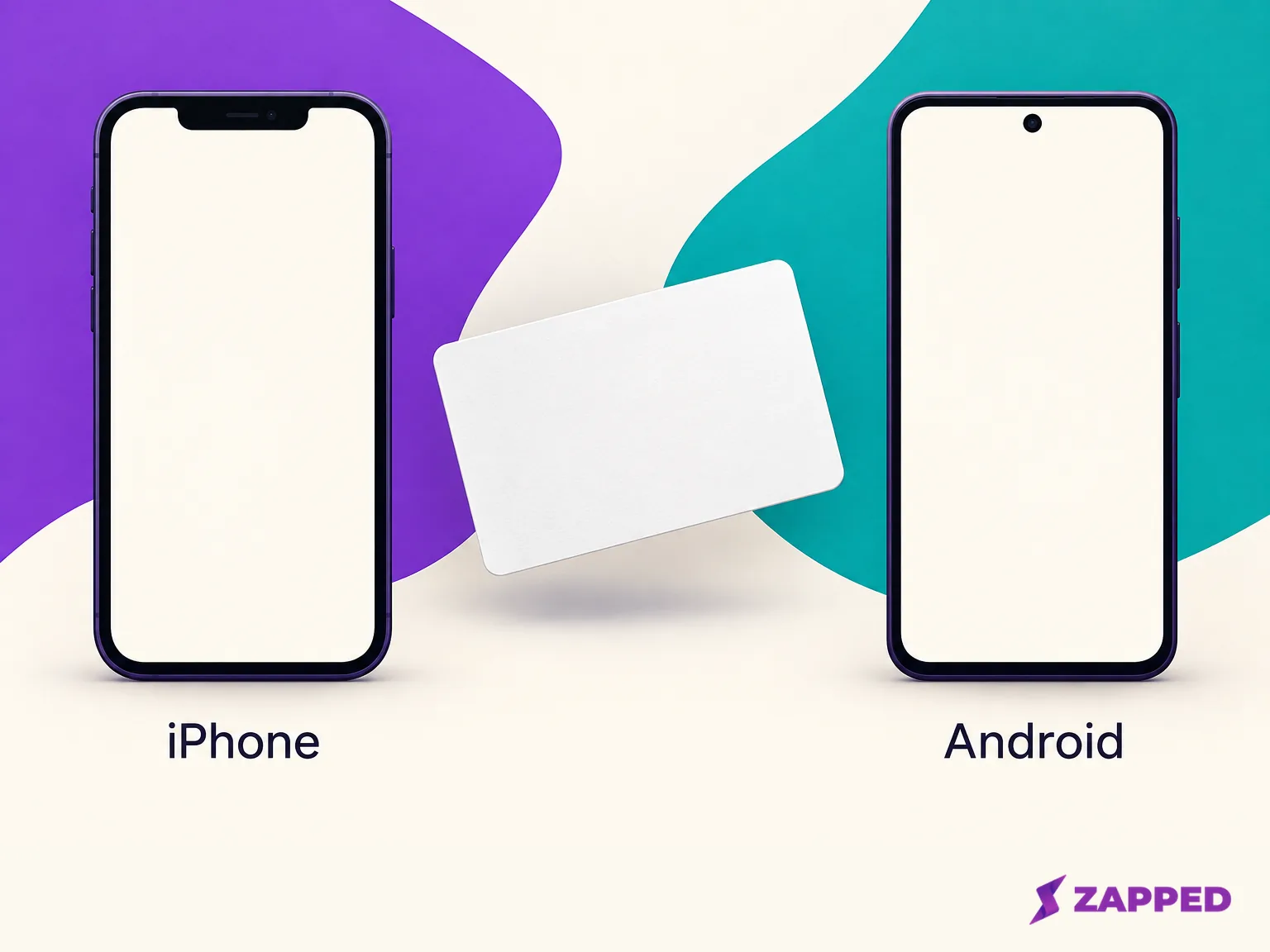
An iPhone doesn't just open LinkedIn. On models that support background tag reading, which Apple's developer notes list starting with the iPhone XS, the phone reads the tag while it's in use and shows a notification each time it reads a new one. The visitor taps that notification. If the phone is locked, it asks them to unlock first. After that, the link goes to an app associated with it when one exists, and otherwise it opens in Safari.
That last part is the honest answer to "will it open the LinkedIn app?" Sometimes, maybe, depending on what's installed and how the phone associates the link. Nobody can promise it from the tag side, so don't tell a client "it'll pop right into LinkedIn." A better line is "tap the notification and my profile comes up."
There are also moments when an iPhone with the screen on won't read a tag in the background at all. Apple lists these: the phone hasn't been unlocked since it restarted, an NFC reader session is already running, Apple Pay Wallet is open, the camera is in use, or Airplane Mode is on. If a visitor says "nothing happened," glance at whether their camera app is open. It's an easy one to miss in a busy room.
What happens on Android after the tap
Android works differently, and it's a little more flexible. Android phones usually look for tags while the screen is unlocked and NFC is switched on. When one reads an NDEF URI record like the one you wrote, the tag dispatch system maps it to apps that registered an interest in that kind of address. What opens depends on the link and on which installed apps match it, which means one Android phone may open LinkedIn and another may open a browser. The practical upshot is the same as on iPhone: you can control the address on the chip, but the phone controls the handoff. Don't tune your card around a single device you happen to own.
If a phone doesn't react at all, check that NFC is turned on. On a Pixel, open Settings, then Connected devices, then Connection preferences, then NFC, and turn on Use NFC. Google notes that if you don't see an NFC setting, the phone doesn't have NFC. Other brands label this differently, so a visitor may need to search their settings for NFC.
Buying a ready-made LinkedIn NFC card? Check three things
Search for a LinkedIn NFC card and you'll find plenty to buy. Etsy's LinkedIn NFC listings mix custom cards, tags and keychains with item level prices and buyer review snippets, which is a catalogue, not a like for like comparison of reliability. TAPiTAG sells a LinkedIn named NFC and QR tag, and as of 2026-10-16 its product page doesn't say whether a tap opens the LinkedIn app or a browser, or what a signed out viewer sees. Those are exactly the questions this guide has been circling.
None of that makes them bad products. It means a LinkedIn logo on the hardware doesn't change how the phone handles the link, so run the same checks on anything you buy:
- Find out which address the chip will hold. If a seller's app writes a URL of your choice, you're back to the decision above.
- Open that address signed out and see what a stranger gets.
- Tap the finished card with an iPhone and an Android phone, as in the last section.
If you want to change the destination later
A directly written LinkedIn URL stays on the tag until you rewrite it. Change your custom address, switch employers, or decide you'd rather send people to a contact page, and the chip still says what it said. An unlocked tag can be rewritten, but a locked one can't, which is one more reason to hold off on locking.
A managed card link spares you that rewrite when only the profile content changes. If the destination URL itself changes, the chip still has to be rewritten.
Test on both phone families before you lock anything
Test the tag the way a stranger will use it, not the way you built it. This is the check that turns "I wrote a tag" into "I can hand this out."
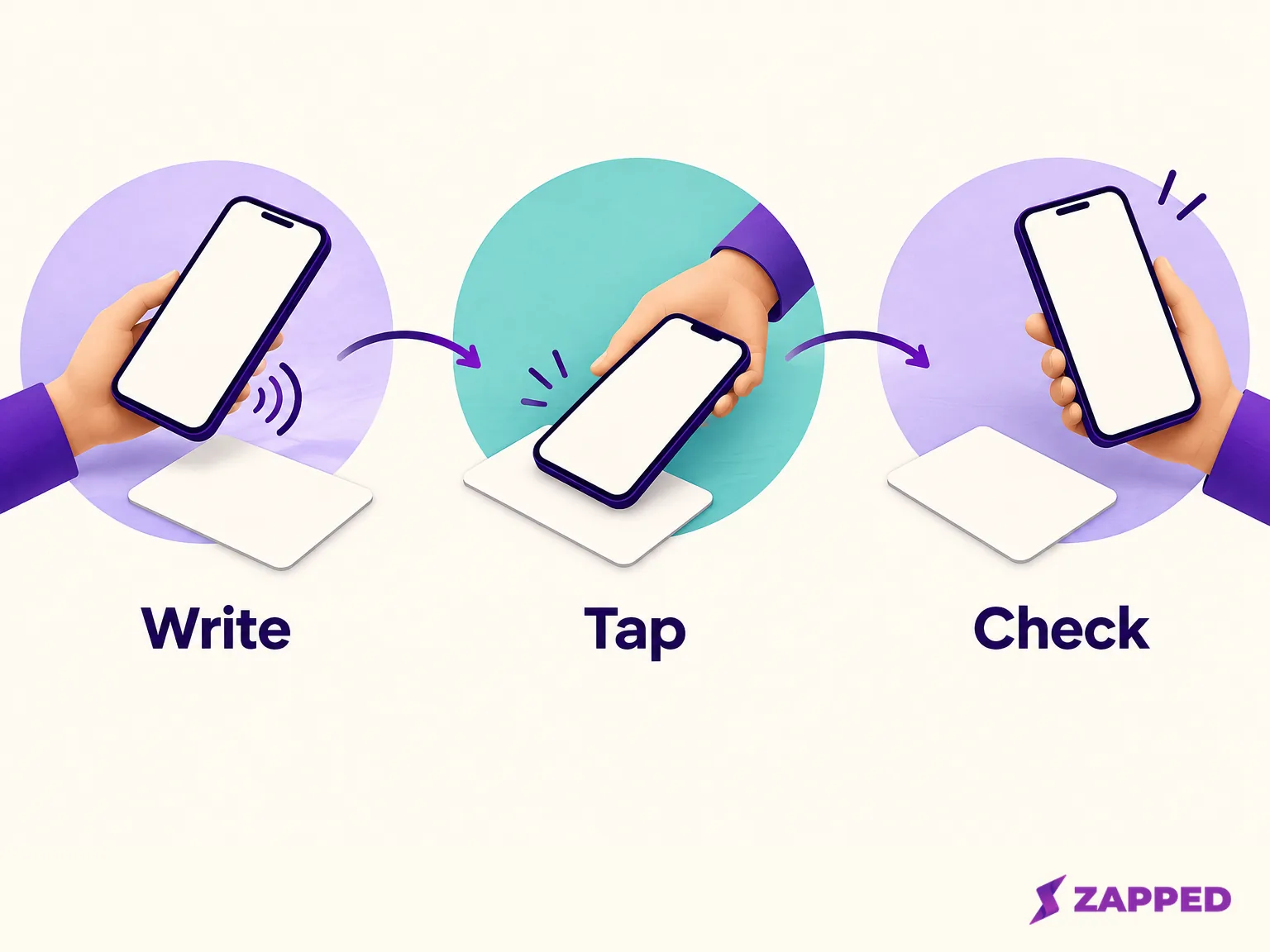
- Tap the card with the phone you wrote it on and confirm the address that opens is the right one.
- Tap it with an iPhone. Expect a notification first, then the profile in Safari or an app.
- Tap it with an Android phone and see what opens there.
- On each phone, note where the tap ends: the profile, a sign-in prompt, or a browser page. Compare that with your signed-out preview from earlier, which checked the profile itself, not the tap.
- Only now, if you want the card permanent, lock it.
Borrow a friend's phone if you only own one kind. At Zapped, we advise testing our cards with someone else's phone as well, especially an iPhone, when the people you meet use both platforms, and that advice applies just as well to a plain URL tag.
When a tap fails, work down this short list. Make sure NFC is on, and on an iPhone make sure the camera, Wallet and Airplane Mode aren't in the way. Hold the card flat against the back of the phone near the top, and if nothing happens, move it slowly, because on some phones the reader sits in the middle. Take the card out of a thick case. And if a visitor's phone simply can't read NFC, give them a code to scan instead. Making a LinkedIn QR code points at the same public address.
Write down the result for each phone, even if it's just a line in your notes: which phone, what appeared after the tap, and whether a sign in prompt came up. If you ever reprint or rewrite cards, that note tells you what visitors have been seeing, and it gives you something concrete to compare against when someone says the tap "didn't work for them." Check the phone setting, the case, and any open app before you blame the tag.
Once both phones open the right profile and the signed out view looks the way you want, the card is ready to hand out.