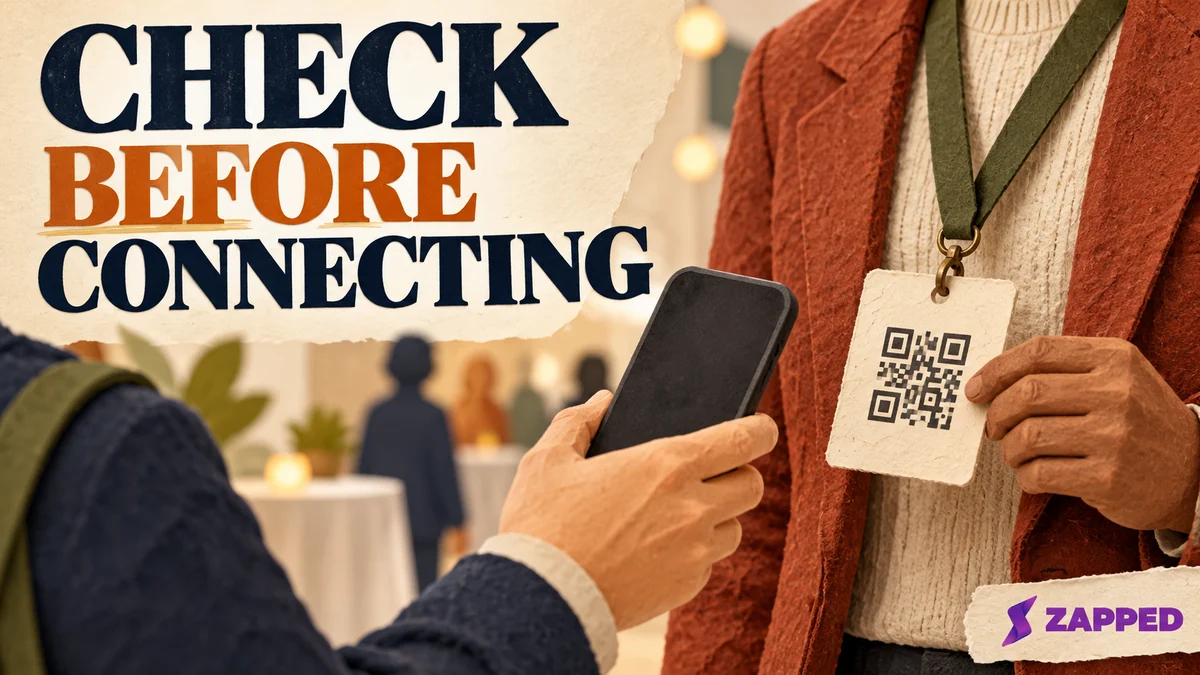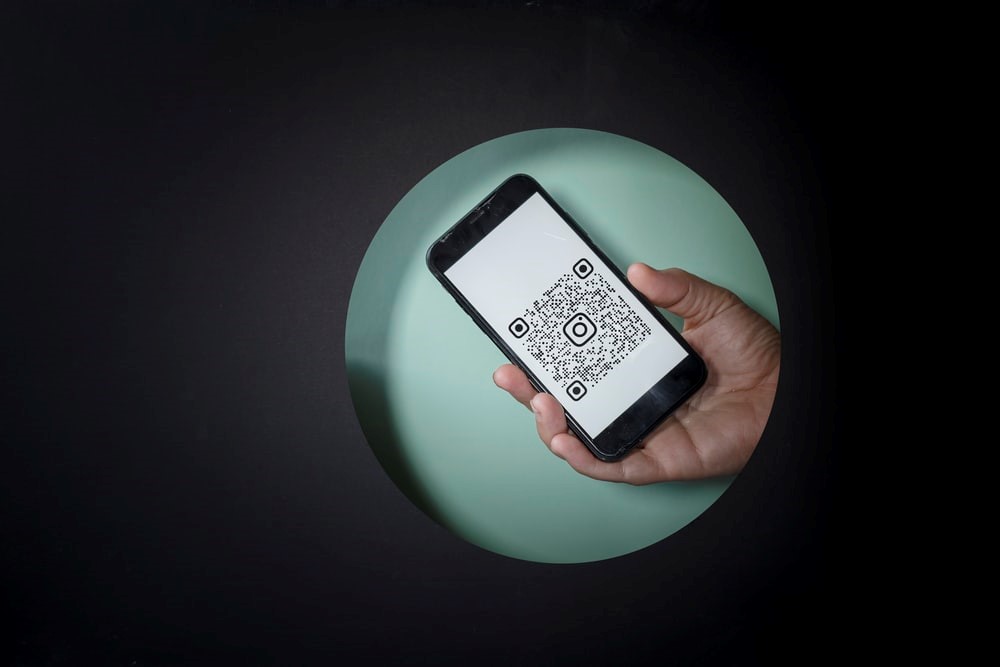
Need a LinkedIn QR code before the next handshake? Open the mobile app, tap the QR icon in the home screen search bar, choose My code, then save or share it through LinkedIn's QR steps. That creates the square. The useful part is making sure it reaches the right profile, survives the place where you will show it, and reveals only what you intended.
Decide whether LinkedIn should own the destination
LinkedIn's native code is the quick answer for a resume, presentation slide, or conversation happening now. It gives you a personal code inside the mobile app, so the other person can scan instead of typing your name into a crowd of lookalikes.
But a QR code is a pointer, not proof that the pointer is aimed at the right profile. If the code is going on a business card for months, begin with the public profile URL. Open it, inspect it, and only then turn that destination into a square. LinkedIn says a public profile URL normally starts with www.linkedin.com/in; its public URL rule hides that address when the profile is not public.
The decision is simple. Use My code for a fast personal exchange. Use a URL QR code when the destination is being committed to print, packaging, or a slide deck that will be reused. The longer the code has to live, the more control the destination deserves.
If the QR code is one part of a printed card, there is a separate layout decision too: this guide on placing LinkedIn on a business card covers how it should sit beside your other details.
Settle the profile URL before you print
Open the public profile URL itself, not just the image of the code. Check the name, photo, headline, and profile you meant to share. A code can open a genuine LinkedIn page and still open the wrong genuine LinkedIn page.
LinkedIn lets you customize the last part of a public profile URL, but the change budget is tight. You can change it five times within six months. The previous custom URL remains linked to you for six months unless you unlink it. Settle the handle before a printer, recruiter, or event organizer gets the file.
Keep the readable profile URL beside the code whenever the design allows it. It gives someone another route when the lighting is poor, the camera refuses to focus, or the code has been resized too aggressively. It also gives you a quick visual check that the destination in the image is the one you meant to distribute.
Choose the scan path that fits the moment
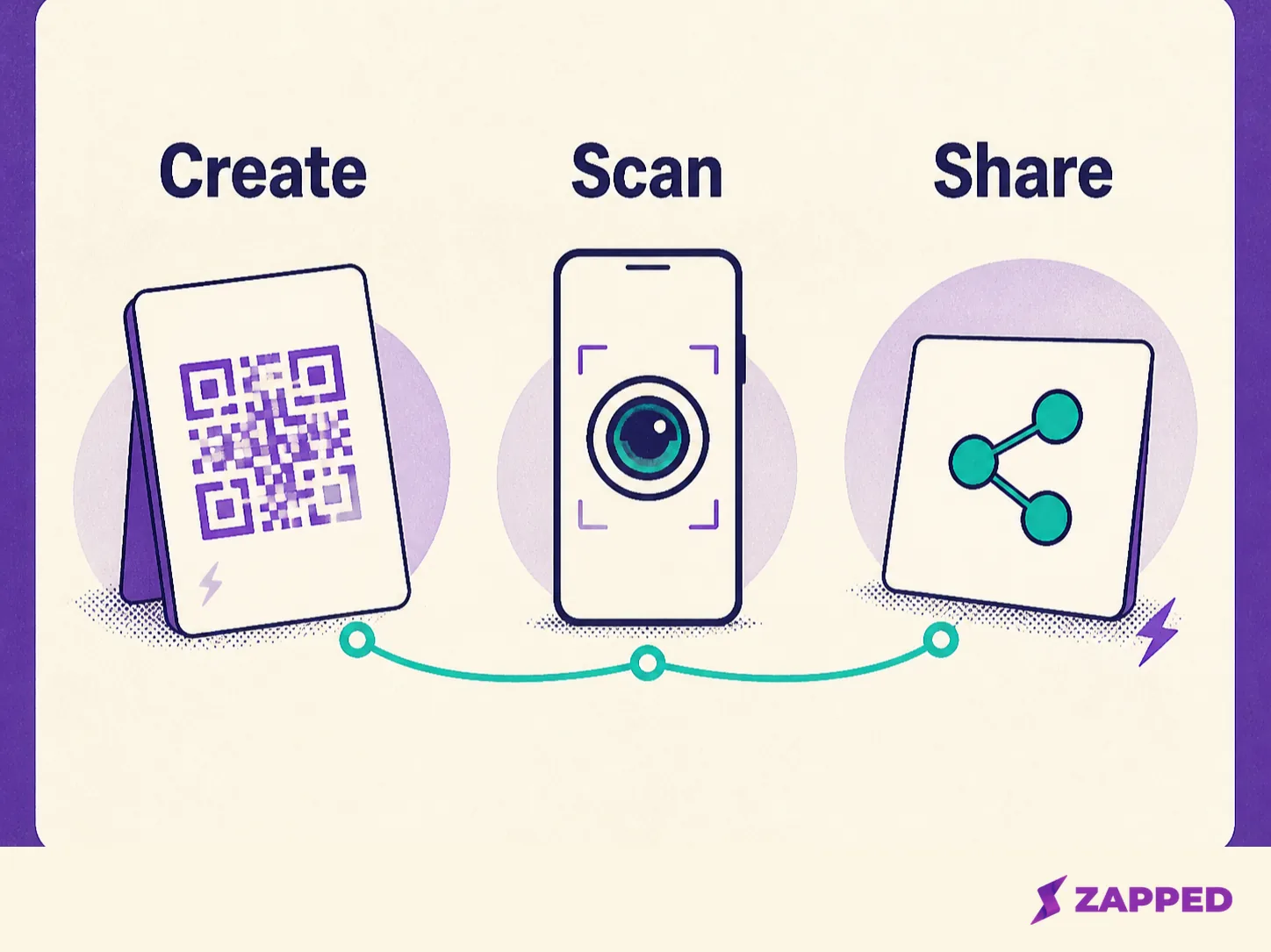
The recipient does not need one perfect app path. Inside LinkedIn, open the QR screen, choose Scan, and allow camera access if the phone asks. If the code is already saved, scan it from photos or the gallery through that same LinkedIn flow.
On an iPhone, the native Camera app or Code Scanner can read the code and show its link. Apple's Camera and Code Scanner instructions describe both routes. On Android, QR support varies by device, so point the camera at the code first and tap the banner when it appears, as Google's camera scanning guidance describes.
At a conference, use the least fragile path first: LinkedIn's Scan tab, then the phone camera, then the saved image or gallery route. If all three stall, stop making the other person spell your name. Show the readable public URL.
Give the square room to work
The blank space around a QR code is part of the code. DENSO WAVE specifies a quiet zone four modules wide on every side, so leave a four module quiet zone instead of pressing a logo, border, caption, or decorative pattern against the symbol.
That rule matters on the final surface, not just in the export file. A code that scans on your laptop can fail when it is squeezed into a business card corner, placed over a busy background, or surrounded by marks that blur its edges. Keep the QR area plain. Then scan the exact printed card, slide, or screen you plan to share.
The test is not a successful beep. It is the intended LinkedIn profile opening. Save the URL in the same folder as the artwork, and keep the text fallback in the finished layout when there is room.
Check what a stranger can see
Public does not mean every profile detail is visible to every visitor. LinkedIn's public profile settings control which sections appear to people who are not signed in, and nonmembers can still be asked to sign in for parts of the profile. Review public profile visibility before you hand out the code.
Pay special attention to Contact Info. LinkedIn says that section is generally limited to first degree connections, while some other contact paths, such as a webpage, blog URL, or Twitter handle, can be visible more broadly. The profile you see while signed in is not the same test as the profile a stranger sees after scanning.
Use a private browser window or a signed out device for the final privacy check. Confirm that the public headline and contact path say what you want them to say. Remove anything you meant only for connections before the QR code becomes part of a permanent design.
Know when LinkedIn is too narrow
LinkedIn's native code is right when the handoff ends at one profile. Choose a live card when the person scanning should reach a browser based contact page, or when the destination may change after printed material is already in circulation.
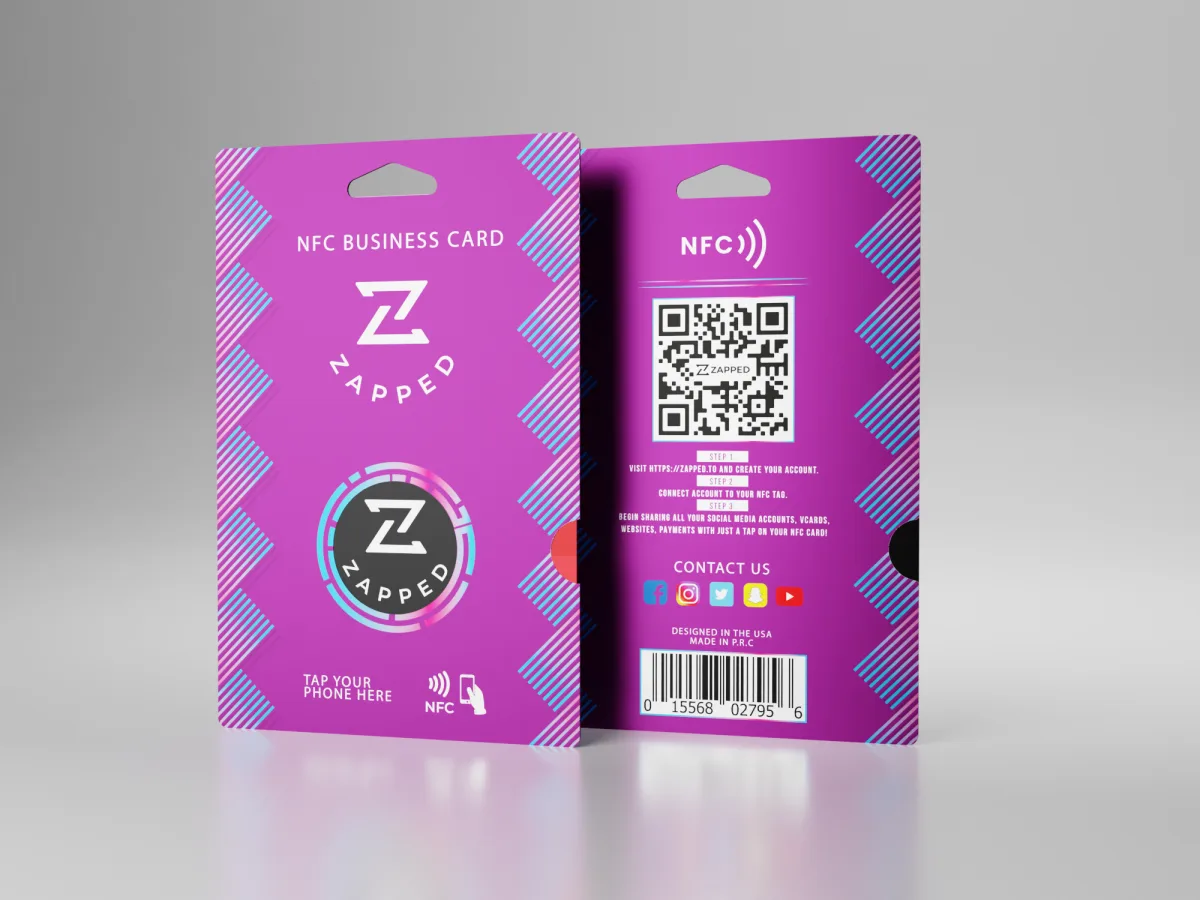
Zapped's live digital card can be shared by QR code, link, or NFC tap and opened as a public web page in a normal browser, without an app or account for the recipient. You can edit the card after sharing, so the printed QR and shared link keep working when the content changes. That is a different destination from LinkedIn's native My code. It gives a profile room for a phone number, email, payment option, social links, or a contact save path around it.
Analytics make the distinction clearer. Zapped gives you per card analytics history of 60 days on Free, 185 days on Starter, and 365 days on Professional, as shown in our monthly plan details, checked in August 2026. For a small test, the Free plan gives one digital card and five content blocks with QR, link, and NFC sharing, and it does not require a credit card.
Teams have another reason to choose a live card. Zapped gives you workspaces, member seats, and roles. Starter supports two workspaces and five members per workspace, while Professional supports five workspaces and ten members. Our team access documentation is the useful next stop when several people need to manage shared cards.
The tool should match the handoff: native LinkedIn for a quick profile exchange, a live card for an editable contact surface. If you want a QR code and a tap to lead to the same LinkedIn profile, see the NFC LinkedIn card guide.
When the scan fails, keep the handoff moving
If LinkedIn has moved the QR icon, the recipient cannot use its scanner, or the code is not recognized, use the public profile URL as the recovery path. Try the phone camera, then scan the saved image from LinkedIn's photos or gallery route. Show the URL as readable text while you troubleshoot.
Do not open an unexpected destination just because the square looks familiar. The FTC recommends inspecting a QR destination for spoofing before opening it, especially when an unexpected message uses urgency. Its QR scam guidance gives you the right habit for your own code too: look at the URL first, then decide whether to continue.
The best LinkedIn QR code is not the prettiest image in the export folder. It is the one that reaches the intended public profile from the place where someone will actually scan it, leaves the symbol its quiet zone, shows only what you meant to publish, and gives the reader a typed URL when the camera has a bad day.