Use a LinkedIn QR code when someone is likely to hold a printed resume and your profile adds useful proof or a clear way to connect. Keep the public profile URL readable beside it. For an online application or emailed PDF, make the clickable URL the main route, and leave off the code if it crowds the page or competes with the resume text.
A QR code is a handoff for a physical page. It doesn't improve a resume simply by occupying a square.
Choose by format
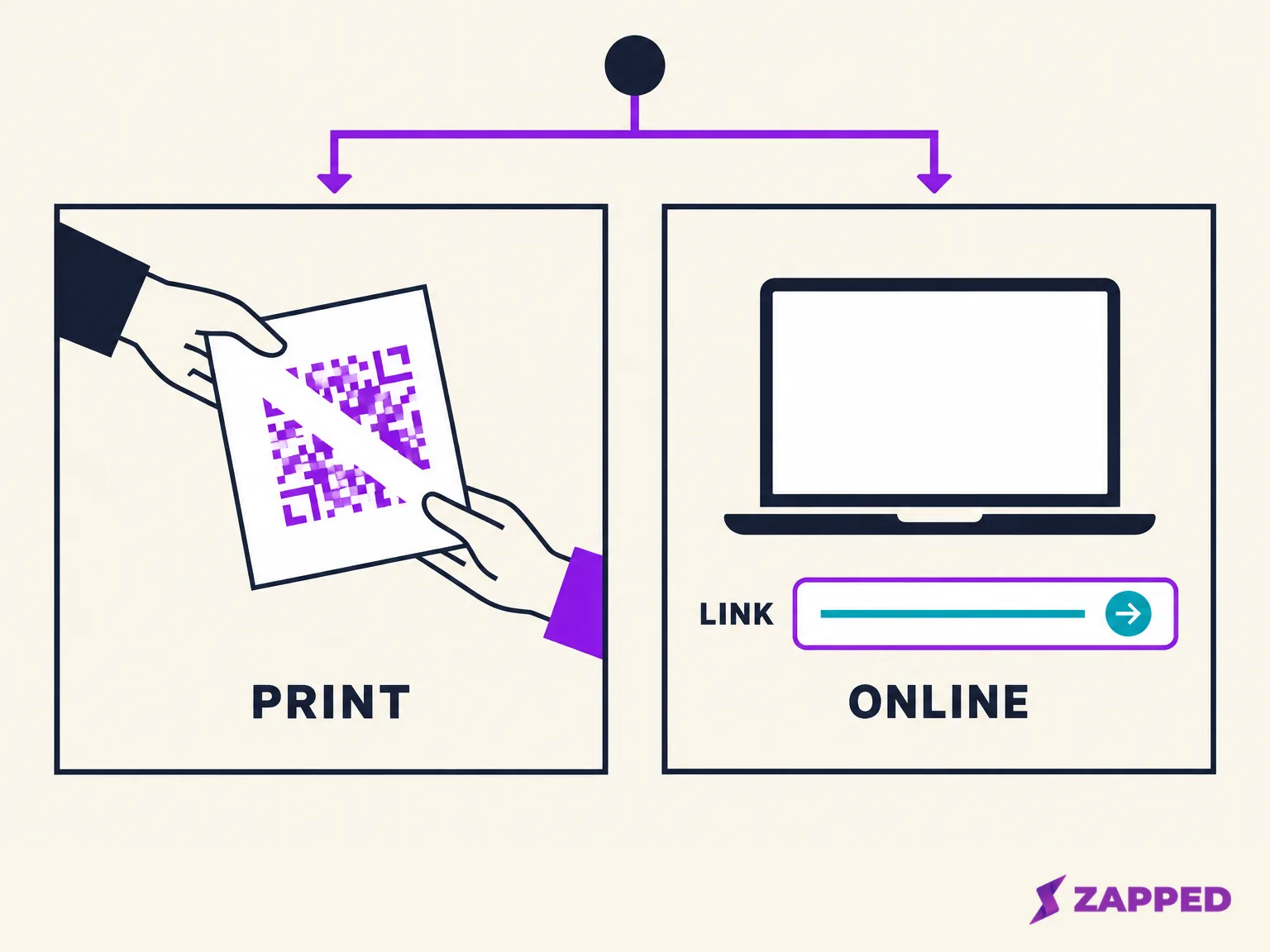
For a printed resume at a fair or meeting, include a code only when LinkedIn adds something the paper can't: work samples, current context, or a purposeful way to connect. Indeed suggests using it to extend a resume with an online profile or work samples. If the profile repeats the resume without adding anything, the extra scan is just another step.
An application portal or emailed PDF has a different reader in mind. Keep the LinkedIn URL as readable, clickable text, and leave off the code when it makes the page harder to scan. ResumeMate recommends a plain link for online applications and reserves QR codes mainly for printed career fairs or resumes built around a portfolio.
Keep online resumes simple. Greenhouse lists graphics and complex layouts among elements that can lead to partial parsing failures, but its guidance doesn't say whether its parser reads QR codes.
Choose a destination that earns the scan
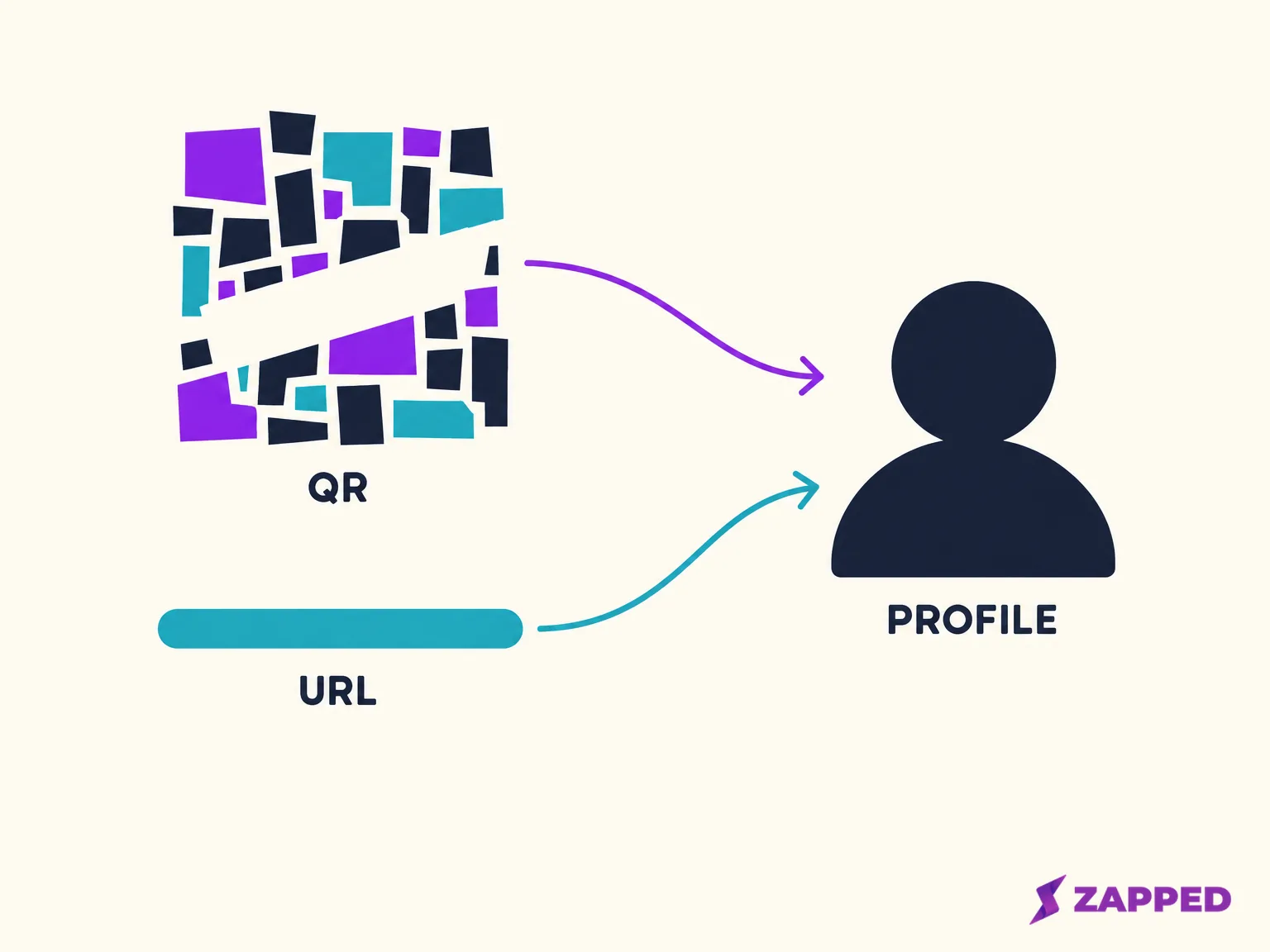
LinkedIn assigns each member a QR code, and scanning it opens that member's profile. Use that direct destination when the profile adds meaningful detail to the resume. For steps to find, save, share, or scan the code, follow LinkedIn QR code steps.
Keep the public LinkedIn URL readable beside the code too. LinkedIn provides a public profile URL when the profile is set to public; it commonly starts with linkedin.com/in.
A LinkedIn code should open LinkedIn. If you want a broader page or a way to help someone save contact details, choose that destination deliberately. Toolsque distinguishes profile or portfolio links from a vCard intended to save contact details in its resume QR guide. If a broader page might fit better, weigh digital business cards on resumes against the direct profile link.
Check what the recipient can see
A public LinkedIn profile is a simplified view, and visibility can be controlled section by section. Visitors may need to sign in to see the full profile, so review public profile visibility as the promise your QR code makes. If there's no public profile URL, or the public sections don't show what you intend, leave the code off until you've chosen a destination you're comfortable sharing.
Place and size the printed code
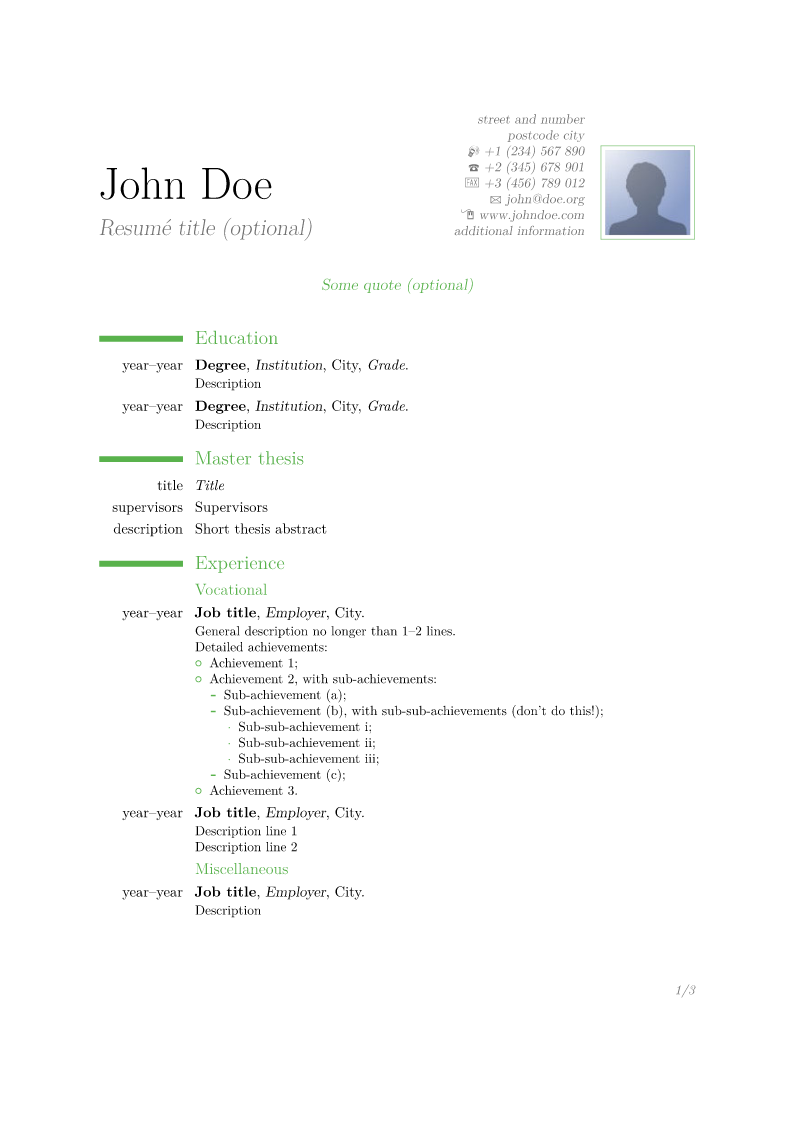
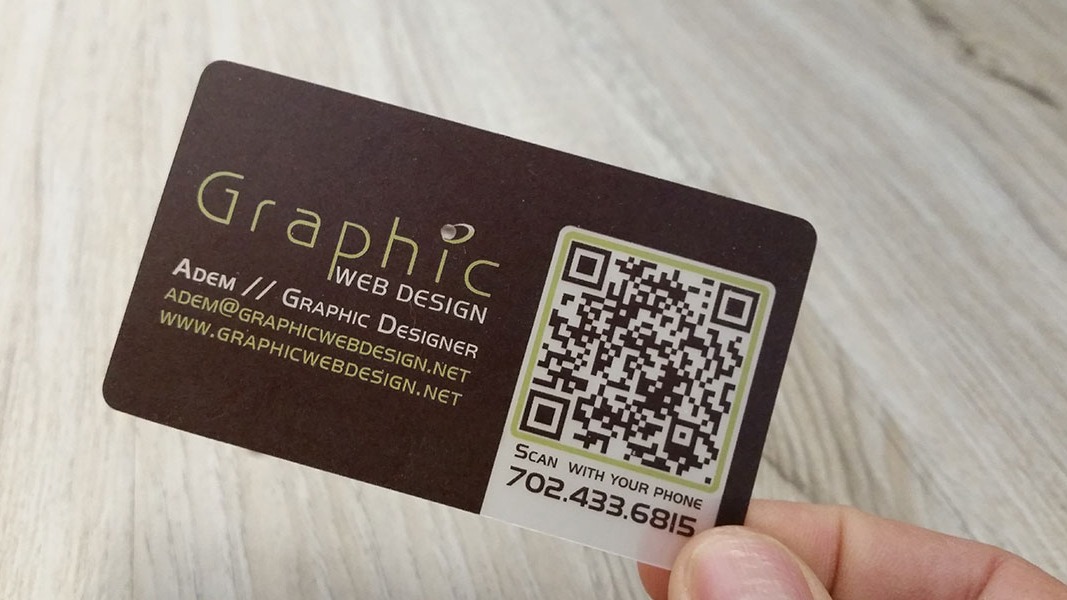
The contact area is a sensible place for a resume QR code, and Indeed recommends placing a code near contact details. CV Builder also recommends a written URL beside the code on a printed resume, making the scan an option rather than a gate.
Give the symbol a clear margin four modules wide on every side. DENSO WAVE says larger modules make codes more stable and easier for scanners to read, though usable module size depends on the printer and scanner. Give the symbol room instead of squeezing it against text or a page edge.
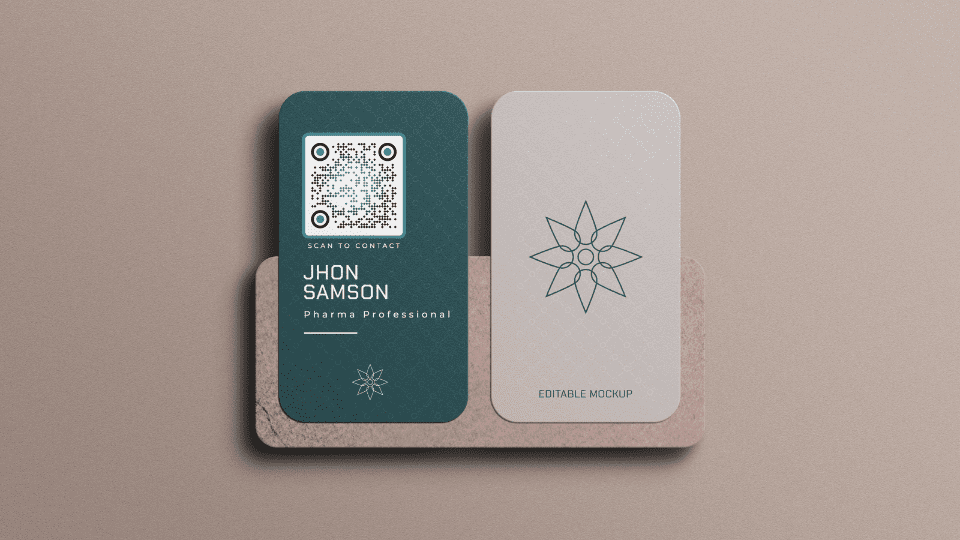
For a printed business card instead, see how to present LinkedIn on a business card.
Keep another way to reach the profile
Readers don't all scan with the same app or device. Scan the code in the LinkedIn app, with iPhone and iPad Camera or Code Scanner, or in Camera from Google on selected devices. A printed code can be useful in person, but it shouldn't be the only route.
Before handing it out, test the exported PDF and print at the size someone will actually see. The code should open the intended profile, and the URL beside it should still be easy to read. If the scan is awkward or fails, the recipient can type the URL.