LinkedIn belongs on a business card when it helps people verify your background, connect professionally, or see your work history. The trick is keeping it readable.
Quick answer
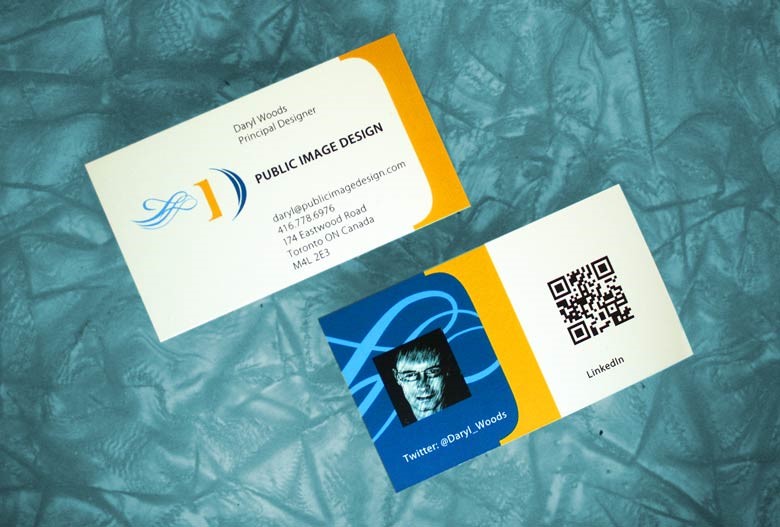
Put LinkedIn on a business card with a short public profile URL, a QR code, or a digital profile link that includes LinkedIn beside phone, email, booking, and portfolio links. Test the URL before printing.
Key takeaways
- Make the relationship goal clear before choosing the tactic.
- Use simple contact sharing so new connections can follow up quickly.
- Respect local rules, event rules, property rules, and professional norms.
- Turn in-person conversations into a saved contact, booking, or profile visit.
What to decide first
Start with the context. A lunch, real estate open house, parking lot, conference, or casual introduction each has different etiquette and legal risk.
| Option | Best for | Watch out for |
|---|---|---|
| Conversation first | Warm networking | Slower but higher trust |
| Printed card | Fast in-person reminders | Can be ignored without a reason to act |
| QR profile | Events and mobile follow-up | Needs a clear scan prompt |
| Direct outreach | Known contacts and referrals | Can feel spammy if context is weak |
What to include
Include your name, role, specialty, contact path, and one useful next step. For networking events, add booking, calendar, social proof, or a short resource that gives the other person a reason to reconnect.
How to use it well
Use the card or profile to support the relationship rather than replace it. Ask a relevant question, share the card when it helps, and follow up with context from the conversation so the contact remembers why you are reaching out.
Decision examples
For a planned event, prepare a profile or card around the event goal. For a referral meeting, make the card point to proof and booking. For real estate or local services, make reviews and service area easy to find. For informal conversations, keep the card simple and follow up with the context from the discussion.
The best networking systems feel personal after the first meeting. A good card helps the other person remember you, but the follow-up earns the relationship.
Practical examples
- A printed card uses a QR code to open a profile with current links.
- A service provider sends scans to a quote or booking path.
- A local business uses a review or directions link as the primary action.
- A team keeps employee cards consistent while allowing individual contact details.
Better follow-up by situation
Use linkedin on a business card, best ways to add it as a relationship tool, not as a paper drop. At a lunch, follow up with the topic you discussed. At a real estate event, send listings, market notes, or a booking link. At a community event, share a short resource instead of a generic sales message. In any public or private space, respect property rules and the event host's expectations.
A good follow-up usually includes:
- Where you met.
- What you talked about.
- Why you are reaching out now.
- One useful next step.
- A simple way to save your contact details.
Etiquette and risk check
Networking gets weaker when the handoff feels random or intrusive. Avoid mass distribution where people did not ask for the card, especially on private property, vehicles, workplaces, campuses, or events with sponsor rules. When in doubt, ask permission and use a digital profile or QR code that supports a real conversation.
Common mistakes to avoid
Avoid unclear calls to action, stale links, tiny type, broad claims, untested QR codes, and destinations that do not match the promise on the card or campaign.
Where Zapped fits
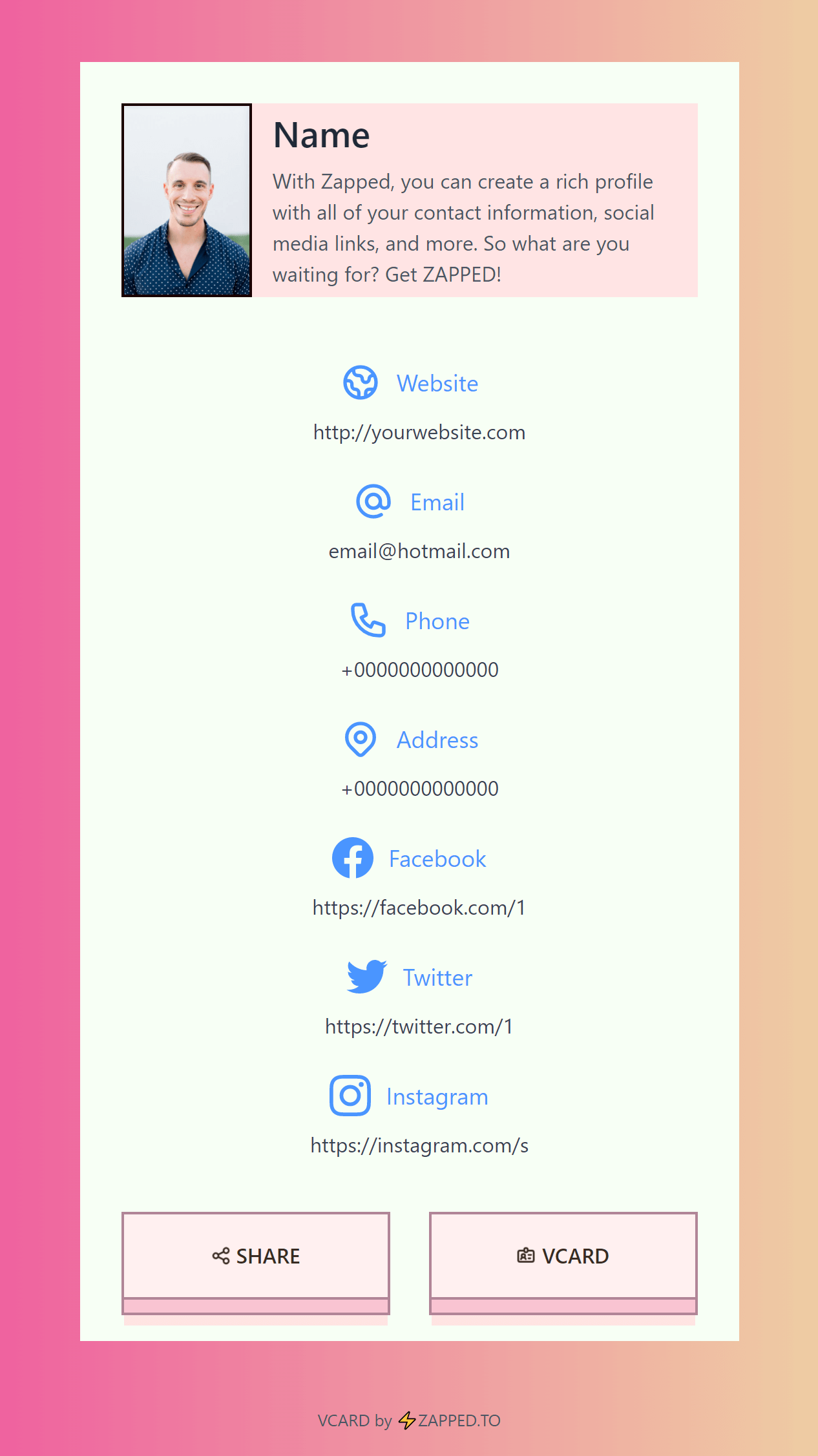
Zapped helps when this topic needs one editable destination behind a card, QR code, NFC tap, social profile, email signature, or campaign. You can keep the physical or social touchpoint simple while the live profile carries contact details, booking, reviews, files, payments, videos, and analytics.
Before you publish or share
- Test every QR code, NFC tap, link, and button on a phone.
- Check the first screen for one clear action.
- Update old screenshots, platform steps, or pricing context before publishing.
- Make sure the related profile or landing page matches the reader intent.
FAQs
Is linkedin on a business card, best ways to add it still useful?
Yes, when it helps someone take the next step faster. The format matters less than the clarity of the offer, contact path, and follow-up destination.
Should I use a QR code?
Use a QR code when the next step is easier on a phone. Test it before printing, keep enough white space around it, and send people to a mobile-friendly page.
Can I use a digital card instead of print?
You can use a digital card by itself for online sharing, but print still helps in face-to-face moments. Many businesses use both.
How often should I update the linked page?
Update it whenever your offer, contact details, portfolio, booking link, pricing context, or campaign changes.
Sources
- LinkedIn Help, public profile URL for finding and customizing a public profile URL.
- LinkedIn Help, public profile visibility for profile visibility context.
- Zapped's digital business card features for placing LinkedIn beside contact, booking, and portfolio links.