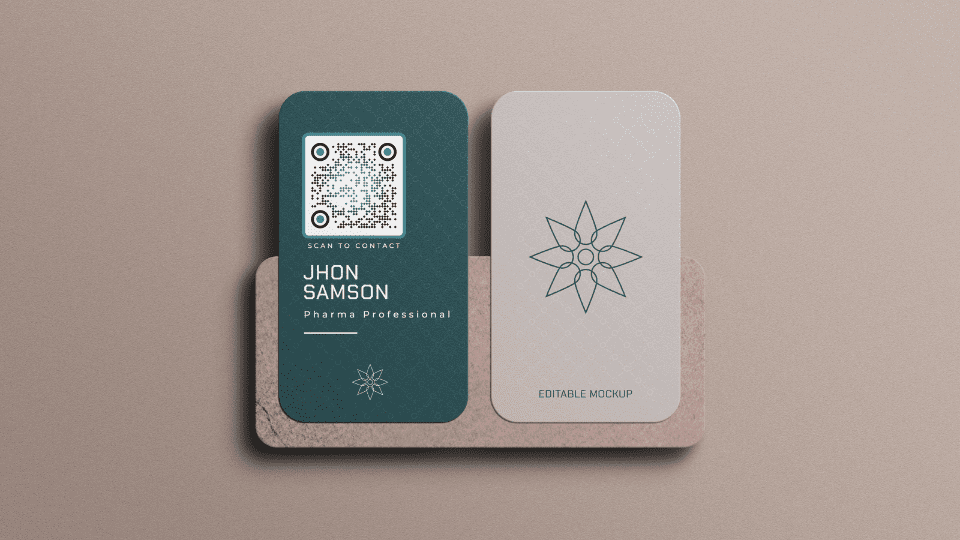
Learn how vCard QR codes work, when to use a static vCard, and when a live digital profile is the better choice.
Quick answer
A vCard QR code lets someone scan a code and save contact details from a vCard record. It is useful for simple contact sharing, but a live digital profile is better when details may change or when you also want links, booking, social profiles, analytics, or team management.
Key takeaways
- Make the recipient journey clear before choosing the card format.
- Use QR or NFC as entry points, not as the whole strategy.
- Point scans and taps to an editable destination whenever details may change.
- Test the complete flow before printing or rolling it out.
What this means in practice
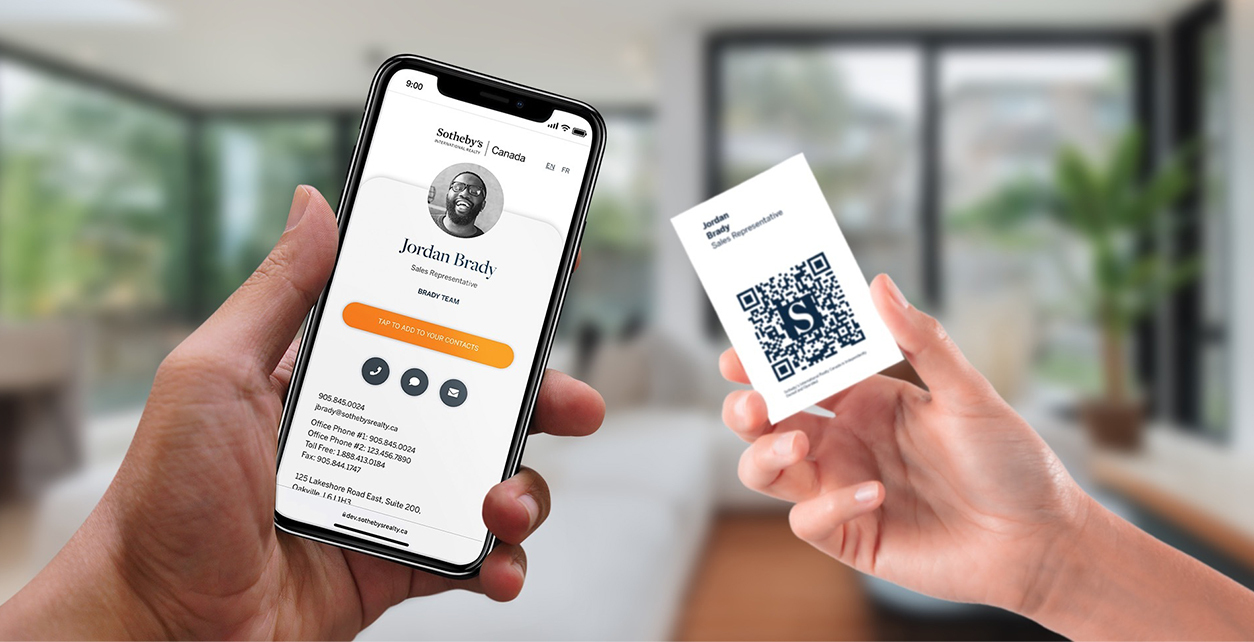
A vCard is a contact format. A digital business card is the broader experience around that contact save action.
A refreshed business card should answer three questions quickly: who is this person, why should I care, and what should I do next? When the card points to a live profile, those answers can change as the business changes.
Static QR vs live profile
| Option | Best for | Tradeoff |
|---|---|---|
| Static contact QR | Simple name, phone, and email sharing | Hard to update after printing |
| Live profile | Cards, links, booking, and updates | Needs a hosted page |
| QR plus NFC | In-person networking with backup sharing | Requires testing both paths |
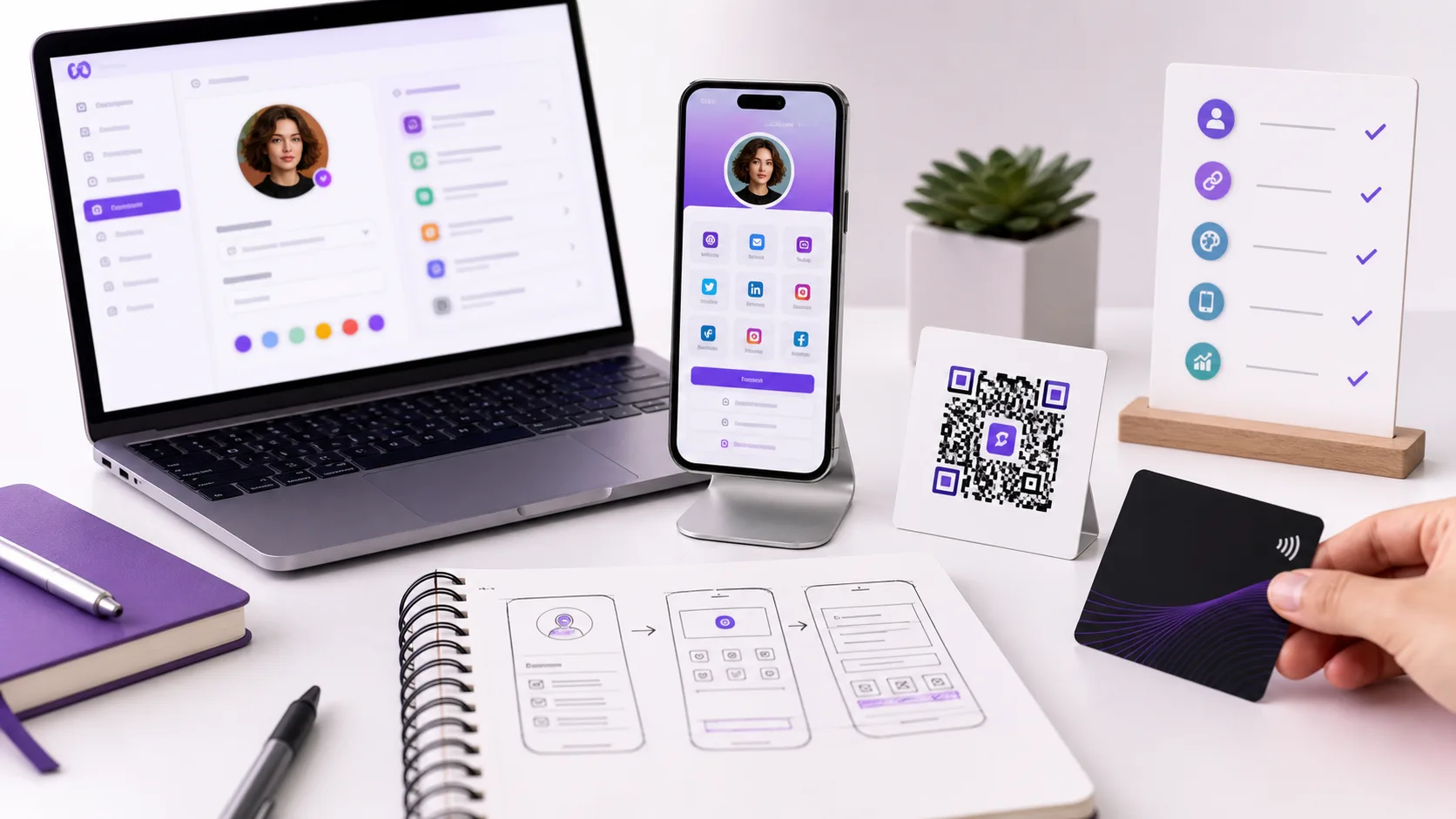
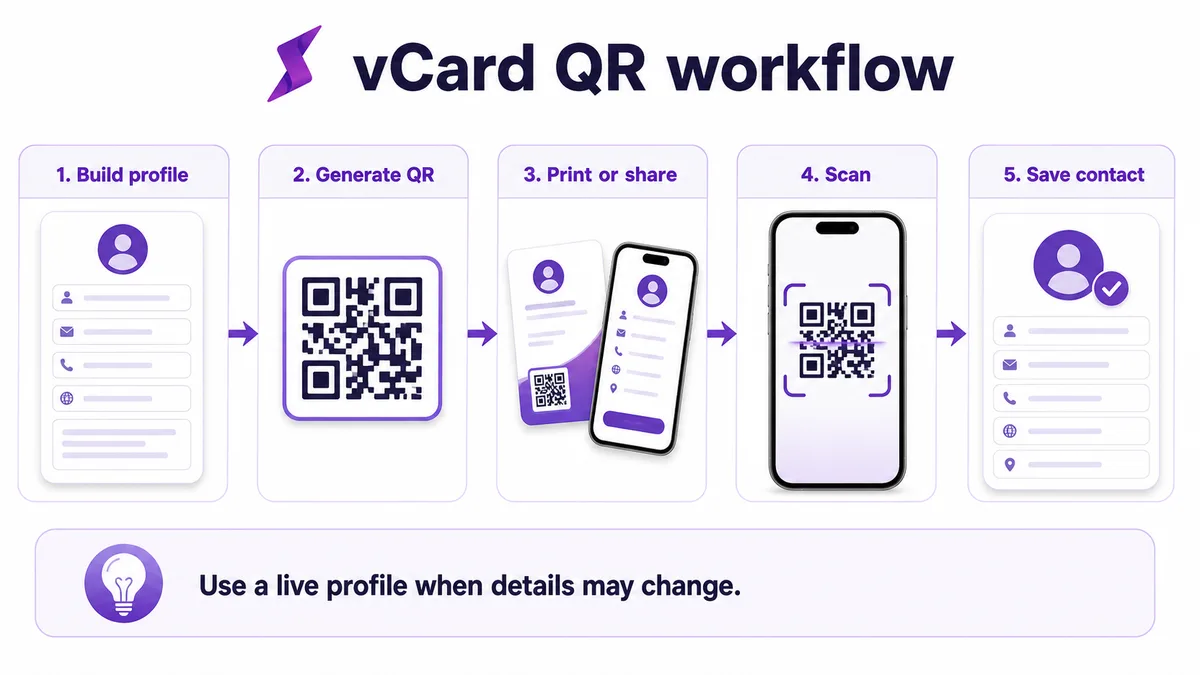
This visual shows how the card design, scan path, and profile destination work together.
How to use this well
Start with the outcome. If the goal is a saved contact, make the save action obvious. If the goal is booking, put the booking link near the top. If the goal is local trust, include reviews, service area, and a clear way to call or request a quote.
Do not send every person to a generic homepage. A business card scan or tap should open a page made for that handoff. The page can still link to the full website, but it should not make the recipient hunt for the basic next step.
When a vCard QR code is enough
A plain vCard QR code works best when the contact record is stable and the next step is simply saving the person's details. It can be a good fit for internal staff badges, simple appointment cards, event name badges, or a printed card that only needs name, phone, email, title, and company.
It becomes less useful when the card has to carry context. A prospect may want to see services, a portfolio, booking options, reviews, social profiles, or a team page before they save the contact. In that case, the QR code should open a profile first, then offer a save-contact action from there.
What to check before printing
Scan the code on an iPhone and an Android phone, save the contact, then inspect the saved record. Check name order, company name, phone formatting, email spelling, website URL, and whether the recipient sees any confusing prompts. If the QR code points to a live profile, also check page speed, above-the-fold clarity, and whether the most important action is visible without hunting.
Make the card useful with Zapped
Zapped gives the card a live destination instead of locking every detail into print. The same profile can support QR codes, NFC taps, direct links, email signatures, social links, booking pages, and save contact actions.
That is the practical advantage of a digital card: people still get a simple handoff, but you can keep the profile accurate after the card is shared.
Examples by use case
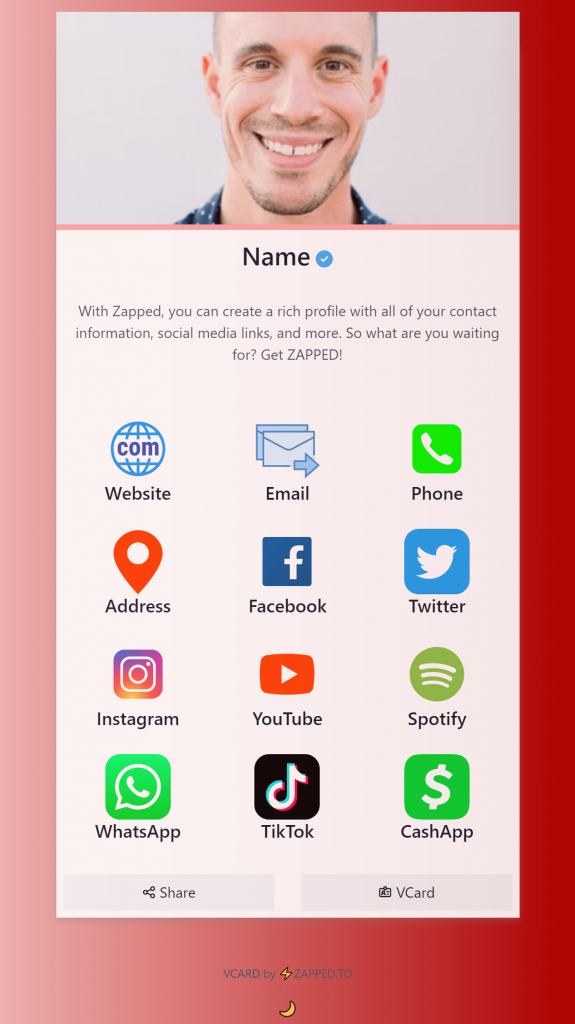
For a conference card, the profile might show a headshot, role, company, calendar link, LinkedIn, and one event-specific offer. For a local service card, it might show phone, service area, quote request, reviews, and a photo gallery. For a sales team, it might show product links, meeting booking, company page, and a save-contact button.
The format changes, but the principle stays the same: the card should continue the conversation that started in person. If the recipient only needs your phone number, keep it simple. If they need context before they act, give them the proof and next step in the profile instead of trying to squeeze everything onto the printed card.
Before you publish or print
Use this final pass before the card goes live:
- Open the profile from the exact QR code or NFC chip that will be used.
- Confirm the profile headline, photo, company name, and primary action match the real handoff.
- Test the save-contact action and every high-priority link on iPhone and Android.
- Check that the printed card still works if the recipient ignores NFC and scans the QR code instead.
- Ask one person outside the project to scan it and explain what they think the next step is.
That last test is valuable because most card problems are clarity problems. If the person hesitates, the profile or printed card needs simplifying before it reaches customers.
FAQs
Do people need an app to open the card?
No. A strong recipient experience opens in a normal browser from a QR code, NFC tap, direct link, or message.
Should I use QR or NFC?
Use QR when visibility matters and NFC when fast close-range sharing matters. Many business cards should use both.
What should the profile include?
Include contact details, a save contact action, website or company link, and the most important next step for that audience.
How should I test the card?
Test the QR code, NFC tap, page speed, save contact action, and important links on both iPhone and Android before printing or sharing widely.
Sources
- NFC Forum technical overview for NFC tap behavior and common NFC use cases.
- IETF RFC 6350 for the vCard contact data format.
- Google Business Profile review guidance for review link and QR code workflows.