When someone at a meeting or career fair shows you a LinkedIn QR code, start in LinkedIn if you want to reach their profile. Use Scan for a code in front of you, or the photo or gallery control for an image saved on your phone. The phone camera can be a quicker way to open a detected link, but its result is less predictable. A scan is complete when the profile belongs to the person who shared the code.
Scan a live code in LinkedIn
Keep the LinkedIn app up to date for its QR feature. Open LinkedIn and tap the QR code in Search at the top of Home.
On iPhone, tap Scan and point the camera at the other person's code. Keep it in view while the app reads it. If the code is on a badge or another phone, this is the live scan path.
On Android, tap SCAN. If LinkedIn asks for camera access, allow it so the app can read the code. Camera access is a permission for QR scanning. Point the camera at the live code. If a button's wording has changed, look for the QR code beside Search and a Scan choice.
A successful scan in LinkedIn redirects to the member's profile. Compare it with the person who shared the code before deciding whether to connect. LinkedIn assigns each member a unique QR code, but the code only takes you to a profile; it does not confirm who is standing in front of you.
Open a code saved on your phone
When the QR image is already in your photo library, use LinkedIn's saved image control instead of trying to scan the display. Open the app, tap the QR code in Search, then choose Scan from photos on iPhone or ADD CODE FROM GALLERY on Android. Select the saved image to open its associated member profile.
This works when someone sends a code image and you save it on the same phone where LinkedIn is installed. If the picture does not appear in the picker, return to the message or photo where it is saved and try again. A blurry or cropped image may not scan; ask for a clearer copy rather than guessing at a profile from a partial code.
Use your phone camera for a quick link
On iPhone, open Camera or Code Scanner, frame the code, then tap the link that appears. Code Scanner is also available from Control Center.
On a Pixel, open Camera, make sure Camera scan suggestions are enabled, frame the full code, and tap the detected link. The QR scanner in Quick Settings or Google Lens is another option. Android camera support varies by device model, so if the default camera shows no link, try Quick Settings or return to LinkedIn's Scan tab.
LinkedIn's QR help describes its own scanner as a route to the member profile. It does not say whether an ordinary iPhone or Android camera scan opens LinkedIn or a browser. Use the phone camera when a detected link is enough; use LinkedIn's scanner when you want it to open the member's profile directly.
If the QR code will not scan
Give the camera a clear view: hold the phone steady, keep the whole square in frame, improve the light, avoid glare and shadows, and clean a smudged lens. On Pixel, move closer with the full square in view. Cutting off a corner can remove information the scanner needs.
For a printed code, check the print as well as the phone. Distortion, poor print, or a missing margin can make a code difficult to read. A larger code is often easier because its modules are larger, though the useful size depends on the application and reading device. There is no single minimum size for every phone and print job. If a badge code is tiny, warped, or crowded by artwork, ask for a larger, clearer copy. For your own printed card, see LinkedIn business card tips.
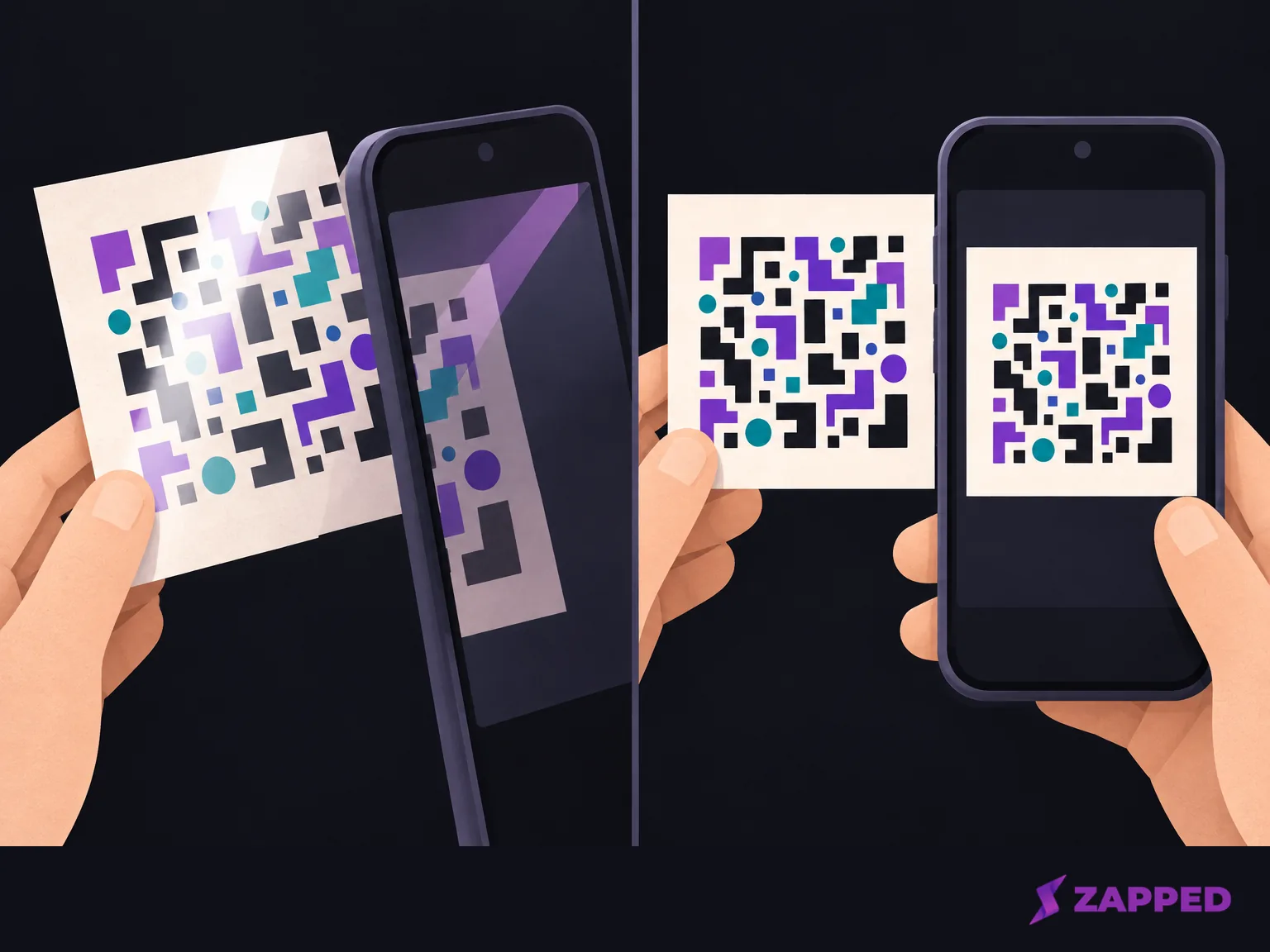
If the phone camera still does not detect a live code, switch to LinkedIn's scanner. For an image saved on this phone, use Scan from photos or ADD CODE FROM GALLERY instead. If LinkedIn still cannot read the code, ask the person to display it again or share their profile link or name.
Check the profile before connecting
Pause on the profile LinkedIn opens and compare its visible identity with the person who shared the code. If it is not a match, do not send an invitation. Return to the scanner for a fresh scan, ask for the person's public profile URL, or ask how their name appears on LinkedIn and search from the homepage. If several profiles look plausible, use the URL instead of guessing.
Once the profile checks out, choose Connect if it appears. If Follow is the main action, open More, then Connect. If Connect is still missing, LinkedIn lists an existing connection or invitation as possible reasons. Check the relationship status before scanning again; another scan leads to the same profile and will not clear an existing connection or pending invitation.
To share your own code at a future event, see how to make a LinkedIn QR code.