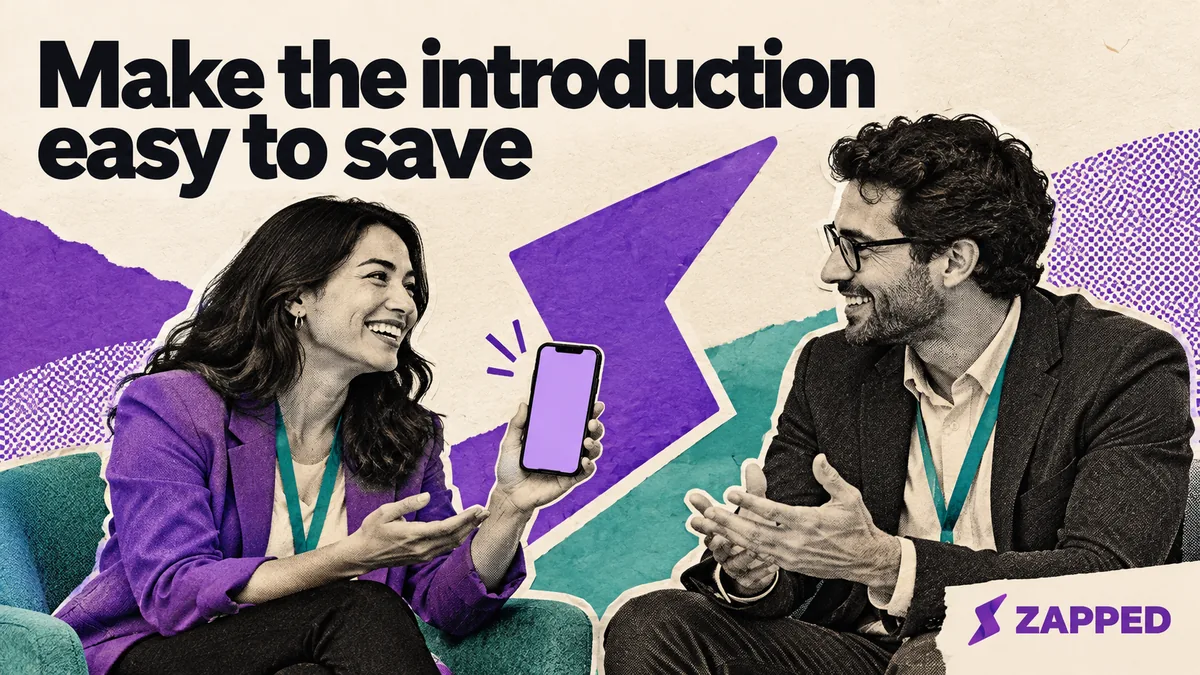
You're mid-conversation at a conference, the other person says "let's connect on LinkedIn," and now one of you is about to hand over a phone or spell a name letter by letter. A LinkedIn QR code fixes that, with one catch worth knowing up front: a scan opens your profile, and that's all it does. LinkedIn says the scanner lands on your profile, where they choose whether to invite or connect. So the job isn't showing a square. It's making sure the right profile opens and leaving them an easy next step.
Save the code and check your profile before you leave the house
The code lives inside the LinkedIn mobile app, and LinkedIn asks for the current version of the app, so update it first. If you want a longer walkthrough, our guide to creating a LinkedIn QR code has the full version. For an event, the short version is enough:
- Open LinkedIn on your iPhone or Android phone.
- Tap the QR icon in the Search bar at the top of Home.
- Tap My code.
- Tap Save to photos on iPhone or Save to Gallery on Android.
Then put the saved image somewhere you can reach with one thumb. A Binghamton University career center guide suggests an album labeled "Networking", which also keeps the image one tap away if the app is acting up at the exact moment you need it.
Now look at the profile the code points to, because that's what strangers will see. LinkedIn lets you choose which public sections display. On mobile, tap your profile photo, then Settings, Visibility, and Edit your public profile under Visibility of your profile & network. You can switch public visibility off entirely or hide individual sections, and the changes save automatically. LinkedIn's QR help page doesn't spell out which fields a scanner sees, so don't assume the code reveals everything or nothing. Check the profile with the settings you actually want, and be comfortable with whatever shows.
What the other person does, and how you know it worked
Hand over the screen, or hold up the saved image. The other person opens LinkedIn, taps the QR icon in Search, chooses Scan, and holds their phone over your code. On Android they may need to allow camera access when prompted. If the code image is already saved on their phone, they can pick it instead of using the camera: Scan from photos on iPhone, Add Code from Gallery on Android. Without the image, the normal scanner reading your screen works. LinkedIn's help page lists these labels, though app screens change, so treat them as a guide.
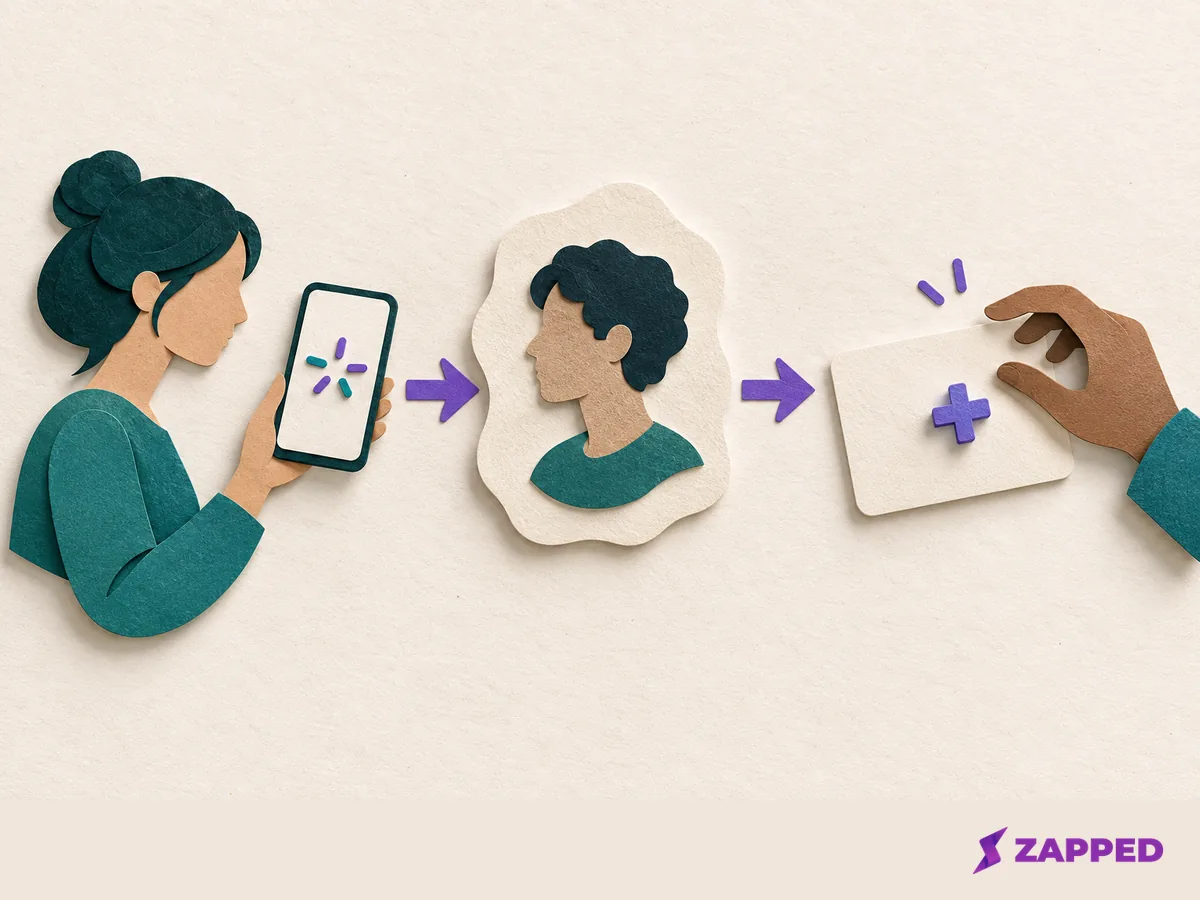
Don't count the handoff as done when the camera clicks. Count it when you've both seen that the right profile is open. Opening a profile doesn't send an invitation or create a connection, so let them look it over and decide. A non-member who lands on a public profile may also be prompted to sign in to see parts of it, and LinkedIn says some contexts show only a limited preview. Don't promise that everyone sees the same thing. If the scan won't work, LinkedIn's advice is the current app version, and the fallbacks below cover the rest.
Keep a fallback if scanning is awkward
Some rooms are bad for scanning: glare, dead batteries, a phone with no LinkedIn app. Carry a second way in.
A printed copy of the same saved code is a backup way to display it, since it still needs a scanner. It can sit on a paper card or your badge holder. LinkedIn's own 2018 launch post suggested conference badges and lanyards as spots for the code, and our guide to putting LinkedIn on a business card covers the paper version.
When scanning isn't an option, use your public profile URL, which you can send through whatever channel they prefer. To copy it on mobile:
- Tap your profile photo twice to open your profile.
- Tap More next to Add section.
- Tap Contact info.
- Copy the link under Your Profile.
LinkedIn says the URL doesn't appear if your profile isn't public. In that case, or when typing a link feels silly, give your name and company. LinkedIn's search accepts name and company and other fields, though it won't find a profile from an email address. Either way, confirm together that the right profile is open.
If LinkedIn offers a note, name the event
Once they find you, or you find them, the invitation is where a short note earns its keep. On mobile, open their profile, tap More, tap Personalize Invite, write the note, and tap Send Invitation. LinkedIn's limits: members without Premium can personalize up to three requests a month, each up to 200 characters. Premium lifts the note count, though request limits can still apply.
LinkedIn recommends keeping it short and specific: how you met or what you share, and why you'd like to connect now. An event is a natural anchor. "Good talking at the Tuesday workshop about hiring" does the job in one line. Invitations sent from People You May Know on mobile can't be personalized, and if the note option is missing, LinkedIn suggests updating the app. If you've used your three notes, don't guess at why something's greyed out. Use the contact method you both agreed on, or reconnect later. For what comes after the first message, see our advice on following up after networking.
When LinkedIn's code isn't enough
For a direct LinkedIn invitation, LinkedIn's own code is the shorter route, and we'd stick with it. It gets less useful when you want to hand over several things at once, or find out which handoffs actually did something.
That's where Zapped fits. It's a digital vCard that holds contact details and profile links, shares by QR code, NFC or link, and opens in a normal browser without an app download. Its dashboard can show views, saves, clicks, QR scans and source activity. That activity belongs to your Zapped card, though. It says nothing about scans of LinkedIn's native code.