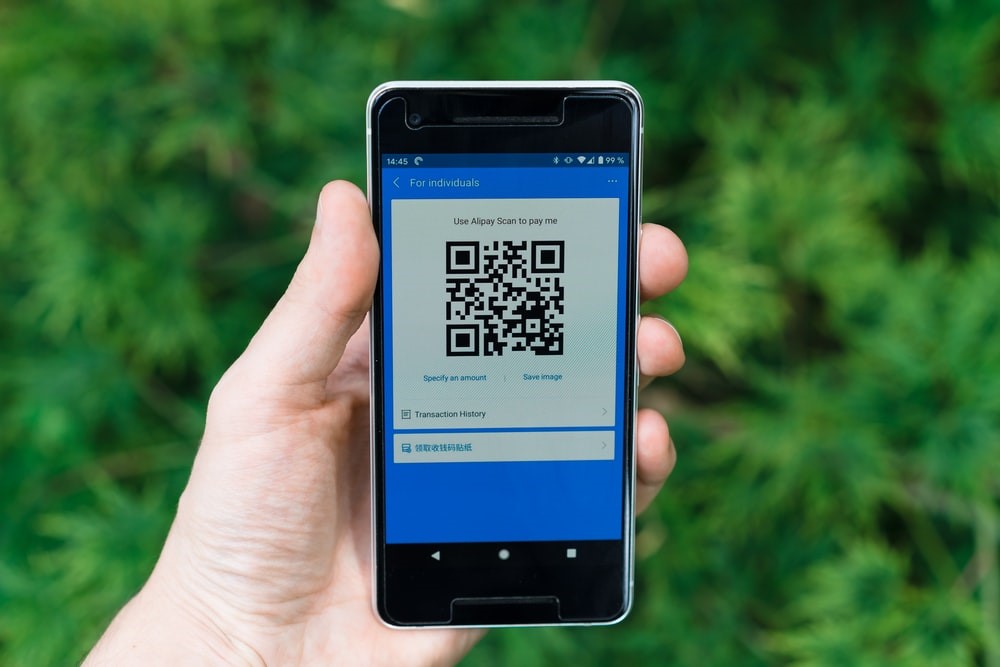
A Google review QR code helps happy customers reach the right review form quickly. The most important part is using the review link or QR code from your Google Business Profile, not a generic homepage or search result.
Quick answer
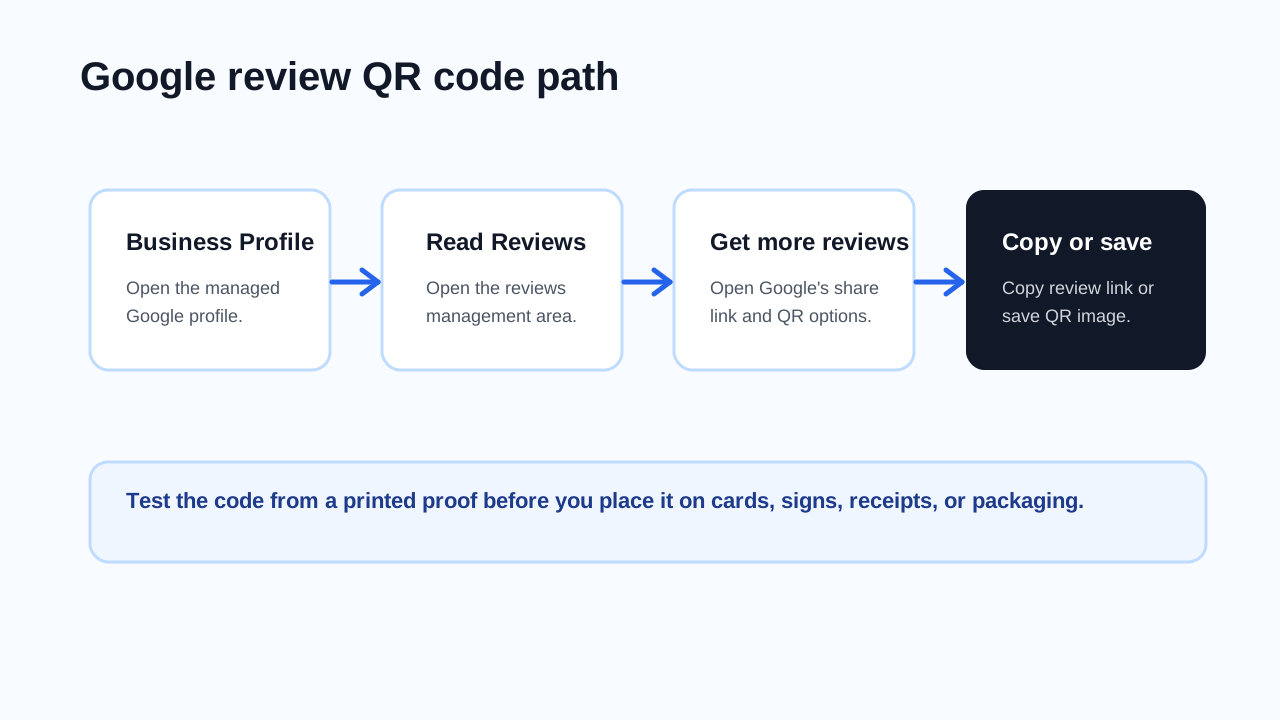
Go to your Google Business Profile, select Read Reviews, then Get more reviews. Google lets you share the review link or QR code directly. To copy the review link, select Copy. To download the QR code on desktop, right-click the QR code and choose Save image as.
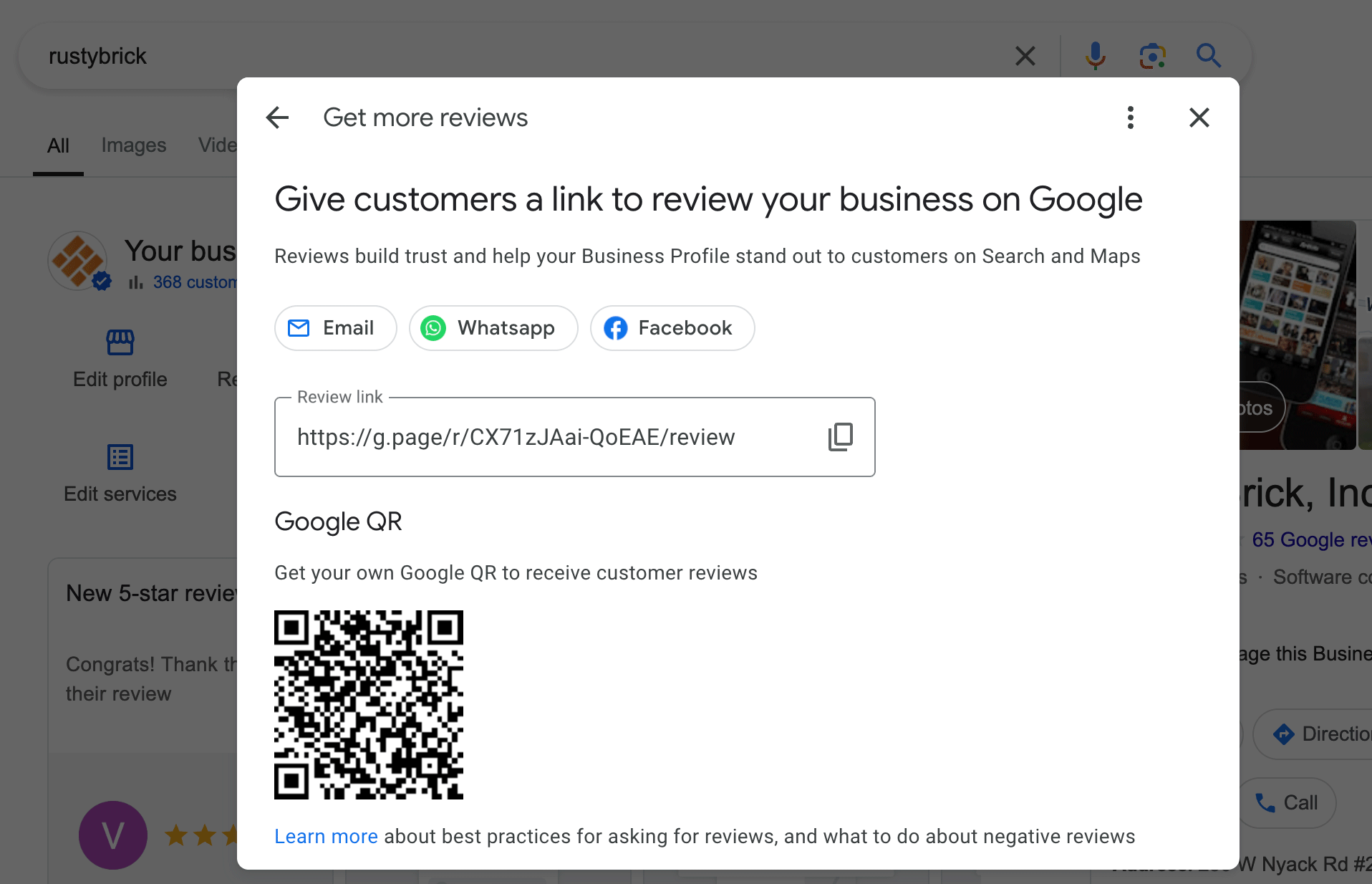
Visual reference: Google Business Profile review QR screenshot from Search Engine Roundtable, which notes its content is licensed under Creative Commons Attribution 3.0 US.
How to get your Google review link or QR code
- Sign in to the Google account that manages the business.
- Open your Google Business Profile.
- Select Read Reviews.
- Select Get more reviews.
- Copy the review link or share it directly.
- To save the QR code on desktop, right-click the QR code and choose Save image as.
- Test the link or QR code from a phone where you are not signed into the business account.
Google's current help says customers can leave reviews by visiting a Google link or scanning a QR code.
Before you print it
Test the review flow like a customer:
- Scan the QR code with an iPhone camera.
- Scan it with an Android camera.
- Confirm it opens the review prompt for the correct business.
- Confirm the business name and location are correct.
- Check that the code still scans from the printed size.
- Put a short label near it, such as
Scan to review us on Google.
Do not print the QR code until the physical proof scans reliably.
Where to place a Google review QR code
| Placement | Works well when | Avoid |
|---|---|---|
| Receipt or follow-up card | The customer just had a good experience | Asking before the service is complete |
| Counter sign | Staff can mention it naturally | Blocking checkout flow |
| Packaging insert | Customers receive a product at home | No context or no thank-you message |
| Email or SMS follow-up | You already have permission to contact them | Incentivized review language |
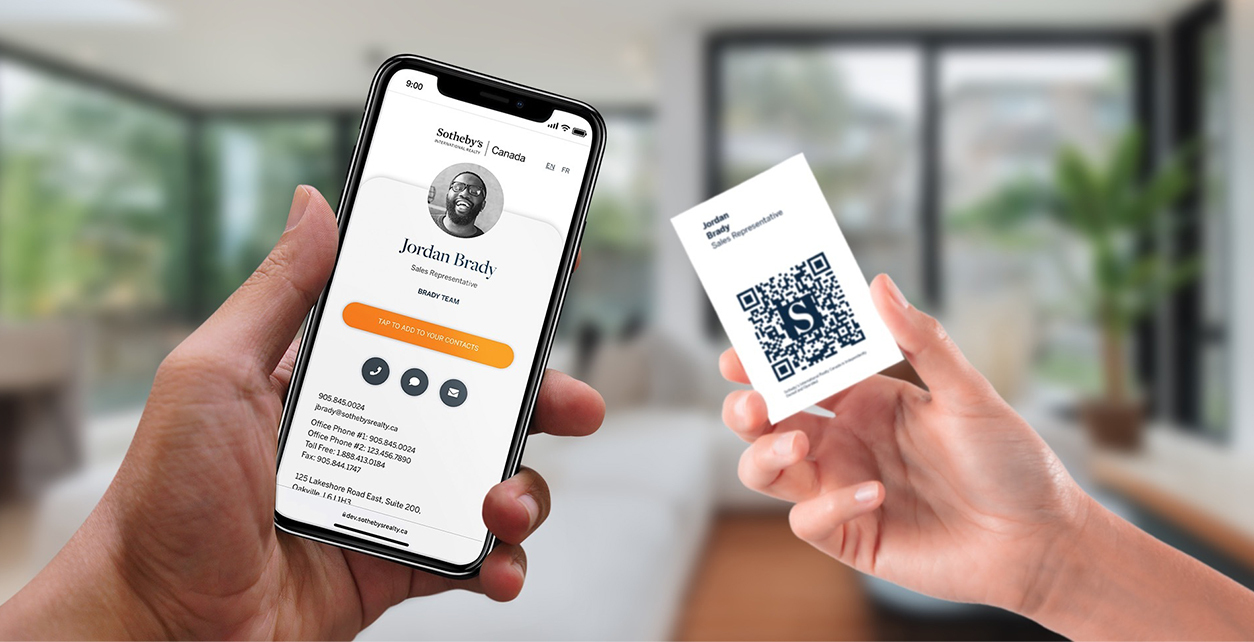
| Digital business card | You want review, contact, and booking links together | Hiding the review action too low |
Ask at the right moment. A review QR code works best after a real customer experience, not as a random sign with no context.
What the request should say
Use plain, neutral language:
Thanks for choosing us. If you had a good experience, you can scan this code to leave a Google review.Avoid:
- Offering discounts or rewards for reviews.
- Asking only happy customers while suppressing unhappy customers.
- Writing the review for the customer.
- Pressuring people to leave five stars.
If the QR code opens the wrong place
Check:
- You copied the link from the correct Business Profile.
- You manage the right location if the business has multiple locations.
- The QR code was not generated from an old link.
- The printed code is not blurry, cropped, glossy, or too small.
- The phone has internet access.
Regenerate and reprint the QR code if the destination is wrong. Do not try to fix a printed QR code with tiny stickers unless the scan still works cleanly.
Where Zapped fits
Zapped can hold your Google review link alongside your phone, booking page, services, files, social profiles, and save contact action. That is useful when one card or QR code should support more than just reviews.
For a dedicated counter sign, use the Google review QR code. For a business card or broad customer handoff, use a Zapped profile with a clear review button.
Outdated profile photos can undermine review requests, so delete that photo before you print new review materials.
FAQs
Can Google create the review QR code for me?
Yes. Google Business Profile currently provides a review QR code in the Get more reviews flow.
Can I use any QR code generator?
You can, but start with the official Google review link. If you use another QR generator, make sure it points to that exact review link and test it before printing.
Can I offer a discount for Google reviews?
Avoid incentives. Review requests should not pressure, reward, or manipulate customers.
Why does my review QR code not scan?
The code may be too small, blurry, low contrast, cropped, or printed on a reflective surface. Test from a printed proof and leave clear space around the code.
Sources
- Google Business Profile Help, create a Google link or QR code to request reviews for the current Read Reviews and Get more reviews flow.
- Google Business Profile Help, tips to get more reviews for review request context and the note that customers can use a link or QR code.
- Google Business Profile Help, manage customer reviews for review management context.
- Search Engine Roundtable, Google Business Profiles Create QR Codes For Reviews for the Google review QR visual reference.
- Zapped digital business card features for adding review links to a broader profile.