Removing a Google Business Profile photo depends on who uploaded it. Photos you added can usually be removed by the business owner or manager. Customer photos usually need to be reported to Google if they violate policy or do not represent the place.
Quick answer
Open your Google Business Profile, go to Photos, choose the photo, and remove it if it is one you uploaded. If the photo was uploaded by a customer or someone else, open the photo and use Google's Report a problem or Report flow instead. Google decides whether reported photos should be removed.
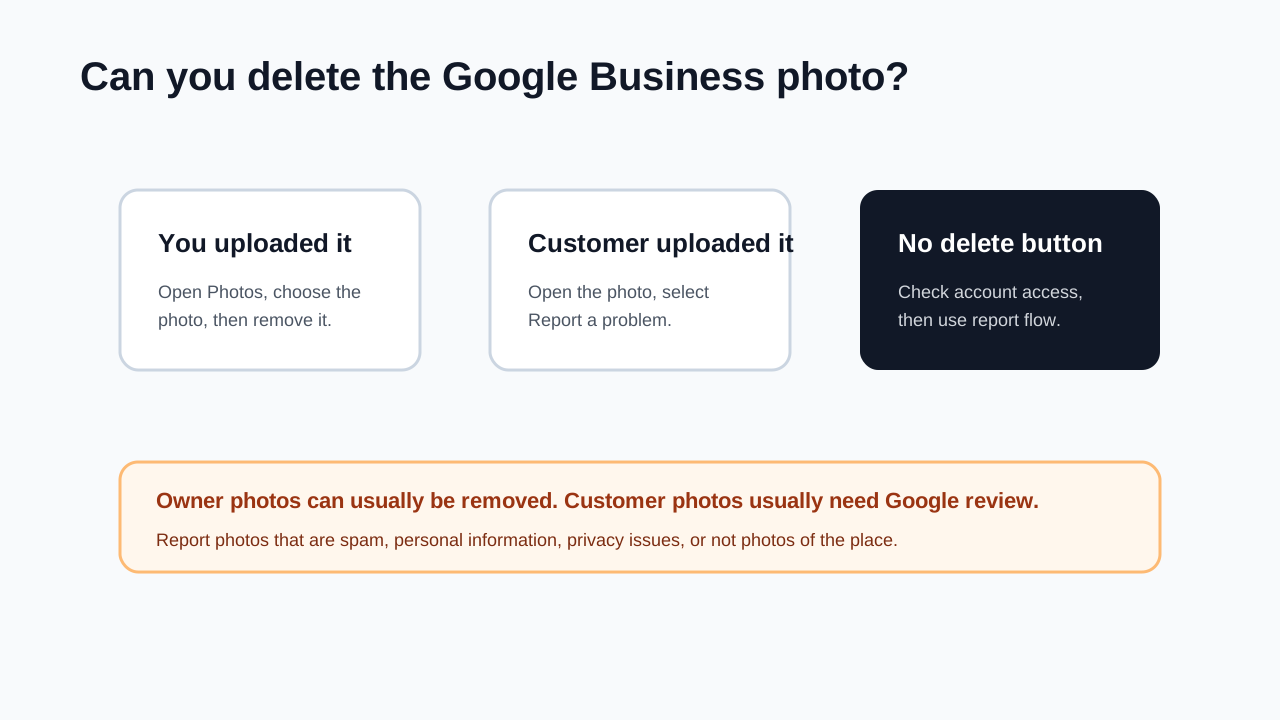
First, identify who uploaded the photo
| Photo type | What you can do |
|---|---|
| Uploaded by your business | Remove it from your Business Profile if your account has access |
| Uploaded by a customer | Report it if it violates policy or does not show the place |
| Uploaded by Google or third parties | Report it if it is inaccurate or inappropriate |
| Logo or cover image | Replace or update it from your profile photos area |
If there is no trash or delete option, it is probably not an owner-uploaded photo.
How to remove a photo you uploaded
- Sign in with the Google account that manages the Business Profile.
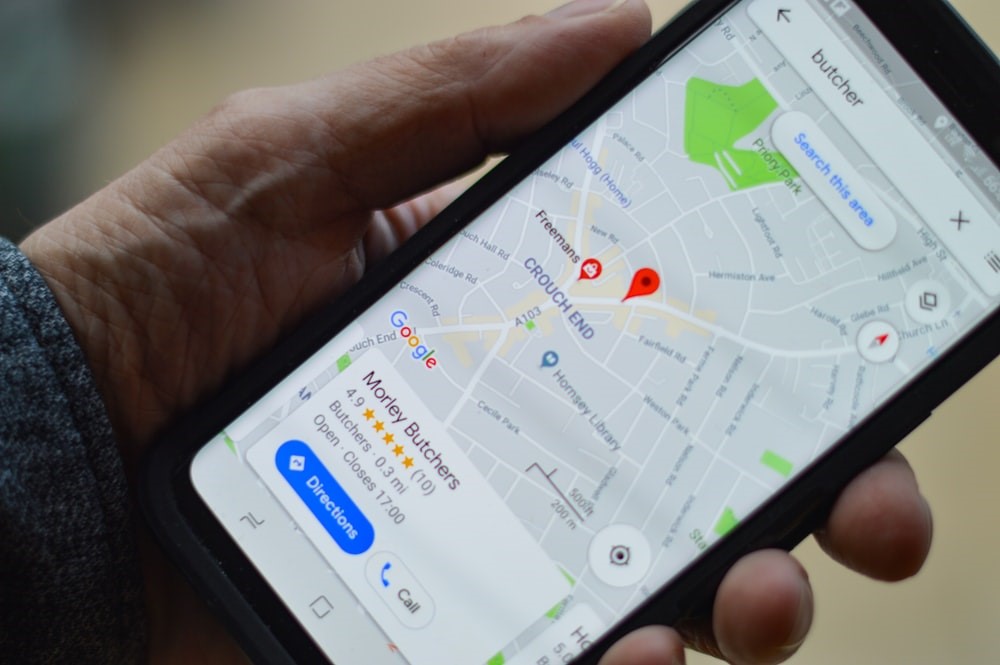
- Open your Business Profile from Google Search, Google Maps, or Business Profile Manager.
- Select Photos.
- Open the photo you want to remove.
- Look for the delete, trash, or remove option.
- Confirm the removal.
- Refresh the public profile later and check whether the photo is gone.
Changes may not appear everywhere instantly, so check again after Google refreshes the profile.
How to report a customer photo
Use this when you cannot delete the photo yourself.
- Go to your Business Profile.
- Select Photos and then View all photos.
- Select the photo or video you want removed.
- Select Report a problem.
- Choose the reason, such as privacy concern, spam, personal information, or not a photo or video of the place.
- Submit the report.
- Save the date and reason so you can track the issue.
On mobile, Google says you can use the Google Maps app, open the business profile, go to photos, select the photo, tap More, then Report.
What reasons are usually valid?
Report a photo when it is:
- Not related to your business or location.
- Spam or promotional content from someone else.
- A privacy concern.
- Personal information.
- Offensive, unsafe, or inappropriate.
- Misleading enough to harm customers.
Do not report a photo only because it is unflattering. Google may keep real customer photos if they represent the place.
If there is no delete button
Try this checklist:
- Confirm you are signed into the correct Google account.
- Confirm you have owner or manager access.
- Check whether the photo is under owner photos or customer photos.
- If it is customer content, use Report a problem.
- If the business has multiple locations, confirm you opened the right location.
- If the photo is your logo or cover image, upload a better replacement.
If you need to remove the entire profile rather than one photo, see our guide to delete a Google Business account.
Keep profile images current
Old or inaccurate photos can confuse customers before they call, visit, or book. After removing or reporting a photo, add better owner photos that show:
- The storefront or service area.
- The team.
- Products, menu items, or finished work.
- Clear branding.
- Current hours, seasonal setup, or location cues.
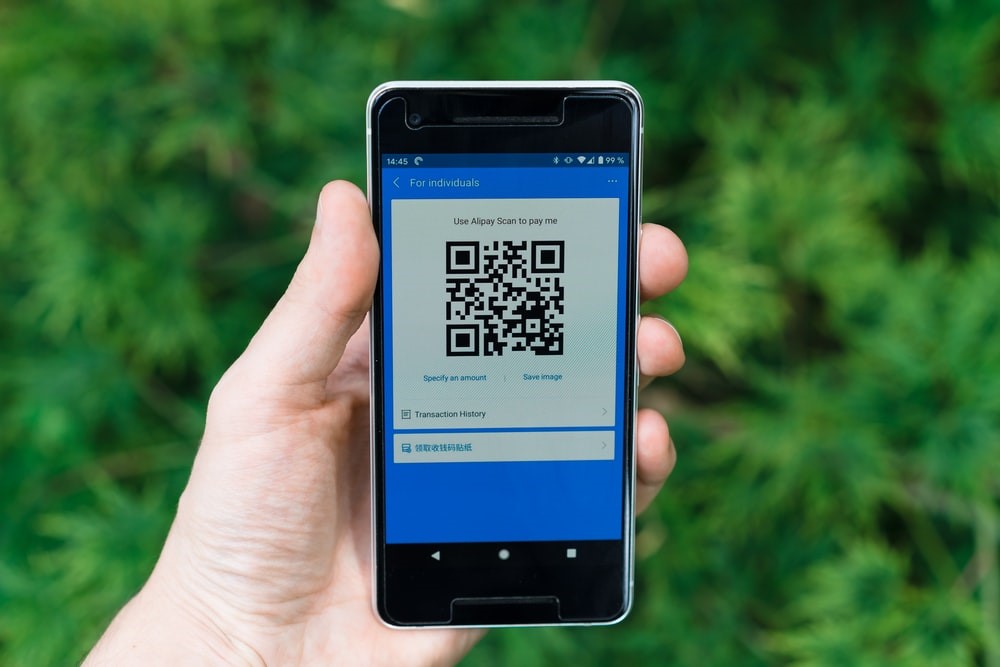
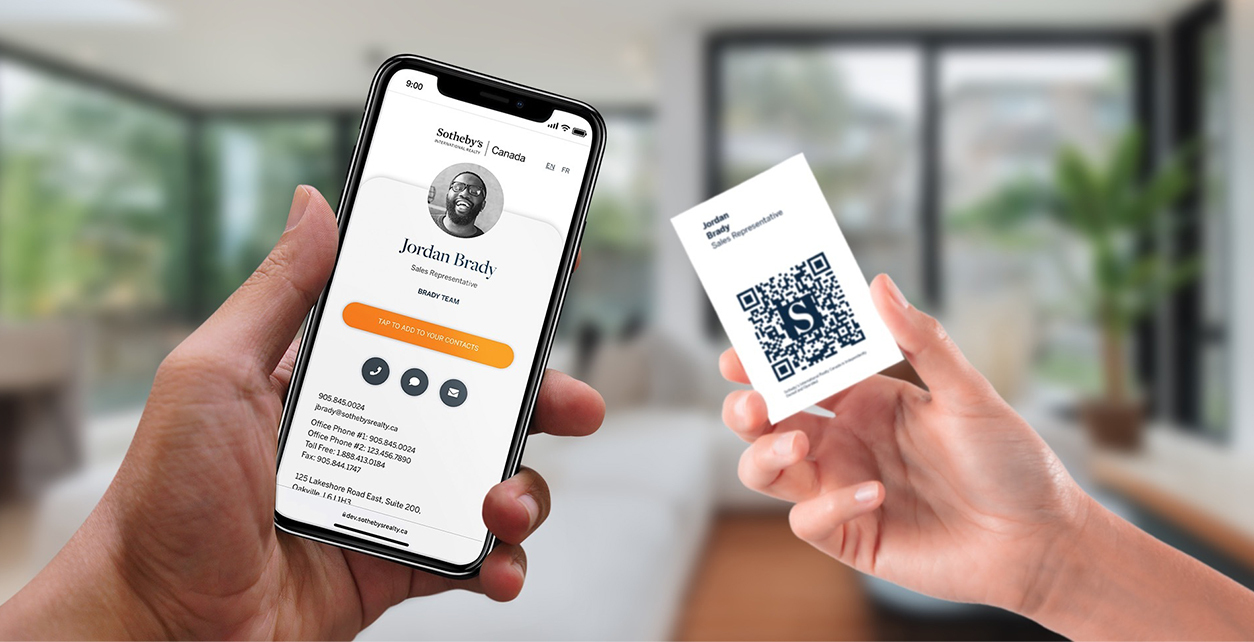
If you use QR codes or business cards to send people to your profile, make sure the profile images match what customers will actually see.
FAQs
Can I delete customer photos from my Google Business Profile?
Usually no. You can report customer photos if they violate policy or do not represent the place, but Google decides whether to remove them.
Why do I not see a trash icon?
The photo may not be one your business uploaded, or your account may not have the right access. Use the report flow for customer photos.
How long does removal take?
Owner photo removal may update after Google refreshes the profile. Reported photos depend on Google's review process.
Should I delete old photos or upload new ones?
Remove photos that are wrong, outdated, or low quality. Also upload current photos so customers see a useful, accurate profile.
Sources
- Google Business Profile Help, report inappropriate photos or videos for the desktop and mobile report steps.
- Google Business Profile Help Center for the official profile photos and videos help category.
- Google Business Profile Help, create a review link or QR code for related customer engagement workflows.
- Zapped's digital business card features for linking customers to current profile, review, and contact destinations.