You can add links to a YouTube channel from YouTube Studio. The links appear on your channel Home tab, and the first link is the one viewers see most prominently near your profile area.
If you searched this because you want people to book, buy, subscribe, join your list, or find all of your social links, do this first: pick one primary destination before you add every link you own.
Quick answer
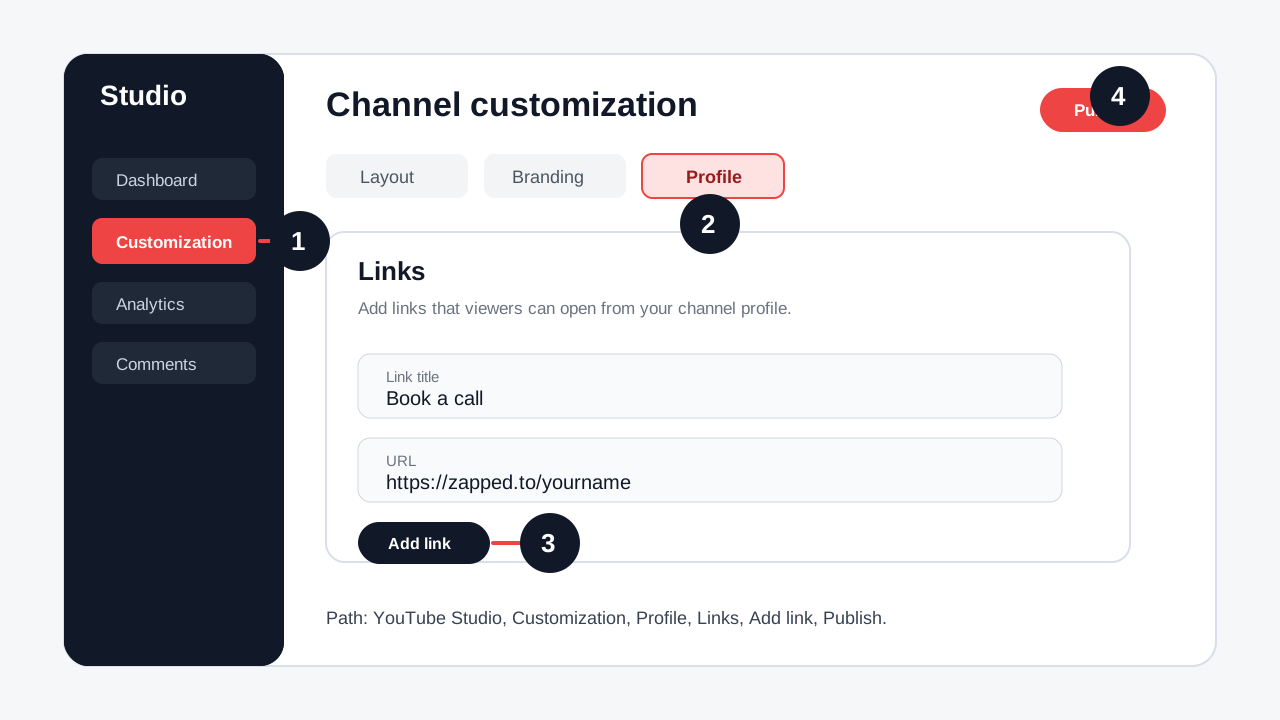
On desktop, open YouTube Studio, choose Customization, open Profile, scroll to Links, select Add link, enter a title and URL, then click Publish. Put your most important link first because YouTube gives that first link the strongest placement on your channel profile.
Before you start
You need:
- Access to the Google account that manages the YouTube channel.
- The exact URL you want to add, including
https://. - A short link title, such as
Book a call,Shop merch,Join my newsletter, orAll my links. - A decision about which link should be first.
YouTube says channel profile links can showcase up to 14 links. Your first link is displayed most prominently, and the rest are available when viewers open the additional links area.
Add links to your YouTube channel on desktop
- Go to YouTube Studio and sign in.
- In the left menu, select Customization.
- Select the Profile tab.
- Scroll to the Links section.
- Select Add link.
- Enter the link title viewers should see.
- Paste the full URL, including
https://. - Add more links if needed, but keep the most important one first.
- Click Publish in the top right.
- Open your public channel in a private browser window and test the link.
Use short link titles. Book a consultation is clearer than Website. Free creator kit is clearer than Link.
Add links from the YouTube Studio mobile app
- Open the YouTube Studio app.
- Tap your profile picture in the top right.
- Tap the edit option next to your channel description.
- Under Links, tap Edit.
- Tap Add.
- Enter the link title and URL.
- Tap Done.
- Tap Save.
- View your public channel and test the link from another phone.
The mobile app is useful for quick edits, but desktop is usually easier when you are adding several links or reordering them.
Where links appear on your channel
Your channel profile links appear on the channel Home tab. The first link is the one viewers see first near the profile area. Additional links appear when a viewer opens the rest of your links.
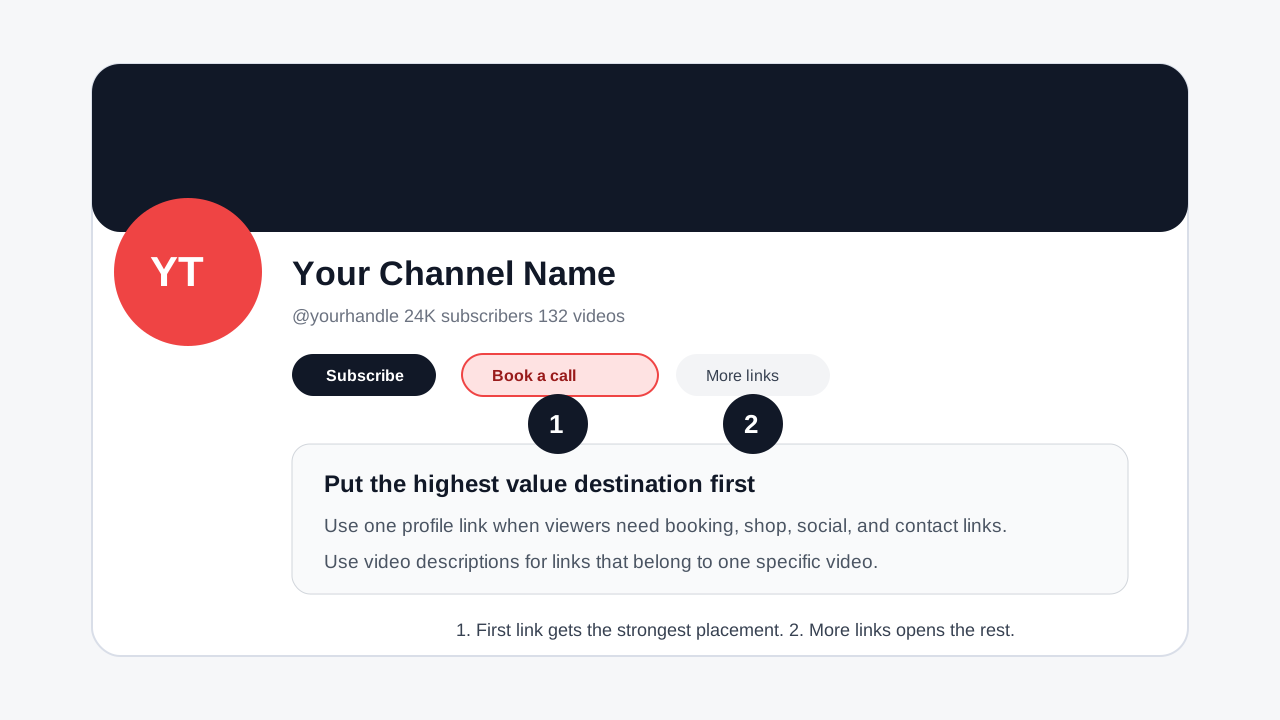
That placement means the first link should usually be one of these:
| First link goal | Best link title | Best destination |
|---|---|---|
| Sell a service | Book a call | Booking page or lead form |
| Sell products | Shop my picks | Storefront or product collection |
| Capture leads | Free guide | Email signup page |
| Send viewers to many places | All my links | Zapped profile, website hub, or link page |
| Build community | Join the community | Community page, Discord, Patreon, or newsletter |
Use one profile link when you have many destinations
If you have more than three important destinations, a single profile link is usually cleaner than a long channel list. For example, your first YouTube link can send viewers to a Zapped profile with:
- Booking or calendar link.
- Email signup form.
- Store, merch, or product links.
- Instagram, TikTok, LinkedIn, and podcast links.
- Contact details for brand deals or client inquiries.
- A QR code you can also use on business cards, packaging, or event signs.
This keeps YouTube simple while giving viewers a useful next step. It also lets you update the destination later without changing the link on every platform.
Add a link to a YouTube video description
If your goal is a link below a specific video, edit the video description instead of the channel profile.
- Open YouTube Studio.
- Select Content.
- Choose the video you want to edit.
- Paste the link into the Description field.
- Add a short call to action above the link.
- Click Save.
- Open the published video page and test the link.
Example:
Download the checklist:
https://example.com/checklist
Clickable external links may require access to YouTube advanced features. If links are not clickable, check Settings, then Channel, then Feature eligibility inside YouTube Studio.
Link title examples that work
Use a link title that tells viewers what happens next.
| Weak title | Better title |
|---|---|
| Website | Book a free consult |
| Store | Shop the products |
| Newsletter | Get weekly tips |
| Links | See all links |
| Contact | Email for collaborations |
Do not make every link sound equally important. Viewers should be able to choose in a few seconds.
Troubleshooting
I do not see the Links section
Make sure you are in YouTube Studio for the correct channel, then open Customization and Profile. If you manage more than one channel, switch channels from your account menu and check again.
My links are not clickable in descriptions
Open Settings, then Channel, then Feature eligibility. YouTube requires access to advanced features for clickable external links in some surfaces. If advanced features are not enabled, follow YouTube's verification options.
My link appears, but it sends viewers to the wrong place
Check for missing https://, copied tracking parameters, old redirects, or a private draft page. Test the link from a phone where you are not signed in.
I added too many links and clicks dropped
Move the highest value link to the first position. If you still need many destinations, use one profile link and organize the rest there.
My business email should be separate from links
Use YouTube's contact info field for business inquiries and use profile links for destinations viewers can open directly.
Best setup for creators and small businesses
For most channels, this layout is simple and effective:
- First channel link:
All my linksor a specific offer such asBook a call. - Second link: Your website, store, or newsletter.
- Third link: Your strongest social profile or community.
- Video descriptions: One link that matches the video topic.
- Pinned comment: Repeat the same link when it is central to the video.
If you use YouTube for business, make the first link measurable. Use a dedicated profile, campaign URL, booking page, or lead form so you know whether YouTube viewers are taking action.
Where Zapped fits
Zapped works well as the first YouTube channel link when you want one live profile instead of a scattered list. You can add social links, booking links, contact actions, videos, QR codes, and lead paths in one place, then update the profile without editing every old video description.
Related guides:
FAQs
How many links can I add to my YouTube channel?
YouTube says channel profile links can show up to 14 links. Keep the list shorter if you want viewers to act quickly.
Which YouTube channel link should go first?
Put the link that best matches your channel goal first. For a service business, that is usually a booking or quote link. For a creator, it may be a profile hub, newsletter, store, or community.
Can I add Instagram, TikTok, or LinkedIn links?
Yes, as long as the destination follows YouTube's external links policy. Use clear titles so viewers know which platform they are opening.
Do I need a custom YouTube URL before adding links?
No. Your channel handle or URL is separate from profile links. You can add profile links even if you are still using the standard channel URL.
Why are my video description links not clickable?
The channel may not have access to advanced features, the URL may be malformed, or the destination may violate YouTube policy. Check feature eligibility in YouTube Studio and test the full URL.
Sources
- YouTube Help, manage your channel profile for current desktop and mobile channel profile link steps.
- YouTube Help, sharing links with your audiences for profile link limits and external-link requirements.
- YouTube Help, feature access for creators for checking feature eligibility in YouTube Studio.
- See our Zapped digital business card features for a single profile link that can hold booking, social, video, and contact links.