Quick answer
You can add a digital business card to Google Wallet in three ways: use a provider's Add to Google Wallet action, save a clear QR or barcode image through Wallet's photo route, or keep a live profile link and QR code as the fallback. The right route depends on what your provider actually issues.
Google Wallet is the place where the pass or QR shortcut is stored. It is not a universal digital business card category, and it does not replace the provider's hosted profile. Check the route before you rely on it at a meeting.
Key takeaways
- A provider must expose the Add to Google Wallet flow. Google does not add that action to every digital business card automatically.
- A Google Wallet Generic Pass can carry images, text, links, and a barcode, including a QR code, when an issuer builds the pass.
- Google Wallet Help documents a photo route for saving a QR or barcode image when an Add to Google Wallet option is missing.
- The recipient experience depends on the pass payload and provider. Keep a browser link or QR fallback when app friction matters.
- Treat the Wallet item, the live profile, and a saved contact as separate layers.
Choose the route before you start
The fastest route for the card owner is not always the easiest route for the person receiving it. Use this chooser to decide what you are actually trying to preserve.
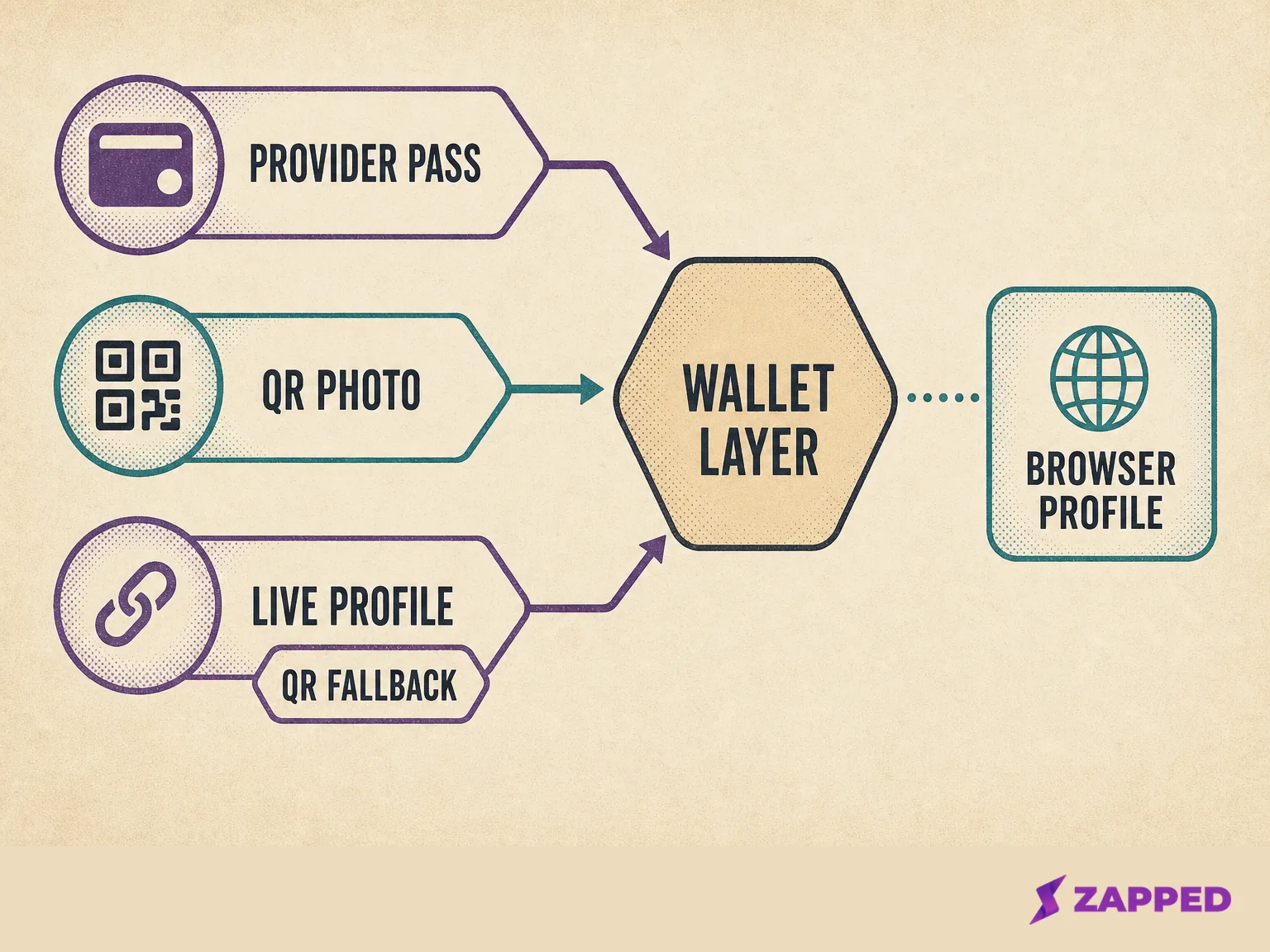
| Route | Use it when | What the Wallet item carries | Recipient path | Main check |
|---|---|---|---|---|
| Provider pass | Your provider documents an Add to Google Wallet button or link | A provider issued pass with its own fields and links | Whatever the provider encoded, often a QR code or profile link | App, account, browser, plan, and region requirements |
| QR or photo pass | You have a clear QR or barcode image but no native add button | A saved image based pass with a scannable code | Camera scan to the destination in the code | Image clarity and destination testing |
| Live profile link and QR | You need the least recipient friction or your provider has no Wallet route | A link or QR shortcut outside the Wallet pass | A normal browser profile | Editability, browser access, and a fallback link |
What Google Wallet stores, and what it does not replace
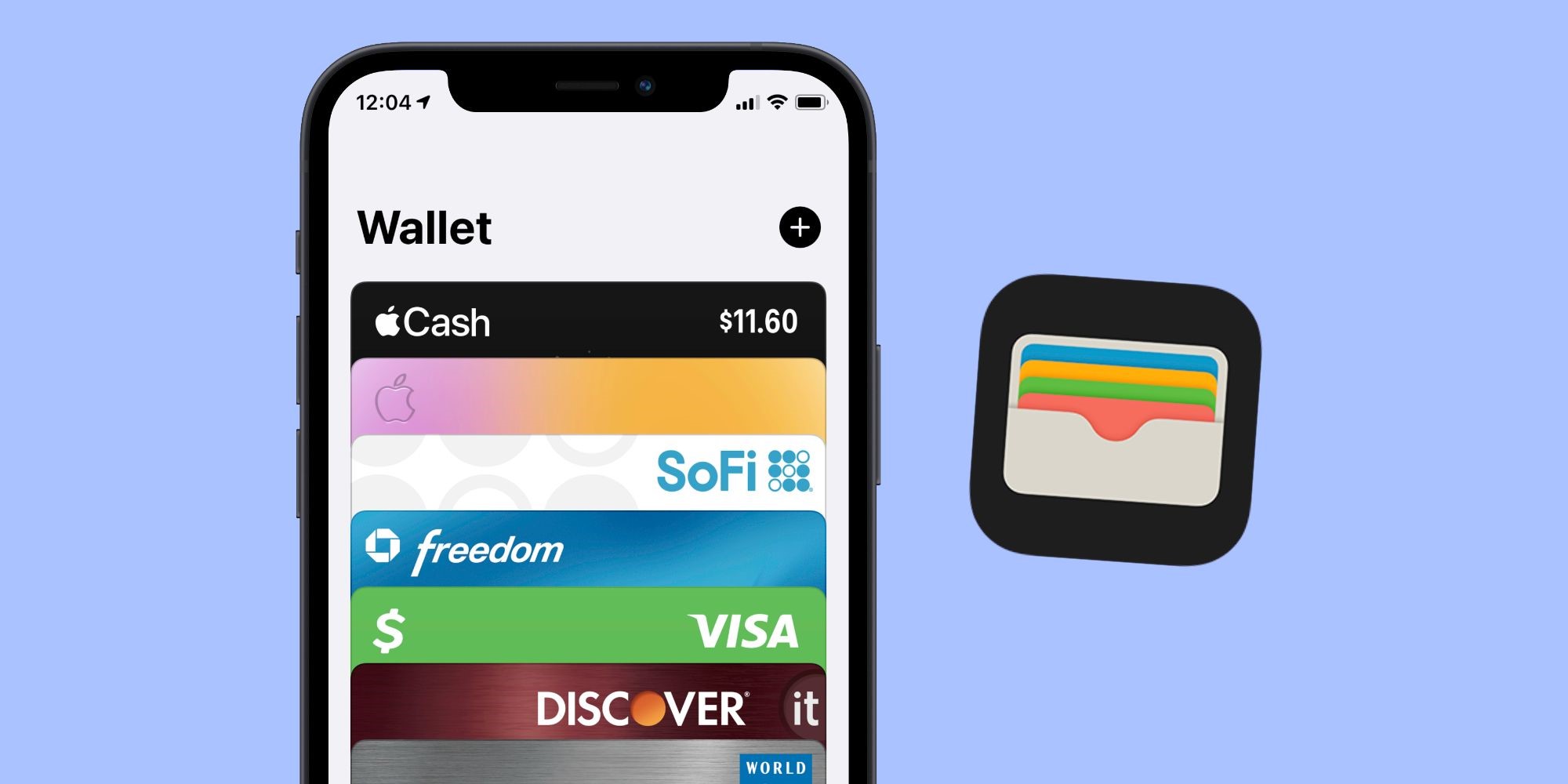
Google describes Wallet as a place for payment cards, passes, tickets, keys, and IDs that a user chooses to store. A digital business card reaches that container through a pass implementation or an image based shortcut, not through a universal business card import button.
Google's Generic Pass overview covers flexible use cases that do not fit predefined types such as tickets, loyalty cards, or offers. That makes Generic Pass a possible provider implementation for a card like presentation, but it still requires an issuer to create the pass.
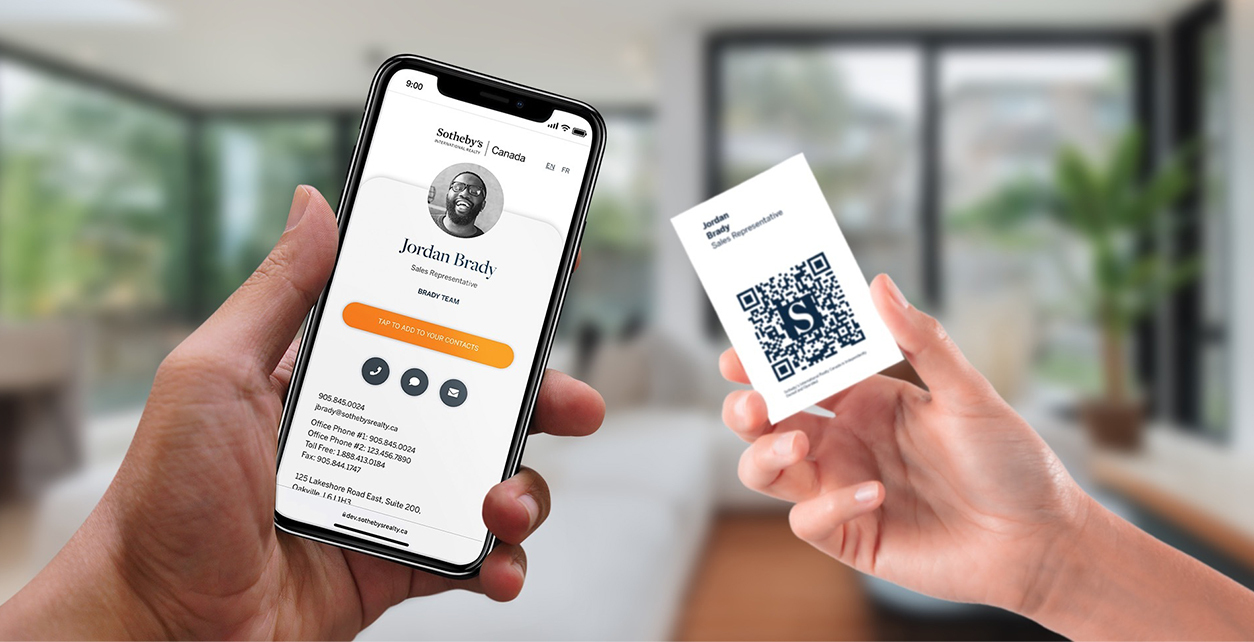
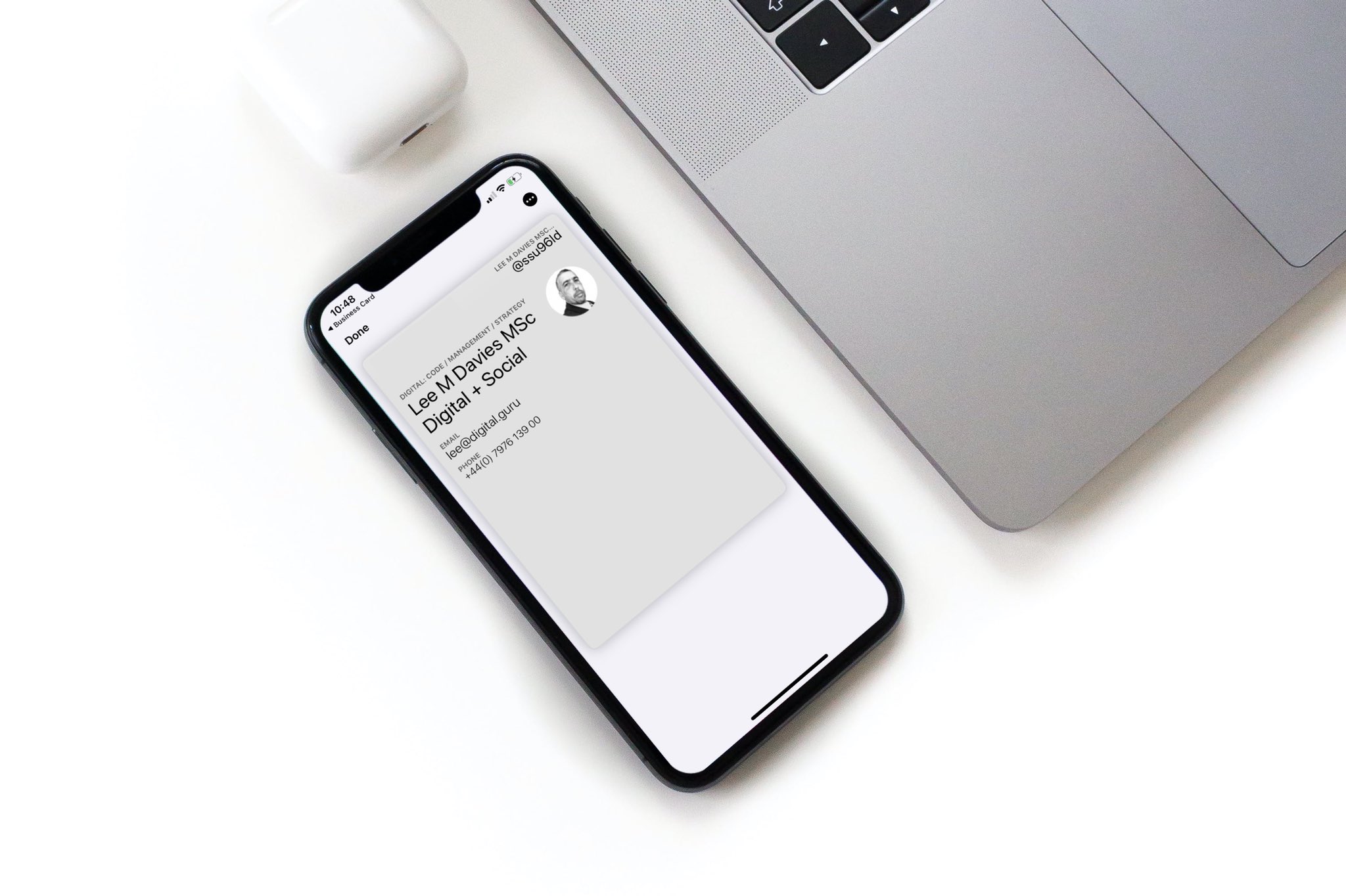
The useful object can include an image, text modules, links, and a barcode. Google's Generic Pass creation guide even shows a QR code value in the barcode field. In practical terms, a provider can use the pass as a branded access card with a scannable handoff.
The developer model is simple. A Passes Class holds shared template information, while a Passes Object holds user specific pass data. The provider then delivers a signed token through an Add to Google Wallet button or link, as described in Google's Classes and Objects documentation.
That distinction matters because the pass is not necessarily the live profile. The provider may own the page, the QR destination, and the editable fields while Wallet stores the shortcut.
Route A: use the provider's Add to Google Wallet action
Use the native provider route when the provider already exposes it. Open your card or dashboard, look for Add to Google Wallet, and follow the provider's documented steps. The exact entry point may live in an app, a browser dashboard, an email, or a text message.
Google's web issuance guide explains that a provider has to create and sign the pass before it can issue an Add to Google Wallet link. It also says the link must be initiated in the context of a logged in Google identity. Treat that as a condition of the documented issuance flow, not as a diagnosis for every missing button.
Before sharing, confirm four things:
- The provider supports Google Wallet for your card or plan.
- The required app, browser, account, or Android device is available to you.
- The Google account context is ready if the provider uses a web issuance link.
- The saved pass shows the destination you want recipients to use.
For the broader Wallet decision beside QR, NFC, and browser sharing, see the digital business card Wallet options.
Google says Wallet is available in over 50 countries and regions, but its availability list does not establish identical pass features everywhere. Check your country, device, and provider requirements before making Wallet the only way to share.
Route B: save a QR or barcode image as a Wallet pass
This is the practical fallback when your provider gives you a QR code but does not give you an Add to Google Wallet button. Google Wallet Help documents the route for a barcode or QR code saved in a photo.
- Save a clear image of the QR code or barcode to your phone.
- Open Google Wallet and choose the add option.
- Select the photo route and choose the saved image.
- Add the requested name and description.
- Save the pass, then scan its code to confirm the destination.
The full Google photo and barcode guide describes this process, including the case where the original pass has no Add to Google Wallet option. It is a convenience route for a scannable image. It does not prove that the provider created a live Generic Pass or that the Wallet item will mirror every field on the hosted profile.
If you need to improve the code or decide whether it should contain contact data or a live profile URL, use the guide to digital business card QR codes and the explanation of how to generate a vCard QR code. Keep this article focused on the Wallet route itself.
Route C: keep a live profile link and QR fallback
Choose this route when the provider has no Wallet integration, its documented recipient flow prompts for an app, or a browser link is the safer handoff for an editable profile. A direct link and QR code leave the recipient with a normal browser path instead of making Wallet the whole handoff.
A QR code inside a provider pass may open a hosted profile, but that behavior belongs to the provider that built the pass. Lynkle, for example, documents a pass QR code that recipients can scan to view the card in a browser without the app. Popl also documents sharing its PopCode from Wallet. Treat those as named provider flows, not a rule for every pass.
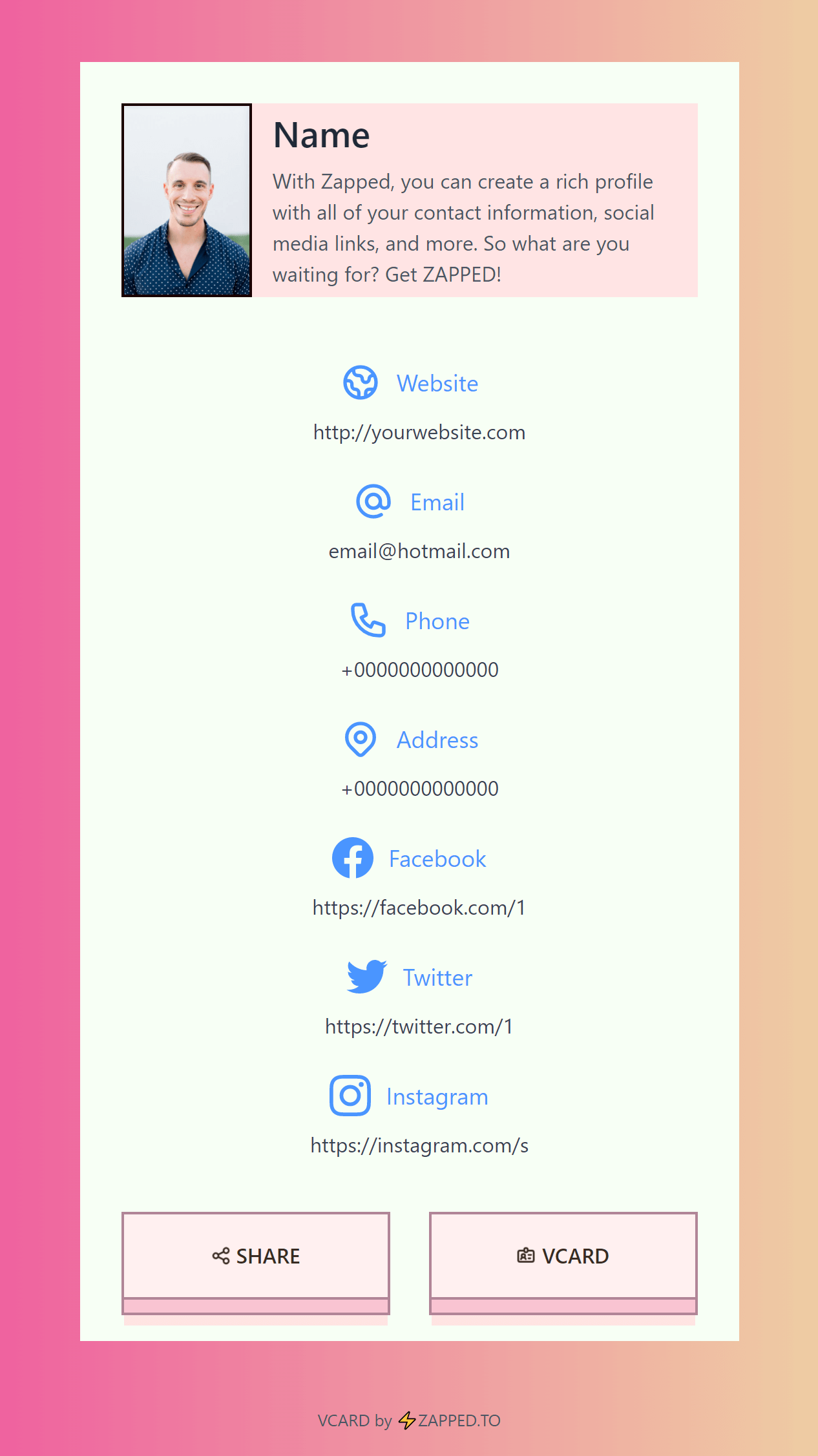
For this decision, Zapped works as an editable browser layer. Its cards open from a QR code, NFC tap, or direct link in a normal browser, so recipients can view the card without an app download. The card content can be updated without changing the public link when the same URL alias is retained.
If you use Zapped for this fallback, see the Zapped QR guide. The code points to the selected public vCard link, and we recommend scanning it before sharing. The Wallet pass still comes from the provider that issued it, while Zapped supplies the editable profile and browser path beside the shortcut.
For the wider mix of link, QR, NFC, email, and social options around a Wallet shortcut, see more ways to share a digital business card.
What provider examples actually show
The examples below are useful because they disagree about the setup details. They are not a complete provider list or a ranking.
| Provider | What the provider documents | What to verify before relying on it |
|---|---|---|
| Blinq | Blinq documents an existing Blinq Card, the Android app, and a Send menu action to add the card to Wallet. Blinq says edits to the underlying card update its Wallet pass automatically. | The app requirement, your existing card, and whether the documented update behavior still fits your use case. |
| Popl | Popl documents opening the dashboard, choosing PopCode and Add to wallet, then scanning the displayed QR code. Its support page says the Popl app is not required for this add flow. | The PopCode destination and the recipient path after scanning it. |
| Lynkle | Lynkle documents an Add to Google Wallet button in Android smartphone browsers. It describes the pass as a QR sharing surface whose recipient opens the card in a browser. | The Android browser limitation and whether the browser destination is the experience you want. |
| QRCodeChimp | QRCodeChimp documents scanning the digital card QR code on Android, selecting the QR code icon, choosing Add to Google Wallet, selecting Add, and opening the saved pass. | The exact QR destination and whether your current account exposes the same flow. |
The lesson is simple: a provider's Google Wallet page tells you what that provider has implemented. It does not create a category wide rule about apps, browser support, automatic updates, or phone to phone NFC. Lynkle's documentation keeps its phone to phone NFC feature separate from its Google Wallet QR pass.
Use this pre sharing checklist
Before you put the card in front of a client or new contact, run the route you chose against the destination they will actually receive.
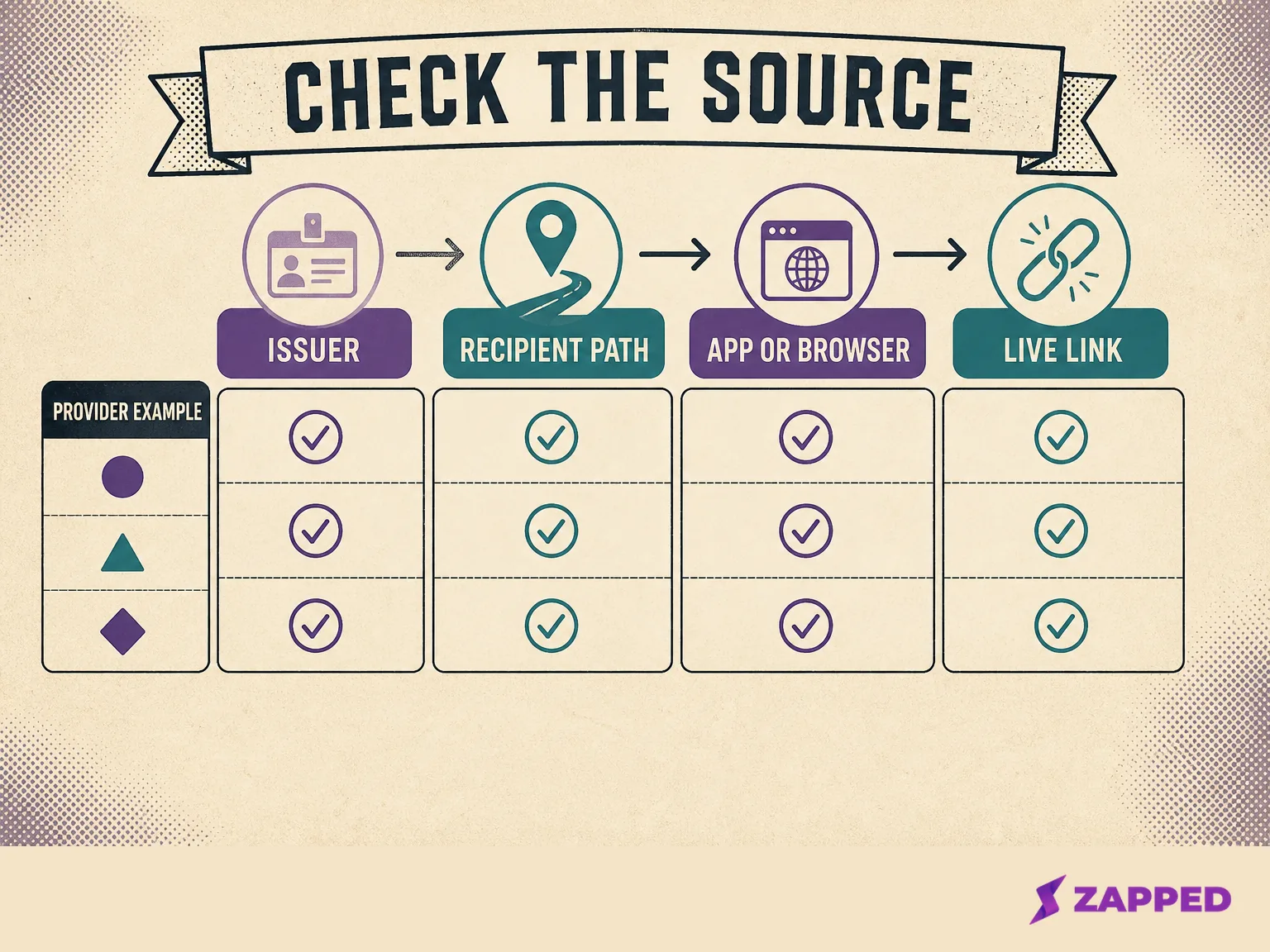
| Check | Why it matters |
|---|---|
| Confirm the provider's current Wallet path | A missing Add button does not identify one cause. Check the provider's current documentation for the account, plan, app, browser, device, and region in use, then use the photo or browser fallback if supported. |
| Sign into the required Google identity | Google's web issuance documentation makes a logged in identity part of that link based flow. |
| Scan the Wallet QR code with a browser | You want to know whether it opens the intended profile, a provider page, or an app prompt. |
| Check the live profile after an edit | Provider update behavior is specific to the implementation. Do not turn one provider's promise into a universal guarantee. |
| Keep the direct link or QR available | A recipient may not want to install an app or add a pass. |
| Check country and device availability | Google lists country and region availability, but feature support can still depend on the device and provider. |
The decision rule is not “always use Wallet.” Use a provider pass when Wallet convenience for the owner is the priority. Use the photo route when a clear QR image is all you have. Use a live link and QR when recipient compatibility and later editing matter more.
If some recipients use iPhones, keep the Apple Wallet business card setup guide as a separate platform handoff.
Troubleshoot the common failure points
The Add to Google Wallet button is missing
A missing button does not identify one cause. Check the provider's current documentation for the account, plan, app, browser, device, and region in use. If you have a QR image, use Google's photo route. Otherwise, keep the provider profile link or QR code as the primary fallback.
Google Wallet does not recognize the QR image
As a practical check, try a clearer image that contains one code, then use Wallet's photo path and save the requested label and description. Test the saved code with a browser before sharing it.
The recipient is asked to install an app
That points to the provider's destination or sharing design, not to a universal Google Wallet requirement. Lynkle documents a browser recipient path for its QR pass, while other providers can choose a different destination. Keep a direct browser link ready.
The pass looks stale after you edit the profile
Do not assume every provider refreshes every Wallet field. Blinq documents automatic updates for its own pass, while the category wide rule is not established. Check the provider's current instructions and test the hosted profile separately.
The recipient expects a new Contacts record
A Wallet item, a hosted profile, and a saved contact are separate layers. Tell the recipient where the QR or link opens and let them choose how to save your details. Do not promise that saving the pass automatically creates or updates Contacts.
Final recommendation
Start by checking whether your provider exposes a real Add to Google Wallet action. If it does, follow its requirements and keep a browser link nearby. If it only gives you a QR image, use the photo route. If the pass adds recipient friction, make the live profile link and QR code the dependable handoff.
Sources
Sources reviewed in August 2026.
- Google Wallet Help, About Google Wallet
- Google Wallet Help, Add other passes and cards from images
- Google Developers, Generic Pass overview
- Google Developers, Create Passes Classes and Passes Objects
- Google Developers, How Classes and Objects work
- Google Developers, Issue passes for web, email, and SMS
- Blinq Support, Add your Blinq Card to Google Wallet
- Popl Support, Add your QR code to Apple or Google Wallet
- Lynkle, Add your digital business card to Google Wallet
- QRCodeChimp Support, How to add a digital business card to Google Wallet
- Zapped, Create your first vCard, and Create a QR code for your vCard