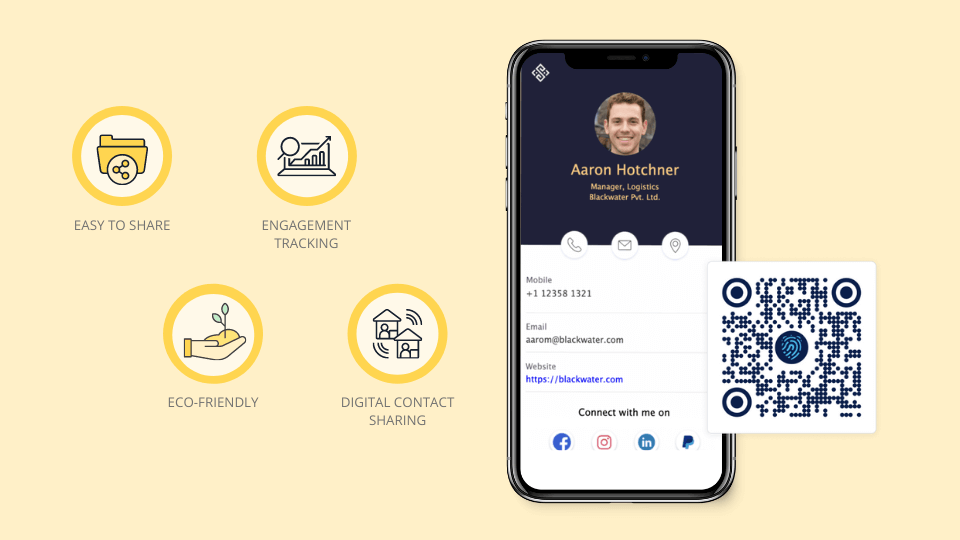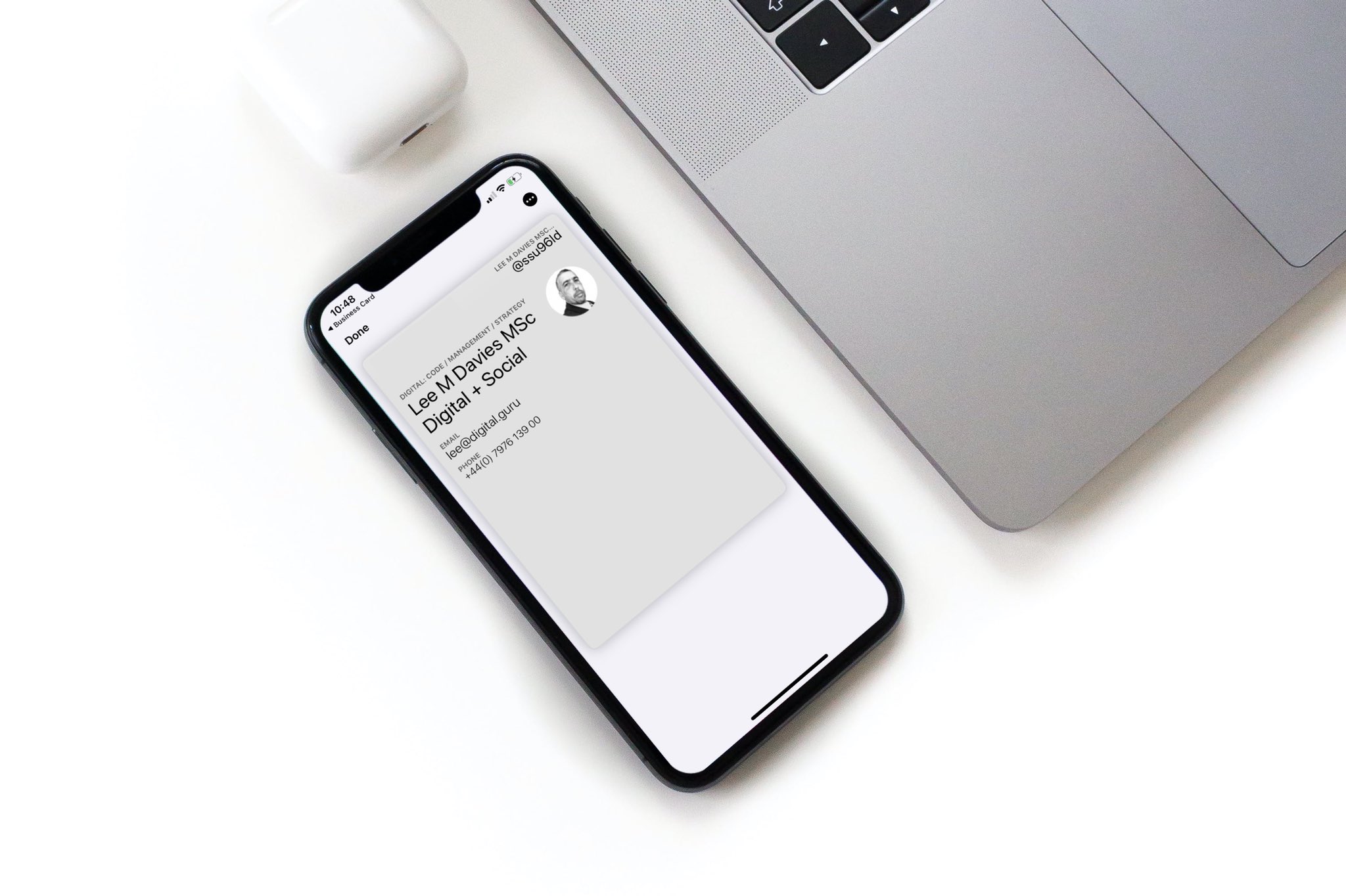
You can use an iPhone to share a digital business card through a Wallet pass, QR code, NFC card, contact link, or saved profile page. Apple Wallet is useful when you want quick lock screen access, but it is not the only way to share your card from an iPhone.
Quick answer
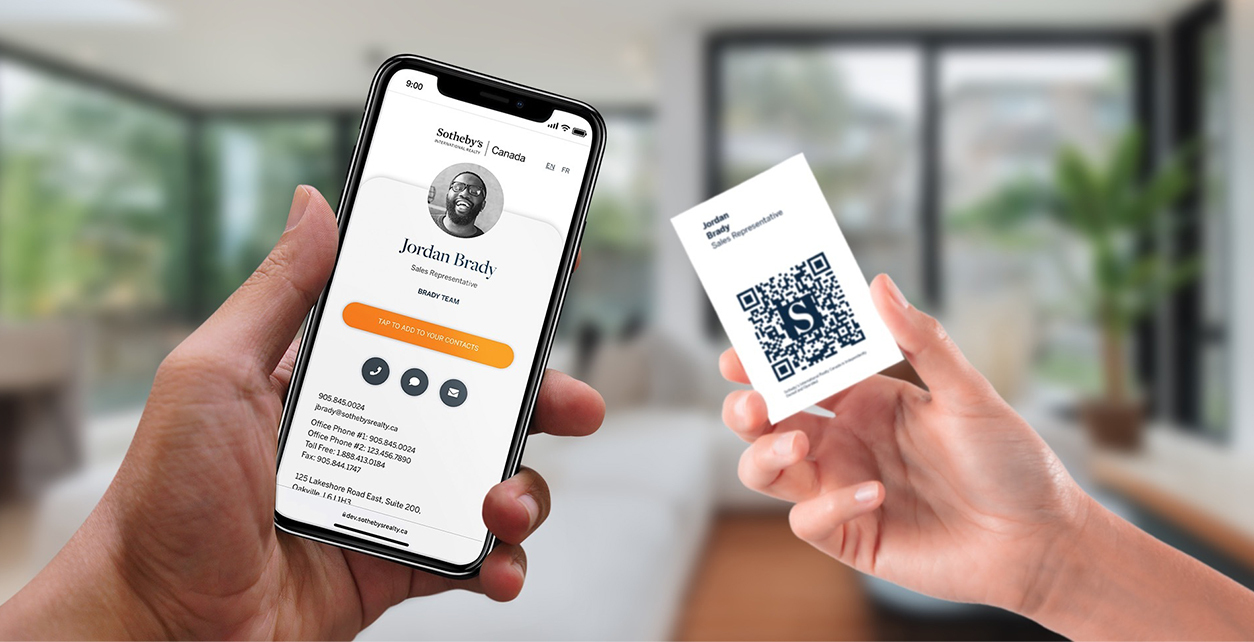
A digital business card for iPhone Wallet is usually an Apple Wallet pass that shows your name, brand, and a QR code or link to your contact profile. For most networking situations, the best setup is a Zapped digital card link that can be shared by QR code, NFC tap, text, email, or a Wallet style shortcut when supported.
Key takeaways
- Apple Wallet can store passes, but a business card still needs a digital profile, QR code, or pass provider behind it.
- A Wallet pass is fast to open on iPhone, but QR and link sharing work across more devices.
- NFC is useful for tap to open sharing, but the receiving phone still needs to support NFC tag reading.
- Keep the Wallet or QR experience pointed at a profile you can update later.
- Apple Wallet is only one sharing option, so keep QR, NFC, and direct link sharing available too.
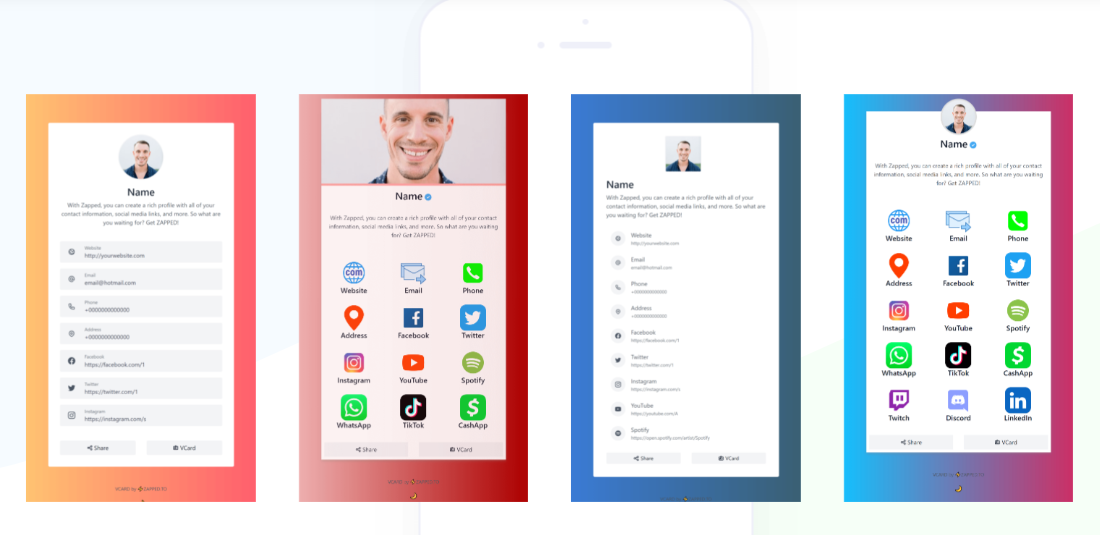
Can you add a digital business card to Apple Wallet?
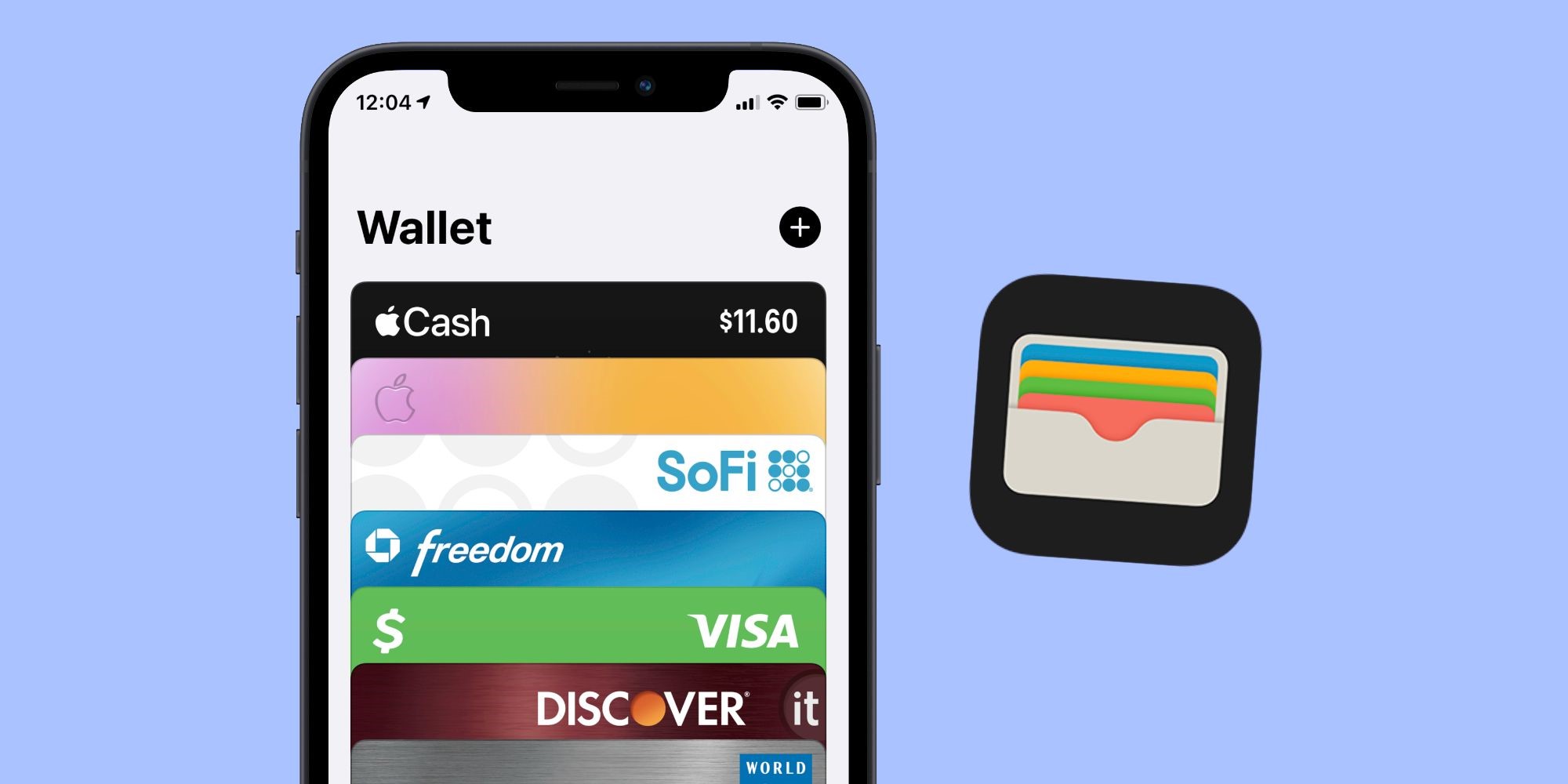
Yes, you can add a digital business card experience to Apple Wallet when you use a Wallet pass or a service that creates one for you. Apple Wallet itself stores passes, tickets, cards, and similar items, while the business-card content usually comes from a digital card service, QR code, or custom pass.
That means the practical question is not only "Can Wallet hold it?" It is "What should the Wallet pass open or display?" For business cards, the most flexible answer is a QR code or link to an editable digital profile.
Apple Wallet vs QR code vs NFC card
Each sharing method solves a different part of the networking flow. You do not need to choose only one.
| Method | Best for | Watch out for |
|---|---|---|
| Apple Wallet pass | Fast iPhone access and lock screen convenience | May require a pass generator or supported card service |
| QR code | Universal sharing across iPhone and Android | Needs enough contrast and space to scan reliably |
| NFC card | Fast tap to open sharing at events | Not every phone scans NFC the same way |
| Direct profile link | Text, email, LinkedIn, and signatures | Less impressive in face to face networking |
| Saved contact file | Adding details to Contacts | Harder to keep updated after details change |
This is the simplest way to frame the iPhone setup. Wallet can help you open the card quickly, but QR, NFC, direct links, and save contact actions should all lead back to one editable profile.
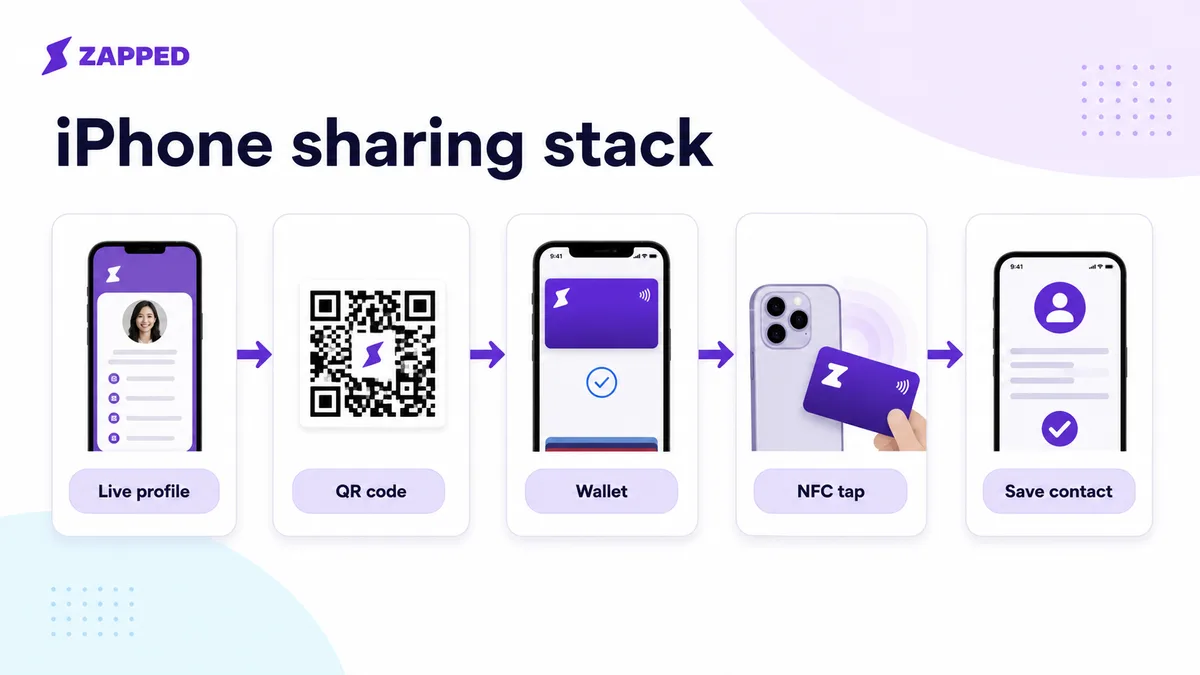
Best iPhone business card setup
For most professionals, the best iPhone setup is not a single format. It is one editable profile shared several ways.
| Setup | Best for | Why it works |
|---|---|---|
| QR code on your phone | Quick in person sharing | Works across iPhone and Android |
| NFC card | Meetings, trade shows, and premium handoffs | Gives a fast tap experience |
| Apple Wallet pass | Personal quick access on your own iPhone | Easy to pull up during an event |
| Direct link | Messages, email signatures, LinkedIn, and websites | Works anywhere a link works |
| vCard download | Saving contact details | Helps the recipient add you to Contacts |
Zapped can act as the profile behind those sharing methods, so you update one card instead of maintaining separate versions for Wallet, QR, NFC, and links.
How to create an iPhone Wallet business card
The exact steps depend on the tool you use, but the structure is usually the same.
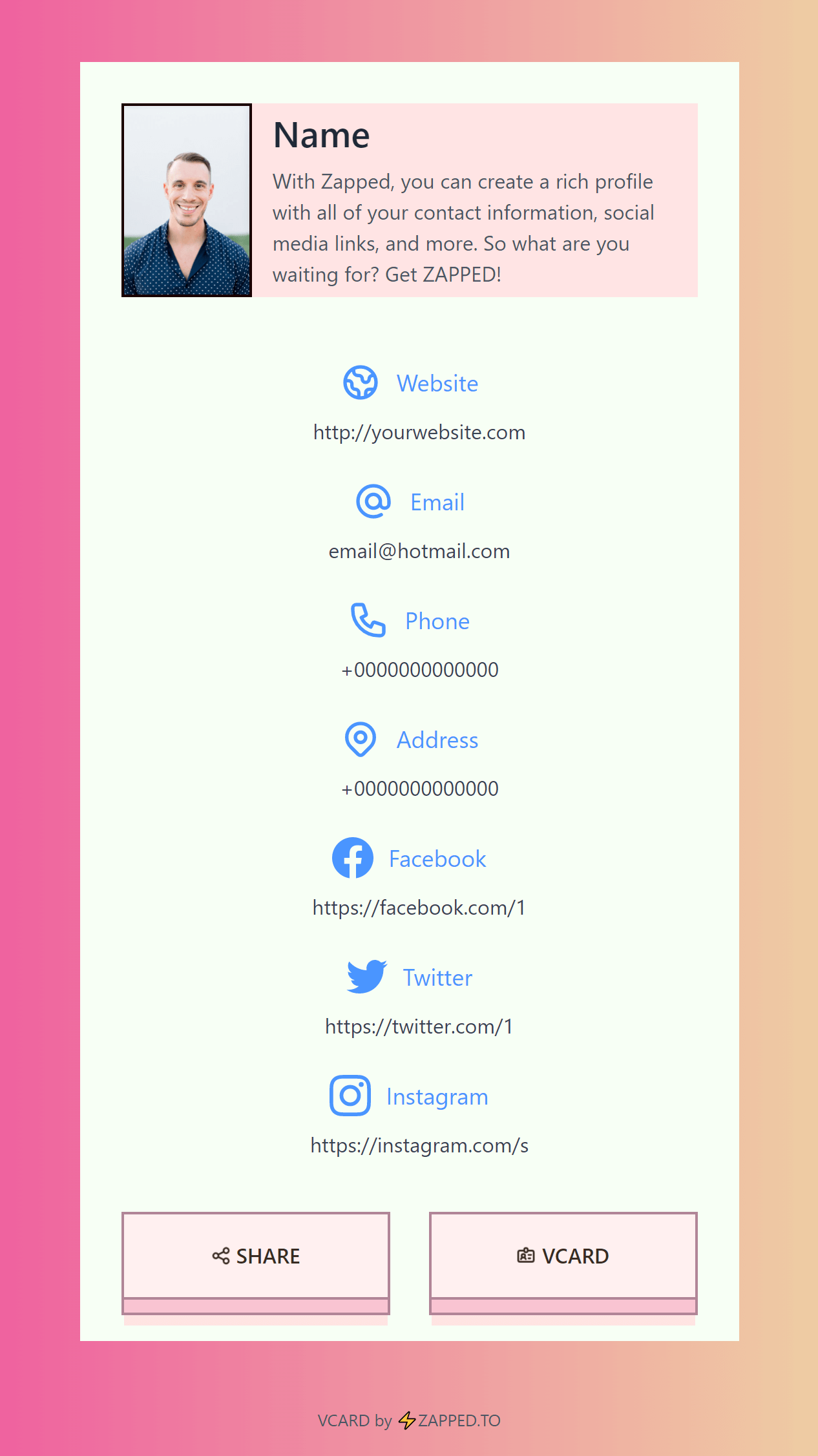
- Create a digital business card profile with your name, role, company, photo or logo, and best contact options.
- Add a short profile URL that you can update later.
- Generate a QR code or Wallet pass that points to that URL.
- Save the pass or QR shortcut on your iPhone.
- Test the card with another iPhone and an Android phone.
- Update the profile when your title, phone number, website, booking link, or social profile changes.
Zapped fits into this flow as the editable profile. The profile link can be shared through QR, NFC, email, text, or a website button, so the Wallet experience does not have to carry every detail itself.
Quick setup checklist
Before using the card publicly, check:
- The QR code opens the correct profile.
- The profile has a save contact or vCard download option.
- The Wallet pass, shortcut, or QR image is easy to find on your iPhone.
- The same profile works on Android.
- The destination profile can be edited without creating a new QR code.
- Your printed card or NFC card uses the same profile URL.
When should you use Apple Wallet?
Use Apple Wallet when you want your card close at hand on your own iPhone. It is especially helpful for conferences, sales meetings, trade shows, recruiting, and events where you want to open a pass quickly.
Use a QR code or NFC card as the public sharing method when you need better compatibility. A printed QR code, NFC card, or direct link can work for people who do not use Apple Wallet or are on Android.
When Apple Wallet is not enough
Apple Wallet is convenient, but it should not be the only way someone can receive your business card.
| Issue | Better fallback |
|---|---|
| Recipient uses Android | QR code or direct profile link |
| Wallet pass is hard to update | Editable profile URL |
| You need a physical handoff | NFC card with QR backup |
| You share through email or LinkedIn | Direct profile link |
| You need team consistency | Managed digital card profiles |
The cleanest approach is to make Wallet a launcher for your card, not the whole card. The live profile should hold the details and stay editable.
What should your iPhone business card include?
Keep the Wallet or QR view simple. Put the full details on the destination profile.
Useful details include:
- Name and role.
- Company and logo.
- Phone, email, and website.
- Booking link or calendar link.
- LinkedIn or one primary social profile.
- Save contact button or vCard download.
- QR code that opens the live profile.
- Team or company page if the card is part of a larger organization.
iPhone sharing examples
Use the format that matches the moment:
- At a conference booth, show the QR code on your iPhone or tap an NFC card.
- In a sales meeting, tap an NFC card, then send the direct profile link in a follow up email.
- On LinkedIn, use the direct profile link instead of asking people to scan a code.
- In an email signature, link to the same profile used by your QR code and NFC card.
- For a team, use one profile template so every employee card has the same brand structure.
Common mistakes to avoid
Do not build a Wallet card that becomes stale. If your phone number, title, or company link changes, the pass should point to a profile that can be updated.
Do not rely only on Apple Wallet. It is great for your own iPhone, but the person receiving your card may prefer QR, NFC, email, or a normal web link.
Do not make the QR code too small. If you print the code on a physical card, badge, or flyer, test it from the actual printed size.
Use Zapped beside Wallet, not only inside it
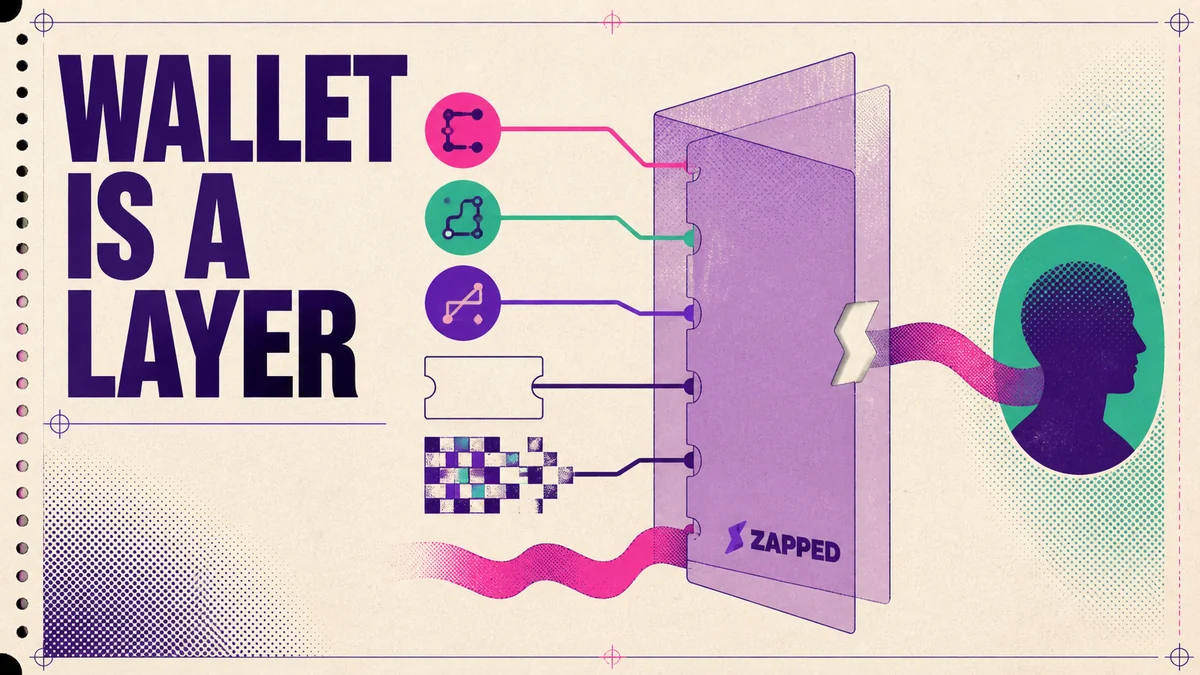
Wallet can be a convenient shortcut for people who like storing passes, but not every recipient wants to add a pass before they know you. Zapped gives the card a normal mobile profile that works from QR, NFC, link sharing, and email signatures first.
That means you can still support Wallet-style sharing where it fits, while keeping the main contact experience open, editable, and easy for anyone to use from a browser.
FAQs
Can I put my business card in Apple Wallet?
Yes, if you use a Wallet pass or a service that creates one. The pass usually displays a QR code or link that opens your digital business card profile.
Does Apple Wallet replace a digital business card?
No. Apple Wallet is a place to store or open the card quickly. The digital business card is the profile, contact page, QR destination, or vCard behind the Wallet experience.
Is a QR code better than Apple Wallet for business cards?
A QR code is usually more universal because both iPhone and Android users can scan it. Apple Wallet is better for quick access on your own iPhone.
Can an iPhone share a business card with NFC?
An iPhone can read many NFC tags and open a URL from an NFC business card. For broad compatibility, use an NFC card that opens a web profile instead of relying on phone to phone NFC behavior.
What is the easiest iPhone business card setup?
Create an editable digital profile, then share it with a QR code, NFC card, and direct link. Add a Wallet pass only if quick iPhone access is important for your workflow.
Can I make a free iPhone business card?
Yes, you can start with a profile link and QR code. A paid or managed setup becomes more useful when you need branded profiles, NFC cards, team controls, analytics, custom domains, or a more polished sharing flow.
Should my iPhone business card use a QR code or vCard file?
Use a QR code that opens an editable profile for most situations. A vCard file is useful for saving contact details, but it can become stale if your information changes and the file is not updated.
Sources
This guide uses current Apple platform documentation and Zapped product positioning.
- Apple Wallet: Used for Apple Wallet positioning and supported pass/card context.
- Apple Core NFC: Used for iPhone NFC tag reading context.
- Apple Human Interface Guidelines, NFC: Used for background NFC reading and NFC experience guidance.
- Apple Developer, adding support for background tag reading: Used for iPhone background tag reading behavior.