Apple does not currently offer a standalone digital business card app in the same way dedicated card platforms do. Apple tools can still help you share contact details through Contacts, Wallet passes, QR codes, and links.
Quick answer
Apple has Contacts, NameDrop, QR scanning, and Wallet pass infrastructure, but not a dedicated Apple digital business card product for every professional workflow. A web based digital card still gives more control.
Key takeaways
- Use a live profile as the source of truth.
- Add QR sharing because it works across more devices.
- Add NFC when in person sharing is part of your workflow.
- Keep the main action clear so people know what to do next.
- Use Zapped where an editable profile, QR, NFC, and team controls belong in one place.
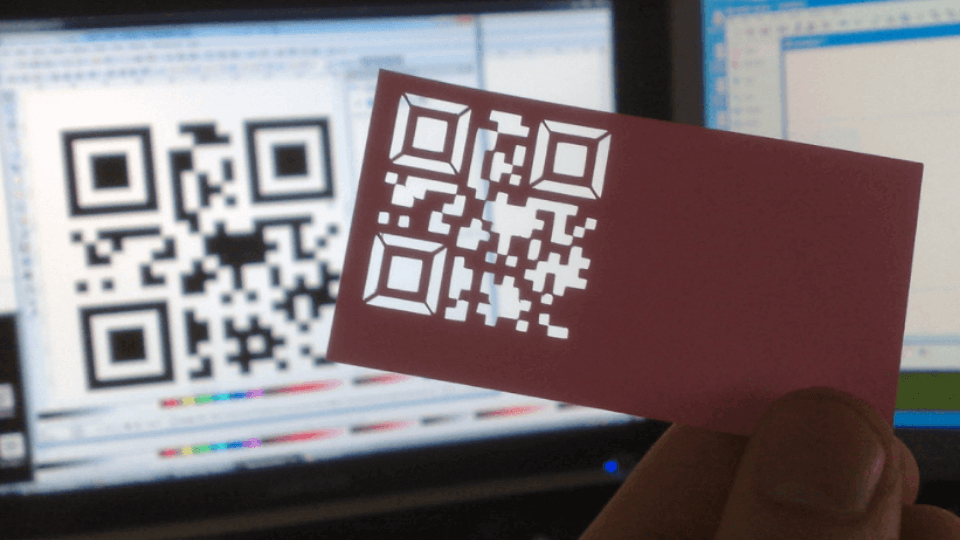
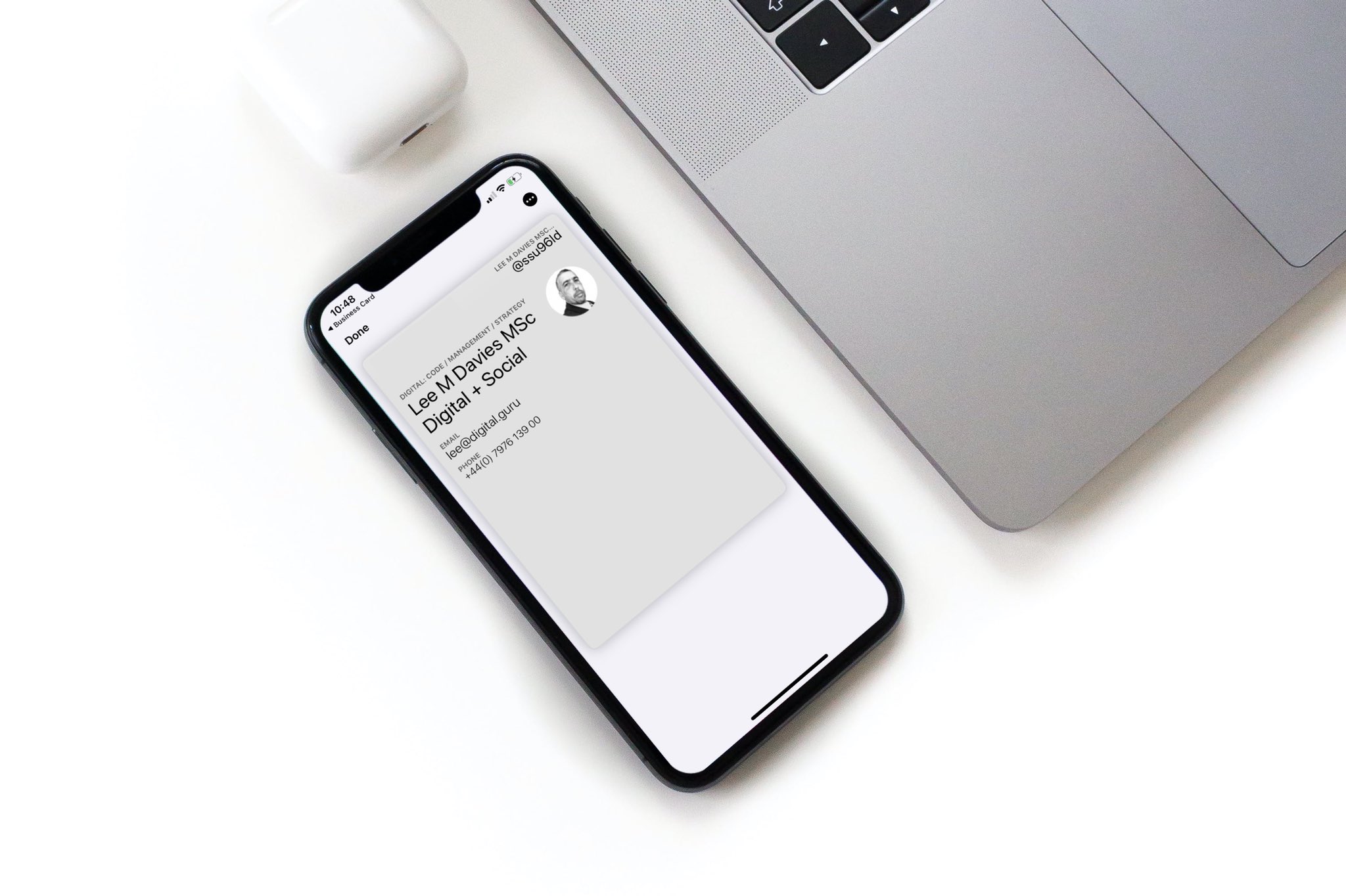
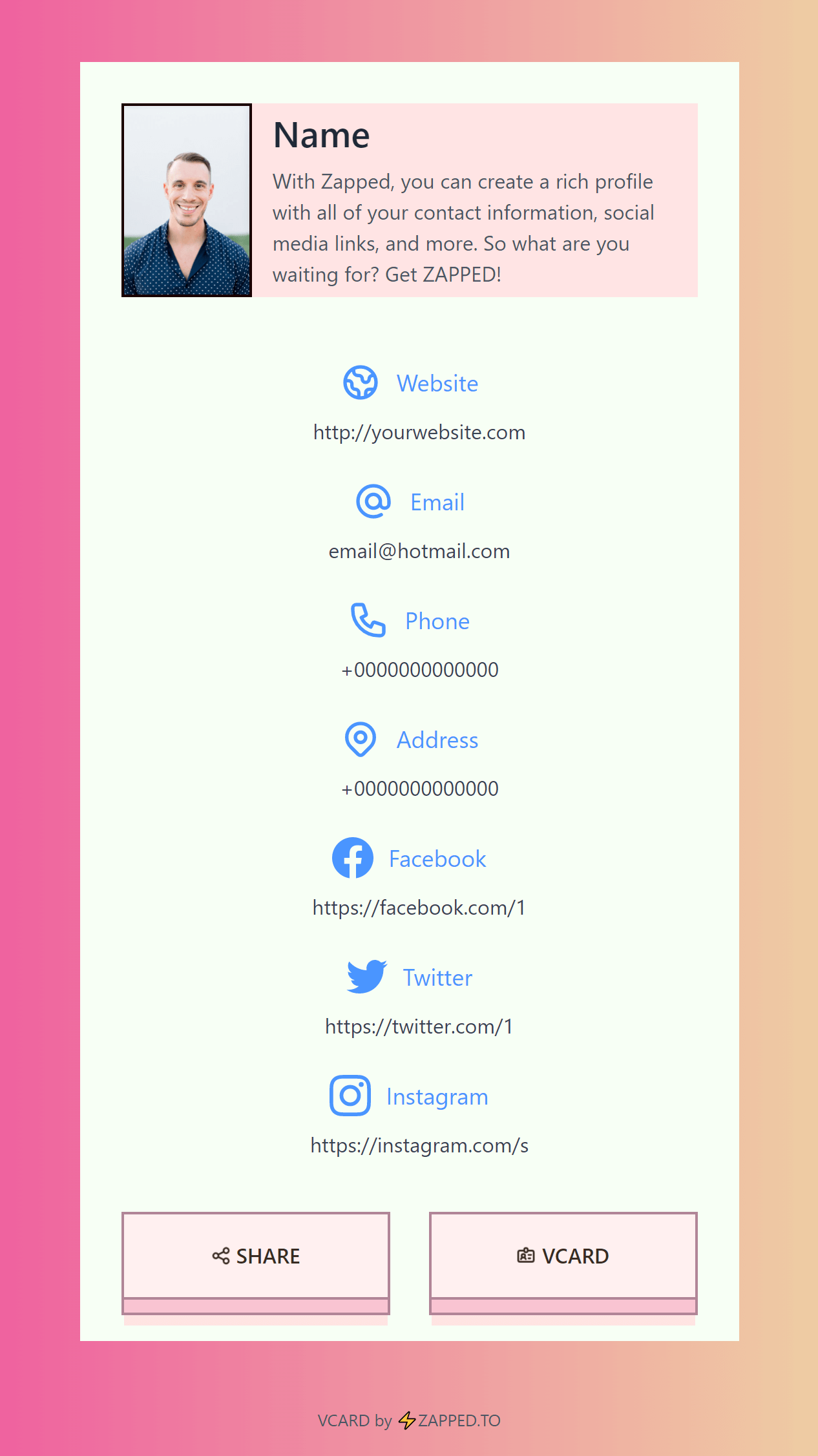
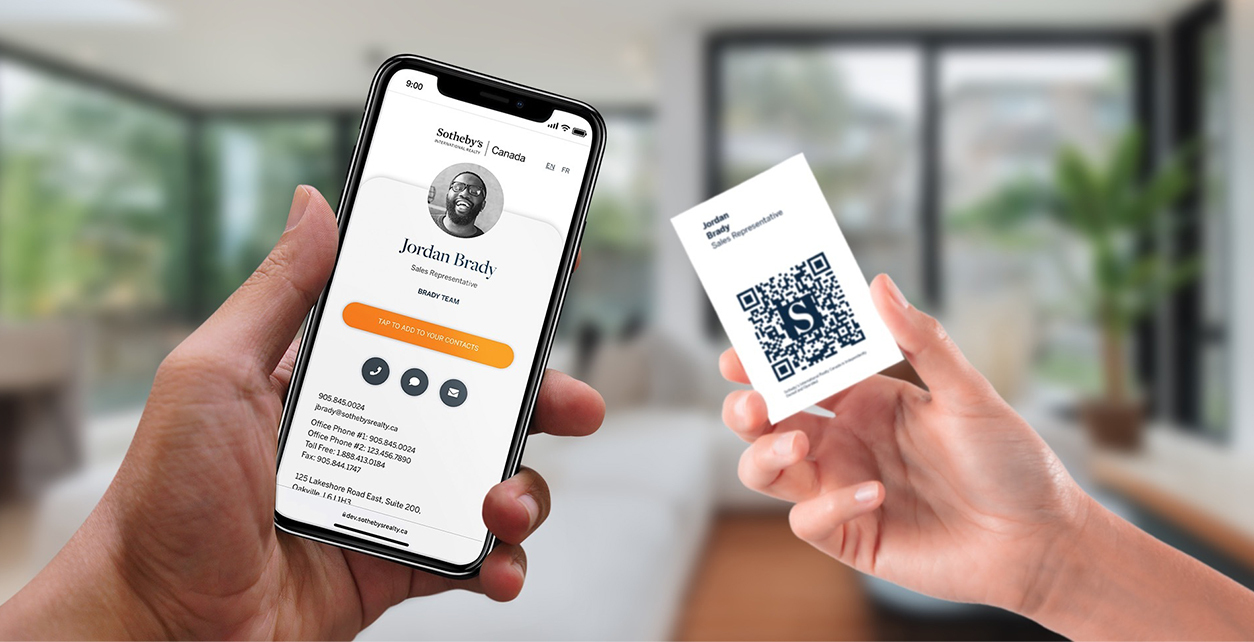
Use this image as a reference point while you compare the options below. The important idea is that the card, code, or NFC tap should lead to a profile that is easy to save and act on.
Best options by use case
| Apple tool | How it helps | Where it falls short |
|---|---|---|
| Contacts | Stores personal contact data | Not a full public profile |
| NameDrop | Shares between Apple devices | Limited to Apple ecosystem |
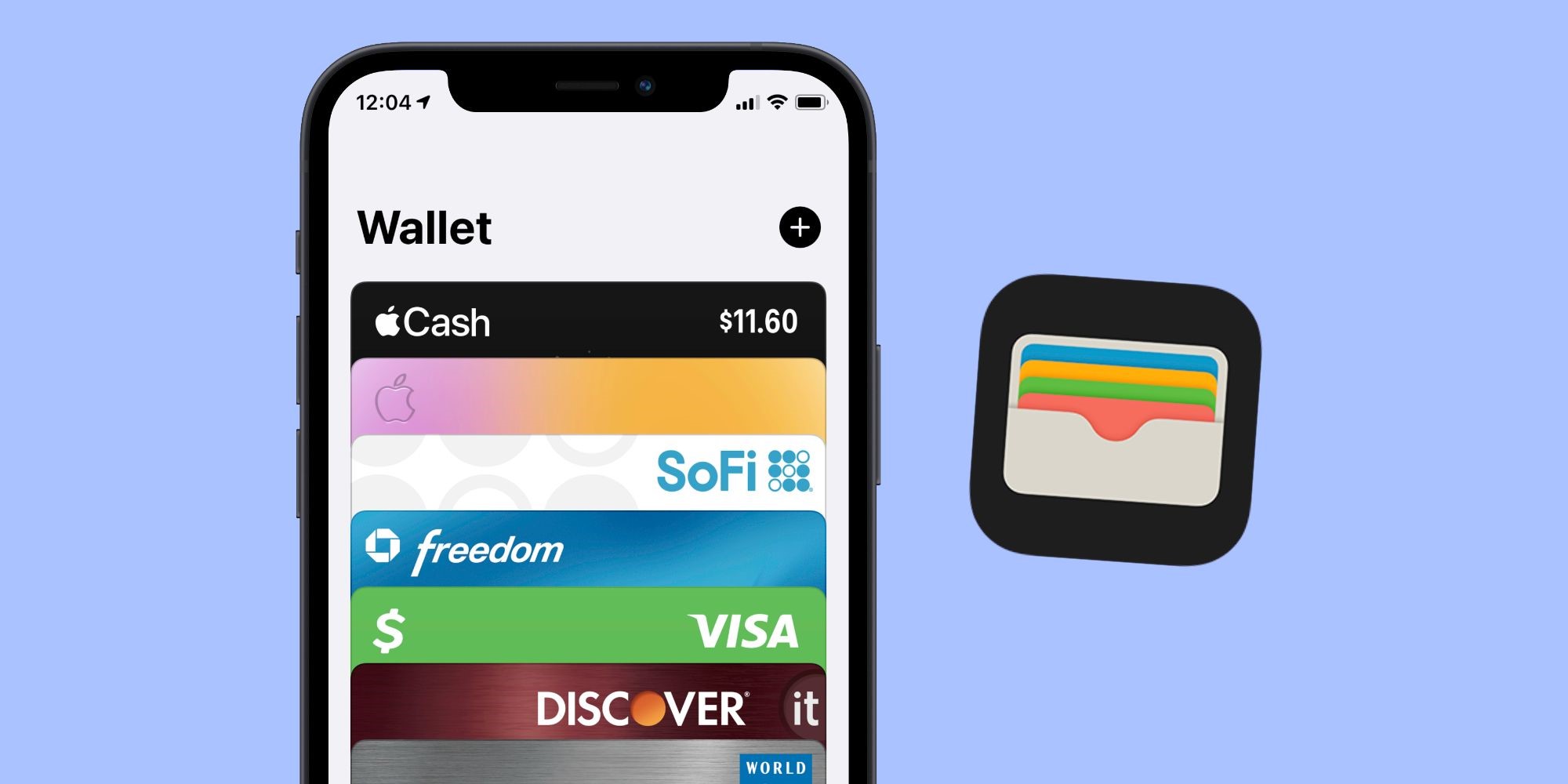
| Wallet passes | Can hold scannable passes | Requires a pass workflow |
| Camera QR scan | Opens digital card links | Needs a QR code |
| Safari link | Opens any web profile | Profile must be created elsewhere |
Best iPhone setup
Use a live profile link as the destination, a QR code for scanning, and optional Wallet access for your own convenience. If you use NFC, test the tap on iPhone models your audience is likely to use.
Zapped can serve as the profile layer while Apple tools handle scanning, storing, and sharing on the device.
What to include
A strong digital business card usually includes:
- Name, role, and company.
- Phone, email, and website.
- A save contact action.
- One primary call to action.
- QR code or direct sharing link.
- NFC support when useful.
- Social, portfolio, booking, payment, or review links when they help.
Simple setup checklist
- Create the live profile.
- Add your essential contact fields.
- Choose one primary action.
- Generate and test the QR code.
- Add NFC or Wallet sharing if the use case needs it.
- Test the experience on iPhone and Android.
- Update the profile whenever your details change.
What Apple tools can do
Apple tools can help with pieces of the workflow. Contacts stores personal details. Camera scans QR codes. Wallet can store passes. Safari opens web profiles. NameDrop can share contact details between Apple devices. Those pieces are useful, but they do not replace a managed profile that works across every device and channel.
Best setup for mixed audiences
If your audience includes Android users, desktop users, event attendees, and people receiving your link by message, use a web profile as the destination. Then use Apple tools as convenient ways to access or share that profile from your own iPhone.
Apple ecosystem options
Apple gives you several building blocks, but not a complete branded business card product by itself. Contacts can store your details, Wallet can hold passes, Safari opens profile links, and Camera scans QR codes. The missing piece is usually the editable public profile.
A practical iPhone setup uses:
- A browser based digital card profile.
- A QR code saved to Photos, Wallet, or the card dashboard.
- A direct link for Messages, Mail, and AirDrop.
- NFC only when you also have a physical card or tag.
This works better for mixed audiences because not everyone you meet will be inside the Apple ecosystem.
What Apple does not replace
Apple tools can help you store and share contact information, but they do not replace a full branded digital business card platform. You still need a public profile, brand control, links, analytics, QR code management, and team ownership if you are using cards for business.
For most professionals, the best setup is Apple friendly rather than Apple only. That means it works well on iPhone, but still opens cleanly for Android and desktop users.
Where Zapped fits with Apple tools
Apple gives you useful pieces of the workflow, including Contacts, Wallet passes from supported services, QR scanning, and NFC reading. What it does not give you by default is a complete editable business card platform for QR, NFC, direct link sharing, team profiles, and analytics.
Zapped can sit on top of the Apple experience. Someone can scan your QR code with iPhone, tap an NFC card, open your link in Safari, or save your contact details, while you manage the profile and links from Zapped instead of rebuilding contact files every time something changes.
FAQs
What is the best digital business card format?
The best format is usually a live web profile with a QR code, direct link, and optional NFC card. That gives people more than one way to open the same profile.
Do people need an app to view my digital business card?
Usually no. A web based profile should open in a normal browser. Apps can help the card owner manage the profile, but the recipient should not need to install anything just to view your details.
Should I use NFC or QR for does apple have a digital business card? options?
Use both when the card will be shared in person. NFC feels fast when someone knows where to tap, and QR gives a visible backup for any phone with a camera.
Can I update the card after sharing it?
Yes, if the QR code, NFC tag, or shared link points to an editable profile. That is one of the biggest advantages over a static printed card.
Where does Zapped fit?
Zapped is built for people who want one editable digital card profile that can be shared by link, QR code, NFC card, and team workflows without rebuilding the card every time details change.
Sources
- Apple Developer, Wallet and Apple Developer, getting started with Wallet: Used for Apple Wallet pass context.
- Apple Support, scan a QR code with iPhone camera: Used for iPhone QR scanning behavior.
- IETF RFC 6350, vCard format specification: Used for vCard contact data context.