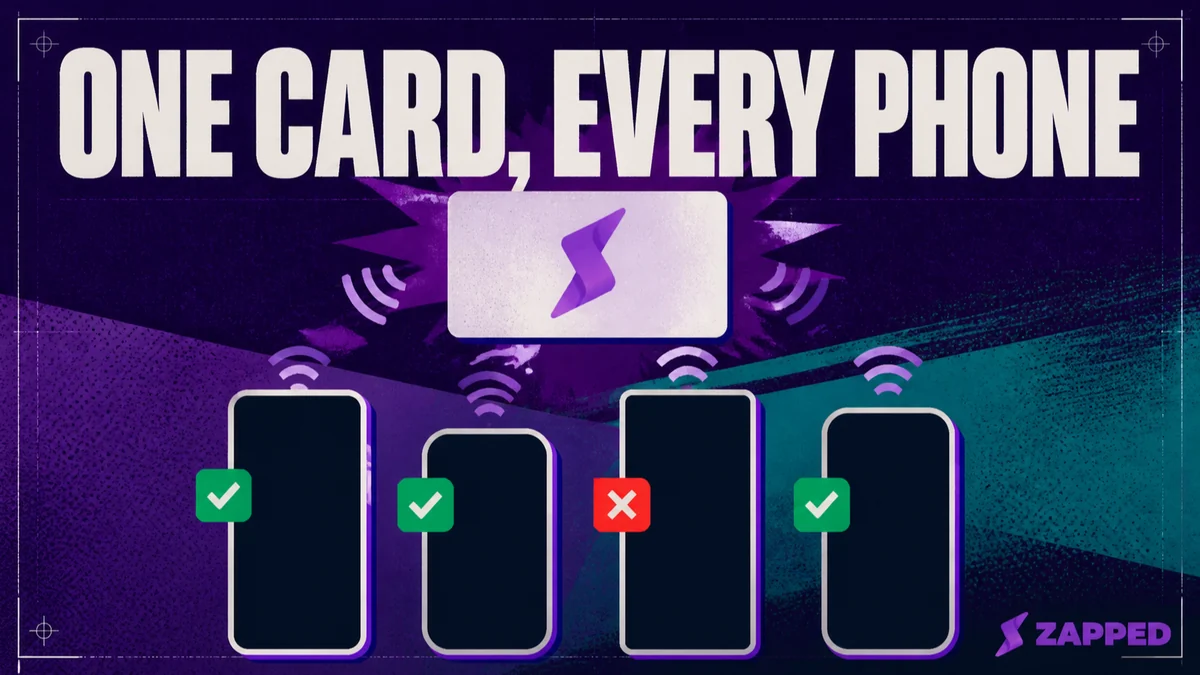
A card that reads on your phone can still fail on the next person's. Testing across phones means answering two separate questions for each device: does this phone support the read at all, and is it in a state to read right now. Miss either one and you will blame the card for something the phone was doing.
This assumes the card is already programmed. If you have not gotten that far yet, the programming guide covers that step first.
Before you conclude anything about the card itself, test on at least one iPhone from each toggle group below and one modern Android phone, screen unlocked, no case. That is the minimum set that actually tells you something.
The device behavior matrix
iPhones split into two groups. iPhone 12 mini through iPhone XS Max, plus the second generation iPhone SE, automatically support NFC Tag Reader. Older models, the iPhone X, 8, 8 Plus, 7, and 7 Plus, need NFC Tag Reader turned on manually in Control Center, according to Apple's iPhone User Guide.
On top of that model split, iPhone XS, XS Max, and XR and later can read a tag in the background without an app open, but only under specific conditions. The phone has to have been unlocked at least once since it started up, no other Core NFC session or Apple Pay transaction can be active, the camera has to be off, and Airplane Mode has to be off.
When those conditions line up, the read surfaces as a notification the person taps to open. That floor and those blocking conditions come from Apple's own Core NFC background reading documentation, and the trigger conditions are corroborated by GoToTags, an independent NFC tooling vendor.
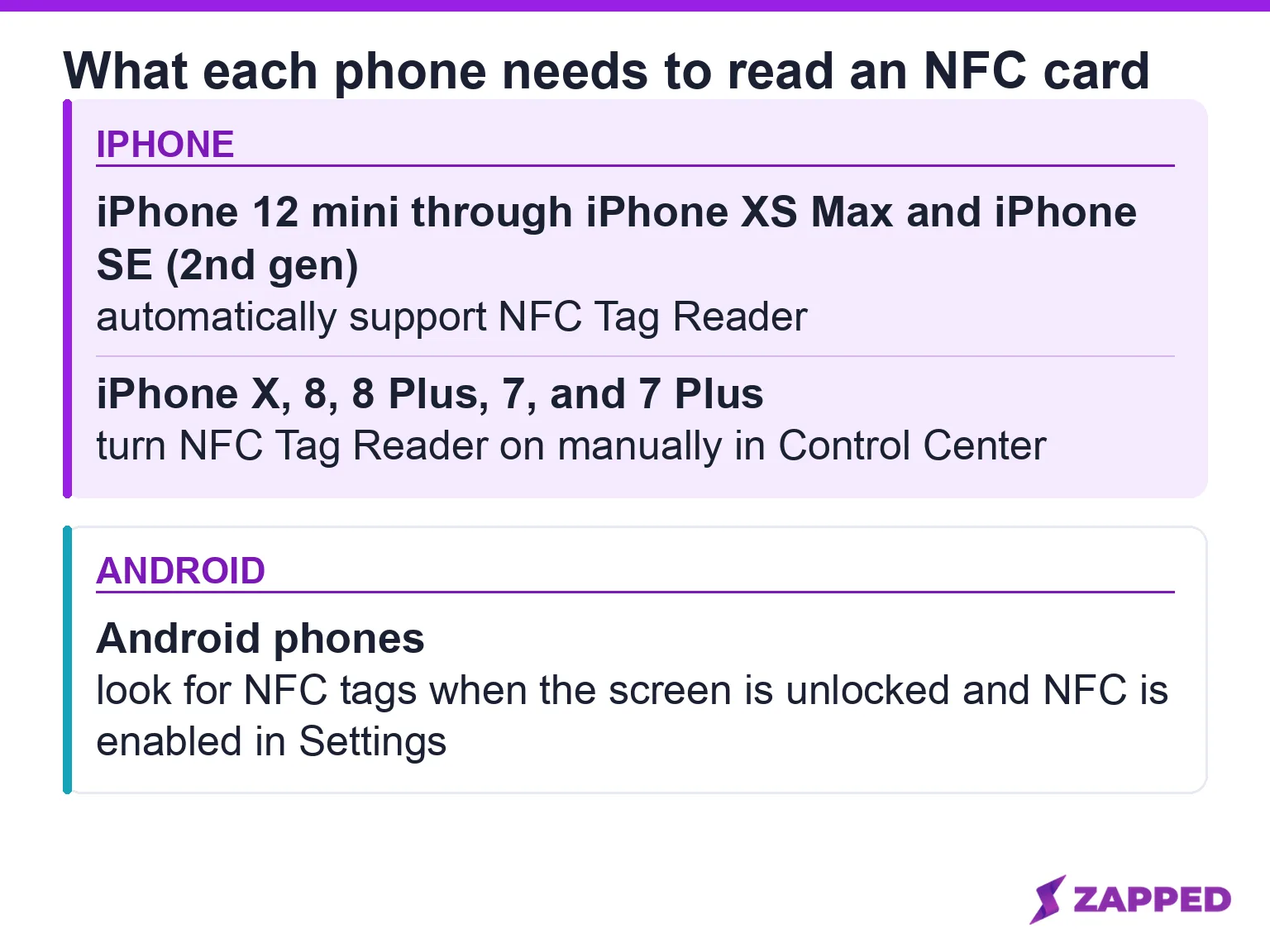
Android is simpler at the surface level. According to Android's NFC developer documentation, a phone looks for tags whenever the screen is unlocked, unless NFC has been switched off in Settings. Where that setting lives is not consistent, though.
Samsung's own support page documents the path as Settings, then NFC. The fuller menu commonly reported for current One UI devices, Settings, Connections, NFC and contactless payments, isn't the exact route Samsung's own page confirms, so treat it as the commonly reported path, not one the vendor itself has verified.
Pixel and stock Android surface it under Settings, Connected devices, Connection preferences, NFC, and Motorola tucks it into Settings, Apps and notifications, Default apps, Tap and pay. Those two paths were only confirmed through search result snippets, not a direct fetch of both pages, so treat them as a starting point rather than a guarantee for every model year.
A scan failure on an Android phone you don't own can just as easily be a settings location problem as anything wrong with the card. The iPhone side of that same question, where NFC actually lives on iPhone, is covered separately in the NFC setting on iPhone.
Run the test, platform by platform
Unlock the phone and take off any case for the first pass. Hold the card steady against the antenna zone (more on where that is below) and note whether it reads. Then repeat on the next device. The point is not one successful tap, it is a pattern across enough devices to trust.
On iPhone, an XS, XS Max, XR, or newer with all four background conditions met should surface a tap notification with no app open. On an X, 8, or 7, first check whether NFC Tag Reader is on in Control Center, since those models don't read automatically at all.
The full walkthrough, including what the tap notification looks like and what to do if nothing appears, is in scanning on iPhone.
On Android, confirm the screen is unlocked and NFC is switched on in Settings before you tap. If a foreground app has claimed priority through the Android dispatch system, a background read can get intercepted, but that's a developer configuration, not something a card owner sets.
Samsung's support page also notes the antenna sits inside the battery cover on the phone generations it covers, which is worth knowing before you handle the phone roughly during a test. For the exact steps and prompts to expect, see scanning on Android.
One phone fails, others don't: work through this before blaming the card
A single failed tap while every other phone reads fine has several documented, checkable causes, not one universal explanation. Work through them in order rather than assuming the card is bad.
Check the lock state first. On iPhone, background reading needs the phone to have been unlocked at least once since power on, with no competing Core NFC session, no active Apple Pay transaction, the camera off, and Airplane Mode off. Any one of those can silently block a read that would otherwise work.
Check the Settings toggle next, especially on an unfamiliar Android phone. Since the menu path varies by manufacturer, a phone that "doesn't support NFC" is often a phone where NFC is switched off somewhere the owner has never looked.
Check for a case next. A case can change how a tag reads depending on material and thickness, not because of magnets. It shifts the resonance frequency the antenna was tuned for, cutting power transfer between the reader and the card enough to prevent a read.
That's the explanation a named STMicroelectronics engineer gave in a community technical forum post, and it matches guidance from Seritag, an NFC card vendor, which recommends removing the case as a diagnostic step for metal cases especially.
Check the tap zone last, which the next section covers in more detail.
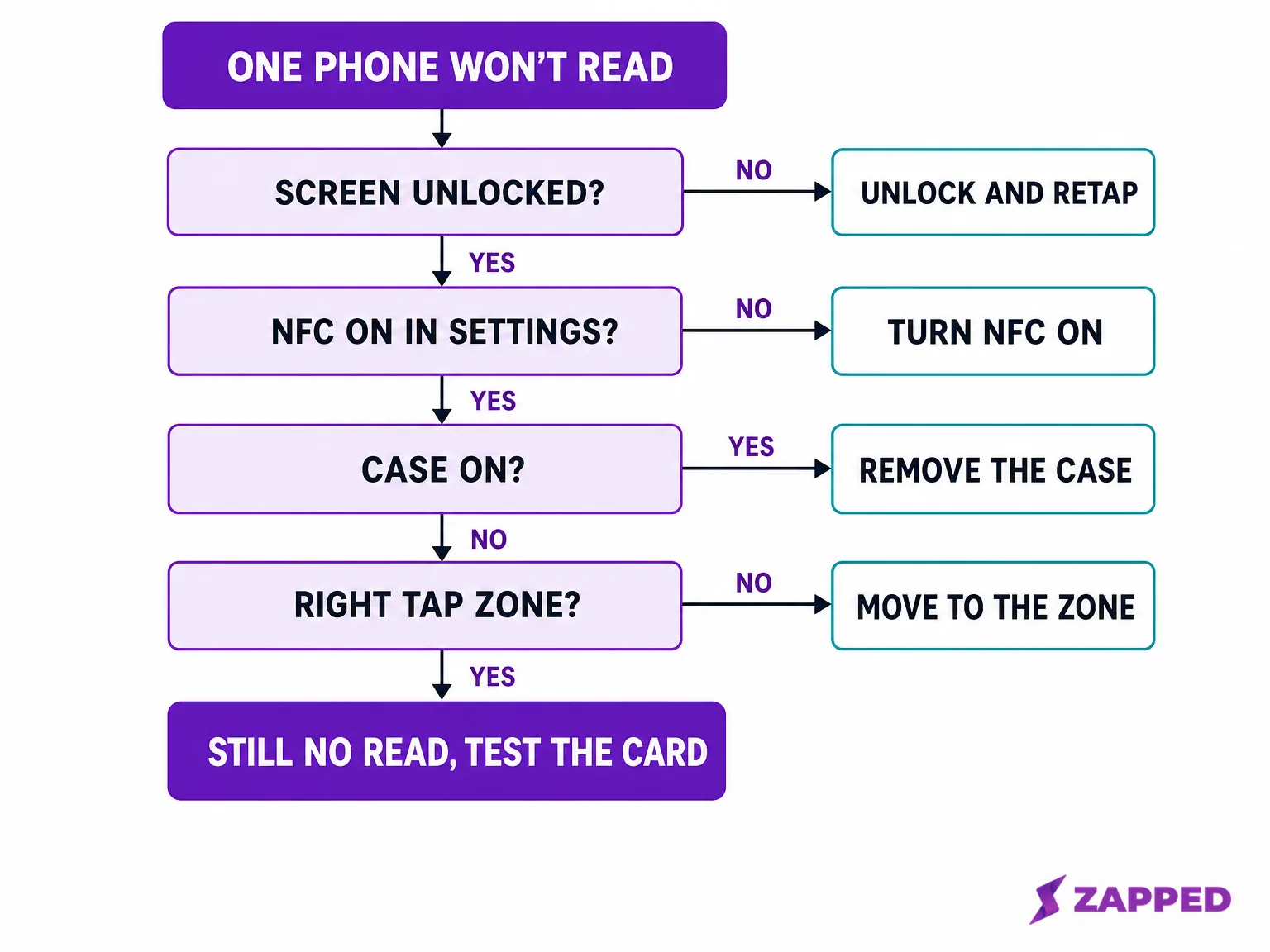
If you work through every check here and one phone still won't read at all, treat it as a card that isn't working and troubleshoot it directly rather than assuming the next phone will be fine too.
Cases and tap placement can fake a bad card
Where the card touches the phone matters as much as whether NFC is switched on. Popl's own user manual instructs tapping the top edge of an iPhone XR or newer, and the center of most Android phones. Tapt's troubleshooting help center adds the timing: hold the card steady against that zone for three to five seconds before deciding the tap failed.
That tap zone guidance is echoed by Seritag's antenna location notes.
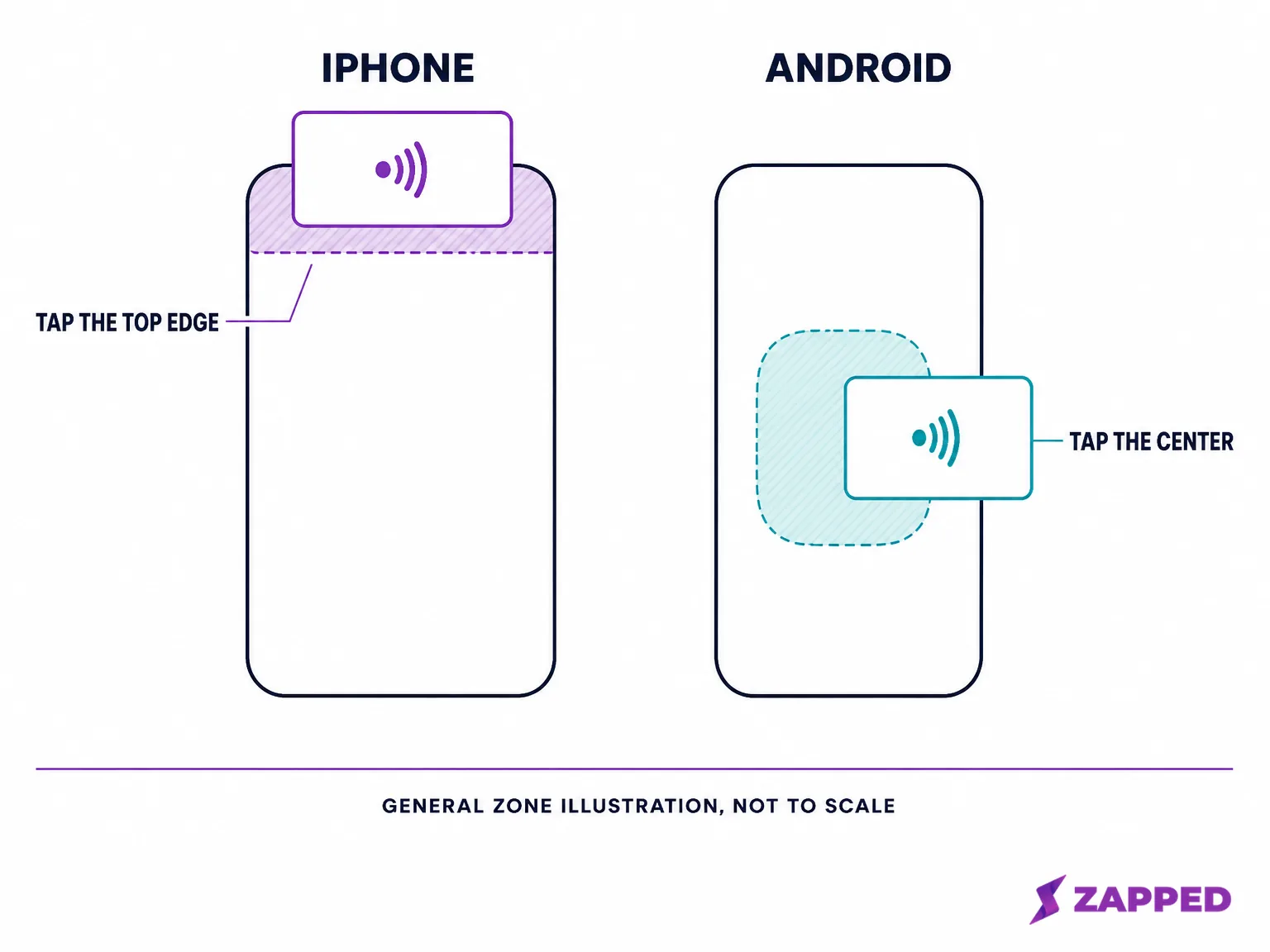
All three of those sources, Popl, Tapt, and Seritag, are vendors that sell or support NFC cards, not an independent lab measurement, so treat the guidance as consistent industry practice rather than a physics guarantee for every model. If a tap reads only sometimes, or after a noticeable pause, rather than failing outright, that points somewhere different, covered in why NFC scans run slow.
The card's chip has real, documented limits worth knowing here too. NXP's NTAG213, 215, and 216 chips, common in NFC business cards, are NFC Forum Type 2 Tag compliant with 144, 504, and 888 bytes of user memory respectively, according to NXP's product page.
No source turned up an official read range or antenna geometry figure for this chip family, so that's where the documented facts stop. If a card and phone still won't read after ruling out lock state, settings, case, and tap zone, the honest answer is that the exact physical limit isn't published, not that the card is defective.
The settings path is not the same on every phone
There is no single NFC settings menu path across Android manufacturers. Samsung uses Settings, then Connections, then NFC and contactless payments. Google Pixel puts it under Settings, Connected devices, Connection preferences, NFC. Other manufacturers place it in different submenus entirely, and some budget models ship with NFC disabled by default even when the hardware supports it.
That variance matters for testing. If you are checking a card across multiple Android phones and one phone does not respond, the NFC toggle being off is a more likely explanation than a dead tag. Before declaring the card broken on that device, find the NFC setting and confirm it is enabled. The same principle applies when someone else's phone will not read your card: ask them to check the setting first rather than assuming the card is at fault.
iPhone does not have a user-facing NFC toggle at all. The setting is managed by iOS, and background tag reading is available on iPhone XS and later without any action from the user. That removes one troubleshooting step on iPhone but also means there is no settings check to run when an iPhone does not respond, which pushes the diagnosis toward antenna position, case interference, or a genuinely damaged card. Running through those three possibilities in order, from the easiest to check to the hardest, will find the answer faster than swapping cards and hoping.
The antenna is not in the same place on every phone
A phone's NFC antenna occupies a specific, model-dependent physical zone, so where the card is placed against the back can determine whether a read succeeds even when the phone and the card are both working correctly. Testing across multiple phones without knowing each phone's antenna location is like trying to unlock a door without knowing where the lock is.
On most current iPhones, the antenna cluster sits toward the top of the back panel, near the camera. On many Android models, it is centered or slightly above center. A case that adds metal, magnetic closures, or card-slot material between the card and that zone can reduce range enough that a tap that works on a case-free phone fails on a cased one, even with the same card and the same settings.
When a phone in your test group reads inconsistently, try the card at three positions: top of the back, center, and just below the camera. The position that reads fastest is the one to use for the rest of the comparison, and it tells you the phone is fine even when its first instinct was to reject the card.
Not all tags are the same chip
The NFC Forum publishes five tag type specifications that define how devices communicate with tags, but for business card testing the practical distinction is simpler: most NFC cards carry an NXP NTAG21x chip, which is Type 2 Tag compliant, and the three common sizes (NTAG213, NTAG215, NTAG216) differ mainly in writable memory. A business card URL fits comfortably in even the smallest, so chip capacity is almost never the reason a card fails across phones. If a card is consistently unreadable on every device, the problem is the antenna or the encoding, not the storage.
Where the fallback matters more than another troubleshooting pass
Once you've ruled out lock state, the Settings toggle, a case, and the tap zone, and a tap still fails on one particular phone, the practical move is not a fourth troubleshooting pass on the tap itself.
Every Zapped card, including on the Free plan, shares by QR code, link, or NFC tap, and the public card opens in any browser with no app to install and no account to create. When one device won't read the chip, the same card's QR code or link gets the same contact details across without depending on that phone's NFC state at all.
That's a genuinely different answer than trying another card angle or another minute of troubleshooting a device that already failed twice. For events where you would rather not depend on a tap succeeding at all, it's worth comparing NFC against QR codes directly before you print anything.
Sources
- iPhone User Guide: NFC Tag Reader, Apple, retrieved August 8, 2026.
- Apple background tag reading doc, Apple, retrieved August 8, 2026.
- Android Developers: Near Field Communication, Google, retrieved August 8, 2026.
- Samsung NFC support, Samsung, retrieved August 8, 2026.
- NTAG213/215/216 product page, NXP, retrieved August 8, 2026.
- case interference on NFC tags, STMicroelectronics community forum, retrieved August 8, 2026.
- Troubleshooting your Tapt card, Tapt, retrieved August 8, 2026.
- Background tag reading on iOS, GoToTags, retrieved August 8, 2026.
- phone case NFC interference, Seritag, retrieved August 8, 2026.
- Popl NFC business card user manual, Popl, retrieved August 8, 2026.