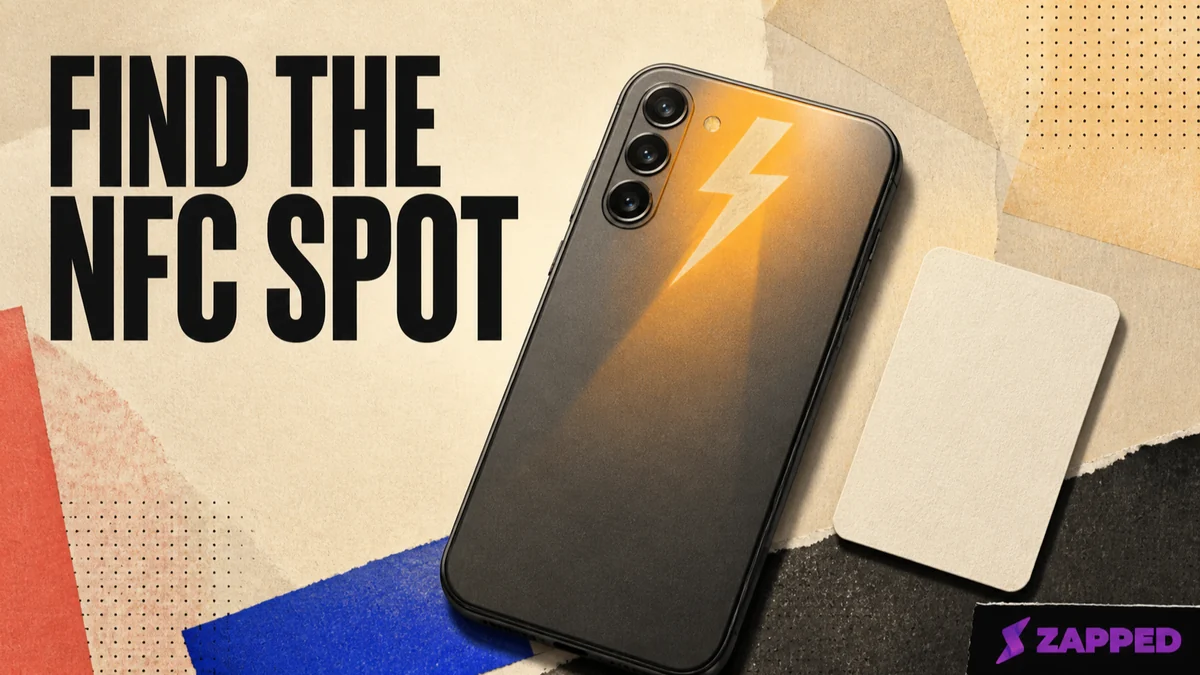
If you're tapping an NFC card against the display, turn the phone over. Start on the back, around the upper center or center of the back, and hold the card close and still for a moment. The phone's NFC antenna is on the rear, and NFC works across only a very short distance.
That is the right first move, not a universal rule. Android does not have one standard tap point. If the upper center fails, find the antenna position for your exact phone or search the back panel slowly before deciding the card is broken.
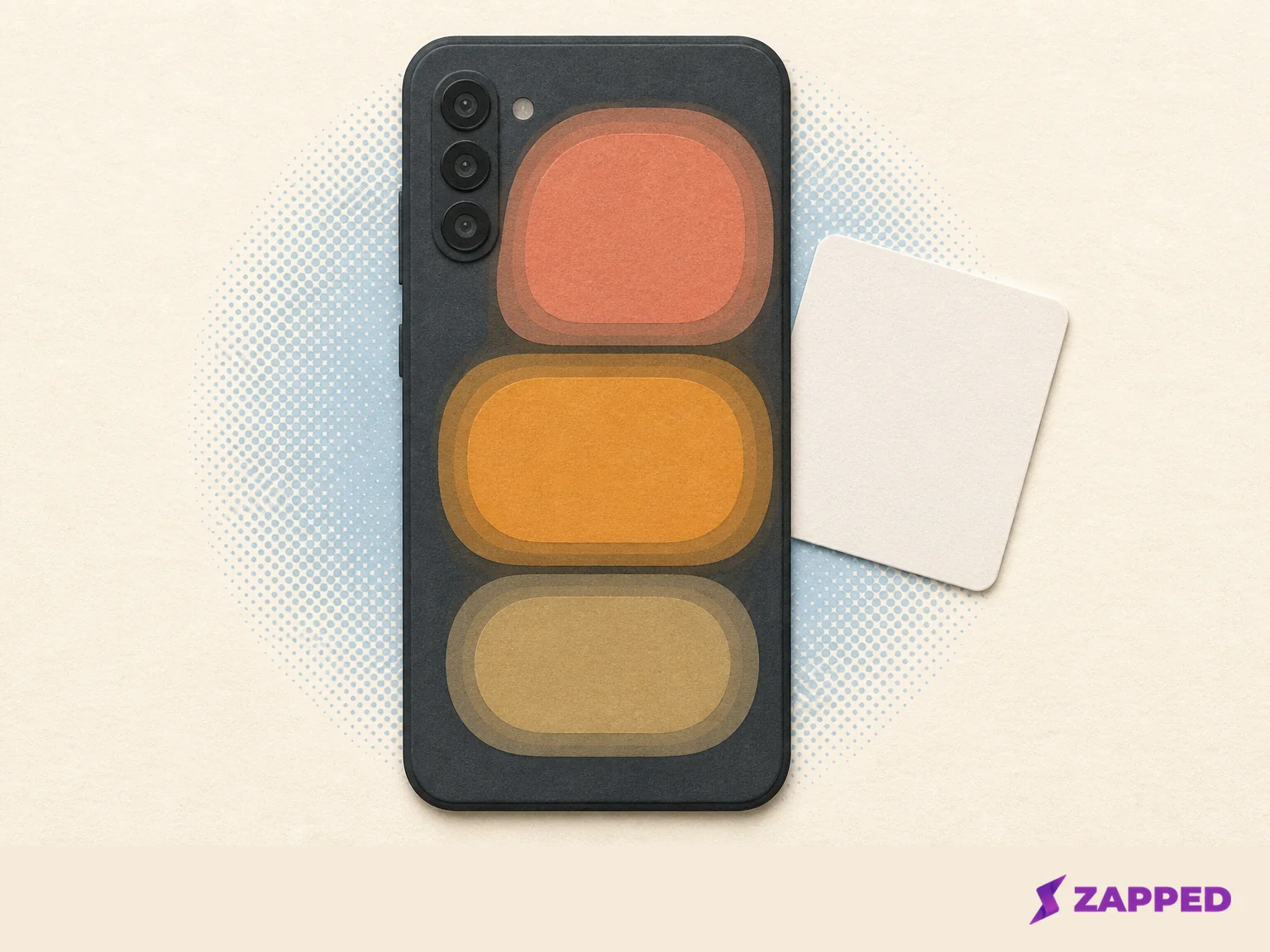
Start with the back, not the display
The screen is the wrong side of the phone for this test. Put the card against the back and begin near the upper center. A practical upper center starting zone gives you somewhere to try without pretending every Android phone was built the same way.
Keep the card almost touching the phone. Do not wave it around the back and pull it away the instant you think you are close. The read happens over a distance measured in a few centimeters, and the card should be held still until the phone confirms it. One clean second in the right spot beats ten hurried passes over the wrong one.
If the card responds, you have found the phone's useful zone. If it does not, the first failed spot has told you very little about the card. Move to the model check.
Let the phone model overrule the generic advice
A generic diagram can get you started, but your exact model gets the final say. Android phones can put the antenna toward the top, middle, or bottom of the back, and recent phones often place it toward the top. “Tap the center” is a starting guess, not a rule.
Pixel owners can use the Pixel model diagram. Samsung Galaxy owners can look in Settings, then Connections, then NFC and contactless payments, where Samsung provides antenna placement guidance. The Samsung NFC troubleshooting guide is especially worth checking if the case is thick, magnetic, or built to hold cards.
The Xiaomi 15 is a good reminder that brand assumptions are cheap. Xiaomi places its NFC reading area to the right of the rear camera, so a phone in the same broad Android family can still move the target. The Xiaomi 15 reading area matters more than a diagram copied from another model.
When the manufacturer offers a diagram or setting that identifies the antenna, follow it. That is better evidence than memorizing a top, middle, or center rule.
Find the spot when no diagram helps
Some phones will not hand you a useful antenna map. The Android NFC API lets apps request relative antenna positioning, but it can return no position, so a visible guide is not guaranteed. You can use a controlled physical search instead.
Keep the NFC operation active. Place the card against the back, then slide it slowly from the upper area toward the middle and lower area. Watch for the operation to advance, then return to that position and hold the card still. This slow slide across the back locates an approximate working spot; it is not a new universal Android feature.
The pace matters. A fast sweep can cross the antenna without giving the phone time to react. Once you get a response, stop moving. You are looking for the phone's sweet spot, not trying to cover the whole back at once.
If you want the broader sequence for recognizing and opening a card after the phone responds, use this guide to scan an NFC business card.
Clear the easy blockers before trying again
Once you have tried the back and checked the likely zone, change the conditions before repeating the same tap. Remove a thick case, a magnetic case, or a case that holds cards. Confirm that NFC is enabled in Android settings. If the setting looks right but the phone still does nothing, toggle NFC off and on or restart the phone. Google's Android NFC troubleshooting steps recommend those checks when a tap fails.
Then try one clean read: card close to the back, over the most likely antenna area, held still until the phone or active operation responds. If that works without the case, the case was part of the problem. If it does not, you have narrowed the fault to the phone's NFC setting, the card, or the destination operation rather than endlessly guessing at the center.
If your next question is how to put a destination onto a blank tag, see program an NFC tag.
For a Zapped card, keep QR as the exit ramp
When a programmed Zapped NFC card reads on a compatible phone, it can open the public Zapped vCard in a normal browser. The recipient does not need a separate viewing app or an account just to see the card. Zapped's NFC card instructions also recommend testing the programmed card with another compatible phone and keeping a QR code ready when NFC is disabled, unsupported, or unreliable.
That fallback is not a defeat. It is the dependable second path for a real handoff, especially when you do not control the recipient's phone or case. After the model check, one controlled search, and the NFC setting check, show the QR code if the tap still fails and let the public card open the ordinary way.
When to stop chasing the antenna
Do one deliberate pass: use the model guide if you have it, search slowly if you do not, remove the case, and confirm NFC is on. If the phone still will not respond, stop moving the card. For a Zapped card, switch to the QR code so an unreliable tap does not turn into a failed exchange.