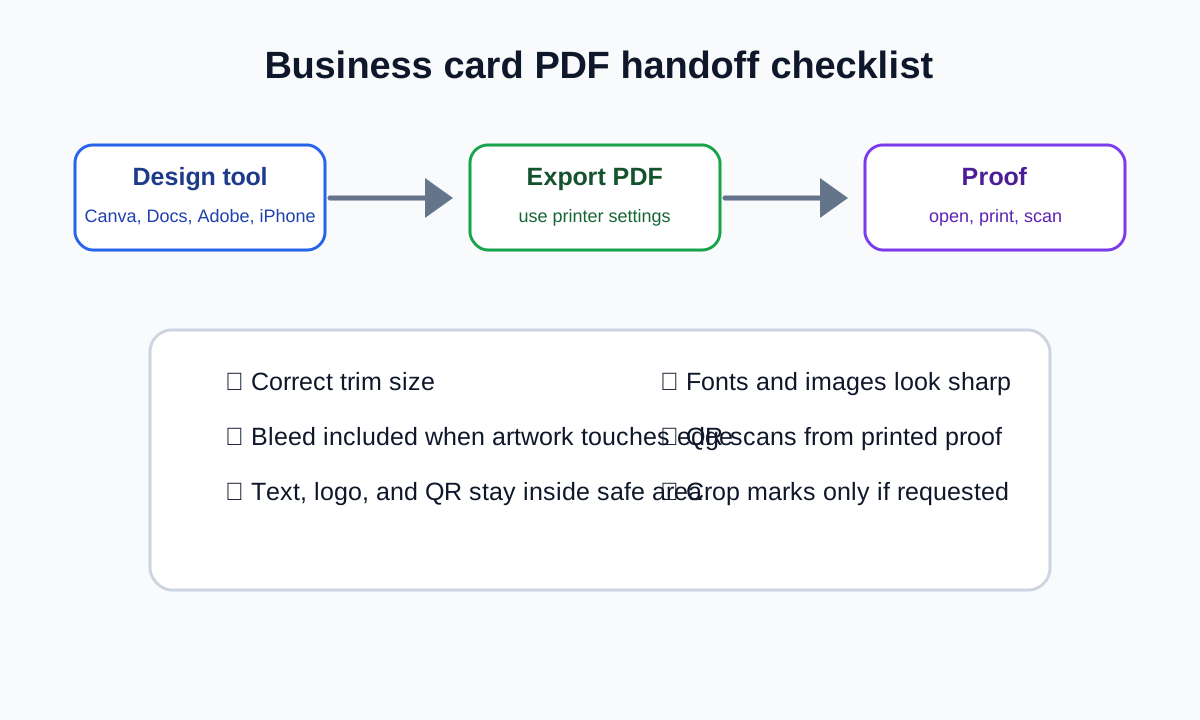
PDF is the usual handoff format for business card printing because it can preserve page size, image quality, fonts, and bleed settings better than a loose screenshot or low-resolution image.
Quick answer
Open the business card in the tool where it was designed, export or download it as a PDF, then check page size, bleed, margins, fonts, image sharpness, and QR scan quality before sending it to a printer. Use the printer's PDF settings whenever they provide them.
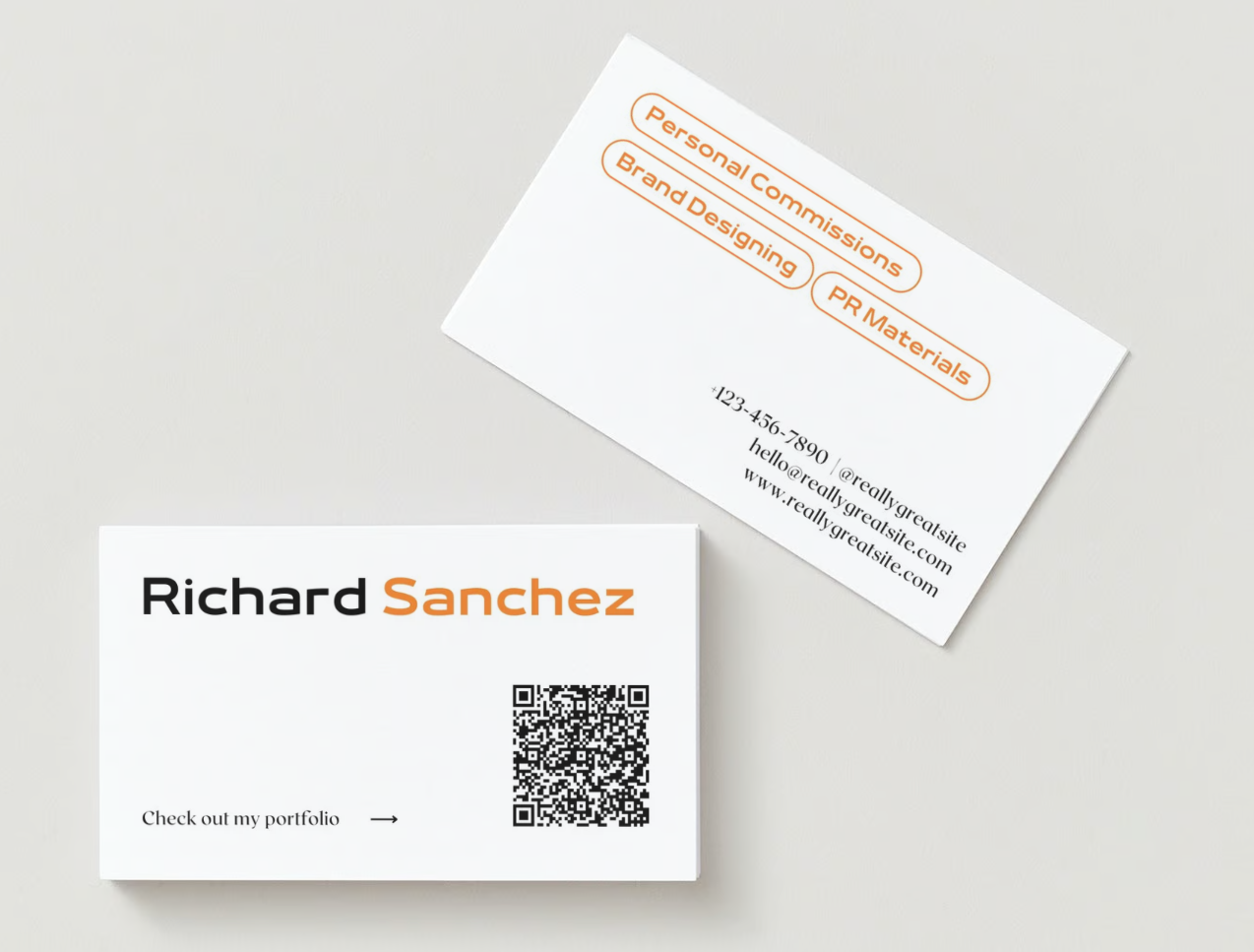
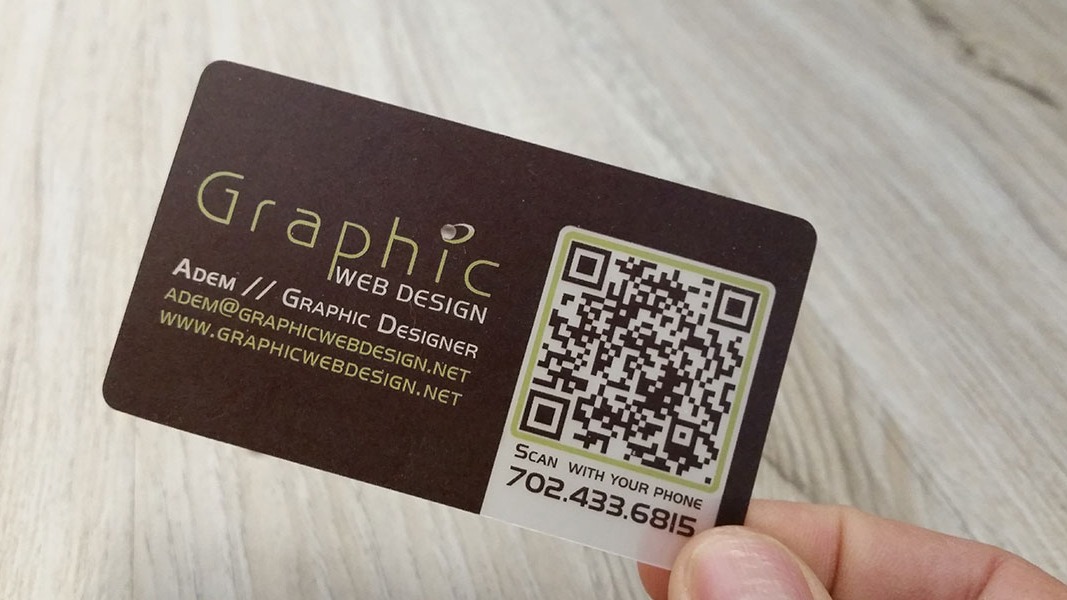
Visual reference: QR business card example from Hovercode's guide to QR codes for business cards.
What a print-ready business card PDF needs
Most printers care about these items:
- Correct finished size.
- Bleed when artwork touches the edge.
- Safe margin for text, logos, and QR codes.
- High-resolution images.
- Embedded or outlined fonts, depending on the printer.
- Correct color mode or profile for that printer.
- A QR code that scans from paper.
For a standard US business card, common specs are 3.5 by 2 inches finished size and 0.125 inch bleed on each side. With bleed included, the artwork is 3.75 by 2.25 inches. Always follow the printer's own template if it differs.
Convert a Canva business card to PDF
- Open the design in Canva.
- Click Share.
- Choose Download.
- Select PDF Print if you are sending it to a printer.
- Turn on crop marks and bleed only if your printer asks for them.
- Download the file.
- Open the PDF and check the QR code, spelling, and size.
Canva also has a QR Code app for adding a URL-based QR code to a design. Put the code on the card before exporting the PDF.
Convert a Google Docs business card to PDF
- Open the Google Doc.
- Check File > Page setup for page size, orientation, and margins.
- Review the card alignment on the page.
- Choose File > Download > PDF Document (.pdf).
- Open the downloaded PDF.
- Print a plain paper proof before using card stock.
Google Docs can work for simple card sheets, but it is not the best tool for exact commercial bleed.
Convert a Photoshop business card to PDF
- Save the editable PSD first.
- Choose File > Save As or File > Save a Copy.
- Select Photoshop PDF.
- Embed the color profile if your printer requests it.
- Use the PDF preset requested by your printer.
- Save the PDF.
- Open the PDF and confirm the canvas includes bleed.
Adobe's Photoshop PDF help says Photoshop PDF is available through the file format menu and includes PDF preset options for intended use.
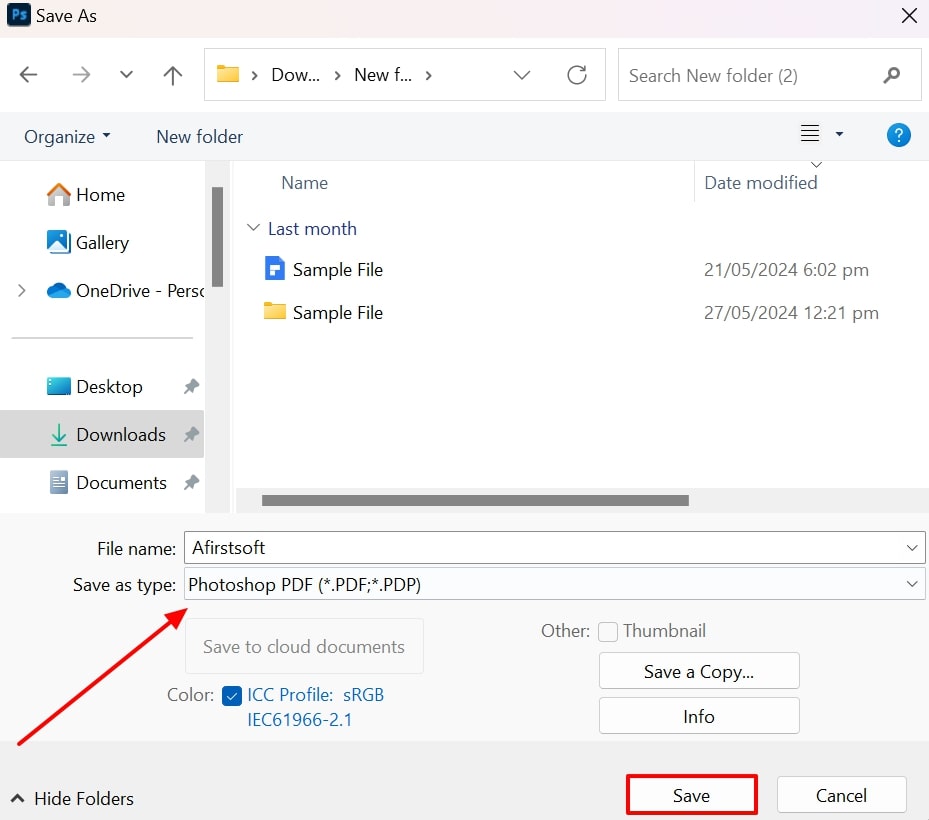
Visual reference: Photoshop PDF export screenshot from Afirstsoft's Photoshop PDF walkthrough.
Convert an Illustrator business card to PDF
- Save the editable Illustrator file first.
- Choose File > Save As or File > Save a Copy.
- Select Adobe PDF.
- Choose the printer's recommended preset.
- In Marks and Bleeds, select Use Document Bleed Settings if the printer needs bleed.
- Add trim marks only when requested.
- Save the PDF.
- Reopen it and inspect the bleed and crop area.
Illustrator is usually the cleanest option when the card is mostly vector logo, text, lines, and QR code.
Convert a business card on iPhone to PDF
The exact steps depend on the app:
- In Canva, use Share > Download > PDF Print.
- In Pages on iPhone, use the Share button, choose Export and Send, then choose PDF.
- In another design app, look for Share, Export, Download, or Save as PDF.
After exporting, open the PDF in Files and zoom in on the smallest text and QR code.
PDF quality checks before printing
Check the PDF on a desktop or tablet before you order:
- Does the page size match the printer's specs?
- Is bleed included if the design reaches the edge?
- Are important details away from the trim edge?
- Is the logo sharp when zoomed in?
- Does the QR code scan from the PDF on screen?
- Does the QR code scan from a paper proof?
- Are phone numbers, email addresses, URLs, social handles, and spelling correct?
What not to send
Avoid sending:
- A screenshot of the card.
- A social media preview image.
- A low-resolution JPEG downloaded from a preview.
- A PDF made from the wrong page size.
- A QR code copied from a screenshot instead of the original file.
Where Zapped fits
If your PDF includes a QR code, point it to a live profile instead of a static file whenever possible. Zapped lets you update the destination after the PDF is printed, so the printed card can stay useful when your phone number, links, booking page, or portfolio changes.
Sources
- Adobe Help, save as Photoshop PDF for Photoshop PDF export.
- Adobe Help, printer's marks and bleeds in Illustrator for Illustrator bleed export.
- Google Docs Help, change page settings for Docs page setup.
- Canva Help, create QR codes for QR code creation inside Canva.
- Apple Support, send a Pages document on iPhone for Pages PDF export on iPhone.
- Hovercode, how to create QR codes for business cards for the QR business card visual reference and placement guidance.
- Afirstsoft, how to save as a PDF in Photoshop for the Photoshop PDF visual reference.