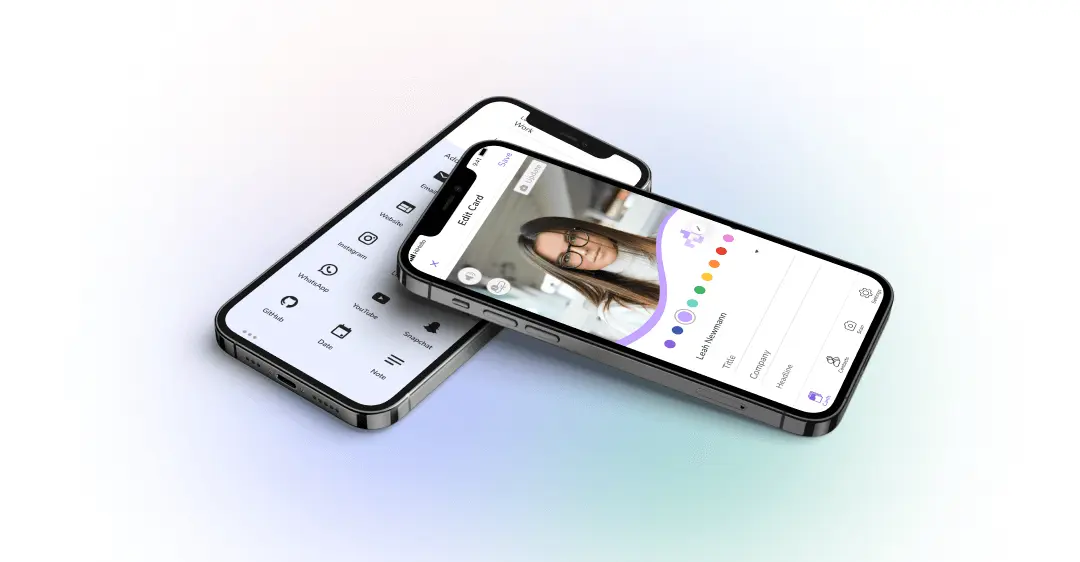
You can create a business card on iPhone, but the best method depends on whether you need a printable card, a digital profile, or a simple way to share your contact details in person.
Quick answer
For a printable card, use Canva on iPhone and export PDF Print. For a simple document-style card, use Pages and export as PDF. For the most flexible digital card, create a live profile, add a QR code to your printed design, and test the QR code with the iPhone Camera app before ordering cards.
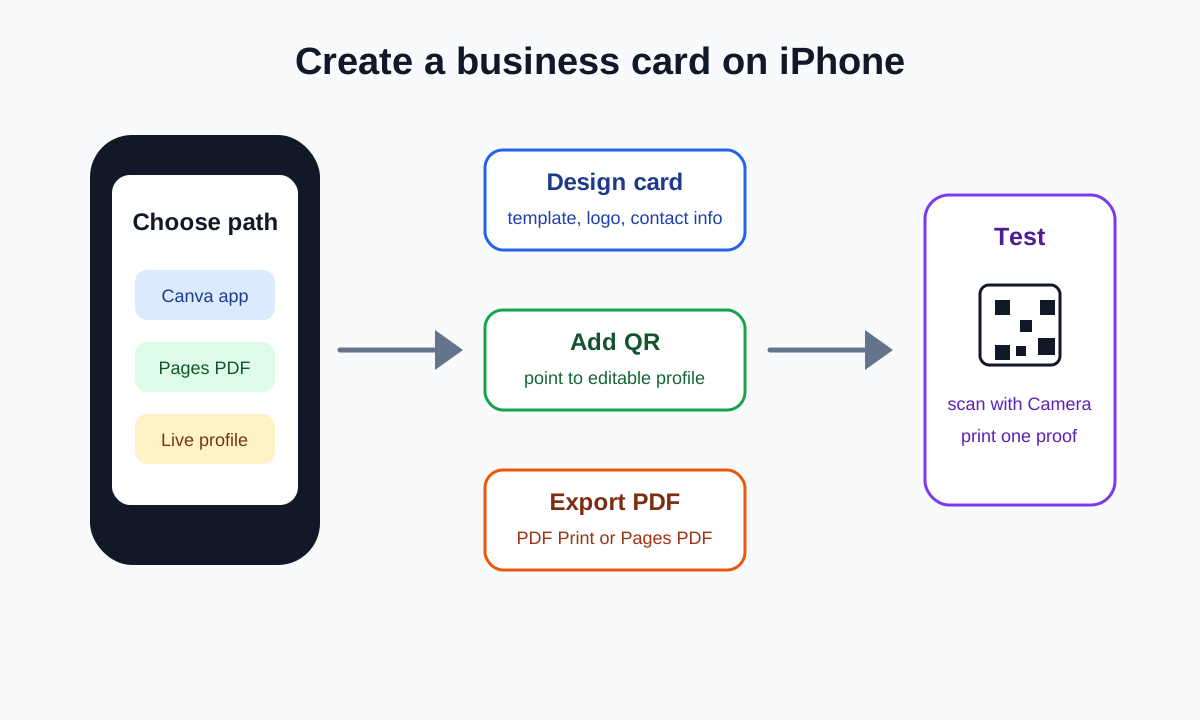
Choose the right iPhone method
| Goal | Best option | Why |
|---|---|---|
| Printed business card | Canva app | Templates, QR code support, PDF Print export |
| Simple printable layout | Pages app | Easy text editing and PDF export |
| Shareable digital card | Zapped profile | Editable profile, QR, link, NFC support |
| Contact-only sharing | Contacts app | Simple personal contact sharing, not a designed card |
If you want to print professionally, ask the printer for their template and upload requirements before designing on your phone.
Option 1, make a card in Canva on iPhone
- Install or open the Canva app.
- Search for Business Card.
- Choose a template close to your brand.
- Replace the name, role, logo, phone, email, website, and social handle.
- Add a QR code that points to your live profile or landing page.
- Keep important text and the QR code away from the edge.
- Tap Share.
- Choose Download.
- Select PDF Print for professional printing.
- Save the PDF and open it before uploading.
Canva's own business card page says QR codes can be added from Apps by searching for the QR Code app, entering a URL, customizing color and margin, then generating the QR code.
Option 2, make a simple card in Pages on iPhone
Pages is better for a simple PDF than for a complex print design, but it can work for a basic card proof or personal handout.
- Open Pages on iPhone.
- Create a new document.
- Add your name, role, company, phone, email, and website.
- Insert your logo or QR code image if needed.
- Keep the layout simple and readable.
- Tap the Share button.
- Tap Export and Send.
- Choose PDF.
- Save or send the PDF.
Apple's Pages help confirms that Pages on iPhone can export and send a document as PDF from the Share button.
Option 3, create a live digital business card
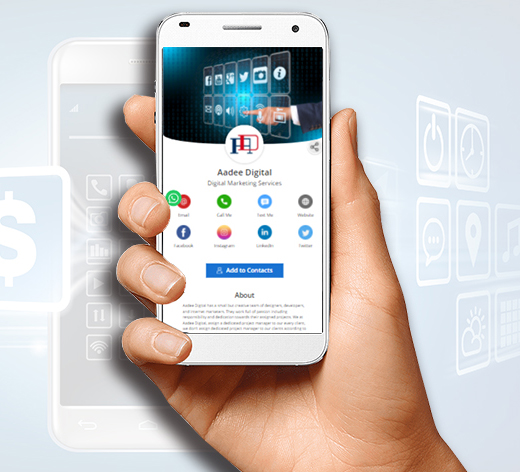
Use a live digital profile when your details may change or when you want more than a static card can hold.
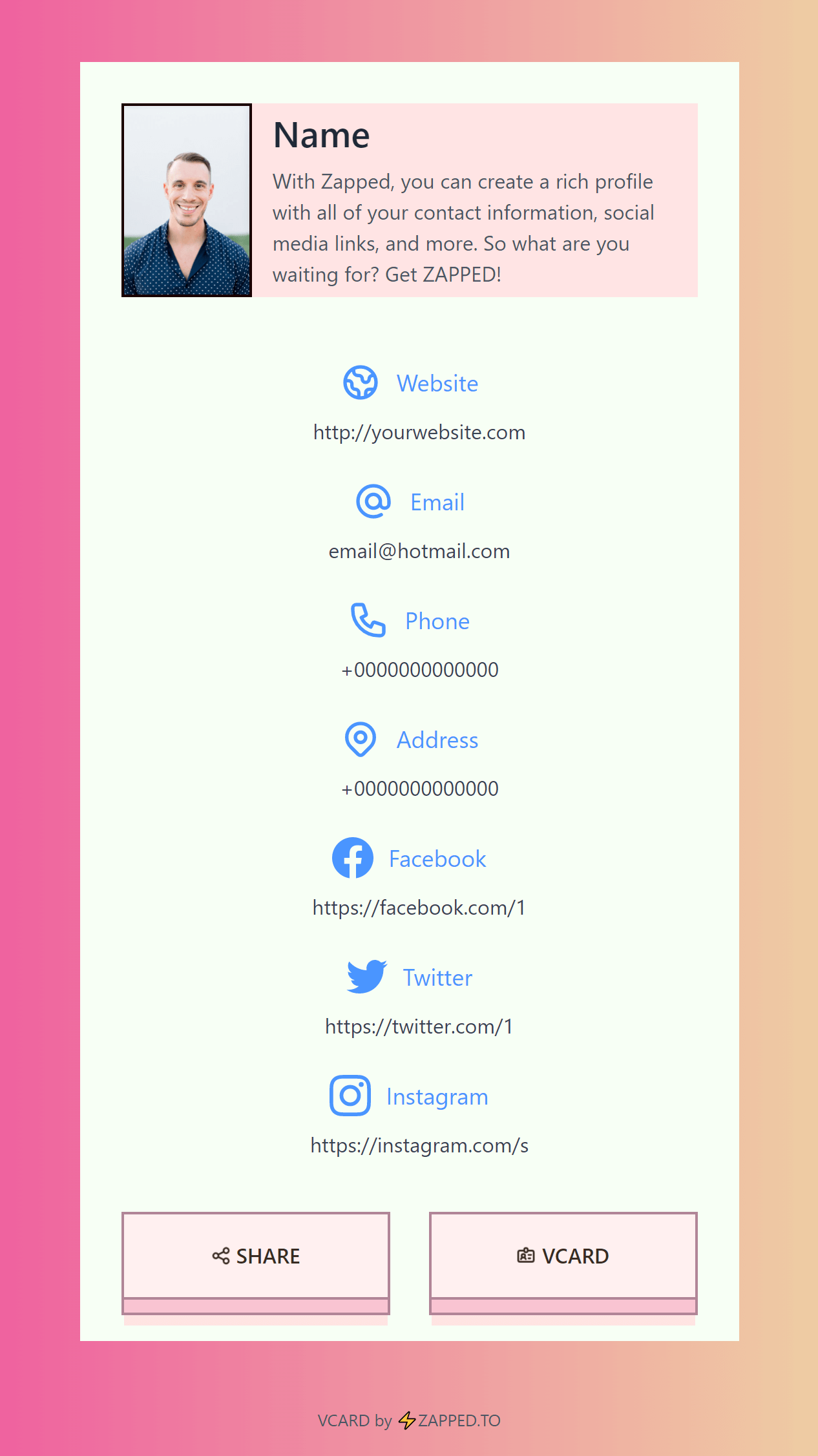
- Create a Zapped profile.
- Add your contact details, social links, booking links, portfolio, payment link, or review link.
- Copy the profile URL or download the QR code.
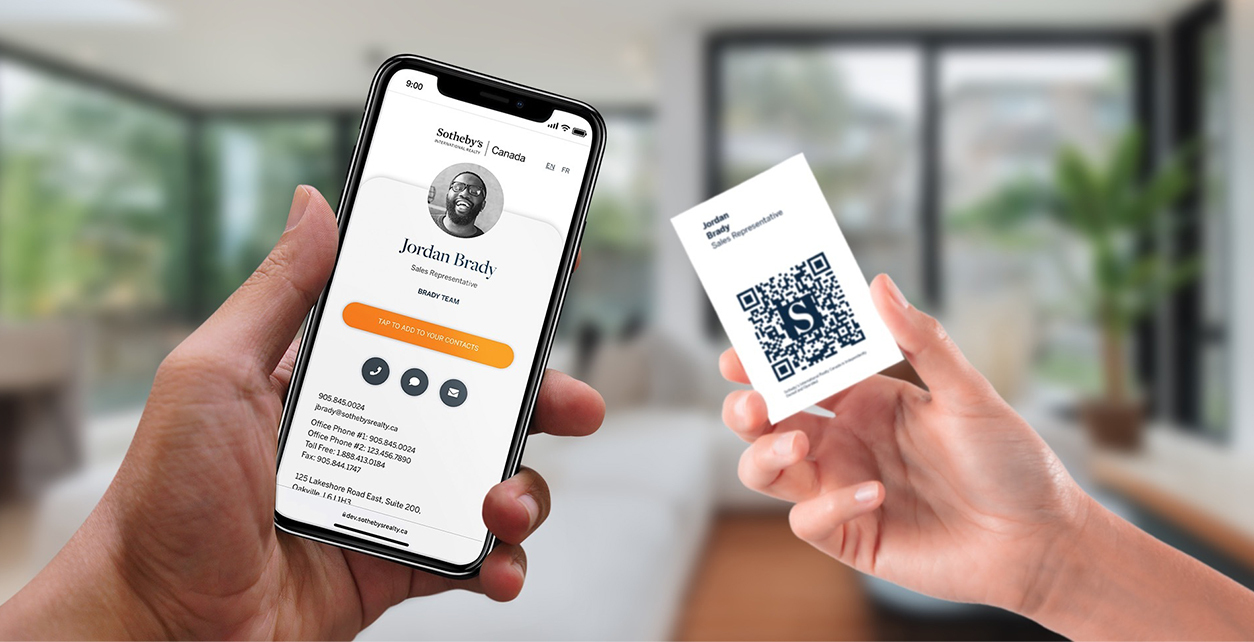
- Add that QR code to a Canva or Pages card.
- Test the QR code with iPhone Camera.
- Print the card or share the profile link directly.
This is usually the best hybrid setup because the printed card stays simple while the digital profile stays editable.
Test the QR code on iPhone
Apple's iPhone help says to open Camera, position the QR code in the frame, then tap the link that appears. Use that same real-world test before printing.
Test from:
- Your iPhone screen.
- A desktop monitor.
- A plain paper proof.
- The final card stock if you print a sample.
If the code is slow to scan, make it larger, increase contrast, and add more white space around it.
Print settings to know
For a standard US business card:
- Finished trim is usually 3.5 by 2 inches.
- Bleed is often 0.125 inch on each side.
- Artwork with bleed is usually 3.75 by 2.25 inches.
- Important text should sit inside the safe area.
Canva handles many template sizes for you. If you use Pages or another app, be more careful because the app may not be designed for print bleed.
Common mistakes
Designing only for the phone screen
Small text can look fine on a phone and still print too small. Export the PDF and print a paper proof.
Using a static QR destination
If the QR code points to a static PDF or old link, the printed card becomes outdated quickly. Use a profile URL you can update.
Skipping a scan test
Every QR code should be scanned before printing. Test it from paper, not only from the app preview.
Where Zapped fits
Zapped is the live destination behind the iPhone-made card. Use Canva or Pages for the visual design, then point the QR code to a Zapped profile so the contact details, links, and calls to action can keep changing after the card is printed.
Sources
- Canva business card maker for Canva business card and QR code workflow.
- Canva Help, create QR codes for QR code setup.
- Apple Support, send a Pages document on iPhone for exporting Pages documents as PDF.
- Apple Support, scan a QR code with iPhone camera for iPhone QR scanning steps.
- See our Zapped digital business card features for editable profiles, QR, links, and NFC sharing.