A customer asks for the WiFi password, and there's already a tag by the counter that says "Guest." Whether that tap is safe has nothing to do with the tag. It depends on how your router treats the guest network, and the name alone won't tell you. Before a sign goes up, you need two separate boundaries confirmed: guests can't reach staff or POS systems, and (if you want it) guests can't reach each other.
A guest name on the SSID isn't a guest network
Calling a network "Guest" changes a label, not the route. What matters is whether the router puts that traffic on its own network, blocks that network from your internal ones, and still lets it out to the internet.
On UniFi, that's two screens. In UniFi Network, open Settings > Networks, select or create the guest network, and turn on Network Isolation, which separates that network or VLAN from the others. Then open Settings > WiFi, select or create the guest SSID, and assign that isolated network to it. Skipping the second step is the classic mistake: the SSID exists, but it's riding on the wrong network.
On Omada Controller v6, the path is Site > Network Config > WLAN. Choose Create New Wireless Network, or edit the existing SSID, set the network name and security details, check Guest Network, and click Apply. TP-Link says that setting gives guests internet access while keeping them away from the main network's internal resources.
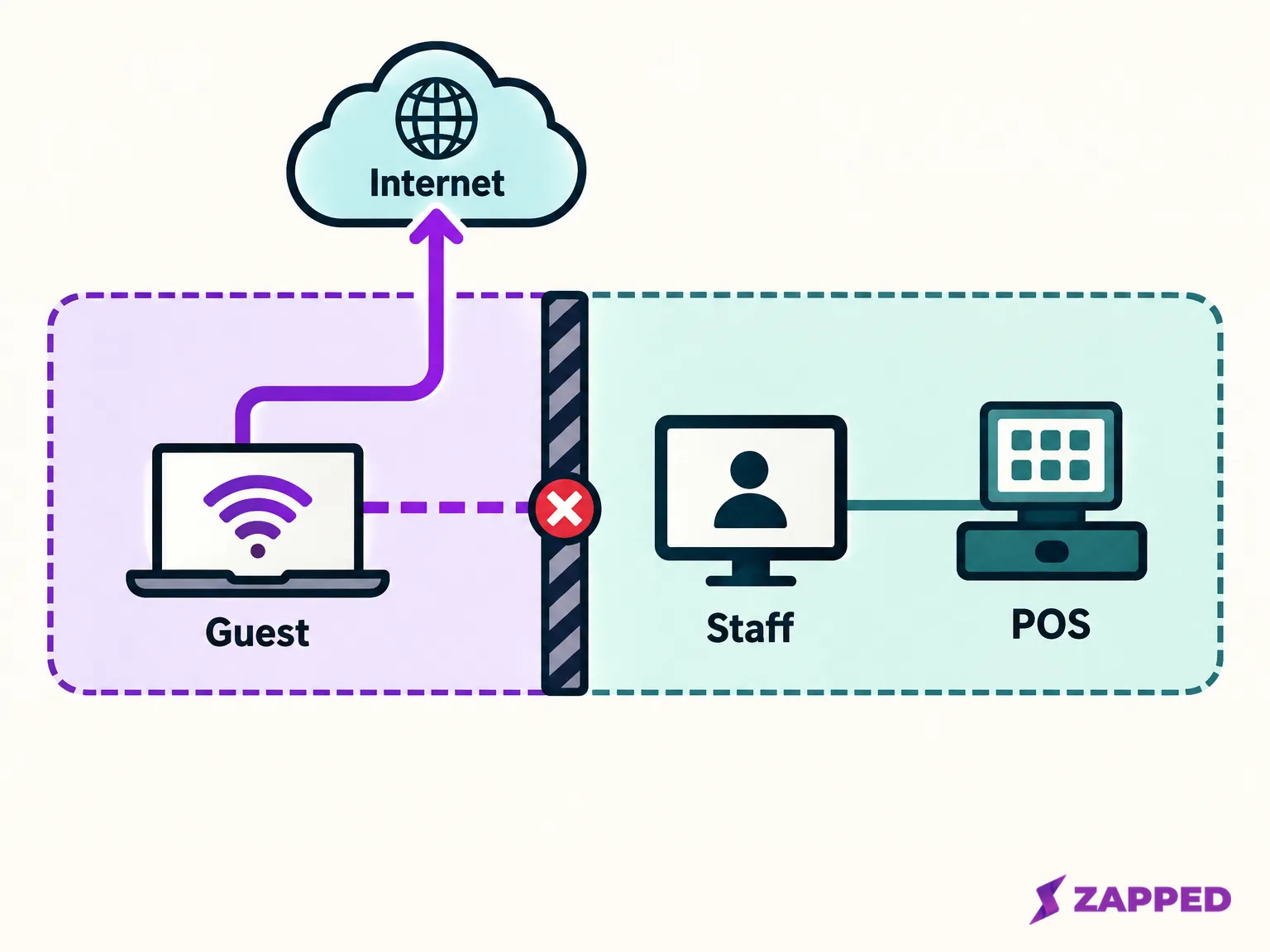
Menu names change between vendors and software versions, so treat these as the shape of the job rather than a script. Have whoever administers your installed network confirm that the guest path cannot reach staff devices or the POS. If nobody can confirm that it can't reach the register or staff devices, hold off on printing the credential, and ask your router administrator, ISP, or network support provider to set it up and confirm it. Don't use the staff password as a stopgap.
Two settings keep guests apart, and they do different jobs
Separating guests from your business network is one thing. Stopping one guest's phone from talking to another guest's phone is another, and the second setting doesn't cover the first.
On UniFi, the second job is Client Device Isolation. It blocks communication between clients on the same access point, even on the same VLAN. If your switches need help finishing the job, there's also a Device Isolation ACL under Settings > Networks, but its controls only appear when a UniFi gateway or L3 switch routes that network. That one is worth walking through with your network administrator.
On Omada, the equivalent is SSID Isolation, found under Wireless Settings > Basic Wireless Setting > Edit SSID. It blocks wireless clients on the same SSID and the same access point from reaching each other.
Decide on purpose: do visitors' devices need to reach one another? If not, turn on the isolation setting above.
TP-Link's own test works as a model for checking it. Connect two phones, ping one from the other, and expect the ping to fail while both still reach the internet. That proves guest to guest isolation only. It says nothing about the register, so the staff and POS check still belongs to your administrator.
Pick a shared passphrase or a portal, then say which on the sign
A shared passphrase is the simple option: print it, and guests type it or tap it in. A captive portal adds a step after joining, usually a terms page or sign in, and it makes sense when you want visitors to do something before they browse.
On UniFi, Hotspot Portal is the optional authentication layer. For a WiFi only setup, select the SSID under Settings > WiFi and enable Hotspot Portal > Captive Portal. The landing page, with welcome text, logo and colors, is under Insights > Hotspot.
If you go with a portal, tell guests on the sign. A phone that joins the network and then sits there waiting for a page looks broken, and an iPhone user won't know why. Apple's route is Settings > WiFi, tap the network, and wait for a login screen, or tap the More Info button next to the name and choose Join Network. The prompt might want a username and password, an email address, or acceptance of terms. If the welcome screen doesn't appear on a later visit, Apple says to check that Auto-Join is on and turn off Auto-Login.
Three secondary checks, once the choice is made:
- Security mode. If your router offers WiFi Enhanced Open, Android's documentation says it encrypts a public network. That's neither a passphrase nor isolation, so don't count it as either. UniFi defaults to WPA2/WPA3 Personal for compatibility with newer and older clients, though some older IoT devices may not tolerate it.
- Join failures on a VLAN. On UniFi, if a guest phone can see the SSID but can't join, check that the upstream switch port carries that VLAN. Incorrect tagging on an upstream port is a documented cause.
- Capacity. If guest traffic could squeeze out the till's connection, UniFi offers an optional guest speed limit. Tune it to your actual connection rather than copying someone else's number. It's a bandwidth control, not a substitute for isolation.
Whoever owns the passphrase owns the sign
Put a passphrase on a public sign and it's no longer a secret. That's fine, as long as it's a guest credential on a guest network. A 2014 Wi-Fi Simple Configuration v2.0.5 document mirrored by Manualzz, which labels it a work in process rather than an approved Wi-Fi Alliance specification, describes WLAN configuration data in an NFC Configuration Token as unencrypted, so a locked tag still doesn't hide the password. Locking changes whether someone can overwrite the tag, not whether they can read it.
That lock is permanent, too. On NXP NTAG210 and NTAG212 chips, setting lock bits makes the selected pages read only irreversibly. Verify the tag works before locking, and plan to replace it rather than rewrite it when the credential changes.
So name one role, a manager or office lead, who can change the guest passphrase or portal details. Decide what triggers a change under your own policy: a staff departure, a spotted misuse, a quarterly review. There's no standard interval to borrow. UniFi's guest guide doesn't state one, and the monthly key change you'll find in one networking forum thread is one operator's habit, not guidance. When the credential changes, update every printed card, the QR and the tag in the same sitting, or they'll disagree.
What belongs on the sign, and what to do when the tap stalls
Print the exact guest network name, then either the passphrase or what happens next ("A sign in page will open, accept the terms"). Mark where to tap, and keep the QR in its own clear area. Never put the staff network name or password on it.
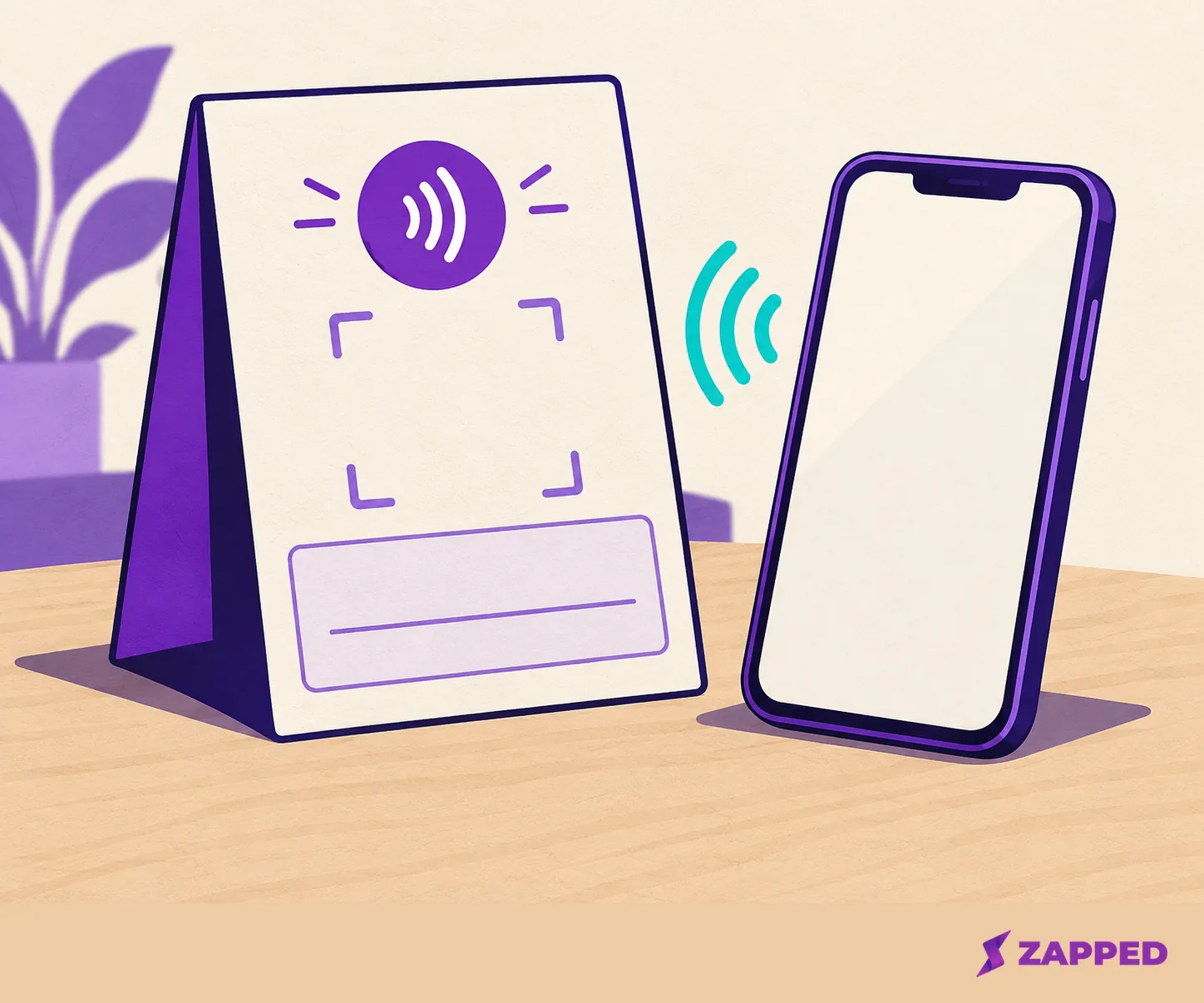
Always leave a manual route readable, because phones differ. Android's QR sharing lets one phone display a code for another to scan, though some of those steps apply only to Android 12 and up. Apple's QR page covers scanning with Camera or Code Scanner and tapping the result, but doesn't describe a universal WiFi QR join flow. So don't promise one. If the network isn't listed on an Android phone, Google says to wait for the list to refresh or choose Add network and enter the SSID and security details, using Advanced options if the network is hidden.
If you're stuck on what the NFC payload should contain or how the QR fallback should be encoded, our guide to WiFi NFC tags covers it. There's no universal sign size either, so don't trust a template's dimensions. Print a proof and test it where it will hang.
Run the staff test before guests rely on the sign
Have someone do this on the real sign, with the real hardware:
- On an iPhone and an Android phone, join using the tap or scan. If it fails, join by typing the printed name and credential.
- If there's a portal, complete it, then open any website to confirm internet access.
- If you turned isolation on, connect two guest phones and ping one from the other. Pass means the ping fails while both phones still reach the internet. This checks guests from each other only.
- Ask your network administrator to confirm that the guest path can't reach staff devices or the POS.
If step 4 can't be answered yet, the sign waits. Everything else you can fix in a minute.
An optional card for guests who want to stay in touch
The WiFi task is done. If your venue also wants guests to save its contact details, keep that visibly apart from the WiFi sign, since it has nothing to do with the connection or its password. A published Zapped card has a Main QR code and card address, reachable from Share. If you point a Zapped NFC card or Flexible QR code at a card with a Save contact button and no password, you can save the contact right away: iPhone's Safari shows a contact card to add, and Android downloads a file to open from the notification.