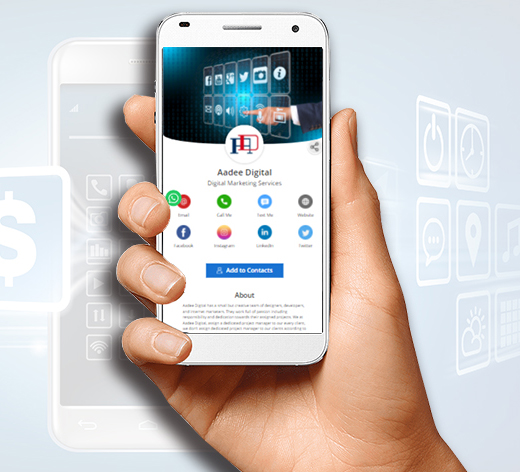
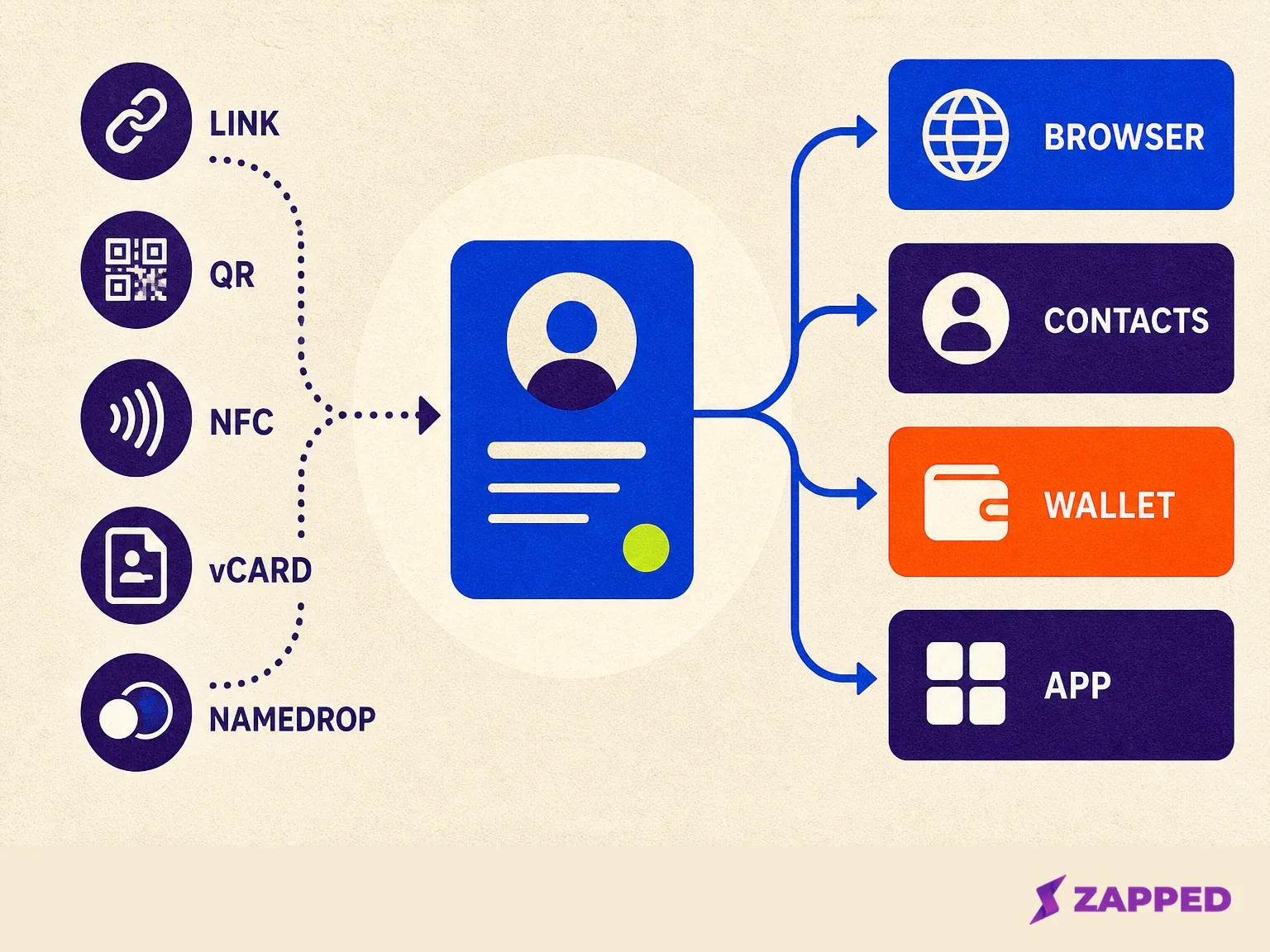
Digital business cards do not all go to the same place on an iPhone. A link, QR code, or NFC tap normally opens a web page in the browser, a vCard can be saved to Contacts, a Wallet pass goes to Wallet, and an app based card stays inside its app until you export or save the details.
Quick answer
Use the delivery method as your clue:
| What you received | Where it usually opens or saves | What to do next |
|---|---|---|
| Link, QR code, or NFC tap | Browser | Bookmark it or save the contact |
| vCard or NameDrop | Contacts | Review the fields, then save |
| Wallet pass | Apple Wallet | Keep it separate from Contacts |
| App card | Provider app | Export or share if you need Contacts |
The destination depends on the delivery method
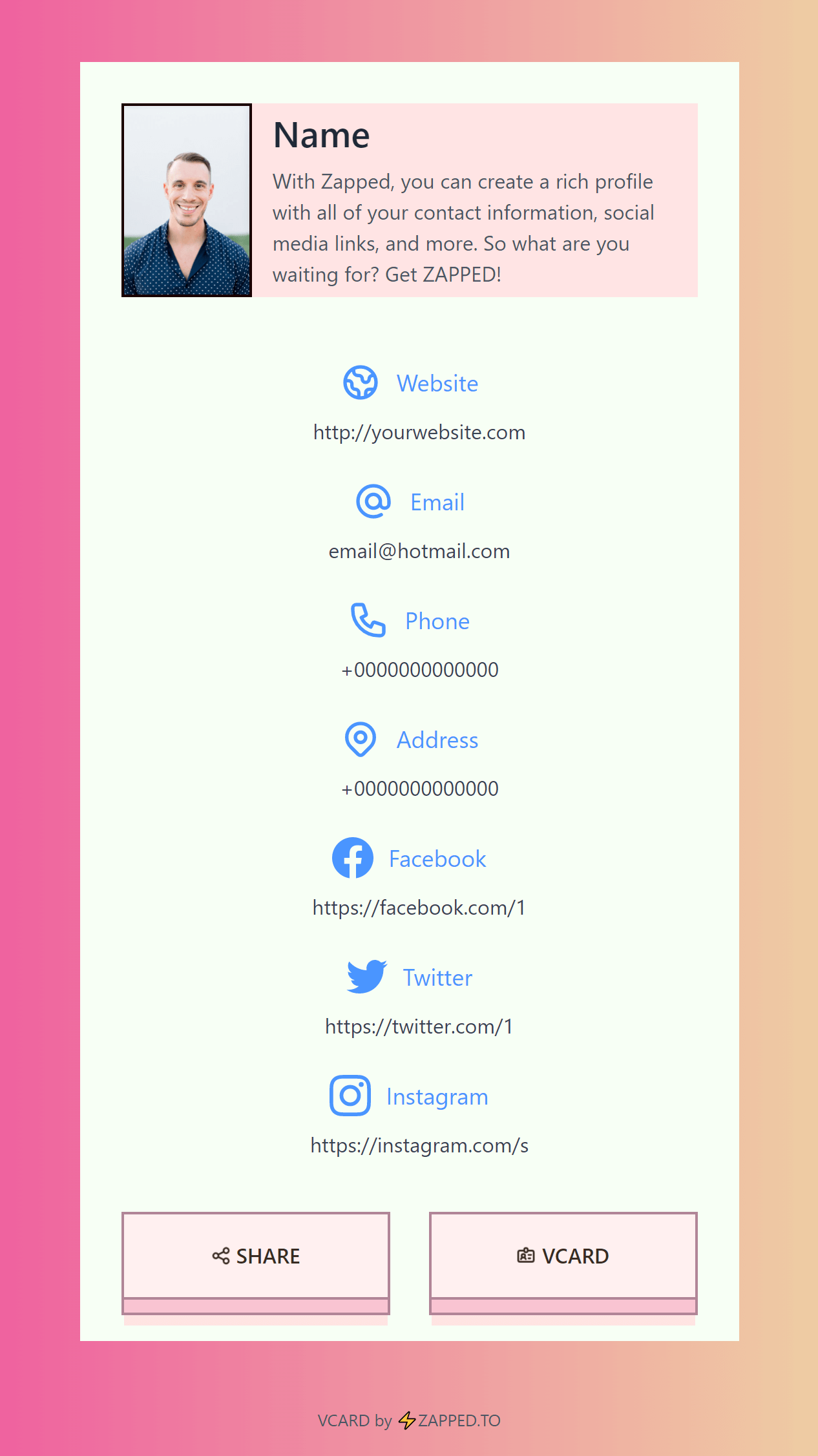
When someone sends a digital card as a link, the card is a web page. It does not silently become a contact just because you opened it. A Zapped card opens from a link, QR code, or NFC tap in a normal browser, where the visitor can then save the details.
That distinction matters. A browser page is the live source, while Contacts is your local or synced copy. If you need the person in your phone's search results, save the contact deliberately. If you only need to revisit a profile, a bookmark may be the better choice.
QR codes and NFC taps usually lead to the same decision. The carrier changes, but the destination is still a link. If the card arrives through a QR code, open the page first. If it arrives through NFC, wait for the prompt and inspect the URL before saving anything.
Save a vCard to Contacts
Apple says the Contacts app can create, find, share, and delete contacts. When you receive a vCard, review the name, company, email, phone number, website, and notes before tapping save. A contact file can contain more fields than you actually want in your address book.
If you are sharing your own contact from iPhone, Apple lets you choose which fields to include and then send the card through options such as Messages or Mail. That is useful when a recipient needs a clean contact record rather than a profile full of old addresses or irrelevant details.
Once saved, the contact belongs to the account that owns that contact list. With iCloud Contacts enabled, Apple says the information stays up to date across devices signed in to the same Apple Account. If the record is missing on a Mac or another iPhone, check the account and Contacts sync setting before importing the card again.
Use NameDrop for a nearby iPhone exchange
NameDrop is the fast route when both people are standing together with compatible Apple devices. Apple says it shares new contact information when you hold the devices close, then lets you choose whether to share, receive, or do both.
NameDrop is not a live update channel for a contact you already have. Apple's guide says it sends new contact information, not an update to an existing contact. It also lets you select fields, so the recipient should still read the screen instead of accepting every available detail by reflex.
The Apple Personal Safety guide lists iOS 17.1 or later on both devices for NameDrop, with watchOS 10.1 or later for supported Apple Watch models. If the glow never appears, use a normal link, QR code, or the iPhone sharing guide instead of holding two phones together longer and hoping for a different result.
Use Wallet only when the sender gives you a pass
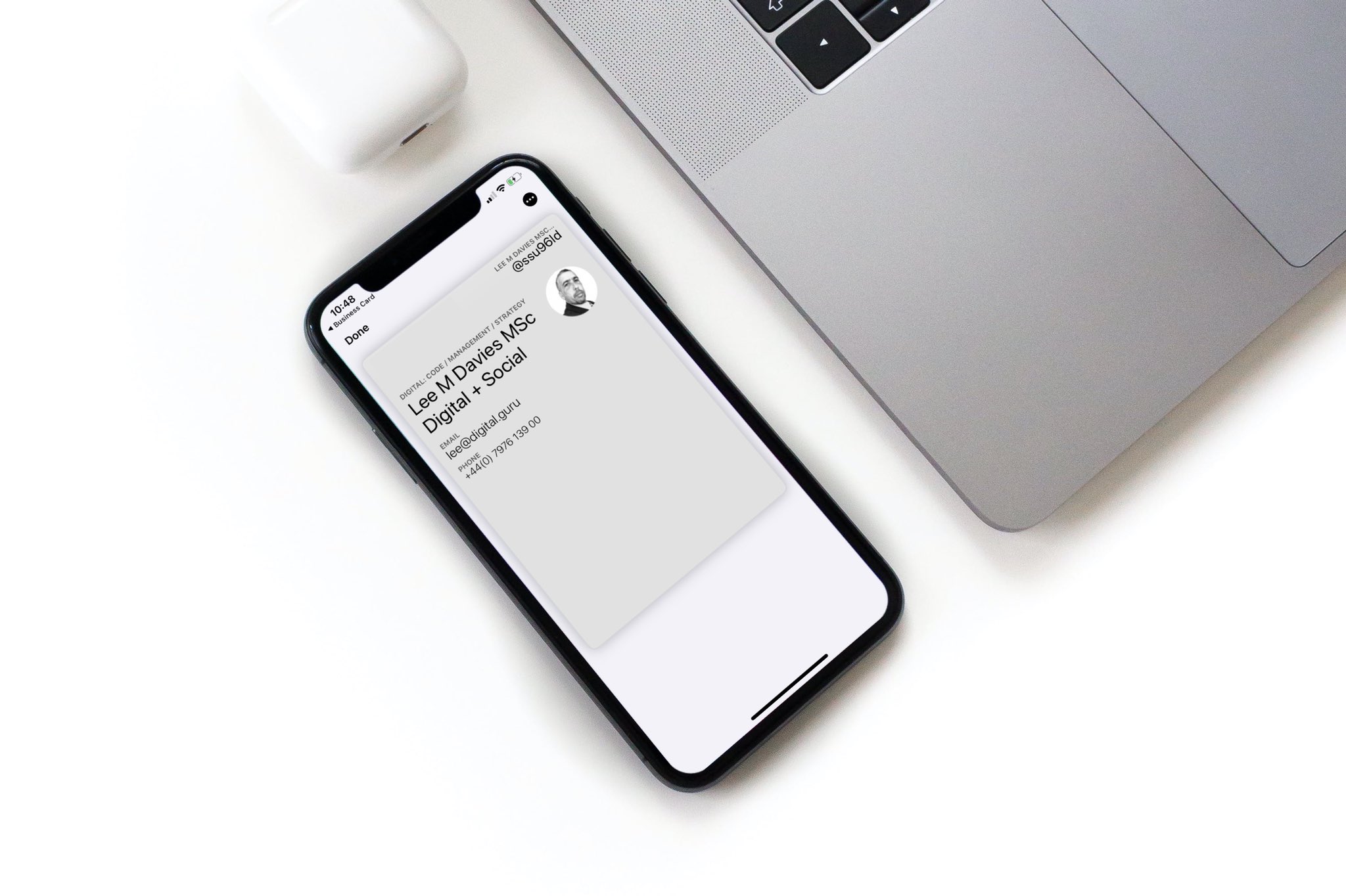
Wallet is a useful home for passes designed for Wallet. It is not a universal inbox for every digital business card. A sender may provide a pass, a contact file, a browser link, or an app card, and each follows a different save path.
If the card is meant to live in Wallet, follow the sender's Add to Apple Wallet action. If there is no Wallet action, do not force the link into Wallet. Save it to Contacts when you need a phone record, or keep it as a browser bookmark when you want the live profile.
For a deeper look at the pass route, read how to add a digital business card to Apple Wallet. This article's narrower point is simple: Wallet is a destination supplied by the card's format, not a guarantee attached to the words digital business card.
How to save it so you can find it
Choose the destination based on what you plan to do next:
- Save to Contacts when you will call, email, or search for the person by name.
- Bookmark the page when you want the latest profile, links, or booking action.
- Save to Wallet when the sender provides a real Wallet pass and quick access matters.
- Keep it in the provider's app when the app contains useful history or actions that do not export cleanly.
- Save both a contact and a bookmark when the person's details may change.
Do not use a screenshot as your only copy. It is easy to find in Photos for a week and nearly impossible to search when you need the person's email next month.
Where Zapped fits
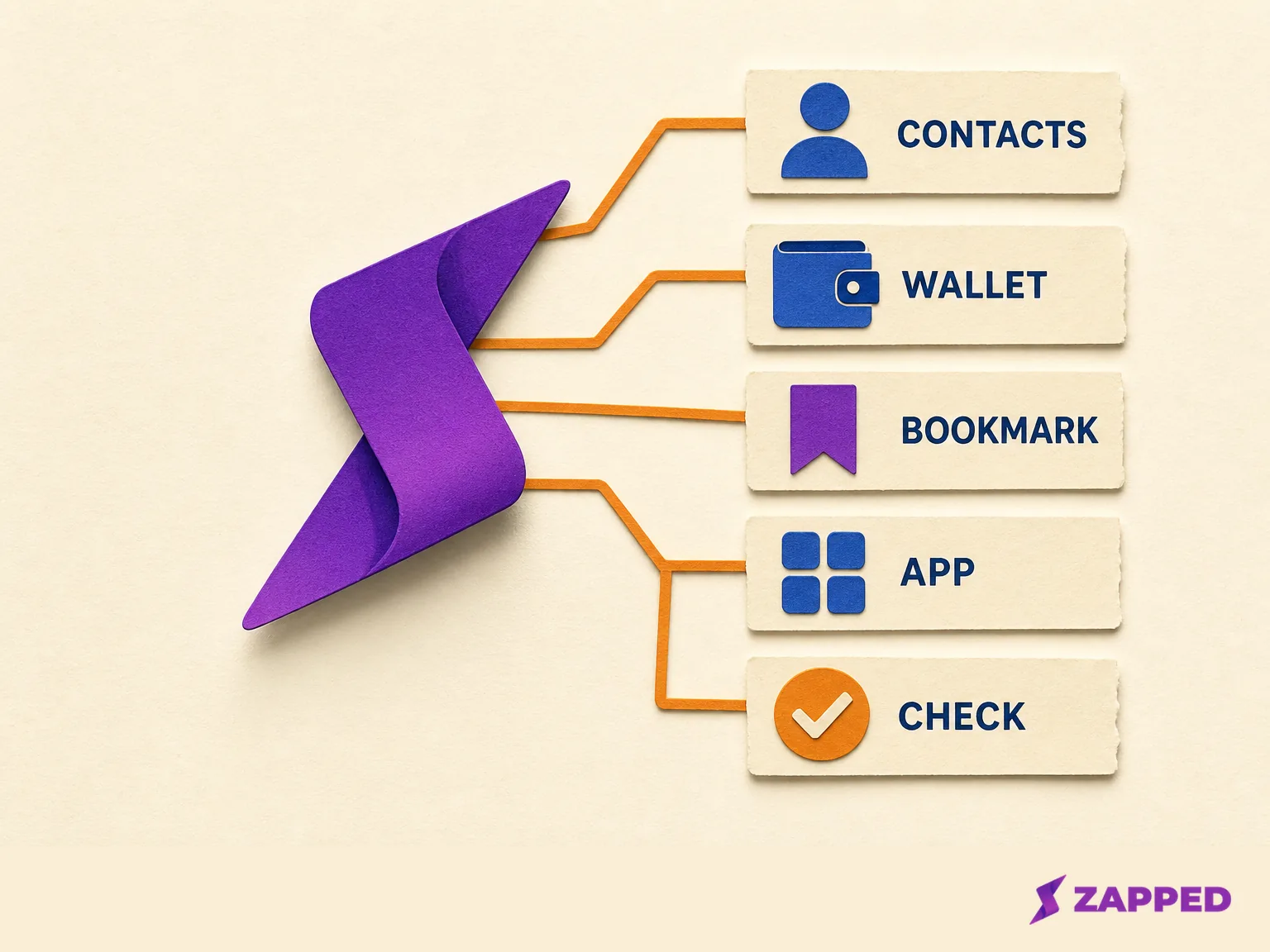
Zapped uses a public vCard page as the live destination. You can update a Zapped card later without changing the public link when you keep the same URL alias, as the Zapped first vCard guide explains. That is the useful division of labor: the live page can hold the current profile and links, while the recipient saves a contact copy when they need phone actions.
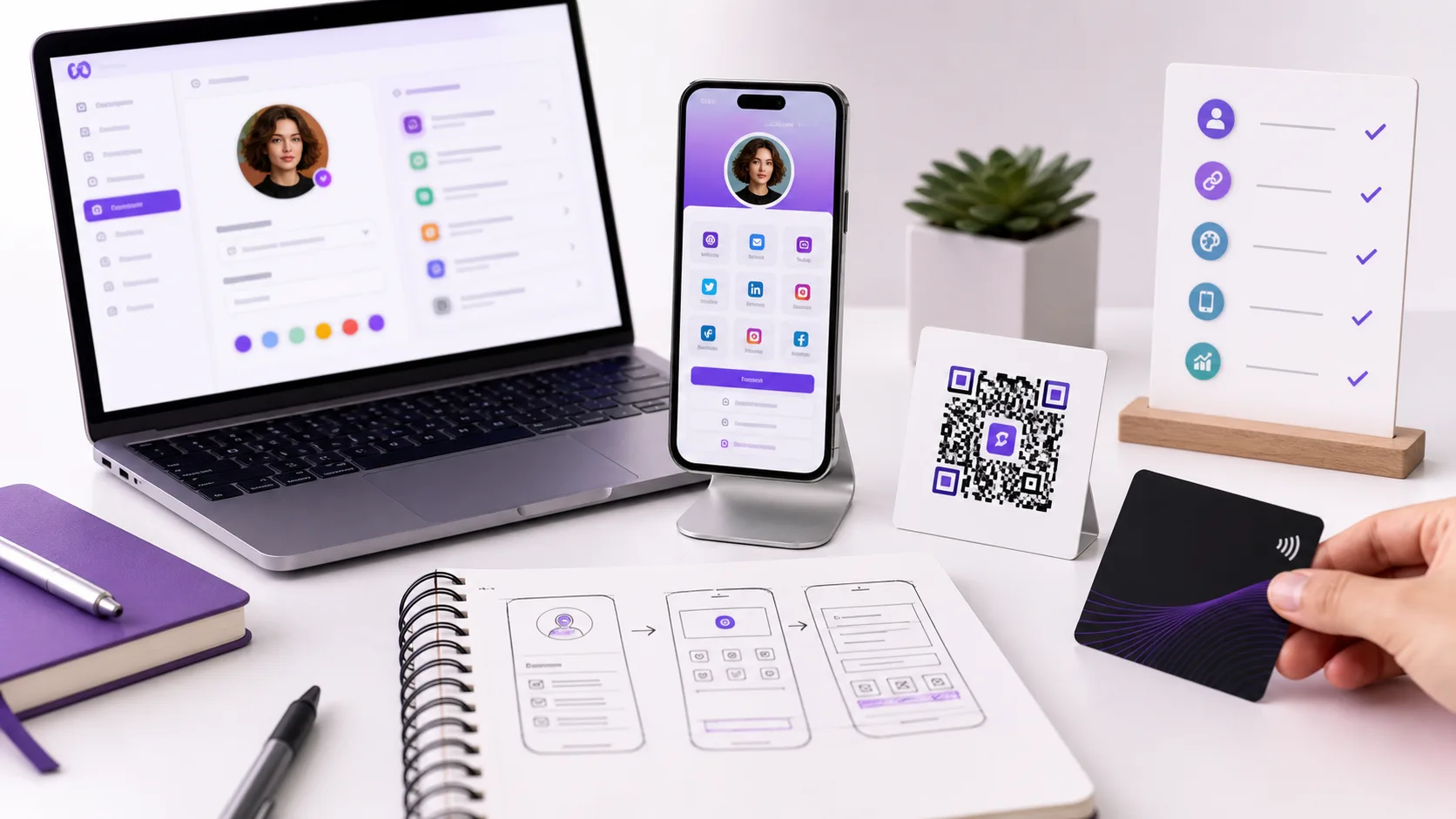
The card can be shared by link, QR code, or NFC tap, so the sender can use the same destination in different moments. If your goal is to make the next introduction easy to save, create a Zapped card and test the public page on an iPhone before you share it.
If the card seems to have disappeared
Start with the original delivery route. Check Safari history or bookmarks for a link, open Contacts for a vCard or NameDrop exchange, check Wallet for a pass, and open the provider's app for an in app card. Search Photos only if someone sent you a screenshot.
If you saved a contact but cannot find it, search by company, phone number, or email rather than the person's name. If it appears on one Apple device but not another, check that both use the same Apple Account and that Contacts is enabled in iCloud.
If the profile opens but the save button fails, keep the link and ask the sender for a vCard or a direct contact share. The browser page is still useful even when the contact export is not.
Frequently asked questions
Does opening a digital business card create a contact?
Usually no. A link opens a page. You choose whether to save a contact, bookmark the page, add a pass, or use the provider's app export.
Is a digital business card automatically saved in Apple Wallet?
No. Wallet requires a pass that is designed for Wallet. A browser link, vCard, and NameDrop exchange use different destinations.
Where does a NameDrop contact go?
NameDrop presents a new contact exchange and gives you a save choice. After you save it, look in the Contacts app. It does not update an existing contact automatically.