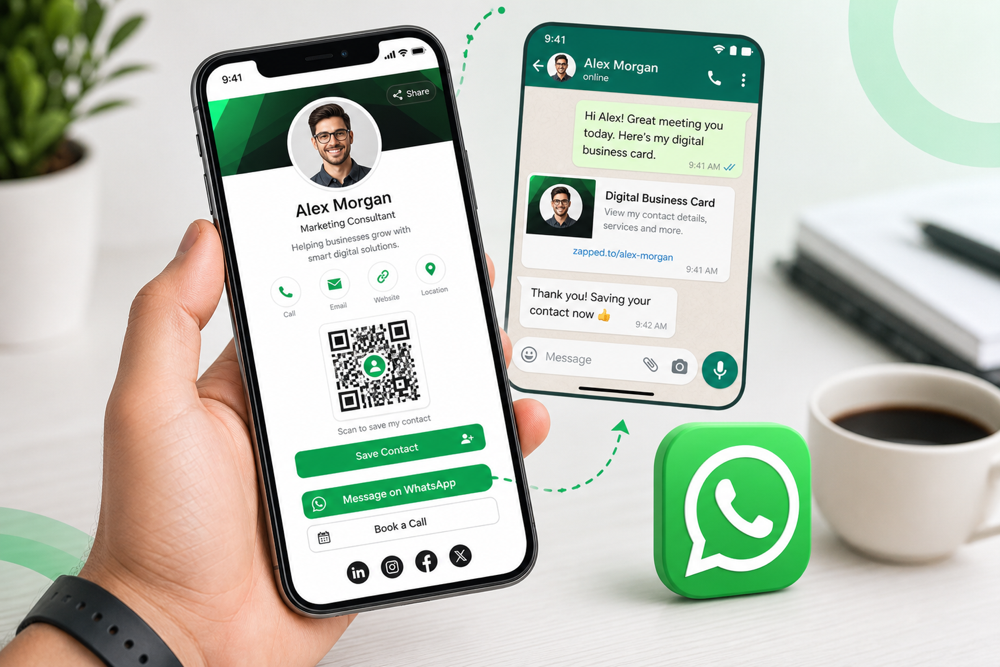
A digital business card for WhatsApp works best when it combines a profile link with a clear WhatsApp action. The card can introduce you, and WhatsApp can handle the conversation.
Quick answer
Create a digital profile, add a WhatsApp chat button or short link, generate a QR code, and save a short message you can send when someone asks for your details.
Key takeaways
- Use a live profile as the source of truth.
- Add QR sharing because it works across more devices.
- Add NFC when in person sharing is part of your workflow.
- Keep the main action clear so people know what to do next.
- Use Zapped where an editable profile, QR, NFC, and team controls belong in one place.
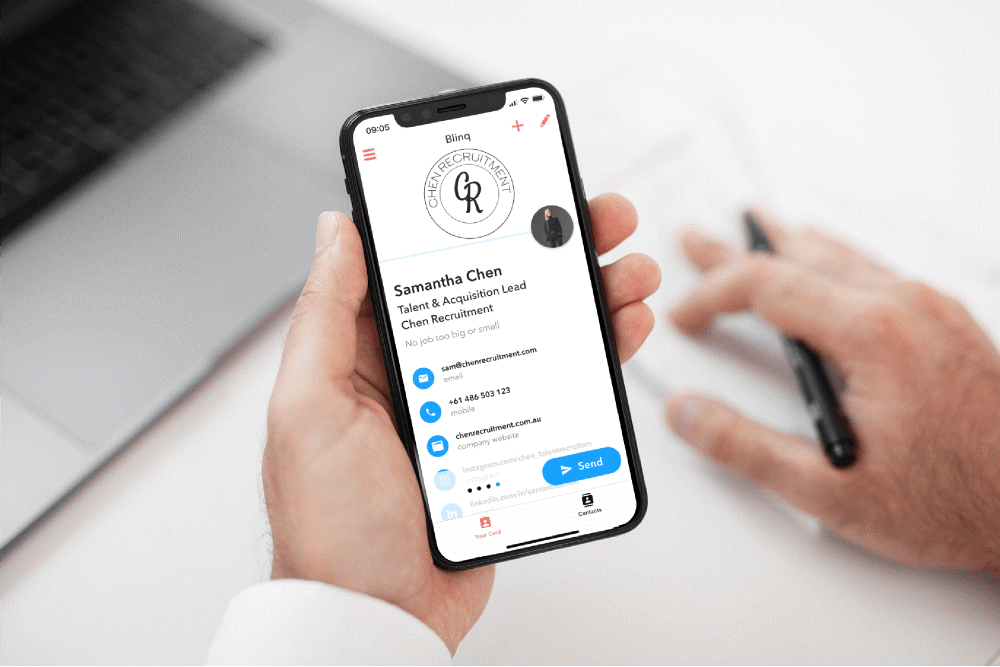
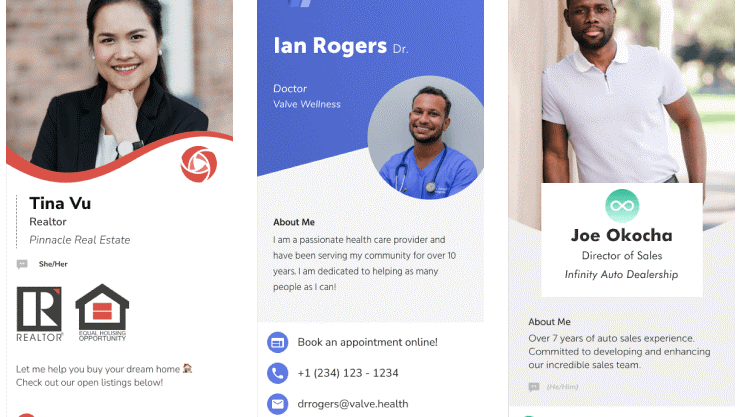
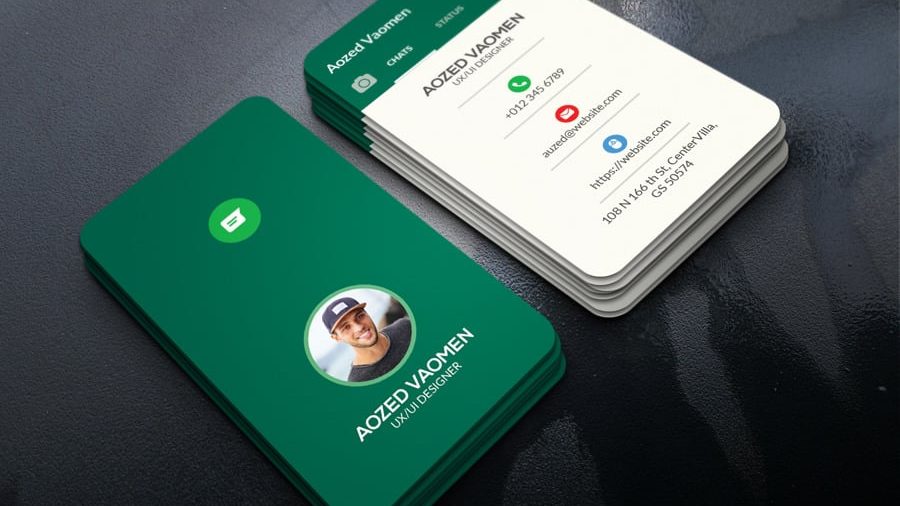
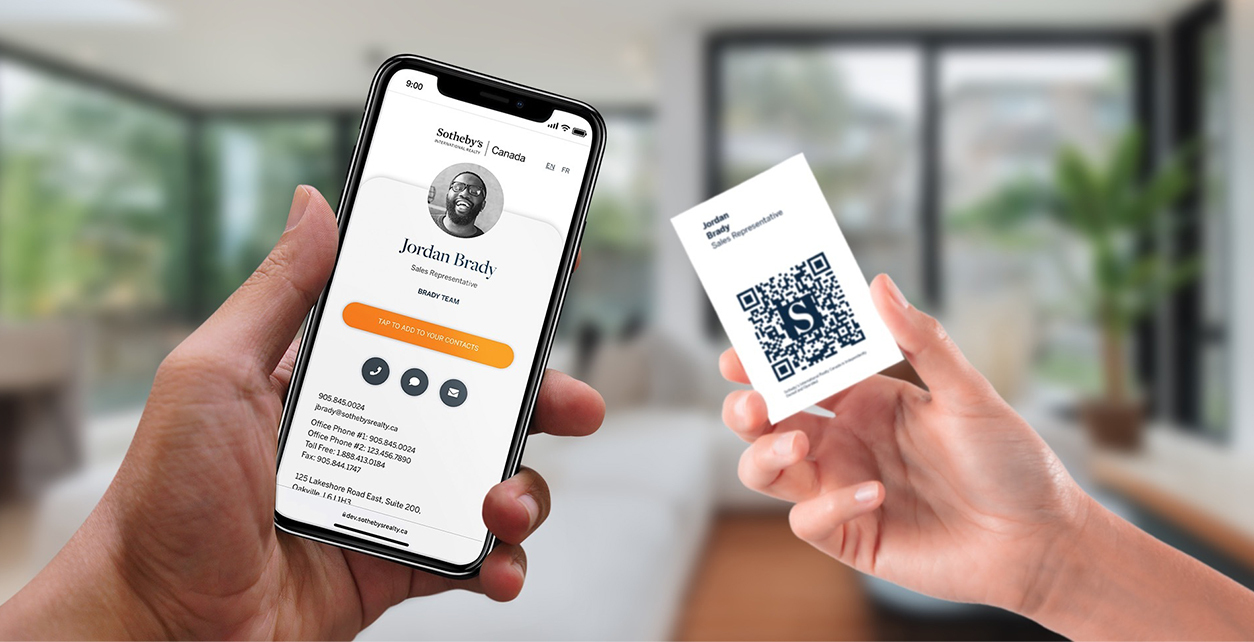
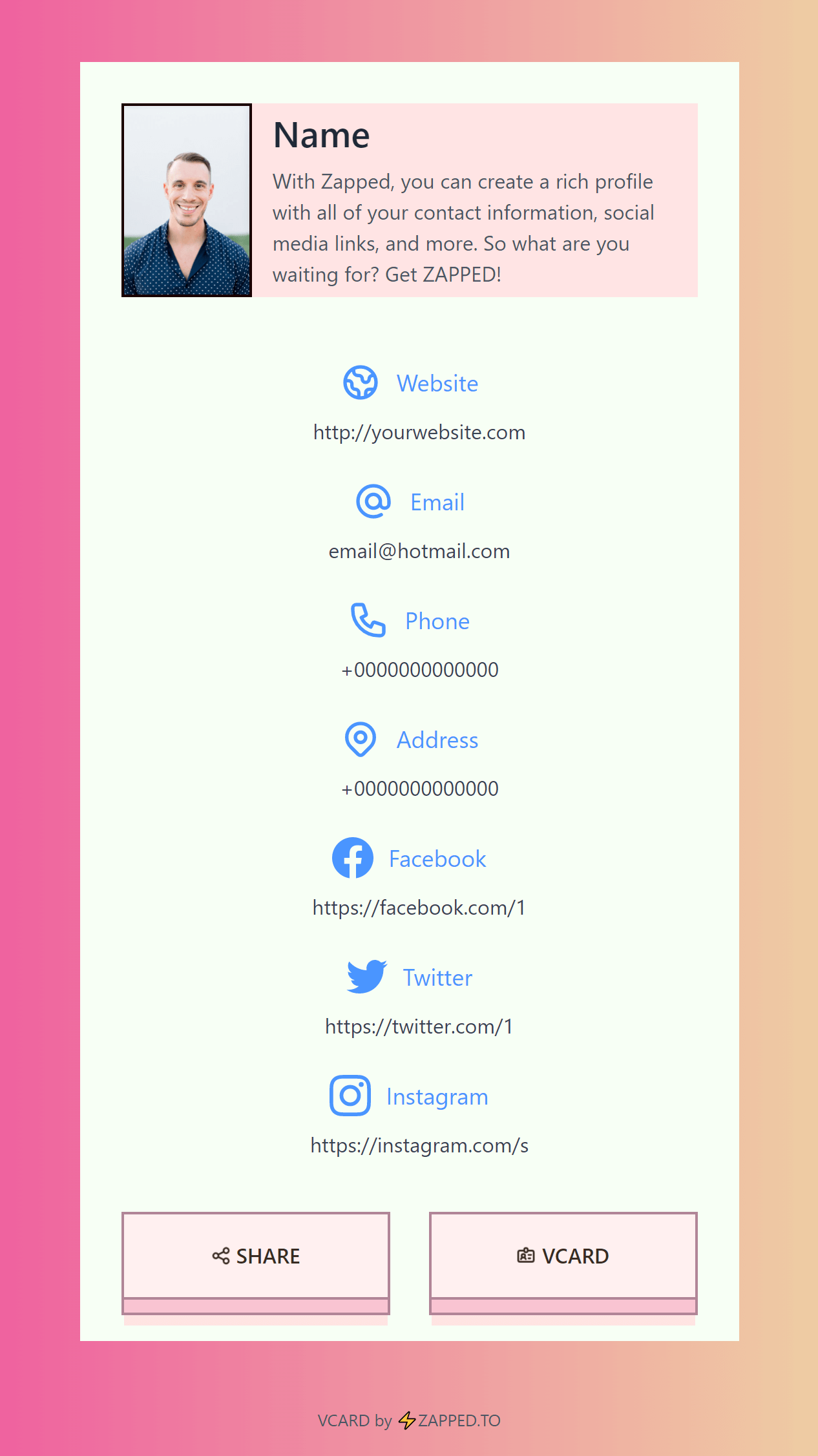
Use this image as a reference point while you compare the options below. The important idea is that the card, code, or NFC tap should lead to a profile that is easy to save and act on.
Best options by use case
| Element | What to add | Why |
|---|---|---|
| Profile link | Full digital card | Keeps WhatsApp message short |
| WhatsApp button | Direct chat action | Starts conversation fast |
| QR code | Printed or screen sharing | Useful in shops and events |
| Saved message | Short intro and link | Makes follow up consistent |
| Team setup | Employee profiles | Keeps contacts organized |
WhatsApp message example
Hi, it was great meeting you. Here is my digital business card with my contact details and WhatsApp link: [your link]. You can save my details there and message me anytime.
This keeps the message short while the profile carries the fuller context.
What to include
A strong digital business card usually includes:
- Name, role, and company.
- Phone, email, and website.
- A save contact action.
- One primary call to action.
- QR code or direct sharing link.
- NFC support when useful.
- Social, portfolio, booking, payment, or review links when they help.
Simple setup checklist
- Create the live profile.
- Add your essential contact fields.
- Choose one primary action.
- Generate and test the QR code.
- Add NFC or Wallet sharing if the use case needs it.
- Test the experience on iPhone and Android.
- Update the profile whenever your details change.
Before you build it, choose the job
Most people looking for a digital business card for WhatsApp are trying to solve one of three problems:
| Visitor intent | Best setup | Why it works |
|---|---|---|
| Someone asked for your details in a chat | Send your digital card link | The recipient can open, save, and revisit the full profile |
| A customer needs to message your business fast | Add a WhatsApp button or short link | The card becomes a simple path into the conversation |
| You meet people in person and want them to continue on WhatsApp | Use a QR code, NFC card, and WhatsApp action | The first scan opens the profile, then the profile gives them the right next step |
The mistake is trying to make WhatsApp carry everything. WhatsApp should start or continue the conversation. Your digital card should hold the complete profile.
Step by step setup
Use this workflow if you want a practical card you can send today.
Step 1: Create your digital card profile
Start with the page people will land on after they tap your link. In Zapped, that means creating a profile with your name, role, company, photo or logo, phone, email, website, and any links that help the next step.
Keep the top of the card focused. If WhatsApp is your main channel, make the WhatsApp action easy to see near the first screen. If booking is the main goal, make the booking link primary and keep WhatsApp as the fast reply option.
Step 2: Add your WhatsApp action
You have two common options:
| Option | Use it when | What to add to the card |
|---|---|---|
| WhatsApp phone action | You want people to message your number | A button labeled Message on WhatsApp |
| WhatsApp Business short link | You use WhatsApp Business tools | The short link copied from WhatsApp Business |
If you build the link manually, use this format:
https://wa.me/15551234567Use the full phone number in international format, with no plus sign, spaces, brackets, or punctuation.
To include a ready message, use:
https://wa.me/15551234567?text=Hi%2C%20I%20saw%20your%20digital%20card%20and%20would%20like%20to%20connect.Test the link before you publish it. A single wrong country code is enough to send people nowhere.
Step 3: Add the card link to your WhatsApp message
Copy your public digital card URL and write a short message around it. The best message gives context, tells the person what the link is, and makes the next action obvious.
Good:
Great meeting you today. Here is my digital card with my contact details, WhatsApp, and booking link: [your link]Too thin:
[your link]Too much:
Here are my phone number, email, website, booking page, LinkedIn, Instagram, office address, service list, and calendar details...Let the profile carry the details so the chat stays clean.
Step 4: Set up WhatsApp Business short link and QR code
If you use WhatsApp Business, create or copy the built in short link from the app.
On iPhone:
- Open WhatsApp Business.
- Tap Settings.
- Tap Business Tools.
- Find Short Link under the business tools list.
- Copy the link, share it, or open the QR code screen.
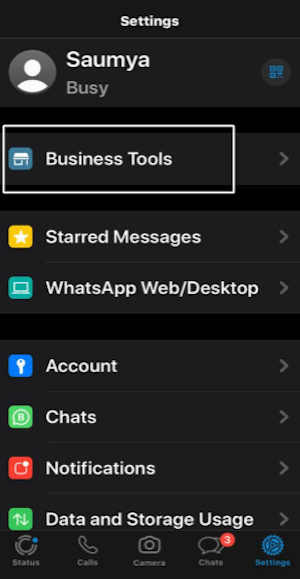 Visual reference: iPhone WhatsApp Business settings screenshot from Scanova's WhatsApp Business QR code guide.
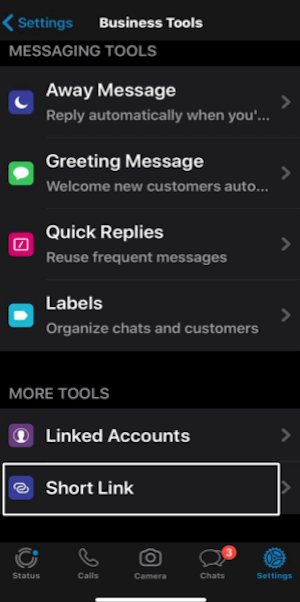 Visual reference: iPhone Short Link screenshot from Scanova's WhatsApp Business QR code guide.
Once you tap Short Link, open the QR code screen if you want a WhatsApp QR code. This QR code is different from your digital business card QR code. It starts a WhatsApp chat, while your digital card QR opens the profile.
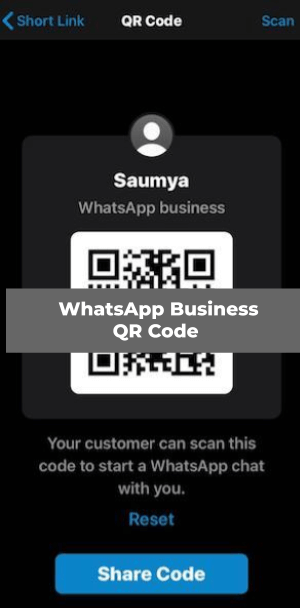 Visual reference: iPhone WhatsApp Business QR code screenshot from Scanova's WhatsApp Business QR code guide.
On Android:
- Open WhatsApp Business.
- Tap the three dot menu.
- Tap Business tools.
- Tap Short link.
- Open the QR code screen.
- Share the code, save the image, or test it from another phone.
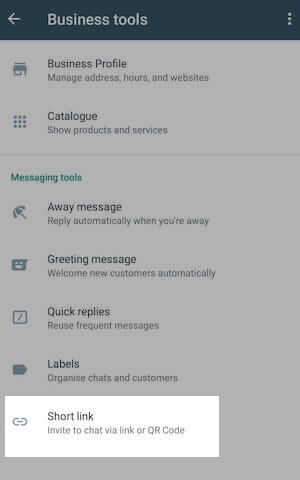 Visual reference: Android WhatsApp Business tools screenshot from Scanova's WhatsApp Business QR code guide.
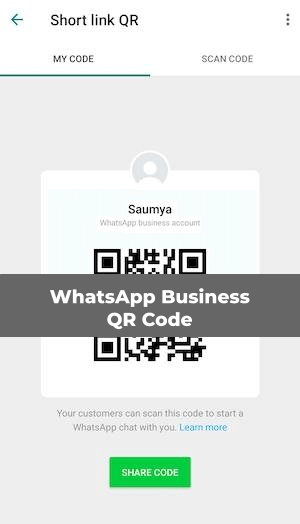 Visual reference: Android WhatsApp Business QR code screenshot from Scanova's WhatsApp Business QR code guide.
WhatsApp Business can also show a QR code tied to the short link. Use that QR code when the only goal is opening a WhatsApp chat. Use your Zapped QR code when the person should see your full profile first.
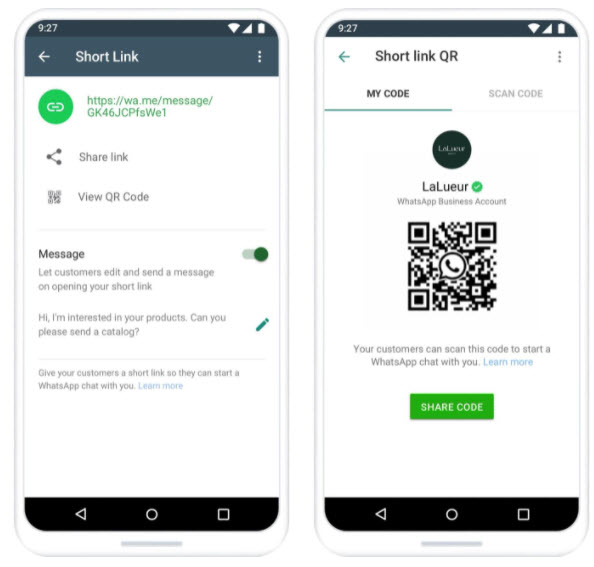 Visual reference: WhatsApp Business short link and QR code screens from The Three Marketers' WhatsApp Business guide.
In the screenshot above, the left screen shows the short link area with a share option, a QR code option, and a message field. The right screen shows the QR code customers can scan to start a WhatsApp chat.
Step 5: Decide which QR code belongs where
There are two QR codes you might use, and they are not the same thing.
| QR code | Opens | Best placement |
|---|---|---|
| Zapped digital card QR | Your complete profile | Business cards, NFC cards, email signatures, event badges, proposals, printed flyers |
| WhatsApp Business QR | A WhatsApp chat | Storefront signs, receipts, packaging, support counters, delivery inserts |
For networking, the digital card QR is usually better because the recipient may want to save your contact, visit your website, check your role, or book a time before messaging. For customer support, the WhatsApp QR can be better because the desired action is a chat.
Step 5a: If you use a web QR generator
You can also create a WhatsApp QR code from a web generator by entering your phone number, country code, and optional message. This is useful when you need a downloadable PNG or JPEG for a flyer, poster, packaging insert, event sign, or email signature.
 Visual reference: WhatsApp QR generator screenshot from Picky Assist's WhatsApp QR Code Generator page.
Use this workflow:
- Choose whether the code should open your Zapped digital card or a WhatsApp chat.
- If it should open WhatsApp, create the
wa.melink first. - Add a short ready message if context helps.
- Paste the final link into the QR generator.
- Download the QR code in a print friendly format.
- Place it on your business card, sign, flyer, package, or email signature.
- Scan the final design from a real phone before publishing it.
For a digital business card article, the key decision is the first step. A WhatsApp QR code is excellent for customer support and quick questions. A Zapped digital card QR is better when the person needs your full profile, save contact action, links, booking, and WhatsApp button together.
Step 6: Test the full path on two phones
Do not stop after checking that the link opens on your own phone. Test the whole flow:
- Open the card link from WhatsApp.
- Confirm the card preview looks trustworthy in the chat.
- Tap the card link.
- Tap the WhatsApp button on the card.
- Confirm the chat opens with the right number.
- Scan the QR code from a second phone.
- Check that the contact save action works.
- Check that the most important link is visible without hunting.
This catches the problems that cost leads: a broken country code, a missing profile photo, a stale title, or a QR code that opens the wrong destination.
Step 7: Save your reusable follow up messages
Keep a few WhatsApp messages ready so you do not rewrite the same thing every time.
| Situation | Message |
|---|---|
| After a meeting | Great meeting you today. Here is my digital card with my contact details and booking link: [your link] |
| Service inquiry | Thanks for reaching out. Here is my card with my services, contact details, and WhatsApp link: [your link] |
| Event follow up | Nice speaking with you at [event]. Here is my card so you can save my details: [your link] |
| Referral | Thanks for the intro. Here is my card with the best ways to reach me: [your link] |
| Support handoff | I am connecting you with the right contact. Their digital card is here: [team member link] |
Personalize the first sentence when you can. The link can stay the same because the card is editable.
Best WhatsApp workflow
Keep the WhatsApp message short and let the digital card carry the details. Send a friendly note, include the profile link, and make sure the profile has a WhatsApp button for fast replies.
This works especially well for service businesses, realtors, consultants, event contacts, and international conversations where WhatsApp is already the preferred channel.
Mistakes to avoid
Do not send a long block of contact details in the chat. Do not rely only on a screenshot of a card. Do not forget to test the link preview and QR code before sharing it with customers.
WhatsApp profile setup
WhatsApp works best when the message is short and the profile does the heavy lifting. Do not paste every contact detail into the chat. Send one clear line and a profile link.
Example:
Great meeting you today. Here is my card with my contact details and booking link: [your profile link]
For WhatsApp Business, keep your business profile and digital card aligned. If the phone number, hours, website, or offer differs between the two, people may hesitate before contacting you.
What your card should look like for WhatsApp traffic
Someone coming from WhatsApp is usually on a phone and already moving fast. They should understand the page in a few seconds.
Put these items near the top:
- Clear name and business name.
- Photo or logo that matches your WhatsApp profile.
- Role or one line service description.
- Save contact button.
- WhatsApp button if chat is the preferred action.
- Booking, quote, menu, listing, or portfolio link if that is the real next step.
Move secondary links lower. A WhatsApp visitor does not need every social profile before they can save your phone number or book a call.
How to share it in WhatsApp Status
WhatsApp Status can work when your audience already knows you, such as clients, local customers, event attendees, or a community group.
- Create or download your digital card QR code.
- Add it to a simple image with one clear prompt.
- Keep enough white space around the QR code.
- Add your card link as text when possible.
- Post it to Status.
- Ask one trusted person to scan it from their own phone.
Good Status prompts:
- Save my new contact card.
- Message me here for bookings.
- Scan to see my services and contact details.
- New number, save my updated card.
Avoid putting the QR code over a busy photo. If the phone struggles to scan it, customers will not try twice.
How to add the card to a printed business card
If you still use printed cards, make WhatsApp part of the handoff instead of trying to print every detail.
Use this layout:
- Front: name, company, role, and QR code.
- Back: short prompt, website, and WhatsApp mention.
- QR destination: your editable digital card, not a static image.
- Card profile: includes WhatsApp, save contact, and the main business action.
Example prompt:
Scan to save my card and message me on WhatsApp.Print a test card before ordering a full batch. Scan it in bright light, dim light, and from arm length. A QR code that only works in perfect conditions is not ready for events.
Troubleshooting
| Problem | Likely cause | Fix |
|---|---|---|
| WhatsApp link opens the wrong number | Phone number format is wrong | Use international format with no plus sign, spaces, brackets, or punctuation |
| Link preview looks weak | The card page needs better title, description, or image | Update the card title, profile image, and page description |
| QR code does not scan | Low contrast, tiny print size, or distorted shape | Use dark code on light background, keep it square, and leave quiet space around it |
| People message but do not save your contact | The profile does not make saving obvious | Move the save contact action higher on the card |
| Customers ask the same first question | The ready message or card does not set context | Add a clearer WhatsApp message and put the answer on the card |
| Team members share inconsistent details | Everyone is using their own link or old message | Create team cards and provide a shared message template |
WhatsApp Business QR vs digital business card
Use the WhatsApp Business QR when the only action you want is a message. It is perfect for a counter sign that says customers can scan for support, quotes, order updates, or quick questions.
Use the digital business card when the person may need more context. A digital card can include WhatsApp, but it can also include your email, booking page, portfolio, reviews, locations, payment links, socials, and save contact action.
For many businesses, the best setup is both:
- Digital card QR on networking material.
- WhatsApp QR on customer service material.
- WhatsApp button inside the digital card.
- Same phone number, business name, and offer across both places.
When WhatsApp is better than email
WhatsApp is often better when the relationship already started in chat, when the recipient is mobile, or when speed matters more than a formal email thread. It is common for local services, real estate, travel, events, and relationship based sales.
Use email when you need a longer proposal or attachment. Use WhatsApp when the next step is quick: save my contact, book a time, view this listing, or message me later.
Privacy and etiquette
WhatsApp is personal for many people, so make the card useful without being pushy.
- Send the card when it is relevant to the conversation.
- Mention where you met if the person may not recognize you.
- Do not add people to broadcast lists without permission.
- Keep the first message short.
- Make it easy to save your details without forcing a chat.
- Use a business profile for business conversations when possible.
The goal is not just to get the link opened. The goal is to make the recipient comfortable saving your details and replying when they are ready.
Use Zapped as the profile behind the WhatsApp share
WhatsApp is great for sending the card, but the message still needs a useful destination. A Zapped profile gives the WhatsApp link a mobile page with contact details, website, social links, booking, and follow up actions instead of a plain block of text.
That keeps the conversation simple. Send one Zapped link in WhatsApp, then let the recipient save the contact, open the right link, or come back later without scrolling through old messages.
FAQs
What is the best digital business card format?
The best format is usually a live web profile with a QR code, direct link, and optional NFC card. That gives people more than one way to open the same profile.
Do people need an app to view my digital business card?
Usually no. A web based profile should open in a normal browser. Apps can help the card owner manage the profile, but the recipient should not need to install anything just to view your details.
Should I use NFC or QR for digital business card for WhatsApp?
Use both when the card will be shared in person. NFC feels fast when someone knows where to tap, and QR gives a visible backup for any phone with a camera.
Can I update the card after sharing it?
Yes, if the QR code, NFC tag, or shared link points to an editable profile. That is one of the biggest advantages over a static printed card.
Where does Zapped fit?
Zapped fits when you want one editable digital card profile that can be shared by link, QR code, NFC card, and team workflows without rebuilding the card every time details change.
Sources
- WhatsApp Help Center, business QR code and Meta Business Help, WhatsApp Platform QR code: Used for WhatsApp Business QR context.
- WhatsApp Help Center, click to chat: Used for WhatsApp link format context.
- Enterprise Nation, WhatsApp Business short links and QR codes: Used for WhatsApp Business short link, QR code, and print testing context.
- The Three Marketers, WhatsApp Business guide: Used for the WhatsApp Business short link and QR code visual reference.
- Scanova, WhatsApp Business QR Code guide: Used for iPhone and Android WhatsApp Business QR code screenshot references.
- Picky Assist, WhatsApp QR Code Generator: Used for web based WhatsApp QR generator visual reference and setup context.
- IETF RFC 6350, vCard format specification: Used for vCard contact data context.
- Apple Support, scan a QR code with iPhone camera: Used for iPhone QR scanning behavior.
- Android, how to scan QR codes on Android: Used for Android QR scanning behavior.