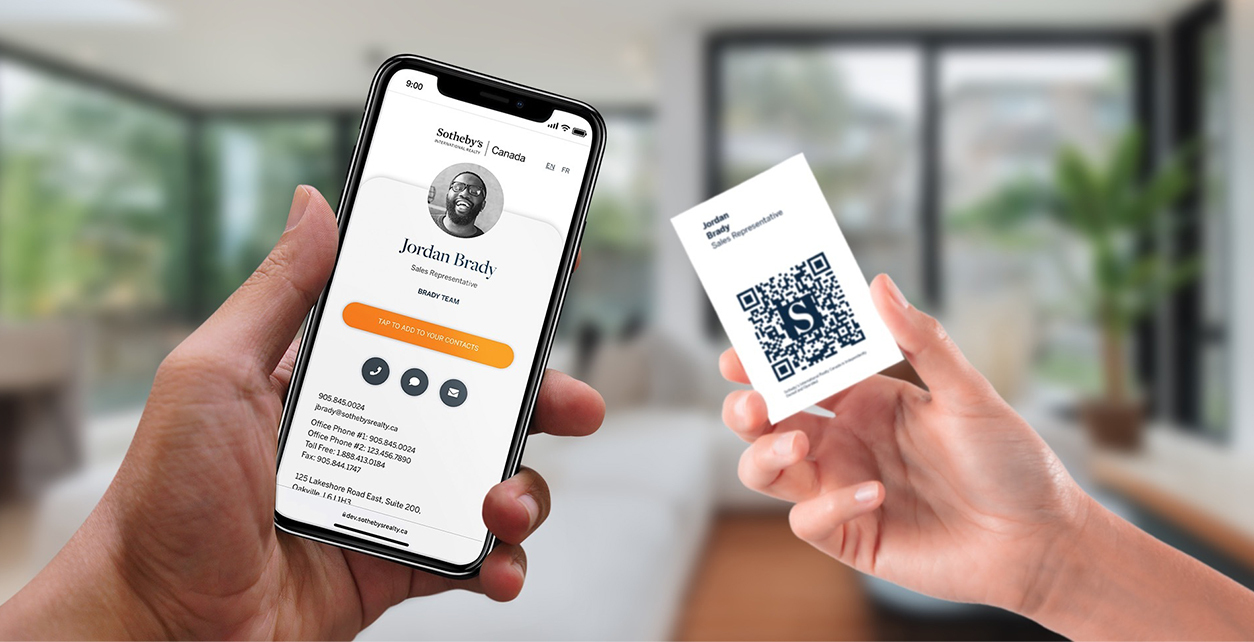
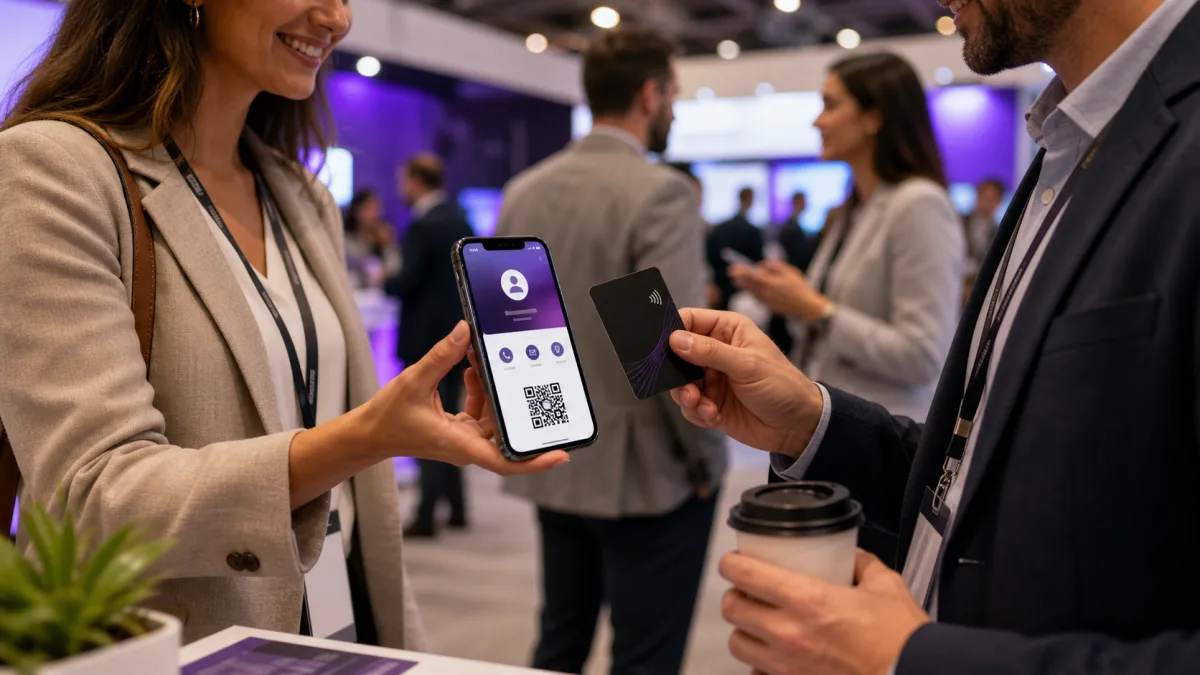
A WhatsApp business card helps people move from meeting you to messaging you. It can be a printed card, a digital card, or both, but the best version gives people one clear way to start a conversation.
Quick answer
To create a WhatsApp business card, set up your WhatsApp Business profile, create a short link or QR code, add it to a digital business card profile, then place the QR code or link on your printed card. Add a clear call to action such as Scan to message us on WhatsApp.
Key takeaways
- A WhatsApp business card should make messaging easy, not just display a phone number.
- WhatsApp Business QR codes and short links can start conversations quickly.
- A digital card profile gives you room for email, website, booking, location, and social links too.
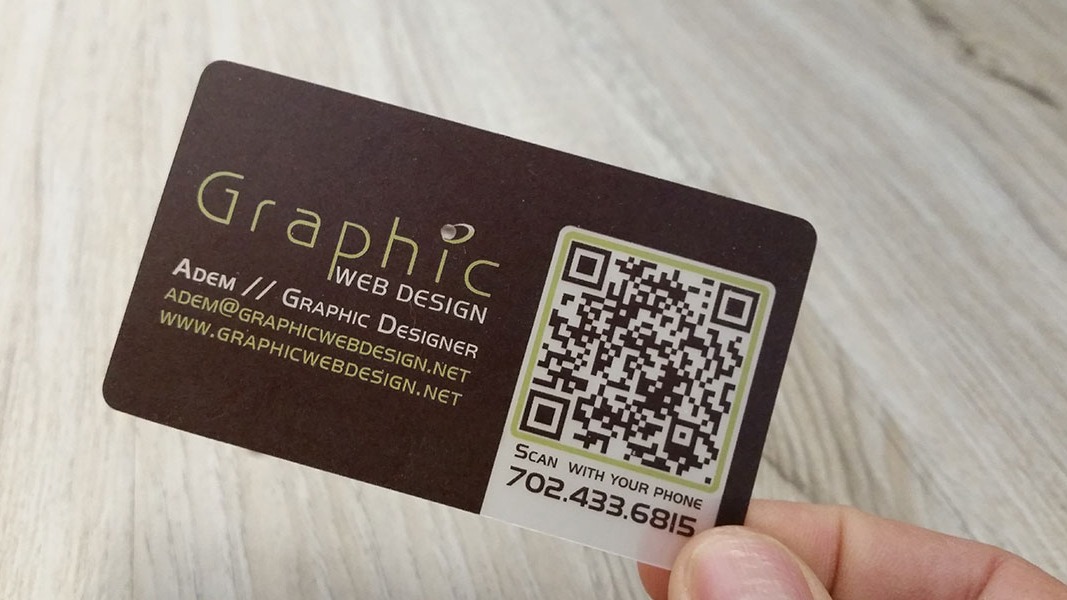
- Printed cards should include a clear label near the QR code.
- Zapped can hold the full profile while WhatsApp remains one primary contact action.
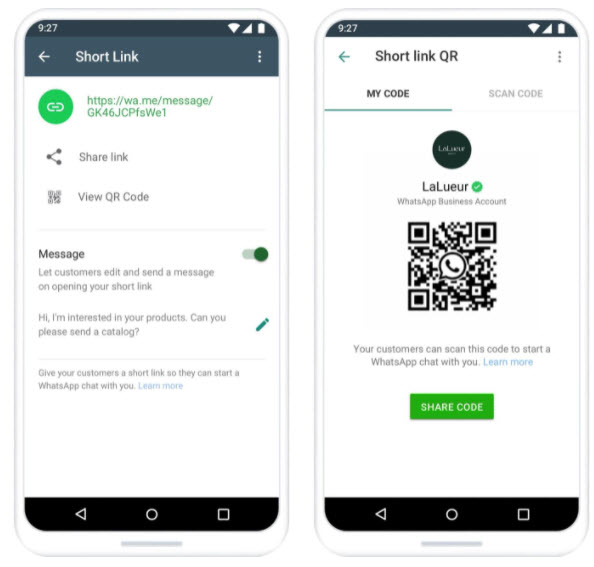
Visual reference: WhatsApp Business QR code screenshot from Three Marketers' WhatsApp QR code guide.
What is a WhatsApp business card?
A WhatsApp business card is a contact card designed to help someone message your business on WhatsApp. It can include your WhatsApp number, QR code, short link, digital card URL, or all of those.
The strongest version usually has two layers:
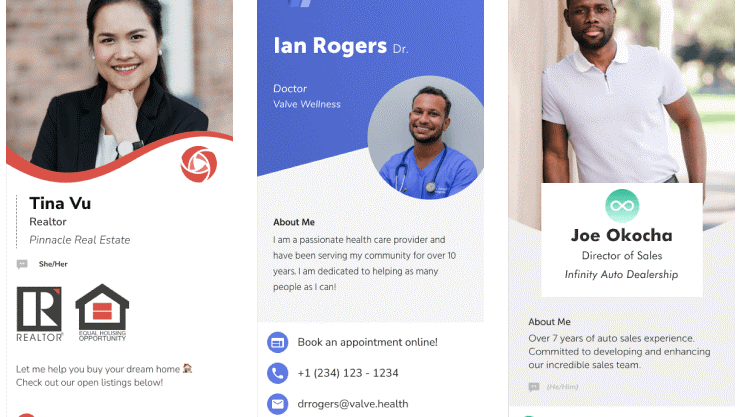
- A visible card with name, brand, and QR code.
- A digital profile with WhatsApp, phone, email, website, booking, social links, and save contact options.
That way, WhatsApp is easy to find, but the person still has other ways to contact you.
What to include on a WhatsApp business card
Keep the printed card simple and let the digital profile hold the extra details.
| Element | Put on printed card? | Put on digital profile? |
|---|---|---|
| Name and company | Yes | Yes |
| WhatsApp call to action | Yes | Yes |
| QR code | Yes | Yes, if useful |
| Optional | Yes | |
| Website | Optional | Yes |
| Booking link | Usually no | Yes |
| Social links | Usually no | Yes |
| Services or menu | Usually no | Yes |
For service businesses, the most useful call to action is often direct: Scan to message us on WhatsApp.
How to create the card
Use this workflow:
- Set up or confirm your WhatsApp Business profile.
- Add business name, category, description, hours, and website where relevant.
- Create or view your WhatsApp Business QR code or short link.
- Create a digital business card profile with your full contact details.
- Add a WhatsApp button to the profile.
- Generate a QR code for either the WhatsApp chat or the full digital profile.
- Place the QR code on your printed card with a clear instruction.
- Test everything from a printed proof.
If the goal is immediate chat, use the WhatsApp link. If the goal is full contact exchange, use the Zapped profile and make WhatsApp one of the main buttons.
Where to find the WhatsApp QR code
In WhatsApp Business, open Settings, choose Business tools, then open Short link or QR code depending on the app version shown on your phone. The screen should let you share a direct chat link and show a QR code that starts a WhatsApp conversation with the business.
Before printing, send the link to a second phone and confirm that it opens the correct chat, shows the right business name, and does not require the customer to save your number first. If the QR code is going on a printed card, keep a plain phone number or short URL on the card as the fallback.
Design tips that make it stand out
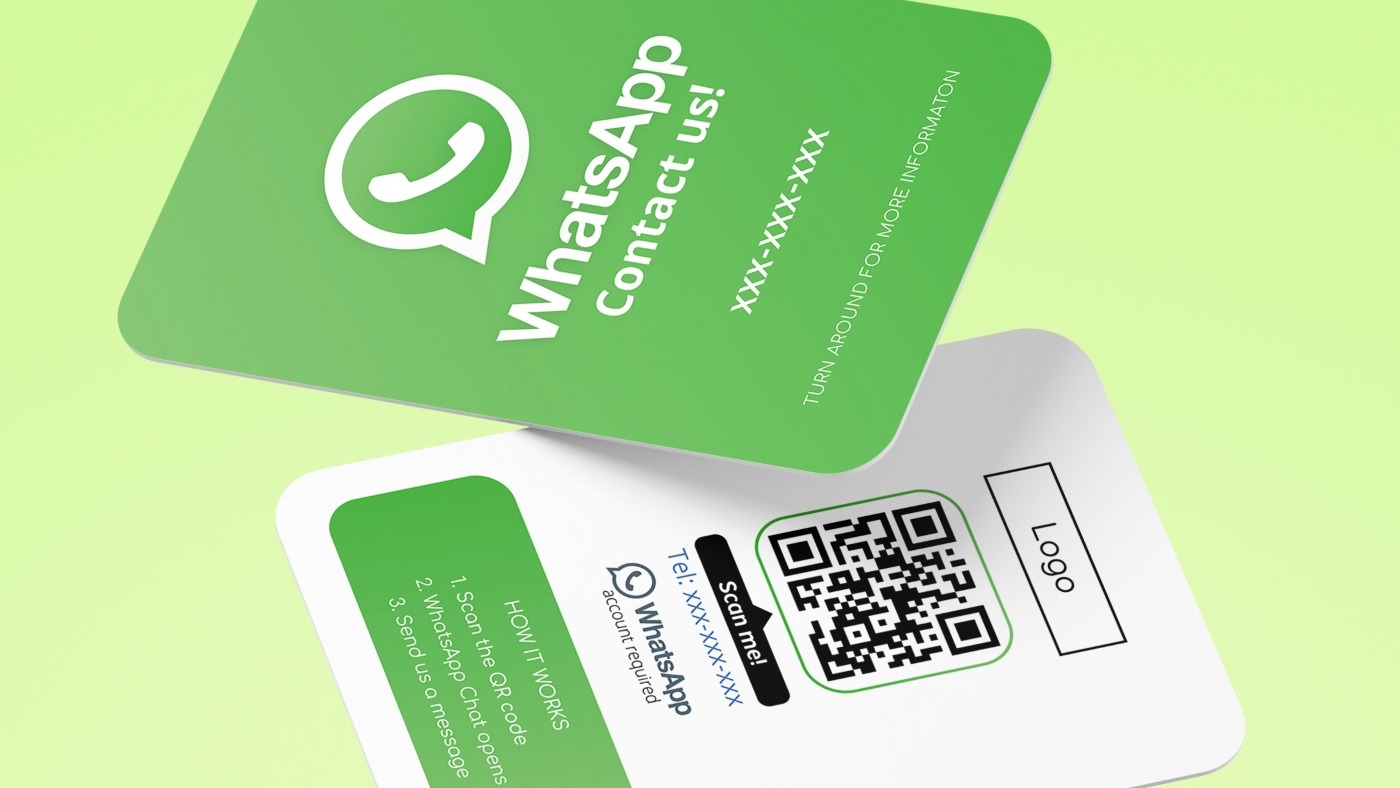
A WhatsApp business card should not look like a random QR code pasted onto a template. Make the action obvious.
Good design choices:
- Use one main call to action.
- Keep the QR code away from clutter.
- Use brand colors, but keep enough contrast for scanning.
- Add a short benefit, such as
Get a quoteorBook your appointment. - Use a digital profile for extra links instead of crowding the print card.
WhatsApp QR code or digital card QR code?
Choose based on the first action you want.
| Goal | Better QR destination |
|---|---|
| Start a WhatsApp chat immediately | WhatsApp Business short link |
| Share full professional profile | Zapped digital business card |
| Let people save your contact | Digital card with save contact option |
| Promote services and booking | Digital card with WhatsApp and booking links |
For many businesses, the best setup is a Zapped card with a prominent WhatsApp button. That keeps the card useful even for people who prefer email, website, or booking links.
Examples by business type
The right WhatsApp business card changes by industry. A restaurant, realtor, consultant, and salon should not all send people to the same generic profile.
| Business type | Useful card contents |
|---|---|
| Salon or spa | WhatsApp button, booking link, address, hours, Instagram, and service menu |
| Real estate agent | Phone, WhatsApp, listings, calendar booking, LinkedIn, and brokerage details |
| Consultant | Booking link, website, case studies, LinkedIn, email, and save contact button |
| Restaurant or venue | WhatsApp or phone, menu, location, hours, reservations, and map link |
| Local services | Quote request, WhatsApp, service area, reviews, photos, and emergency contact |
This is where a digital profile is useful. The printed card can stay clean, while the profile gives each customer the right next step.
Print and scan checklist
Before ordering a large batch of cards, test the design in the real size you plan to print.
Check that:
- The QR code has enough white space around it.
- The code still scans after the card is printed, not just on screen.
- The label near the code explains the action.
- The WhatsApp link opens the correct chat.
- The digital profile has a backup contact method for people who do not use WhatsApp.
- The card still looks professional if someone ignores the QR code.
Put a Zapped profile behind the WhatsApp card
A WhatsApp business card is easier to use when the chat contains one clean profile link instead of a long pile of contact details. Zapped gives that link a mobile destination with saved contact actions, website, social profiles, booking, and other next steps.
That way WhatsApp starts the conversation, while the Zapped profile keeps the contact information organized for later.
FAQs
Can I put a WhatsApp QR code on a business card?
Yes. WhatsApp Business lets you view and share a QR code that can help customers start a chat with your business.
Should my QR code open WhatsApp or my digital card?
Use WhatsApp if the main goal is immediate chat. Use your digital card if the person may need your full contact profile, website, booking link, or social links.
Can I use a normal WhatsApp account for a business card?
You can share a WhatsApp contact link, but WhatsApp Business gives you better business profile tools, including QR code and short link options.
What should the card say near the QR code?
Use a direct instruction, such as Scan to message us on WhatsApp, Scan to save my card, or Scan to book an appointment.
How can Zapped help with a WhatsApp business card?
Zapped can host the full digital card profile and include WhatsApp as one of the main actions. That way, one card can support WhatsApp, email, website, booking, QR, NFC, and save contact workflows.