To convert CSV or Excel contacts to a vCard file, keep the original source, preserve phone values as text, map each column to a contact field, and check a small sample before converting the rest. Don't rename .csv to .vcf: RFC 6350 defines a vCard object and its fields, and changing a filename creates none of them.
The first contact that arrives intact tells you more than a download button that says “success.” Catch the missing surname or changed phone digit there, before the whole address book lands.
Choose the route your destination actually needs
Where do the contacts need to end up? If that destination already accepts CSV, creating a VCF adds another place for a field to disappear.
For a portable VCF, Mac Contacts offers a documented native bridge. Apple supports CSV import with field review, then selected contact export as vCard. You can check the imported records before exporting them. That's the useful pause between the spreadsheet and the file you'll hand over.
For Google Contacts, use its importer and template. Google's computer instructions accept CSV or VCF files. Choose Import, Select file, select your sample, and choose Import again. Google opens the newly imported contacts for review. This is a documented route into Google Contacts; it doesn't establish a CSV to VCF export route by itself.
For Outlook, keep CSV when it meets the job. Microsoft documents CSV import and export for New Outlook, Classic Outlook, and Outlook on the web. That documentation doesn't provide a general CSV to VCF export path. Keep CSV if it gets your contacts where they need to go.
If you need to understand the file's required fields or broader compatibility before choosing a destination, use the vCard and VCF format guide, then return to the conversion.
Keep phone values intact before mapping anything
A column can look tidy and already be damaged. Microsoft explains that Excel can remove leading zeros from numerical text and convert large numbers to scientific notation, with phone numbers among the affected values. Treat a phone number as text, not a quantity.
Keep an untouched workbook or original export, and work from a copy. Compare the actual phone strings in the CSV against that source, including the initial plus sign, any leading zero, and every digit. If Excel has changed them, stop and re-export from the untouched source. Changing the display format afterward cannot reconstruct characters that have already been removed.
For an incoming CSV, Microsoft's documented Excel Power Query route lets you import Text/CSV, set the phone columns to Text, choose Replace Current, and return the data with Close & Load. Set the type before the values are damaged. The Excel import and Text column guide covers the deeper spreadsheet controls.
The rest of the CSV needs care too. RFC 4180 describes records and quoted fields: keep the header row, give each record the same field count, and quote values containing commas, line breaks, or double quotes. Double quotes inside a quoted value need their own escaping. A company name with a comma shouldn't quietly become two columns.
Encoding is another checkpoint. Microsoft recommends UTF-8 for Outlook imports. In New Outlook or Outlook on the web, cancel and fix the encoding if the preview text is unreadable. Don't approve a preview you can't read.
One row becomes one contact only after the fields have names
CSV describes how records and fields are arranged; the destination determines which contact headings it understands. Mobile Phone still needs to land in its phone field. A name that lands in Notes has survived as text, but failed as a contact name.
Take this fictional CSV row. Ada Example, Example Works, example.com, and the 202-555 phone numbers are placeholders, not a person's contact details.
First Name,Last Name,Email,Mobile Phone,Work Phone,Organization
Ada,Example,[email protected],+1-202-555-0147,+1-202-555-0113,Example Works
Mapped to RFC 6350's version 4.0 contact properties, that row becomes:
BEGIN:VCARD
VERSION:4.0
FN:Ada Example
N:Example;Ada;;;
TEL;VALUE=text;TYPE=cell:+1-202-555-0147
TEL;VALUE=text;TYPE=work:+1-202-555-0113
EMAIL:[email protected]
ORG:Example Works
END:VCARD
The envelope starts with BEGIN:VCARD, puts VERSION:4.0 immediately after it, and ends with END:VCARD. FN is the required formatted name, Ada Example. N holds the name parts: family name first, then given name, followed here by empty additional name, prefix, and suffix slots. Keeping both preserves a useful display name and a separate surname.
Each phone column gets its own TEL property. VALUE=text preserves these phone values as text; TYPE=cell and TYPE=work distinguish their labels. EMAIL carries the email address, and ORG carries the organization. Check that both numbers keep their labels at the other end.
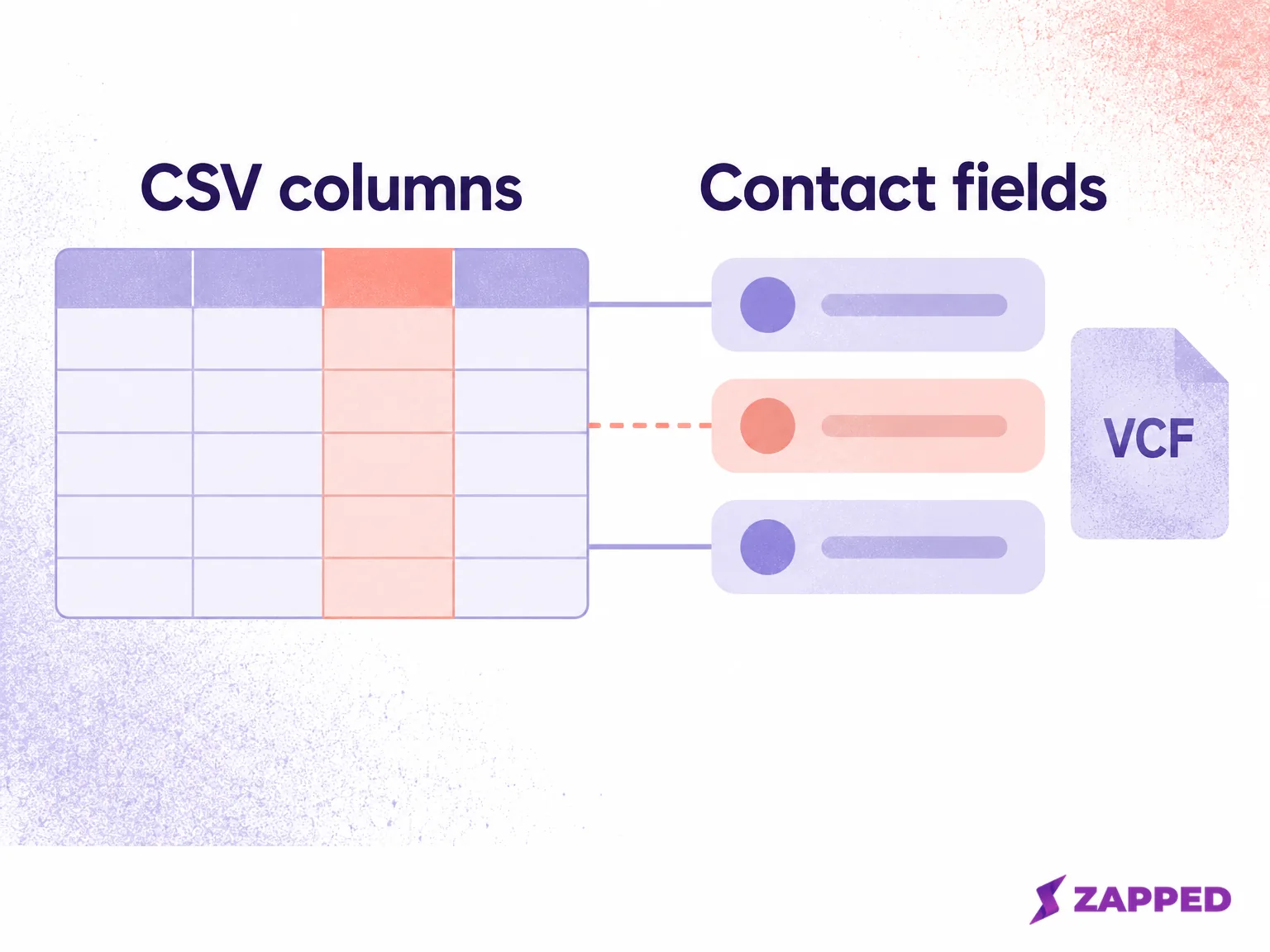
For repeated values, Google's template provides numbered label and value columns for phones and emails, plus organization, notes, website, and custom fields. Use those separate slots when importing there. If your converter or destination cannot preserve a second email or phone, decide what to leave out and retain it in the original source. Silent loss isn't a mapping decision.
This example uses 4.0. For your transfer, choose the version your destination documents accepting; don't assume either 3.0 or 4.0 works everywhere. RFC 6350 uses UTF-8 text and escaping for commas, compound property semicolons, backslashes, and text newlines when they would otherwise act as syntax. More elaborate values need more than copying spreadsheet cells onto lines. A vCard entity can contain multiple contact objects, but validate one before assembling the full list.
Use Mac Contacts as the bridge, then check the receiving account
On a Mac, start with the sample CSV. Apple documents File > Import and lets you review the field labels, choose encoding, ignore the first header card, or mark a field Do not import. If a contact named First Name appears, the header has gone through as data. Correct that before exporting.
Once the imported contact is correct, select it and choose File > Export > Export vCard. Apple's selected contact export produces a .vcf. The archive of all contacts produces an .abbu file, a different result. Export the contacts you intend to move, and check the vCard settings if notes or photos need to travel too.
Now check the destination. On Android, Google's instructions use Contacts > Organize > Import from file, followed by the receiving account and the VCF file. Select the account where you want the contacts to live.
On iPhone, Apple's documented route is to tap a .vcf attachment in an email or message. That imports the vCard. It doesn't turn arbitrary CSV into one.
Find the failure before repeating the import
Give the sample something to prove: include a distinctive surname, both phone values, an email, an organization, and a second email if the real list has them. Open the saved contact in the intended destination and compare it with the untouched source. Read every digit, then check the separate name fields and repeated values. A correct display name alone won't tell you whether the conversion worked.
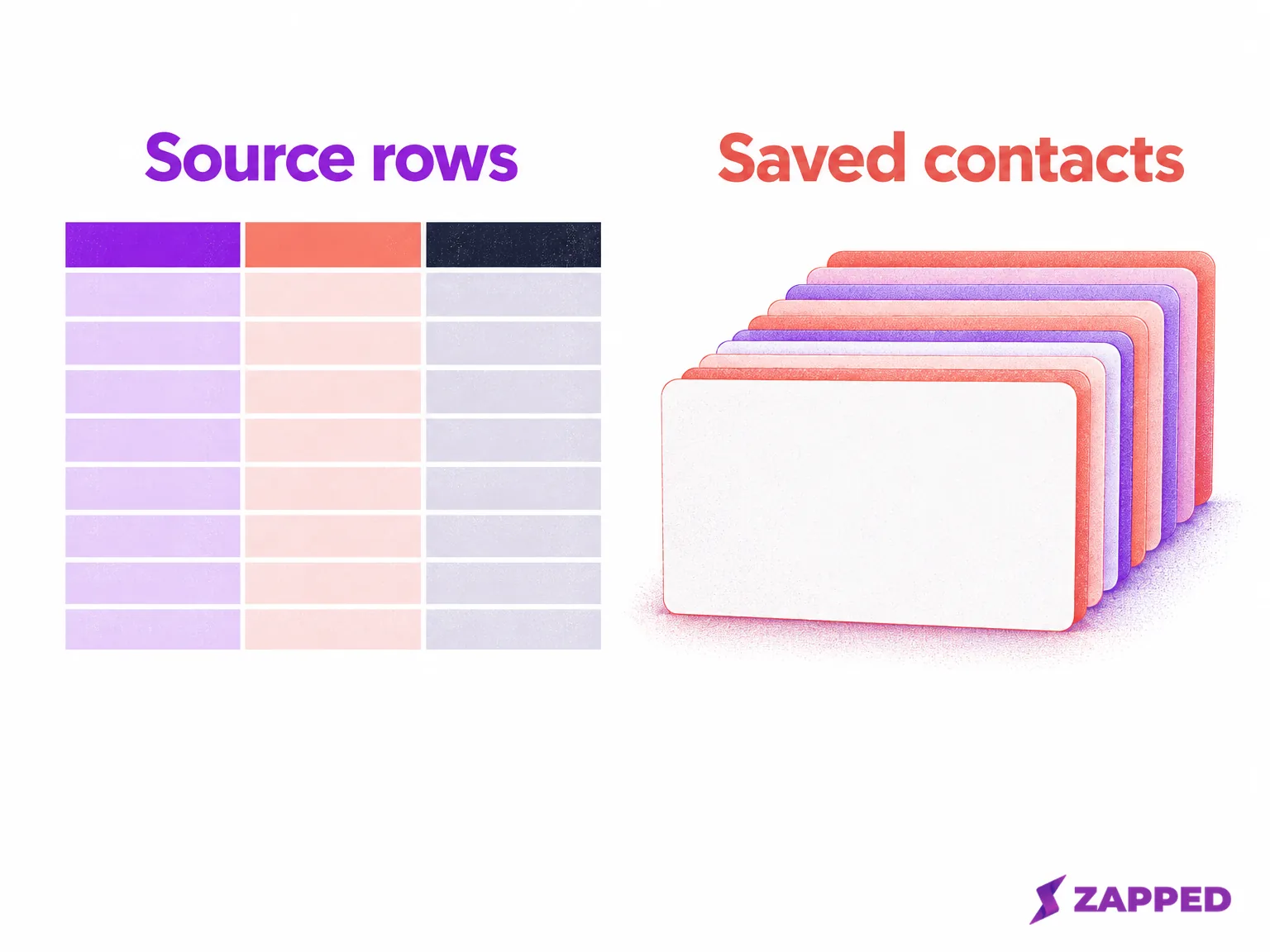
If a phone value already differs in the CSV, return to the original export. Set the column type before conversion, following Microsoft's Excel guidance on preserving text; display formatting won't bring back removed characters. For other failures, trace where the value disappears:
| What you find | Where to look next |
|---|---|
| The CSV already differs from the untouched source | Re-export from that source, preserving phone columns as Text. |
| The imported contact has a missing or misplaced field | Repair the CSV header or field mapping before another sample. |
| The contact is correct but the exported VCF is incomplete | Check export selection and, for notes or photos, Mac vCard settings. |
| The VCF is correct but the destination contact is wrong | Revisit the receiving account and destination import step. |
Google recommends checking Notes for missing details. Its template creates a contact for every row containing any entered data, so stray populated rows deserve attention before import. Google also documents problems above 3,000 contacts in one import and a 25,000 contact account limit. Plan the full transfer around those limits even when the sample is correct.
On Mac, return to Apple's import field review for a misplaced CSV value, or its vCard export settings when an otherwise correct record loses optional notes or photos. Repair the stage that lost the value before running another sample.
If you're taking the optional CSV route into Classic Outlook, Microsoft offers three duplicate actions: replace duplicates, allow duplicates, or do not import duplicates. Choose deliberately, then select the destination Contacts folder and Finish. Those controls belong to Classic Outlook's CSV importer; don't assume New Outlook or Outlook on the web presents the same choices.
When the sample survives, continue with the remaining contacts. If you can't establish a trustworthy VCF route, stop before the full import. Keep the originals and use the destination's documented CSV importer, or the Mac bridge when a Mac is available.
If you also need a profile you can keep editing after sharing it, the portable file is only part of the job. Zapped offers a live editable digital card shared by QR, NFC, or link and opened in a normal browser without an app. Zapped's CSV profile import covers Starter and Professional; it is built for profile import rather than bulk CSV to VCF export. Use that editable profile alongside a portable contact file when both serve the job.
Need the saved contacts back in spreadsheet rows later? Follow the vCard to CSV guide for the return trip.