To edit a vCard file safely, keep the original untouched, correct the contact in a contact app that can export a vCard, and check the exported copy before replacing anything. Use a text editor only when you can preserve the file's version, required fields, line endings, escaping, and repeated properties.
For an ordinary name, phone, or email correction, start with the contact record. A VCF can look perfectly readable while the saved contact has lost a photo, a note, or the second number you actually needed.
Back up the file and start with one contact
Put the original file aside and give the working copy a distinct name. If you're correcting a larger export, start with one contact. The whole address book is too much to put on a first experiment.
Google Contacts documents importing a VCF file through Import > Select file > Import. That gives you a concrete place to check the result if Google Contacts is your destination.
Do you need a corrected file to send elsewhere, or just a corrected contact in your address book? For the file, establish the app's documented export route before editing. For the saved contact, its editing controls are enough.
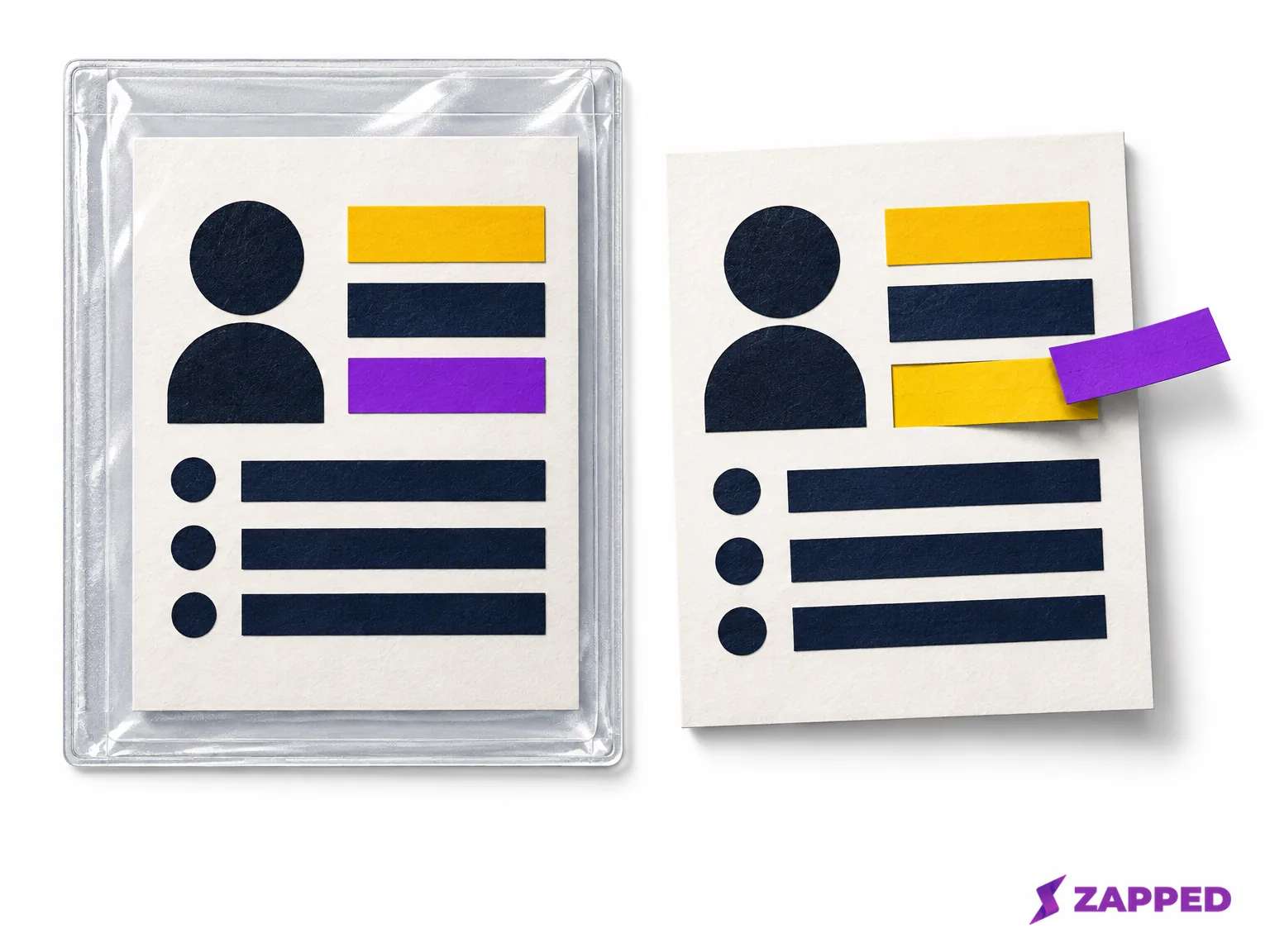
Edit a contact in your contact app
Edit and export on a Mac
- Import the protected VCF working copy. In Contacts, Apple's documented file import route is File > Import: select that .vcf file and click Add.
- Review any duplicate indication, then select the intended contact so you're correcting the right record.
- Choose Edit, change the fields, and click Done to finish editing.
- Check the vCard settings for notes and photos, because those settings can include or exclude both.
- Keep the contact selected and choose File > Export > Export vCard to create the corrected file.
Edit and export on Android
Google documents opening Contacts, selecting the contact, tapping Edit, choosing an account if asked, and saving the changes. Its separate export route is Contacts > Menu > Settings > Export, where you choose the accounts to export to a VCF. You're editing one contact, but choosing accounts for the export, so inspect what the resulting file contains before treating it as your single corrected card.
Edit a contact on iPhone
Open Contacts, tap the contact, tap Edit, change the information, and tap Done to save. For an incoming VCF, Apple documents tapping its attachment in an email or message to import it. These controls give you an editing route and an import route, not instructions for exporting a standalone VCF from iPhone.
Edit a contact in Outlook
Go to People, open the contact, and change its information. Microsoft documents Save & Close or Save: Save & Close in classic Outlook, Save in new Outlook. For a vCard received by email, open the attachment, choose Add to Outlook Contacts, and save. If your next job is producing a file for another system, establish the export route separately.
Edit the VCF in a text editor
Use raw text editing when you're comfortable preserving the format as well as changing the values. RFC 6350 defines the vCard 4.0 structure: BEGIN:VCARD opens the record, VERSION:4.0 follows it immediately, FN supplies the formatted name, and END:VCARD closes it.
Here is a fictional vCard 4.0 correction derived from that RFC. The example.com addresses and 202-555-01xx numbers are placeholders.
Before:
BEGIN:VCARD
VERSION:4.0
FN:Alex Rivera
N:Rivera;Alex;;;
TEL;VALUE=uri;TYPE=cell:tel:+1-202-555-0101
EMAIL;TYPE=work:[email protected]
TEL;VALUE=uri;TYPE=work:tel:+1-202-555-0103
EMAIL;TYPE=home:[email protected]
NOTE:Fictional contact for this illustration.
END:VCARD
After:
BEGIN:VCARD
VERSION:4.0
FN:Alex Rivers
N:Rivers;Alex;;;
TEL;VALUE=uri;TYPE=cell:tel:+1-202-555-0102
EMAIL;TYPE=work:[email protected]
TEL;VALUE=uri;TYPE=work:tel:+1-202-555-0103
EMAIL;TYPE=home:[email protected]
NOTE:Fictional contact for this illustration.
END:VCARD
What to look for when you compare your own edit:
- FN and N change together. FN is the displayed name; N holds five components in order: family name, given name, additional names, prefixes, and suffixes.
- The four semicolons in N:Rivers;Alex;;; stay unescaped.
- Only the intended TEL and EMAIL lines change. The TYPE labels identify which instance you're correcting, so replacing every telephone or email line would erase the distinction.
- The work telephone, the home email, and the NOTE are untouched, and so are BEGIN, VERSION, and END.
The displayed blocks have real line breaks, but an actual vCard must use CRLF content line endings. Preserve folded lines too: a continuation follows CRLF with one space or tab. Text values use RFC escaping for literal commas, backslashes, embedded newlines, and literal semicolons inside a component. That last rule is different from N's four structural separators.
For the broader format question, our guide to vCard files explains what a VCF carries beyond this correction.
Check what must survive the edit
Before choosing an editor, look beyond the three fields you're fixing. RFC 6350 describes photos, notes, and multiple numbers, along with email addresses, logos, and other contact properties. Inspect PHOTO and NOTE lines, repeated TEL and EMAIL lines, labels, and any custom X- properties in your source. If the app displays only one number, that isn't evidence that the others are disposable.
For Mac exports, Apple's notes and photos settings deserve a deliberate check, since a correctly saved name doesn't tell you whether the photo was excluded from the exported file.
If your chosen editor doesn't state which fields it preserves, stop before replacing the original. Return to the source contact system and use its documented export, or choose a tool that explains its field preservation.
Reopen the edited copy before replacing the original
- Import the edited file into the destination you actually intend to use, with one contact first. On a computer, Google Contacts uses Import > Select file > Import for VCF files. On iPhone, Apple documents importing by tapping a VCF attachment in an email or message.
- Open the resulting contact and compare it with the original and your intended edits. For the fictional record above, that means Alex Rivers, the cell number ending 0102, and [email protected], plus the work number ending 0103, the home email, and the note.
- For your real record, also check its photo, labels, extra numbers, extra emails, and other details you decided must survive.
Google specifically recommends checking Notes when imported details are missing. If something vanished, inspect that field before deciding the data is gone.
If the import creates a duplicate, keep both files and stop. Duplicate handling varies by destination; Apple's contact import documentation doesn't give you a universal rule for replacing existing records.
For an incorrect change to a Google Account contact, Google documents Undo changes within 30 days on Android. Contacts stored outside that Google Account aren't recoverable through that path. Keep the file backup regardless.
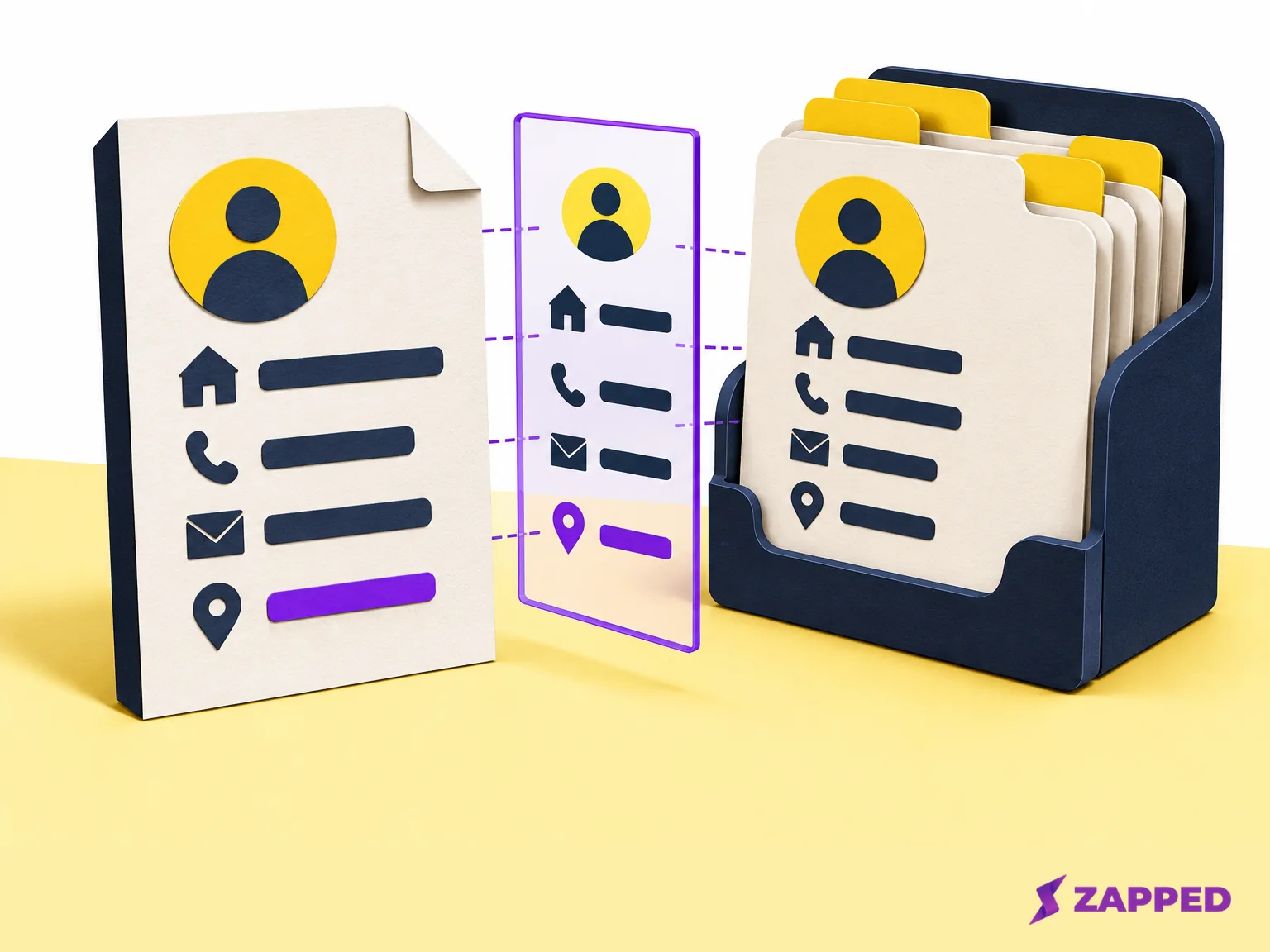
Move contacts through CSV instead
If you're moving many contacts into Outlook or reconciling fields between systems, CSV can be a deliberate route. Microsoft documents CSV import and export, and recommends UTF-8 for new Outlook CSV imports. On Windows, Microsoft's iCloud VCF to CSV route imports the file through the Windows Contacts folder, confirms contacts individually, exports CSV, and then uses that CSV for Outlook.
Keep the VCF backup and inspect a small imported sample first, checking where each source field landed. For Google Contacts, Google advises splitting imports above 3,000 contacts.
Keep shared card details current
A corrected VCF solves today's file correction. If the real job is repeatedly updating the details behind a card you've already shared, Zapped's live digital card lets you edit after sharing while its printed QR code and shared links keep working. Use the live card for those future changes and the file workflow above to repair an existing contact export.
Replace the source only once the imported contact shows the corrected fields and every detail you chose to keep. Keep the original file as your way back.