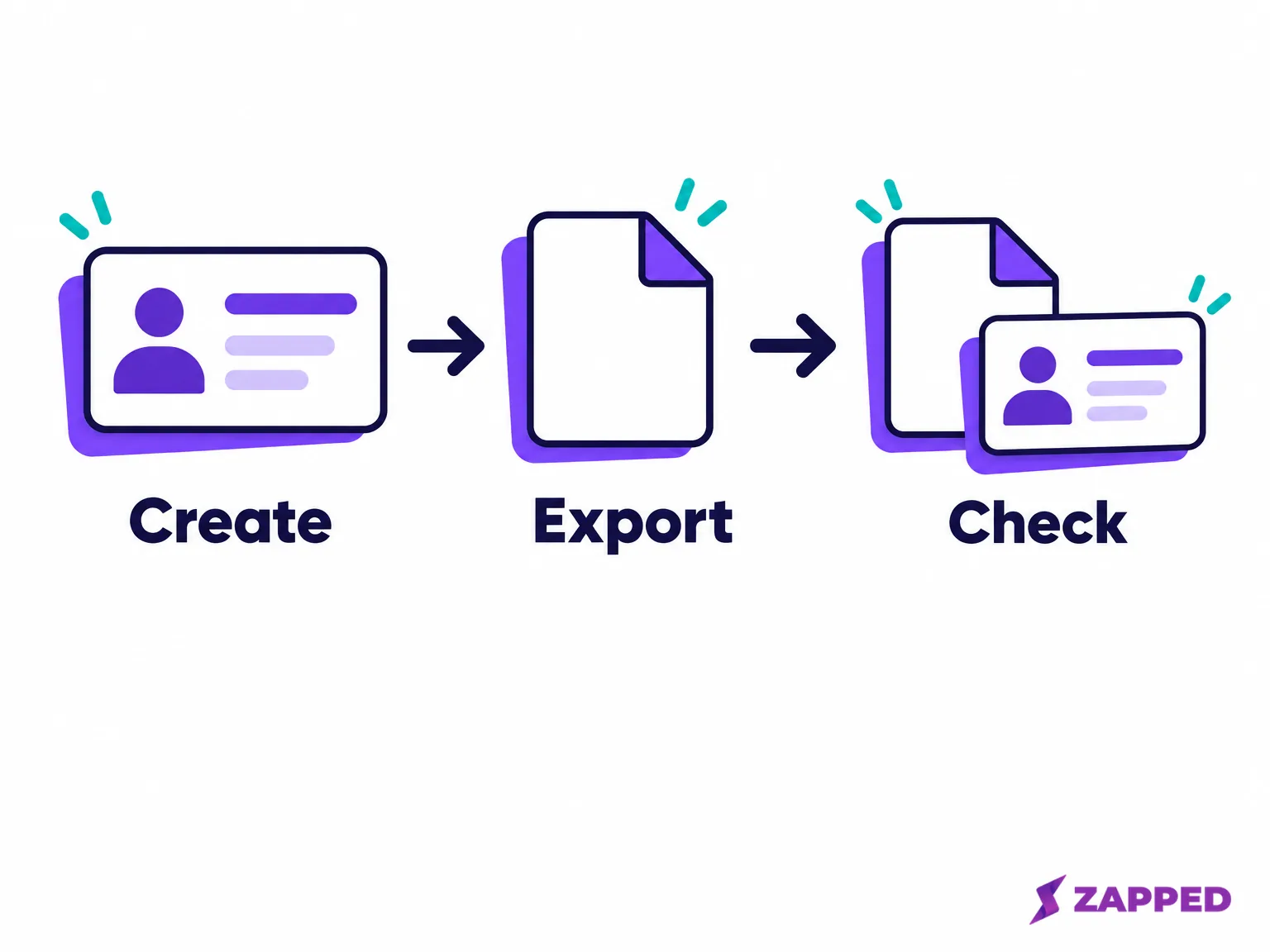
To create a vCard file, export the contact from the address book that already holds it. If no contact exists, create a small record in a plain text editor, save it as a real .vcf file with UTF-8 encoding and CRLF line endings, then import a copy before sharing.
Start with the address book. It already knows more about the person than a blank editor does. For an introduction to the format, use the vCard file guide.
Export a contact from your address book
Choose the route for the app that holds the details, and confirm its scope before you send someone your whole list.
On iPhone, Apple's documented contact list export starts in Contacts > Lists. Touch and hold the intended list, tap Export, select the fields, tap Done, then choose a method to save or send the contact cards. You can create a list with Add List if needed. Export acts on that list, not on an individual contact.
On a Mac, Apple documents exporting selected contacts as a vCard. Select the person in Contacts, choose File > Export > Export vCard, choose a location, and save. A selection of one is a useful starting point when the recipient needs one person's details.
iCloud Contacts also exports selected contacts as a vCard. Select the intended contacts and use Share > Export vCard. Several selected contacts become one vCard file, so check that the selection contains everyone you intended, and nobody else.
On Android, Google's Contacts instructions describe exporting one or more accounts to a .VCF file. Choose the intended account or accounts through that export route.
Google Contacts on a computer needs a little care. Google's help names CSV and vCard as transfer formats, but its current detailed export steps specify Google CSV. If the contact is available on Android, the documented Android exporter gives you a VCF route. If your starting file is CSV, use the spreadsheet route below.
For classic Outlook, Microsoft documents File > Save As on an open contact to save a .vcf. The instructions cover classic Outlook for Microsoft 365 and Outlook 2024, 2021, 2019, and 2016.
Pick the fields and vCard version
Start with the display name, phone, and email. Add a structured name, organization, and website when those details matter to the person receiving the contact.
The vCard 4.0 specification calls the display name FN, the formatted name. N holds five structured components in this order: family name, given name, additional name, prefix, and suffix. TEL carries the phone, EMAIL the email address, ORG the organization, and URL the web address.
A vCard 4.0 record starts with BEGIN:VCARD, puts VERSION:4.0 immediately next, includes FN, and ends with END:VCARD. N is optional in the 4.0 grammar, but belongs in a record whose name fits those structured components.
If the destination specifically requires vCard 3.0, the older specification requires VERSION, FN, and N, with a version value of 3.0. Don't convert the example by changing its version line alone.
If you're starting with a spreadsheet, map First Name and Last Name to FN and N, Organization to ORG, Phone to TEL, Email to EMAIL, and Website to URL. For a list of contacts, use the CSV to vCard conversion guide.
Write one contact in VS Code
For a contact that doesn't exist in an address book yet, desktop VS Code gives you a manual route you can inspect. Its documented file commands include New File and Save As. Create a new Plain Text file and paste this complete fictional record:
BEGIN:VCARD
VERSION:4.0
FN:Alex Rivera
N:Rivera;Alex;;;
ORG:Example\, Inc.
TEL:+1-202-555-0147
EMAIL:[email protected]
URL:https://example.com/alex
END:VCARD
What to look for, following the vCard 4.0 text rules:
- The four semicolons in N stay unescaped because they separate the five name components.
- A literal comma, semicolon, or backslash inside a value needs a backslash in front of it, as in ORG:Example\, Inc.
- BEGIN:VCARD, VERSION:4.0, FN, and END:VCARD stay in place.
Replace the fictional phone, email, and website with the details you chose. If there's no organization or website to share, remove that line rather than leaving Example, Inc. or example.com in a real person's file.
Save the file with UTF-8 and CRLF
The vCard 4.0 specification requires UTF-8 and CRLF: the first is the text encoding, the second separates the individual lines. Set both on the file you're about to save.
- With the file active in VS Code, click the end of line control in the status bar and select CRLF. The editor's status implementation exposes Select End of Line Sequence, with CRLF and LF choices.
- Check the encoding control. VS Code documents saving with a chosen encoding through that status bar control, so choose UTF-8 using Save with Encoding when needed. VS Code's file settings list UTF-8 as the default, but check the active file rather than relying on the default.
- Use Save As, Close, and Open File to save the record as alex-rivera.vcf, close it, and reopen the saved file.
- Confirm the true filename ends in .vcf, not .vcf.txt, and that the status bar still shows UTF-8 and CRLF.
If your editor can't expose or confirm the active file's encoding and line endings, stop the manual route. Create the contact in an address book and use its documented exporter.
Import a copy and check the contact
Import a copy into the contact app that will receive the file. Google's documented VCF import steps are Import > select the file > Import. Apple's iCloud Contacts guide also supports importing a vCard. Microsoft says a received vCard opens a contact form displaying its information and can be added to Outlook contacts.
Then compare the imported contact with the saved text, following the vCard record structure. Check for:
- The right number of contacts, one if you intended one person.
- The name, phone, email, organization, and URL you included.
If a field is missing, keep the original file and return to the source record. If the file won't open or imports incorrectly, use the vCard repair guide before distributing more copies.

Share a live card instead
A saved VCF gives someone a contact file to import. If you'd rather share a profile you can update later, Zapped offers a complementary digital vCard that you can share by link, QR code, or NFC tap and update after sharing.