“Open” can mean two things with a VCF: look inside it, or save the contact somewhere. To look, inspect a copy as text. To save, pick the receiving app and account first, finish its Add, Import, or Save & Close action, then search for the contact. For the broader format explanation, see our vCard and VCF overview.
Check the file before you import it
Make a copy so the original stays untouched. In Windows File Explorer, right click the copy, choose Open with, choose another app, and select Notepad. Microsoft’s Open with and Notepad route covers it. For more on reading a VCF without importing it, see our VCF reader guide.
A small vCard record looks like this:
BEGIN:VCARD
VERSION:4.0
FN:Jordan Example
N:Example;Jordan;M;Dr.;Jr.
TEL;TYPE=cell:+1-202-555-0147
EMAIL:[email protected]
END:VCARD
What to look for, based on the vCard record rules:
- BEGIN:VCARD and END:VCARD mark each record.
- FN is the formatted name. N holds family, given, additional, prefix, and suffix in that order.
- TEL carries a telephone value and EMAIL carries an email address.
Note how many contacts to expect
A file with several contacts has several BEGIN:VCARD and END:VCARD pairs. Count them in your text copy so you know how many people to expect after the import.
Save the contact on your device
Decide where the contact should land before you select the file, then finish the app’s own save action.
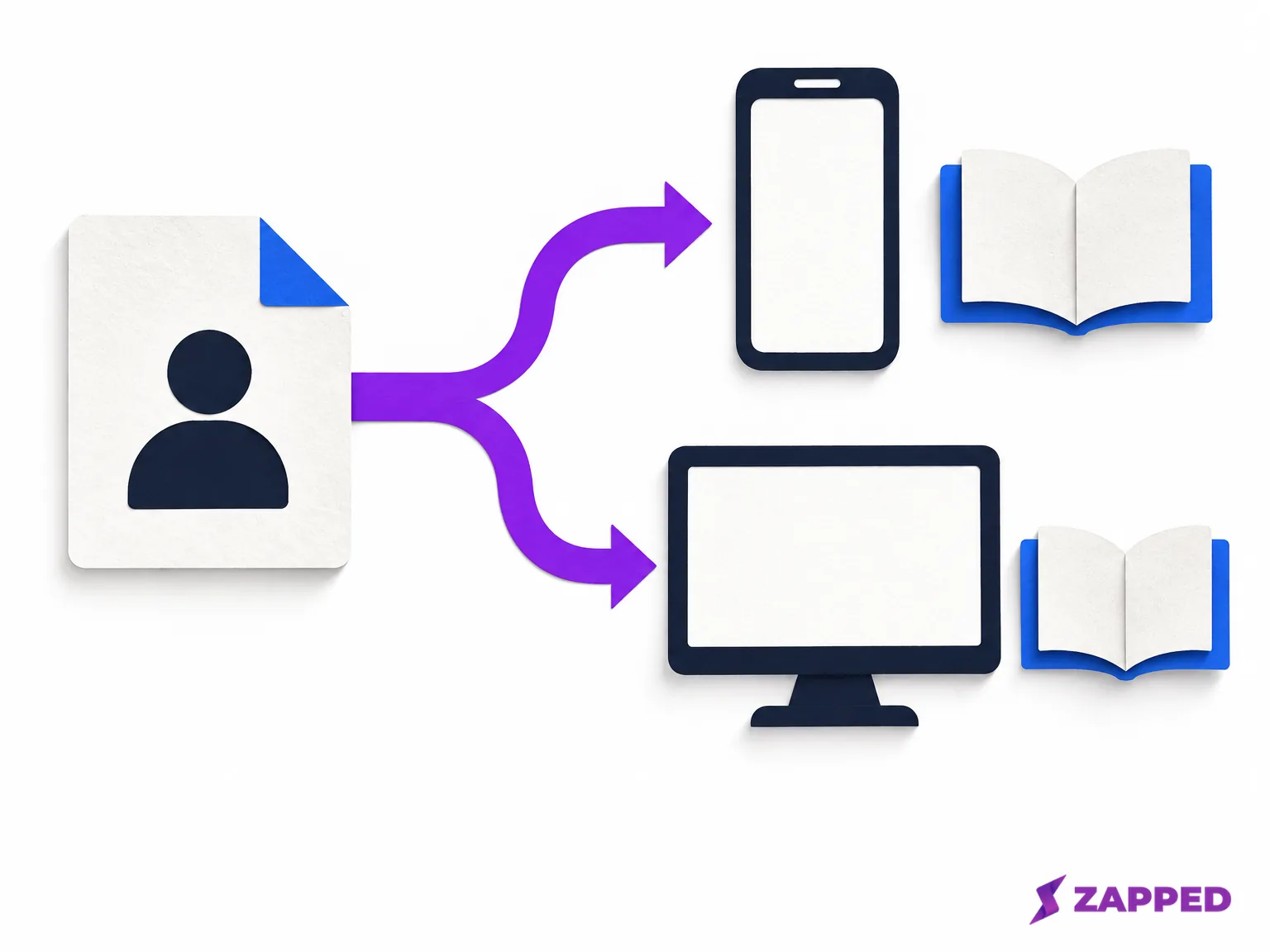
Open a VCF on iPhone
- Make sure the VCF is an attachment in an email or message.
- Tap the .vcf attachment and finish the contact action it offers.
- Search your contacts for Jordan Example, the phone number +1-202-555-0147, or the email [email protected].
Don’t go hunting for an Import vCard menu. For the full walkthrough, see the iPhone VCF procedure.
Open a VCF on Android
- Open Contacts and tap Organize.
- Tap Import from file.
- Choose the Google Account that should own the record. Google Contacts asks you to choose when more than one is signed in, so do this before you browse for the file.
- Select the VCF and complete the import.
- Search that account for Jordan Example and confirm the phone or email.
Contacts from signed in Google Accounts can appear on the same device, and changes sync to Android. That helps only if you chose the account you meant to use.
Open a VCF on Mac
- Know whether the record belongs in the Apple Account contact list or a local list.
- Double click the VCF, drag it to Contacts, or open Contacts, choose File, choose Import, and select the VCF. See the Mac import options.
- Click Add. Contacts indicates when it finds duplicates, so review that notice rather than creating a second copy by reflex.
- Search the intended list for Jordan Example and check the phone or email.
When the same Apple Account is used on your devices and Contacts is enabled in iCloud settings, the contact becomes available on those devices.
Open a VCF in classic Outlook
This route is for a supported classic Outlook desktop version and a vCard attached to a message. Microsoft’s received vCard procedure covers Outlook for Microsoft 365, Outlook 2024, 2021, 2019, and 2016.
- Click the vCard in the message and right click it.
- Choose Add to Outlook Contacts.
- Click Save & Close. If the message has several vCards, repeat for each.
- Search the Contacts folder under the email account that should own the records, and check Jordan Example plus the phone or email.
If the attachment isn’t the right shape for this route, use the Outlook import procedure.
Open a VCF in Google Contacts on the web
- Sign in to the Google Account that should own the contact.
- In Google Contacts, choose Import, then Select file. The browser VCF import takes it from there.
- Select the VCF and choose Import.
Open an iCloud VCF in Outlook on Windows
An iCloud VCF and an Outlook CSV import are different formats, so Windows is the bridge. In File Explorer, open the Contacts folder under your Windows user profile (C:\Users\<username>\Contacts), choose Import, choose vCard (VCF file), select the VCF, and confirm each contact. Close Windows Contacts, choose Export, choose CSV file, and export the result. Microsoft documents this as the iCloud VCF to CSV route.
Then import the CSV into Outlook. Choose the Outlook version you actually use:
- New Outlook: open People, choose Import contacts, choose Browse, select the CSV, choose Open, and choose Import.
- Outlook on the web or Outlook.com: open People, choose Manage contacts, choose Import contacts, choose Browse, select the CSV, choose Open, and choose Import.
- Classic Outlook: choose File, Open & Export, Import/Export, Import from another program or file, and Comma Separated Values.
Microsoft’s CSV import guidance covers these version specific routes. For New Outlook, keep the CSV in UTF-8 encoding, because unreadable text can be rejected when the encoding is wrong. In classic Outlook, choose duplicate handling deliberately: replace duplicates, allow duplicates, or do not import duplicate items. Then choose the destination Contacts folder under the account that should own the records.
Fix a contact that didn’t save
If the contact is missing, recheck the selected account or folder before importing again. On Android, look at the Google Account you selected. In classic Outlook, look at the Contacts folder under the owning email account. On Mac, check whether you added the record to the Apple Account list or a local list.
If the VCF opened in the wrong app, use your text copy to inspect it, or go back to the receiving app route for your platform.
If the file has several people, iCloud.com Contacts turns each person in a multi person vCard into a separate entry and adds imported contacts to All Contacts, using its vCard import route.
If the text looks invalid, keep your copy and follow the VCF file recovery route. Don’t install an unverified importer.

Share a live card next time
If the next exchange should stay editable, a Zapped digital card can be shared by link, QR code, or NFC tap and opened in a normal browser, so the recipient can save the details without installing an app. It complements the static VCF already in hand. Repairing or converting that file remains a separate job.