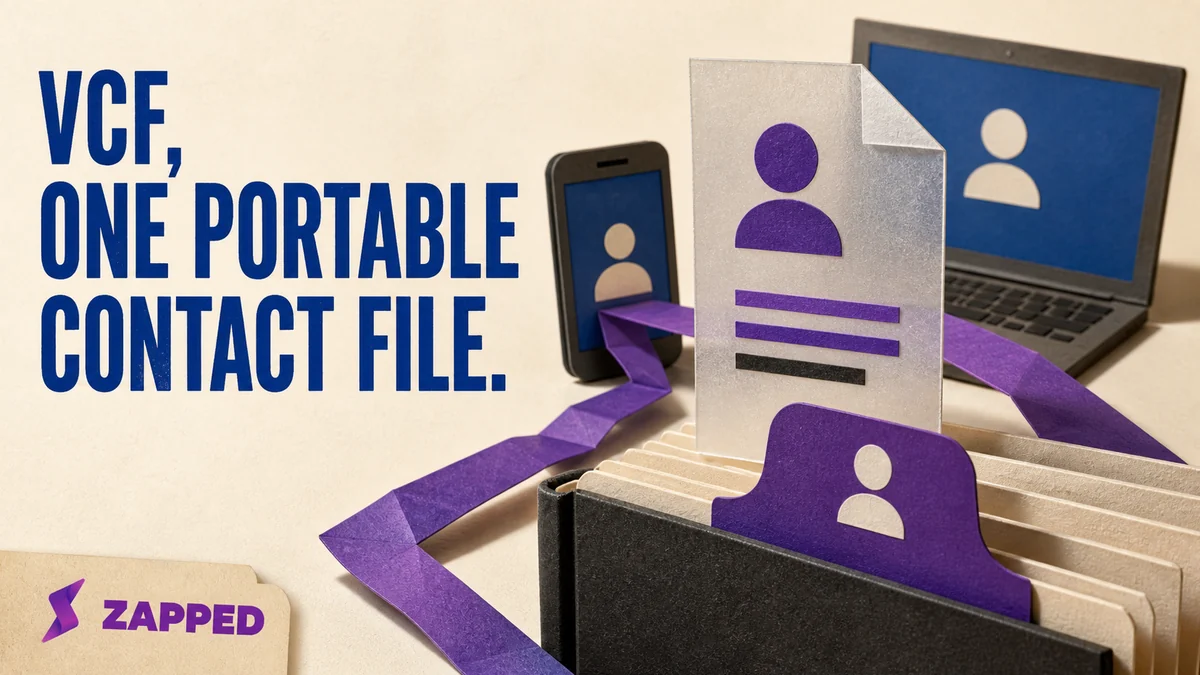
A .vcf file is usually a vCard, a structured contact file that can carry names, numbers, email addresses, and more. It is a portable handoff. The receiving address book still decides which fields it will display or preserve.
That small distinction explains most VCF surprises. One app imports the name and phone number cleanly, another puts a note somewhere else, and Outlook documents saving received vCards one at a time. Keep the original file, use the destination's documented import route, and check the result before you call the transfer finished.
First, make sure it is the kind of VCF you think it is
Context tells you more than the suffix. A .vcf file attached to an exported contact or sent as someone's details is usually a vCard. The same extension is also used for Variant Call Format files, so the surrounding app, message, and export action are useful clues before you import anything. A VCF has two formats, which is why opening the right kind of file matters.
The contact version is an open format for exchanging electronic contact information. It is meant to move business card details between systems, not to make every system agree about how those details should look.
Read the file as a small record, not a blob
The quickest orientation is to look for the record boundaries and the first required fields. In a version 4.0 vCard, BEGIN:VCARD starts the record, VERSION:4.0 follows immediately, content lines carry the details, and END:VCARD closes it. FN is required, so it is the formatted name field worth finding. The vCard specification defines that basic structure.
BEGIN:VCARD
VERSION:4.0
FN:Example Person
...
END:VCARD
That shape answers two practical questions. First, you are looking at contact data rather than an ordinary document. Second, repeated vCard sections tell you the file contains several records. Do not assume that one VCF suffix means one person.

Decide which fields must survive the move
A vCard can carry the details people actually need from a business card: name, phone number, email address, physical address, organization, job title, note, and URL. It can also include optional information such as a photo, birthday, category, instant messaging identifier, or logo. The Library of Congress describes vCard's business card fields, while the specification defines the wider field set.
Before moving the file, decide what would make the transfer useful. For a simple personal contact, that might be the full name, one phone number, and an email address. For a work contact, the organization, title, address, note, and URL may matter just as much. If an app imports only the basics, you want to notice while the original is still available, not after you have treated the new address book as the source of truth.
The file can hold more than the destination chooses to show. That is a compatibility limit, not evidence that the VCF was empty or malformed.
One contact or many changes the import job
The vCard format allows one file to contain one or more vCard objects. A single contact export and a collection of contacts can therefore share the same .vcf extension and look similar at first glance. Count the people you meant to move, then count them again after import.
This matters most when the file came from an export rather than a single contact share. If you expected a group and the receiving app shows one person, stop there and preserve the original. The safest next move is a documented route that handles the platform and the file size you actually have.
Pick the route your destination actually documents
The destination app is the final interpreter of the file. These routes are useful starting points:
| Destination | Documented route | Boundary to remember |
|---|---|---|
| iPhone | Tap the .vcf attachment in an email or message, as Apple documents in its iPhone vCard import guide. | This is the direct path for a received attachment. |
| Mac Contacts | Import the .vcf file in Contacts. Apple lists VCF as an import format in its Mac Contacts import guide. | Use the Contacts app when the file is on the Mac. |
| Google Contacts | Open Import, choose Select file, and choose the .vcf. Google's contact import instructions identify VCF by its extension. | An imported detail may appear in Notes, and Google documents splitting imports above 3,000 contacts. |
| Outlook | Save a received vCard attachment as a contact. Microsoft's Outlook vCard instructions document saving received vCards one at a time. | This route is a poor fit for a large collection. |
| Outlook from an iCloud export on Windows | Import the VCF into Windows Contacts, export it to CSV, then import the CSV into Outlook. Microsoft's iCloud VCF conversion route is the documented fallback. | Microsoft warns that an iCloud export can contain only one contact when you meant to export all of them. |
The table is not a promise that these platforms implement vCard fields identically. It is a route map. Choose the path that matches where the file came from and where the contacts need to land.
When the import loses something, recover from the original
Do not edit away the evidence. Keep the untouched VCF, compare the contact count, and check the fields you decided mattered before deleting or replacing anything.
Google Contacts has a specific place to look when a detail seems to vanish: an imported detail may appear in the contact's Notes section. Google also documents splitting an import when the file contains more than 3,000 contacts. That is a different problem from a missing field, so check the count before you start rebuilding records by hand.
For an iCloud export headed to Outlook on Windows, use the Windows Contacts conversion route. Microsoft says the process becomes tedious above roughly 50 contacts, which is a useful point to stop treating a one at a time attachment workflow as a bulk transfer. If the file was meant to contain many people but the export has only one, go back to the export rather than multiplying the incomplete result.
VCF for a file handoff, live card for an editable share
Use a VCF when the recipient needs a portable file they can import into an address book. It is a good handoff for moving a contact or a collection of contacts, especially when you can preserve the original and verify the result on the other side.
Use a live card when the real job is sharing details that may change after the first meeting. Zapped is one documented option: its card can be shared by QR code, link, or NFC tap, opens in a normal browser without an app or account, and lets the recipient save the contact. Because the card is live, edits keep working through the printed QR code and shared links after you share them.
That is the clean dividing line. A VCF carries a snapshot through an import route. A live card carries a shareable page that can be edited later. Pick the file when portability is the point; pick the live card when the details need to stay changeable.

The rule that prevents most VCF surprises
Before you import, make three checks: identify the file from its context, read the record boundaries, and decide which fields and how many contacts you expect. Then use the route documented for the destination, keep the original, and verify the contact count and important fields.
If you are moving a contact once, send the VCF. If the details need to remain editable after sharing, use a live web card instead. The important choice is not the suffix. It is whether the next person needs an importable snapshot or an editable page.