To convert a vCard file to CSV, use Google Contacts on a computer, Microsoft's Windows Contacts route for an iCloud export, or Contacts and Numbers on a Mac. Keep the original VCF, compare the exported fields, and try a small destination import before sending the full set. A neat spreadsheet can still be missing the second phone number.
Check whether you can skip the conversion
Google documents importing an existing VCF file, Apple lets Mac Contacts import a VCF, and iCloud Contacts can import a vCard. If one of those is your destination, use the original file directly.
When you do need CSV, choose the receiving system first, because its columns determine where the values must go. For background on the file you're starting with, see our guide to VCF files.
Convert a VCF to CSV in Google Contacts
Google's documented VCF import sequence runs through Google Contacts on a computer. Confirm first that the Google account is an acceptable place for these contacts.
- Open Google Contacts and choose Import.
- Choose Select file, select the VCF, and choose Import.
- Select only the intended imported contacts, not every contact already in the account.
- Choose More actions, then Export.
- Choose Google CSV, then Export.
Steps four and five follow Google's Google CSV export instructions.
Google identifies import problems when you try more than 3,000 contacts at once, reach its 25,000 contact limit, or use an unsupported format. If a detail seems missing after import, Google directs you to Notes, so check there first.
Convert a VCF to CSV on Windows
For an iCloud VCF headed to Outlook, Microsoft documents a Windows Contacts bridge. Open the Contacts folder and follow this sequence:
- Choose Import, select vCard (VCF file), and choose Import.
- Select the VCF and confirm each contact with OK.
- Choose Close, then Export.
- Select CSV file, choose Export, choose the fields to include, and finish.
Don't click past the field selection. It's where you decide what the CSV will contain.
Microsoft also warns that an iCloud VCF can contain only one contact when you meant to export all of them. Apple says selecting several contacts in iCloud produces one vCard containing them all. If you expected a whole list and got one contact, return to the iCloud selection before converting again.
Convert a VCF to CSV on a Mac
Apple documents three ways to import into Mac Contacts: open the VCF, drag it into Contacts, or choose File and Import. Then follow Apple's Contacts and Numbers route:
- Select the contacts in Contacts.
- Drag them into Numbers.
- Choose File, Export To, and CSV.
Apple notes that notes, photos, and choices about private cards can affect which fields are included. Decide whether you need those details before exporting.
Export a VCF from your phone
On iPhone, Apple documents exporting a Contacts list: select a list, choose Export, choose the fields, select Done, and save or send the exported contact cards. Choose the fields deliberately. A field left out here won't appear later by changing the spreadsheet header.
On Android, Google's documented route is Contacts, Menu, Settings, Export. Choose the account or accounts, then Export to .VCF file. The account selection determines which contacts you take with you.
When the receiving system requires CSV, continue with a computer route above.
Use a script or online converter
For sensitive contacts, start with a local route that meets the destination's needs, or a platform account you're prepared to use for the data. If an upload converter doesn't explain how it handles the file or its field map, use a route you can assess and convert a small subset first.
The open source vcard2csv repository documents running locally, but says it preserves only some fields and does not implement vCard 4.0. HowToCSV says its parser runs in the browser and joins multiple numbers or emails into one cell separated by semicolons. Choose that only if the receiving system can use a combined cell.
See how vCard fields map to CSV columns
The vCard standard describes structured contact information, including names, delivery addresses, emails, multiple telephone numbers, and photos. A CSV has a different shape: RFC 4180 describes comma separated fields, with an optional header whose field count should match the records below it.
In vCard 4.0, RFC 6350 allows repeated TEL and EMAIL properties, with TYPE parameters for labels such as cell or work. Here is a fictional record with two phone numbers:
BEGIN:VCARD
VERSION:4.0
FN:Alex Rivera
N:Rivera;Alex;;;
TEL;TYPE=cell;VALUE=uri:tel:+1-416-555-0142
TEL;TYPE=work;VALUE=uri:tel:+1-647-555-0198
EMAIL:[email protected]
END:VCARD
Google's contact template uses numbered label and value columns, and allows extra columns for additional phone numbers or emails. This fictional row shows that shape:
First Name,Last Name,Phone 1 - Label,Phone 1 - Value,Phone 2 - Label,Phone 2 - Value,Email 1 - Label,Email 1 - Value
Alex,Rivera,Cell,+1-416-555-0142,Work,+1-647-555-0198,Work,[email protected]
What to look for in your own export:
- The name is split into First Name and Last Name columns.
- Each phone number gets its own value column, with its label beside it.
- The email label (Work here) is not in the VCF, so a label on your email may come from the converter.
The headers are Google's, not universal. Use the destination's expected names and keep separate places for repeated values.
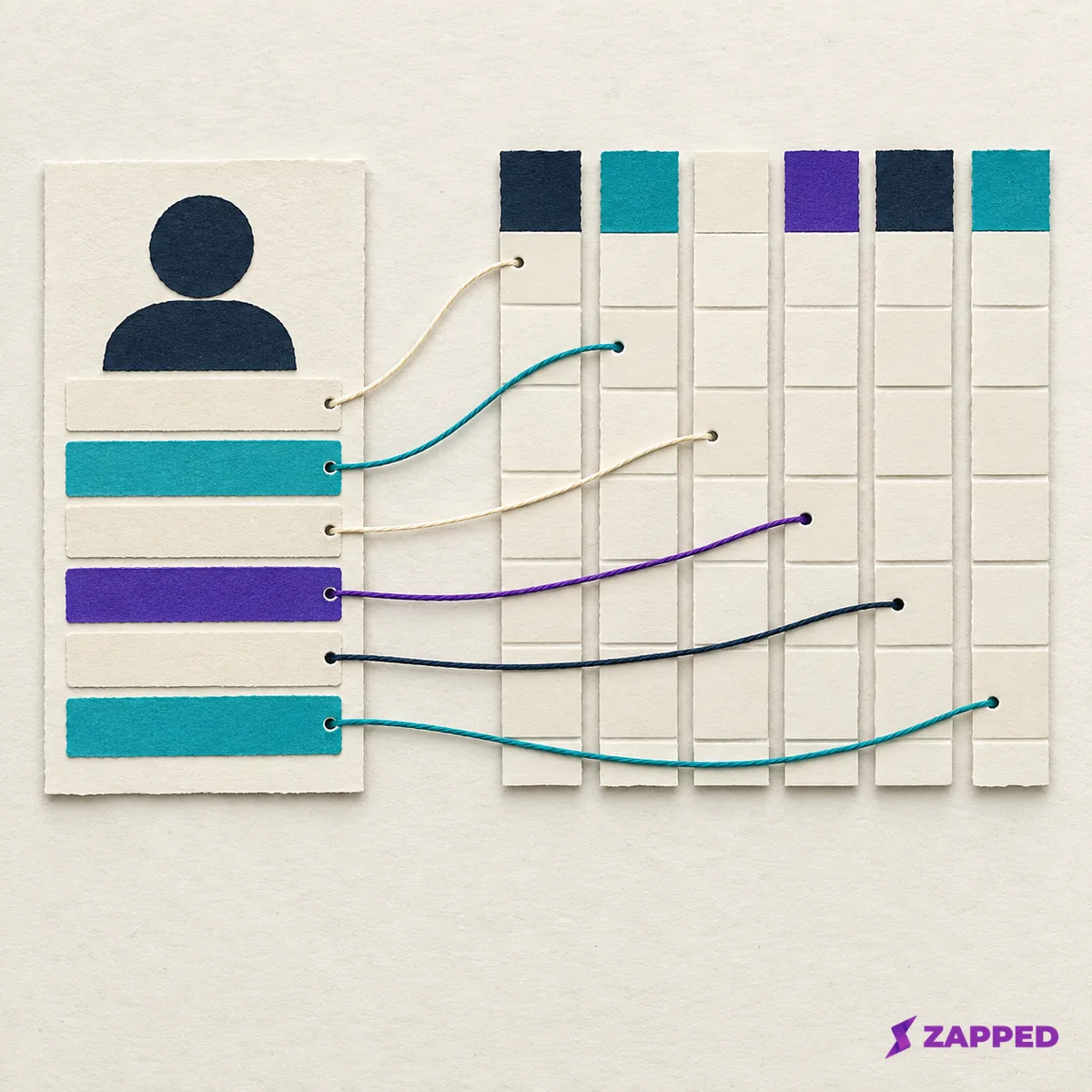
A converter also has to understand the vCard version, unfold folded lines, and decode escaped values. Renaming the file or replacing its punctuation with commas doesn't do that work.
Check the CSV before the full import
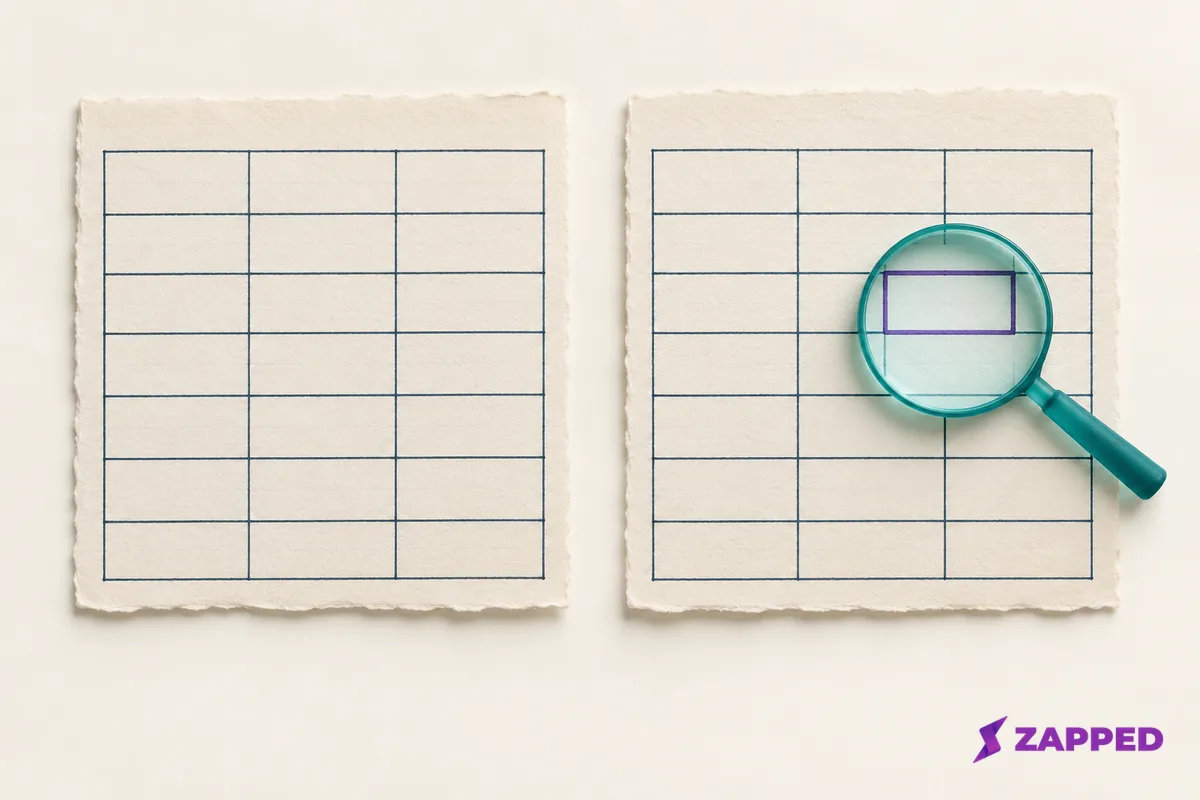
Microsoft's guidance for preparing contact CSV files supports checking the table before import.
- Compare the intended contact count with the data rows.
- Inspect the header and delimiter shape.
- Look at contacts with repeated fields, punctuation, and accented text. Check a second phone or email, its label, and any notes, addresses, organization, title, URLs, custom fields, or photos you need to keep.
- Import a small set into the destination and inspect what lands there.
Apple notes field choices in Mac exports, while Google recommends checking Notes for missing details.
Fix common CSV import problems
If the trial import fails, the symptom tells you where to go next:
- The contact count is wrong. Return to the source selection. For an iCloud export, check Microsoft's documented single contact export problem. Adding spreadsheet rows won't recover contacts you never exported.
- Accented names look garbled. Microsoft recommends UTF-8 for Outlook CSV and says to cancel an unreadable import preview, correct the encoding, and restart.
- A value exists in the CSV but lands in the wrong field. Correct the destination's field mapping and retry the small import.
- A value is absent from the CSV. Return to the untouched VCF and export again with a route or field choice that retains it. A new column name can't restore a missing phone number.
- A note or address spills across columns. RFC 4180 requires appropriate double quote escaping for commas, quotes, and line breaks inside a field. Correct the quoting or use a route that handles the field before trying again.
When the small import lands in the right fields, the count matches, and your details survived, send the full CSV. Keep the original VCF until the destination has proved it can use those details.
Once the values are intact, our VCF to Excel guide covers displaying or cleaning the table in Excel. For the reverse direction, use the CSV to vCard guide.
If your real goal is to keep a live, editable contact card available to people, Zapped offers link, QR, and NFC sharing with a browser experience for recipients.